THE PP GAME!

My tryings;


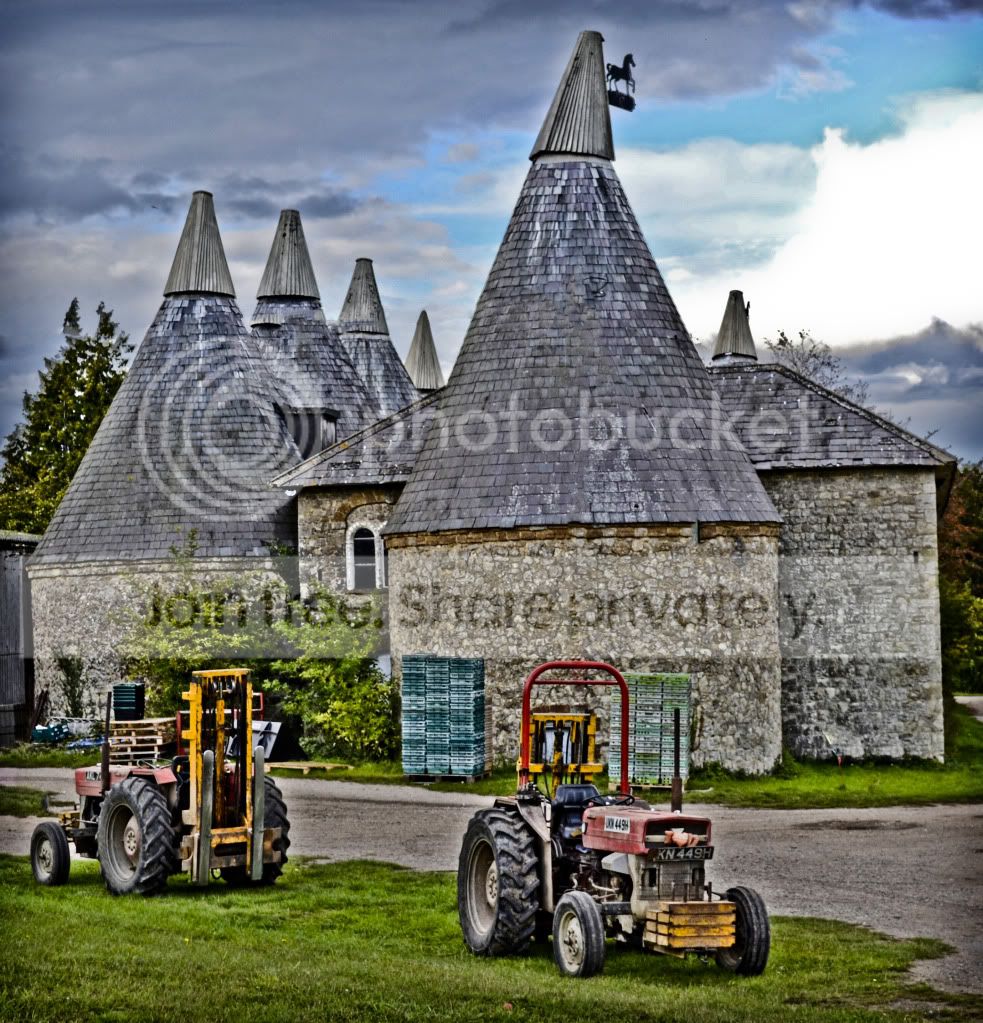
Farm by Adrian Deans, on Flickr

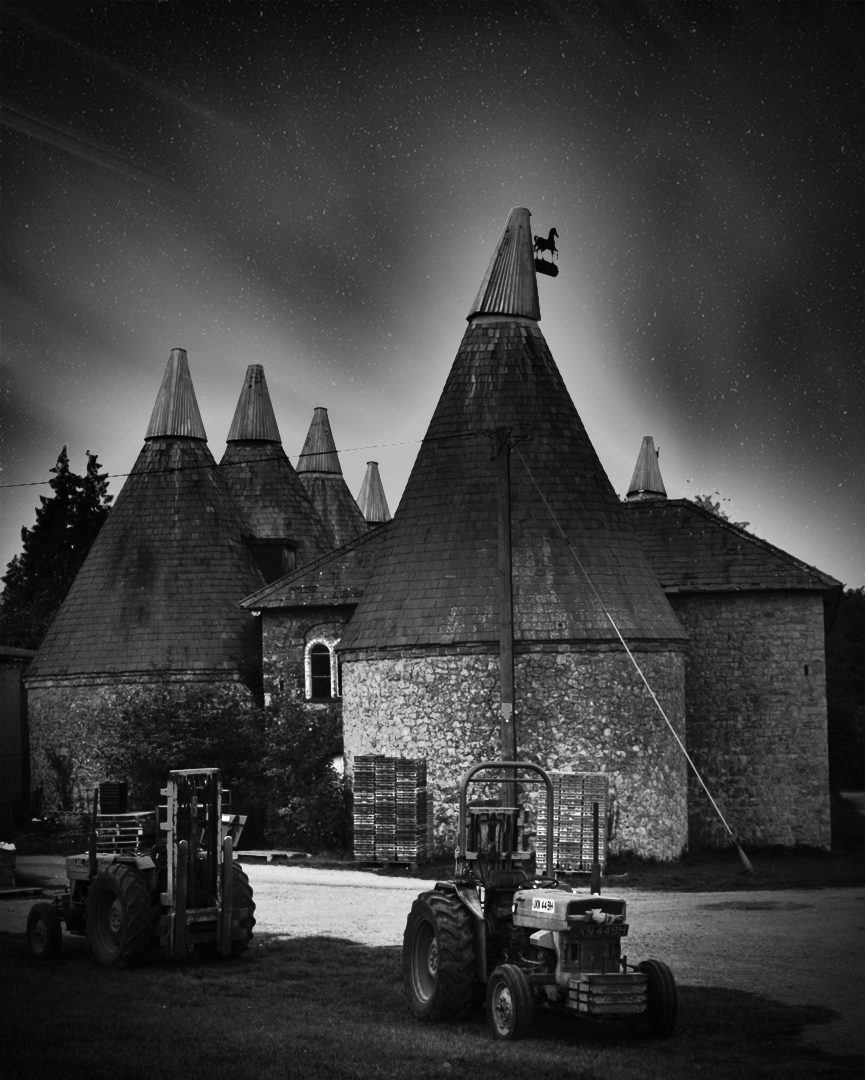
I'll be honest, this pic looked crap untill i turned it into black and white, i was just about ready to ditch it before i tried B&W and luckily, it worked out, i think.

First i replaced the sky by doing the following;

Copied the blue channel of the farm layer (go into channels palette, select the blue channel, and drag it to the new layer icon). Next i used levels to pretty much make it mono chromatic (complete black/white, no greys) then tidied up using black paint brush and burn tool. Next i created a mask for the farm layer, and applied image using the copied blue channel as a source. This gave me a nice mask, but i had to refine it using refine mask command. Before cs5 i believe you had to turn the mask into a selection, refine the selection, then apply as a mask again. I inserted a 'space' background, which i recently made in photoshop. Next added an outer glow to the farm layer (i had previously applied the mask to the layer), turned the fx outer glow into a layer, erased glow around bottom of image. Next i darkened the farm layer with curves, and warmed it up using colour balance. I wasnt looking right so i played around doing random things, until i got to trying B&W. After that some dodge and burn and a vignette.

I actually quite like it, its not like anything i've ever edited before, and it was a complete fluke:lol:

Oh, and i've been a bit busy lately, thats why i haven't been contributing.

:thumbs:
 
Last edited:
Great minds think alike.....definitely a mono pic, here's my effort

farm2010b.jpg


Cloned out wires, cables and left hand tractor and bits & bobs, tweaks of levels, curves etc. convert to B&Wvia gradient map, slight diffuse glow then a smidge of vignette.
 
Used content aware fill and clone tool to remove tractors, also cropped image slightly
Imported into Silver Efex Pro where I customised the Dark Sepia Preset by
• Adding the Ilford FP4 Plus 125 Film Type
• Adding a Vignette
• Adjusting Toning
• Added Border & Burnt Edges
Sharpened with High Pass technique in Photoshop.


FKvN0.jpg
 
Last edited:
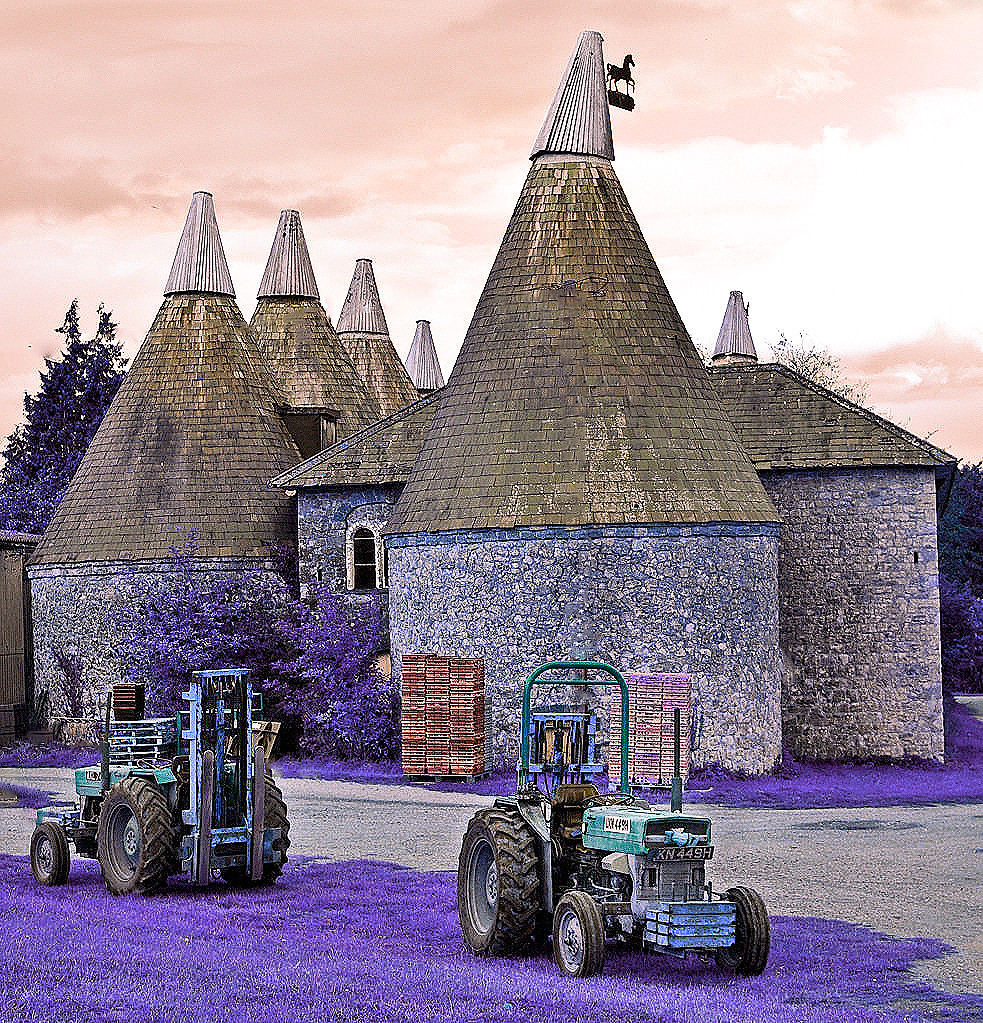
I quite like the photo so I thought I'd have a bash at this and my first attempt at IR.

6170233552_2e1233434d_b.jpg
 
went for the punk look! :)
 
Well done Stormcrow, look forward to the next pic, hopefully more entries too, seems it's just down to a couple of us now.
 
Thanks Walter.
Ok here is my photo for you to work on.
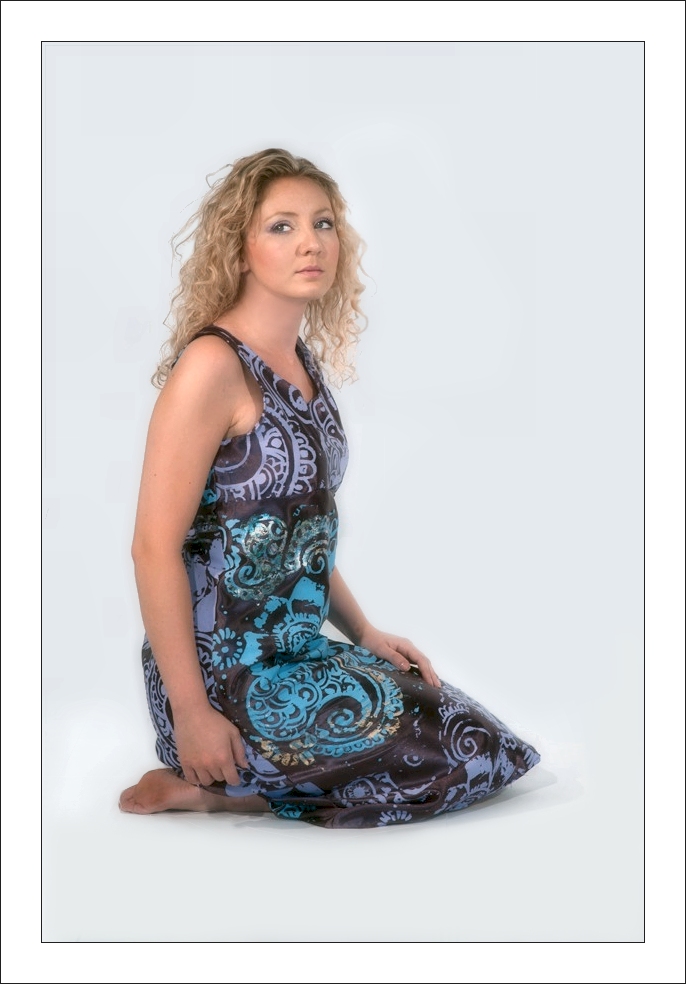
This is a photo of our technician at work modelling a dress made by a student. As you can see from this photo I never photograph models in fact this was my one and only go so there is quite a bit of sorting out to do etc.
You have until 9pm Friday to get your entries in.

2du27.jpg
 
Last edited:

2du27-edit by tonky8203, on Flickr

Evened out the background using a combination of the colour replacement tool and cloning, leaving enough shadow to keep her grounded.

Removed shadow under the chin.

Enhanced catchlights in the eyes.

Adjusted levels for a warmer look.

Applied a slight soft focus effect.

Added borders.
 
Last edited:
Here's mine

Dale_pic.jpg


Removed shadows on face & neck, extended dress around armpit area, a little work on the lips, cleaned up eyes, moved highlight in the left eye (left as you look at the pic),
diffuse glow to skin, selective sharpen of eyes, I think that's it

Joan
 
Whitened background, lifted light around eyes and removed shadows around nose and under chin, some face resculpting and under the bust where the dress was baggy. Put some colour in dress where it looked colourless and lifted around arm/shoulder strap. Added some hair. A few other bits and pieces but I think those were the main ones

stormcrowdress.jpg


stormcrowdress2.jpg
 
Here's mine:
Dale_Richardson_100705_Linda_Dress-52_copy.jpg

Cropped, reduced black -100% in selective colour (white channel) to make white b/g.
Increased contrast.
Increased mouth to 105%
Smoothed skin
Sharpened hair, eyes, mouth & clothes.
Liquified.
Reduced black in red channel for red eye.
Increased saturation & hue in eye make-up.
 
Only 90 mins left to get your edits posted

EDIT: Slight change of plan I've just had a call and i have to go and help a friend sample a few beers and watch a movie so results will be later tonight ie 11(ish)
 
Last edited:
Well done everyone some good edits but as you know there can only be one winner and this time the winner is CT
So CT it is now your turn to supply the image.

EDIT: 2nd place goes to photoimaging so if no responce by CT by Sat 9pm then it is over to photoimaging to supply next image.


Here is my edit of the photo

tdgNd.jpg


• Cloned out paper then I used canvas resize to create a square image then filled in the extra with content aware fill.
• Some adjustments to saturation and exposure.
• Used the patch tool to soften the edges of the hard shadows on the face and neck.
• High pass sharpening was then masked to selectively sharpen the eyes & mouth.
• Portraiture plugin used then that layer was adjusted to 70% in Photoshop and selectively applied to face with a mask.
• Created a B&W layer then adjusted its opacity to 30% to desaturate the image.
• Finally I added a photo filter adjustment layer – Warming Filter (85) 20%​
 
Last edited:
:clap: Congrats to CT
 
Thanks. :) I'm a bit surprised - I really liked Joan's tilt-of -the -head version. Give me a couple of hours and I'll post something up for you to play with. :thumbs:
 
Heres my go.
White balance ajust, dodge background and ajust skintone slightly, plus a bit of clarity.
6177686282_9b0e4ba788_b.jpg
 
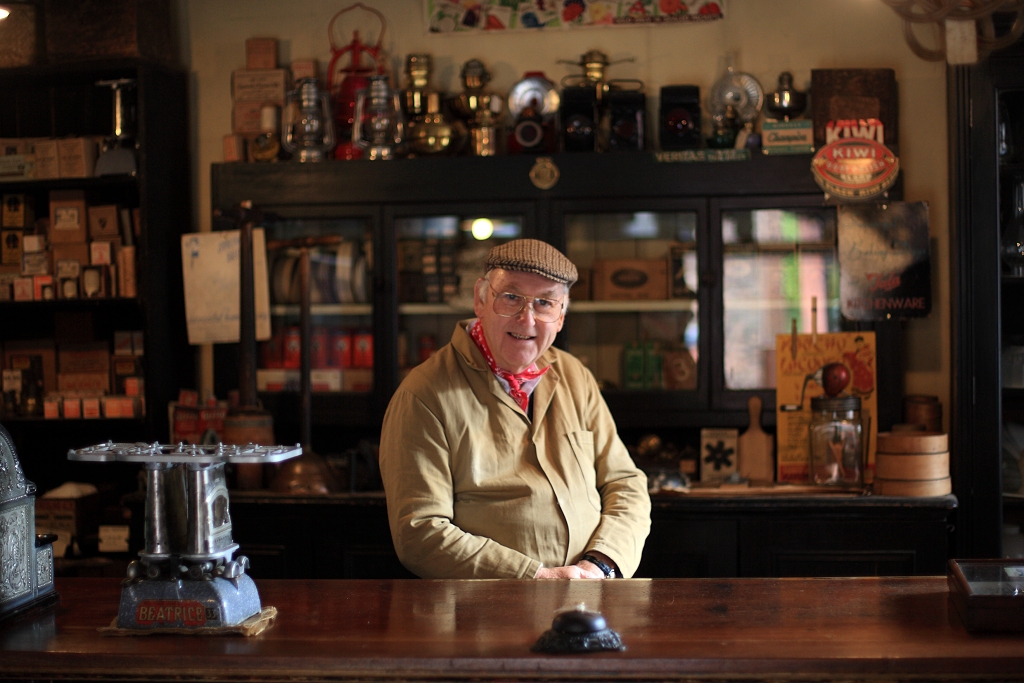
Here you go then. I like the lighting in this shot although he's not as sharp as he could be. I'd really like to see what you all make of it.


OY8N4024 1 by tonky8203, on Flickr

There's a full sized version for you to download here - sorry- can't host a raw file.

http://www.flickr.com/photos/tonky8203/6177715486/

Seeing as it's the weekend let's say closing date for entries is 9pm on Wednesday
 
Ooops, just realsied the one I submitted was closed (shows how tired I am) sorry people.
Wayne
 
CT, the larger version is set as private, is there any other way we can get the original?. If not, im happy to go with the smaller version.

Oops! I've made it public. :thumbs:
 
Just found this thread, here's my first attempt:

6181355064_2ba497f3df_b.jpg


Sharpened
Contrast adjustment
Add seperate layer, apply strong contrast, blur heavily, reduce opacity of layer to between 5 and 20%, then mask out detailed areas.
High pass filter to increase local contrast.
Burned bright areas so they don't stand out as much
 
My go,


PPCOMP25911

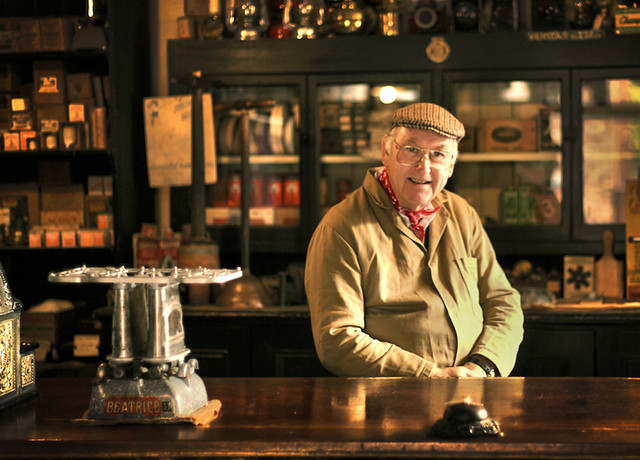
First used HDR toning to give a more film-like dynamic range (Not HDR well it is, but you know what i mean. I had radius set to its highest, gives it a nice film-like, anti-clarity softness (:shrug:).

Duplicate layer.

Next made a new layer and sampled the red from the neckerchief and the brown from the coat, made one side of the screen red, other side brown. Colour matched the duplicate layer with the colour layer, so the image was about a 50-50 mix of its original colour and the brown/red. Set the colourised layer the about 50% opacity and set a blend mode which i cant remember (colour most likely).

Next opened colour balance and added a dash of cyan and a pinch of yellow.
Some obligatory dodge and burn, and i was done.
 
Last edited:
Here's mine:
6177715486_3ff1da6ff8_o_copy1.jpg

Thought the picture could benefit from being as old as he is :)

Simple edit: turned to sepia (via action), then added noise and vertical grain. Cloned out 2 bright spots. Job done!
 
Last edited:
Where's all the entries? This round closes at 9pm tomorrow (Wednesday) :wave:
 
Back
Top