

You are using an out of date browser. It may not display this or other websites correctly.
You should upgrade or use an alternative browser.
You should upgrade or use an alternative browser.
White background help???
- Thread starter jolsterj
- Start date





DiddyDave
Suspended / Banned
- Messages
- 9,521
- Edit My Images
- Yes
OK i will pm him and hope he doesnt mind me bothering him.
Grrrrr - I eat pm-ers for breakfast - Grrrrrrr
Where's the damn 'mean & nasty' smiley when you want it

DD

Freester
Suspended / Banned
- Messages
- 1,602
- Name
- Mark
- Edit My Images
- Yes
There is a good article in this month's Digital Photo magazine about the 'high key' look.
The home brew option is white sheets, lots of natural light and then some PP also. PM me your email and I'll send you the article if you are interested.
I've been doing this at college and we use 3 studio lights! 2 firing at the background and 1 on the subject. Background light should be 2 stops higher than the subject. There are some examples on my Flickr. Nowhere near DD's quality though...
The home brew option is white sheets, lots of natural light and then some PP also. PM me your email and I'll send you the article if you are interested.
I've been doing this at college and we use 3 studio lights! 2 firing at the background and 1 on the subject. Background light should be 2 stops higher than the subject. There are some examples on my Flickr. Nowhere near DD's quality though...
Freester
Suspended / Banned
- Messages
- 1,602
- Name
- Mark
- Edit My Images
- Yes
I only have two lights and dont understand when you say background light should be two stops higher than the subject.
I'm sure you will be able to do it with 2 lights. At college we took incident light readings with a light meter - ensuring the flash light at the background was 2 stops brighter than the flash at the subject...

welly
Suspended / Banned
- Messages
- 1,766
- Name
- Alastair
- Edit My Images
- Yes
Point one of your lights at the backdrop and get the power RIGHT UP! You want to be massively overexposing the background, and bring the kids some way forward away from the background. Bit of sidelight for them and you should be onto a winner. It's pretty easy really.

Mike V
Suspended / Banned
- Messages
- 483
- Name
- Mike
- Edit My Images
- No
Point one of your lights at the backdrop and get the power RIGHT UP! You want to be massively overexposing the background, and bring the kids some way forward away from the background. Bit of sidelight for them and you should be onto a winner. It's pretty easy really.
Exactly as welly says really, depending on the set-up the best option may be to have the single light behind the subject thus giving you an equal amount of light across the back white sheet. Even if it doesn't work you will have the brightest white behind the subject with it fading out slightly towards the edges.

- Messages
- 16,666
- Name
- Ade
- Edit My Images
- Yes
OK i will pm him and hope he doesnt mind me bothering him.
He will, he is a tight fisted miserable Yorkshireman............

DiddyDave
Suspended / Banned
- Messages
- 9,521
- Edit My Images
- Yes
He will, he is a tight fisted miserable Yorkshireman............

DD

PD_BARBS
Suspended / Banned
- Messages
- 986
- Name
- Peter Barber
- Edit My Images
- Yes
If find any good info on this I would also be interested. I tried the magazine article with some good results, although it goes take some mucking about in PS.
I have a 550EX and set of cheapie lights in the post, so anything that would help get me started would be great.
I have a 550EX and set of cheapie lights in the post, so anything that would help get me started would be great.
DiddyDave
Suspended / Banned
- Messages
- 9,521
- Edit My Images
- Yes
I love it when people say how easy it is - but then usually wonder why they can't get it right 
Anyway - the b****r did indeed pm me !!!
Here's the salient points from his pm...
I want to be able to do the photos with white backgrounds. But how?
My gear is
nikon d40x
kit lens
nifty fifty
55-200mm lens
sb 600 flashlight
and two light set up [which are the £40 ones discussed in the forum.]
I wish to start off with a white muslin background which would be 6 foot high and 6 foot wide and 6 foot on the floor. Is this suffice?
The furthest i could stand away from the subject is 8 feet [at very most]. with them being four foot away fro the backdrop.
Your camera gear is fine
The SB600 will be no help
You have 2 'continuous lights' - by which I presume you mean they are not flash? That could be okay, slower shutter speeds and WB issues aside
Your 6x6x6 background is fine too
Your 8ft space is nothing like enough though unless you're photographing small immobile objects ???
So the obvious start question I guess... what are you wanting to photograph and for whom?
Your own kid for you is one thing, others' children for money is a completely different ball game and you will struggle with that small a shooting space and the slower shutter speed (and heat) not using flash will mean
The Strobist use of speedlight does work, and is cheaper than studio lighting - but it's far less flexible, especially shooting kids, and should be avoided IMHO
DD
Anyway - the b****r did indeed pm me !!!
Here's the salient points from his pm...
I want to be able to do the photos with white backgrounds. But how?
My gear is
nikon d40x
kit lens
nifty fifty
55-200mm lens
sb 600 flashlight
and two light set up [which are the £40 ones discussed in the forum.]
I wish to start off with a white muslin background which would be 6 foot high and 6 foot wide and 6 foot on the floor. Is this suffice?
The furthest i could stand away from the subject is 8 feet [at very most]. with them being four foot away fro the backdrop.
Your camera gear is fine
The SB600 will be no help
You have 2 'continuous lights' - by which I presume you mean they are not flash? That could be okay, slower shutter speeds and WB issues aside
Your 6x6x6 background is fine too
Your 8ft space is nothing like enough though
unless you're photographing small immobile objects ???So the obvious start question I guess... what are you wanting to photograph and for whom?
Your own kid for you is one thing, others' children for money is a completely different ball game and you will struggle with that small a shooting space and the slower shutter speed (and heat) not using flash will mean
The Strobist use of speedlight does work, and is cheaper than studio lighting - but it's far less flexible, especially shooting kids, and should be avoided IMHO
DD
At first my own child who is 7. I do sell portraits but most of my stuff is done outside. I would like to master the indoor white background stuff.
So do you think the lack of space will hinder me too much.?
the room is 14 foot long 6 foot for the muslin train and i can stand back a further 8 foot is this too small?
?
So do you think the lack of space will hinder me too much.?
the room is 14 foot long 6 foot for the muslin train and i can stand back a further 8 foot is this too small?
?
DiddyDave
Suspended / Banned
- Messages
- 9,521
- Edit My Images
- Yes
At first my own child who is 7. I do sell portraits but most of my stuff is done outside. I would like to master the indoor white background stuff.
So do you think the lack of space will hinder me too much.?
the room is 14 foot long 6 foot for the muslin train and i can stand back a further 8 foot is this too small?
?
Ah that makes more sense now
That's plenty of space
Kiddie can be about 4ft in front of the background, on your sheet
You ideally 4-8ft further than that - so up to 12 ft is doable (your word)
Also, I wouldn't aim for the background to be 2-stops brighter as you may get too much spill spoiling the hair/face shots; 1-stop or 1-1/2 should be enough
Set it up shoot a few and start posting - that's the easiest way to learn - aside from coming on a course (which I aim to be doing in 2009 !!!!!)
DD
DiddyDave
Suspended / Banned
- Messages
- 9,521
- Edit My Images
- Yes
OK everything taken in to my brain.
my only ? is getting the background 1 stop brighter i have no idea what your talking about. i have no light meter.
god im thick
I don't know whether you're thick or not - but you may just not know enough yet, which is fine
Just shoot something/someone and post the images for help
DD
DiddyDave
Suspended / Banned
- Messages
- 9,521
- Edit My Images
- Yes
OK Wil do.
It will have to be at the weekend but watch this space I will return.
thanks for all your help.
Just a quick thought - were in the world do you live?
DD
See this thread: http://www.talkphotography.co.uk/forums/showthread.php?t=97394

Jo
Suspended / Banned
- Messages
- 3,667
- Name
- Jo Fisher
- Edit My Images
- Yes
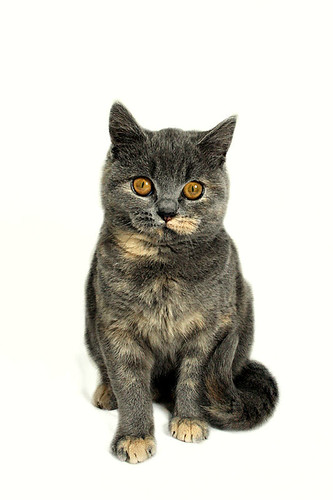
That is one of my first results using those cheap lights. I hope to have some more pretty soon. But in the mean time I can tell you how I got that result. It won't be anywhere near as good as the advice DD will give you though, so you might want to choose to ignore
OK first off the exif:
Camera: Canon EOS 40D
Lens: 18-55mm kit lens
Exposure: 0.013 sec (1/80)
Aperture: f/8
Focal Length: 18 mm
ISO Speed: 500
Exposure Bias: 0 EV
Flash: Flash did not fire
My background was a white sheet, and I used both lights, but without the umbrellas attached. No other light source at all, as it was at night, not even the room light was on.
The results I got using those settings was something more like this:
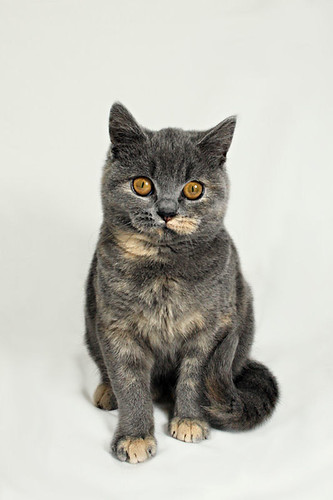
When it came to processing, all that was needed to change the background was a simple layering and levels adjustment.
I'll type it all up for you below, but bare in mind this is a solution to the problem of having limited equipment and space. To get this sort of thing the right way, you would need more powerful lights for a start, or flash. I can't do that at the moment, so this is the process I will use should a high-key look be requested.
Post to come...
Jo
Suspended / Banned
- Messages
- 3,667
- Name
- Jo Fisher
- Edit My Images
- Yes
OK, here we go. Firstly I edited the image so the subject was to my liking, ignoring the background for the moment. Then once I had done that, I did as follows:
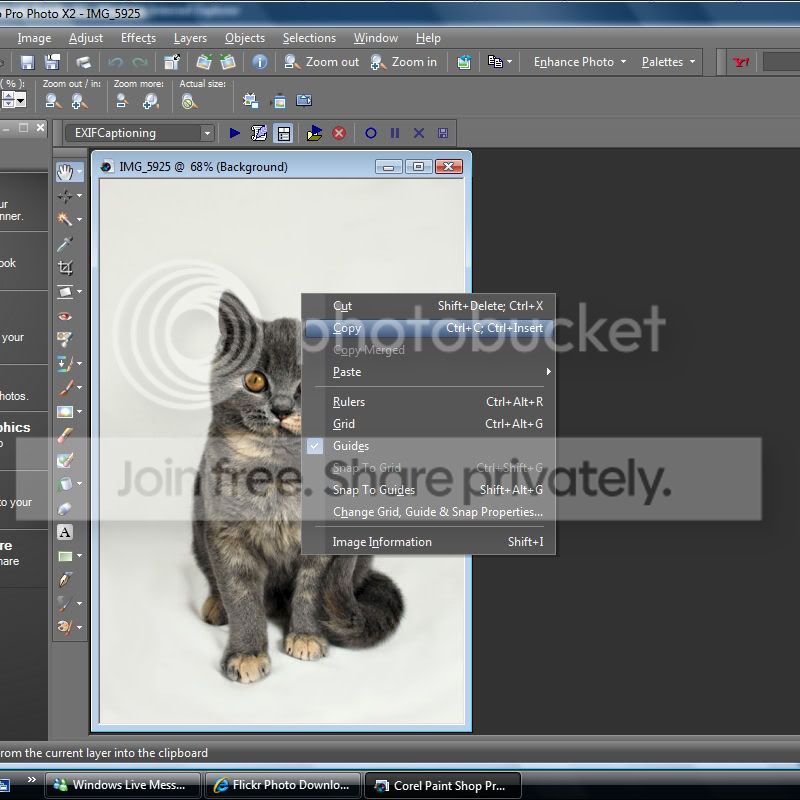
1. Open up your image in whatever software you use, then right click on the image > copy:
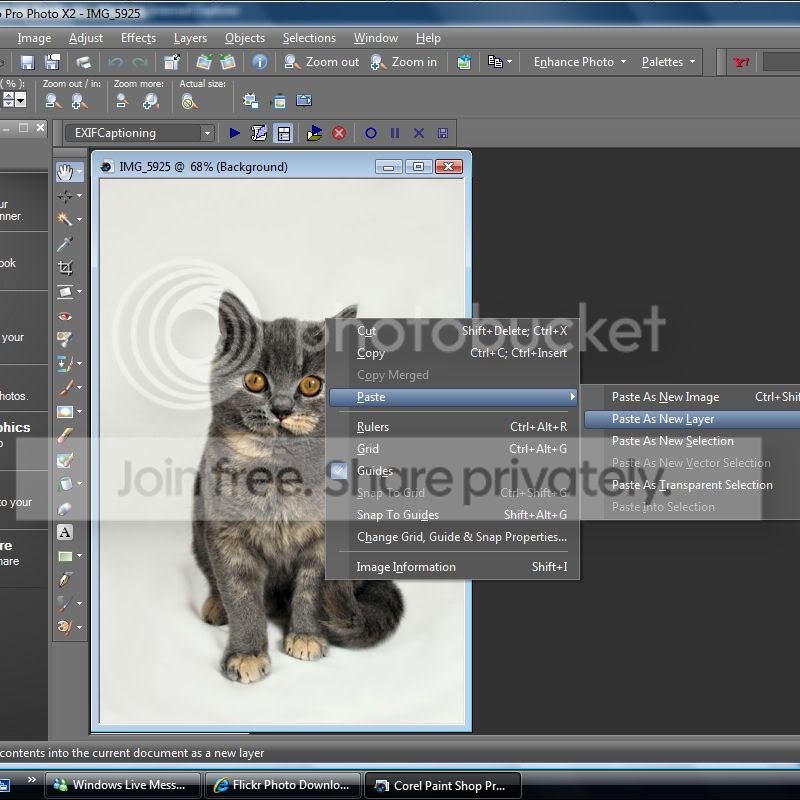
2. Right click on the image again > Paste > As new layer:
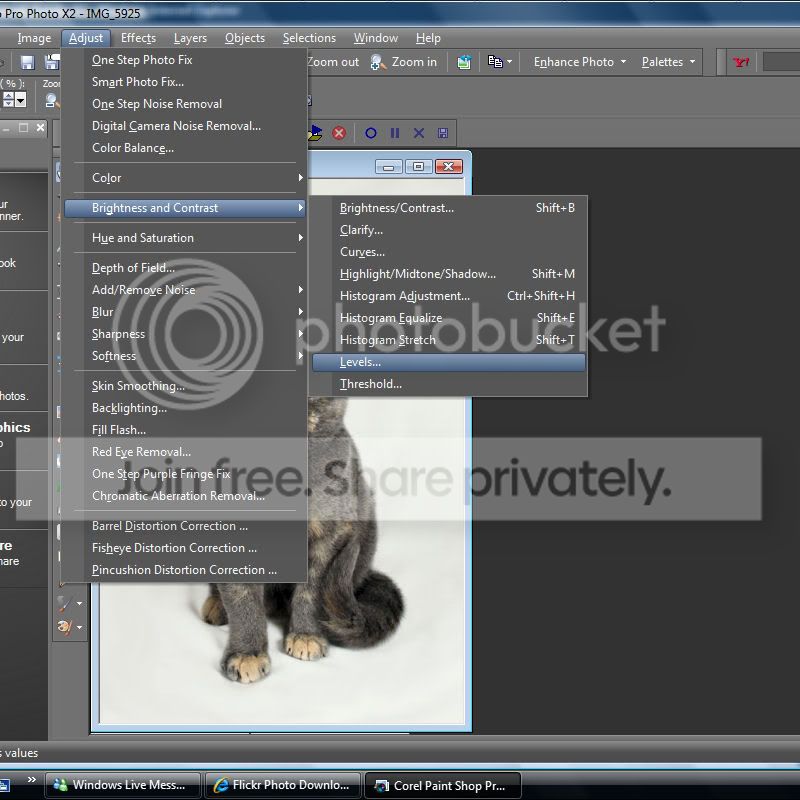
3. Then go to 'Adjust' in the menu at the top > Brightness and Contrast > Levels:
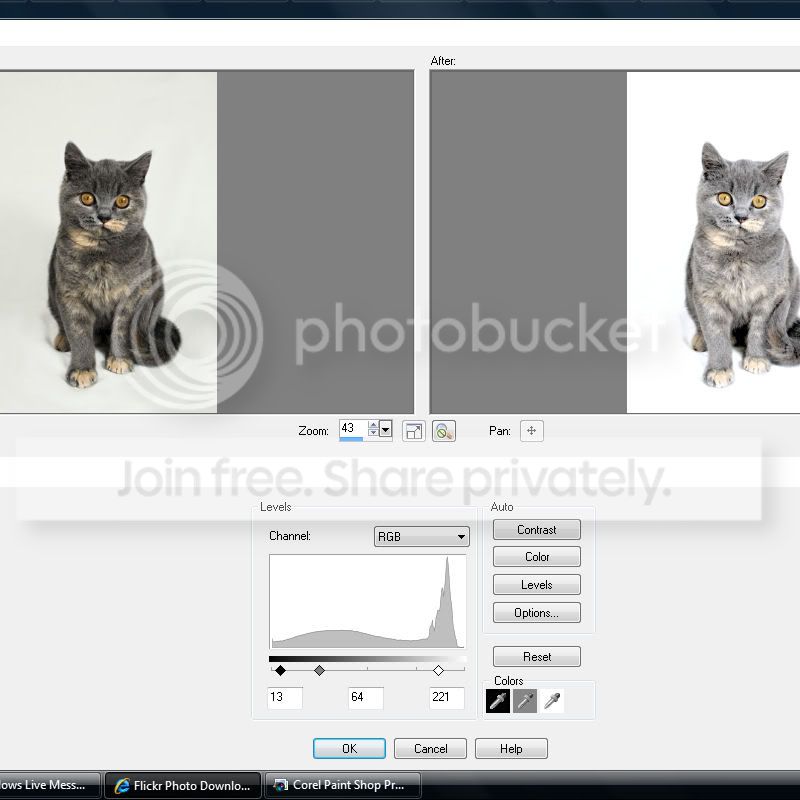
4. Move the sliders around until you get the look that you want for the background and click OK:
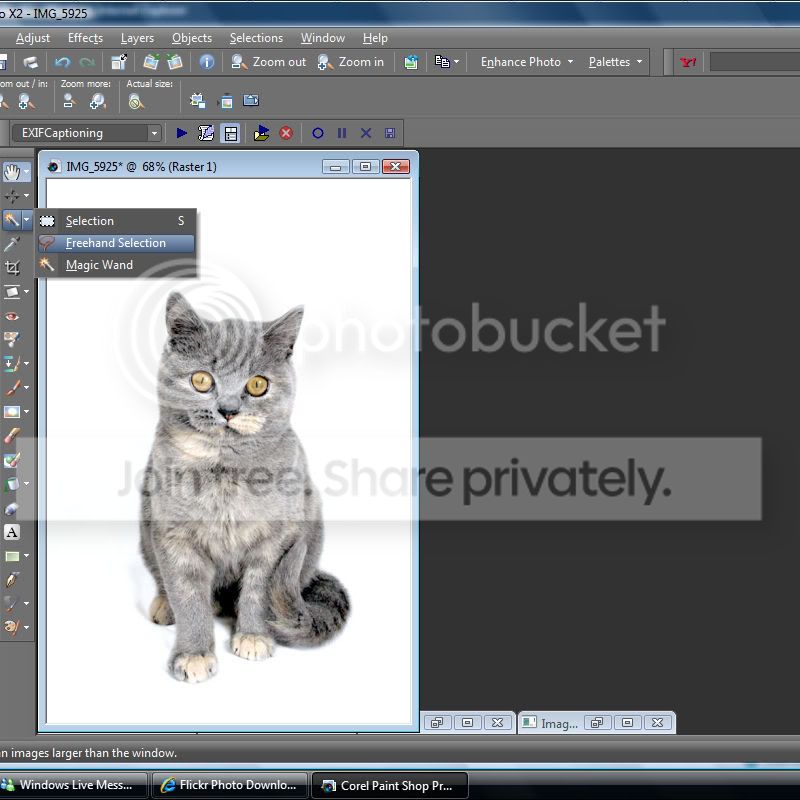
5. Select your free hand selection tool:
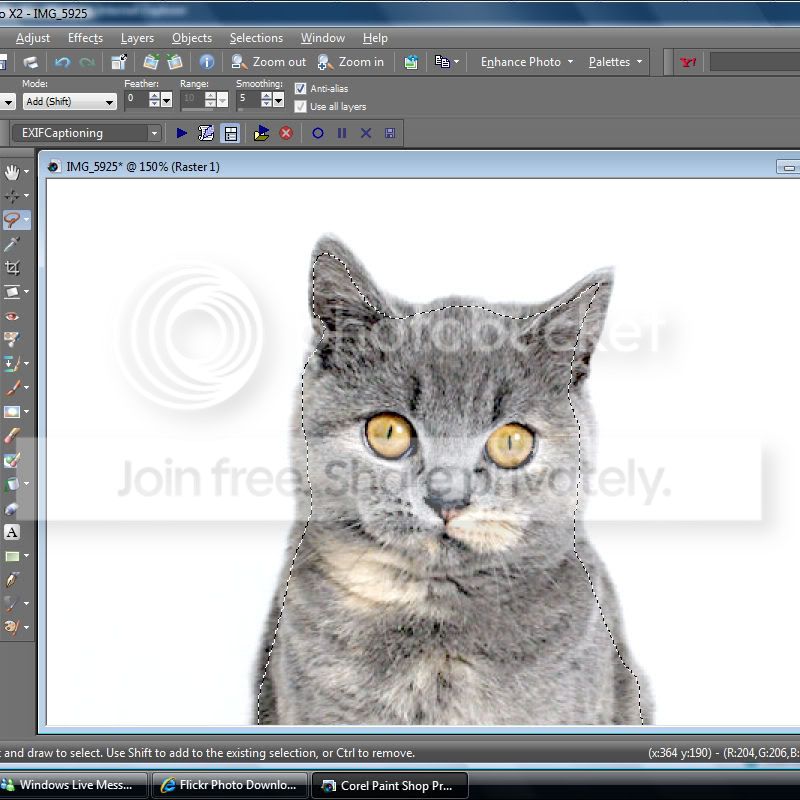
6. Draw a rough line around your subject to cut away the bulk, a bit quicker than using only the eraser tool:
7. Cut:
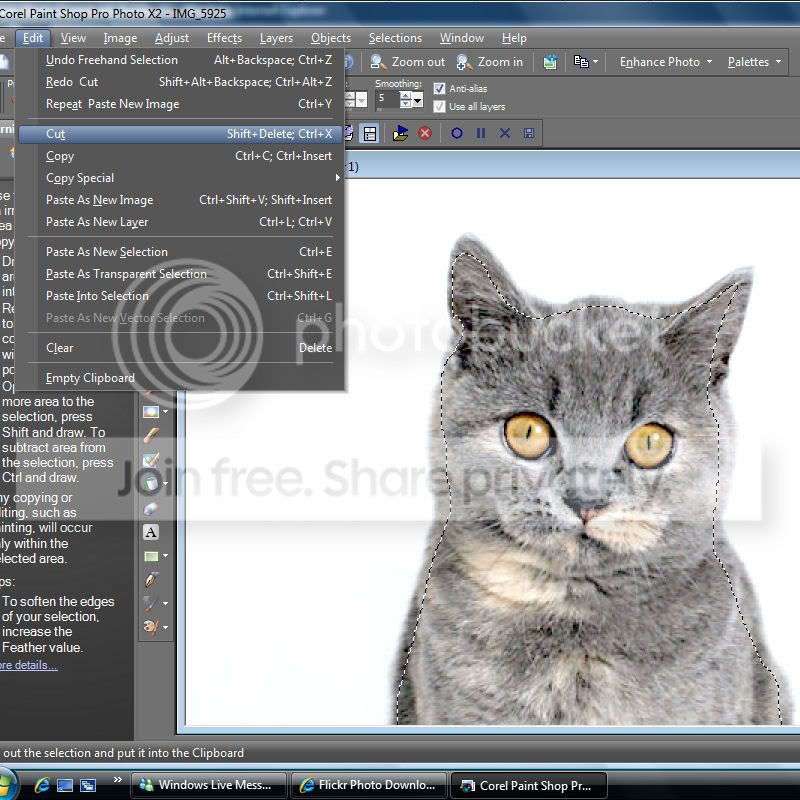
8. Selections > Select none:
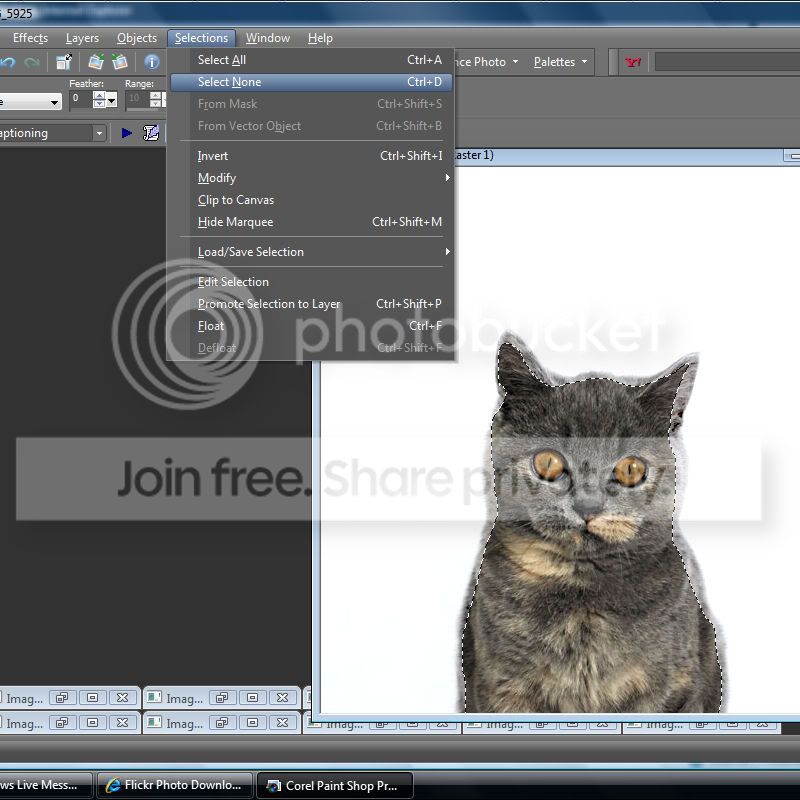
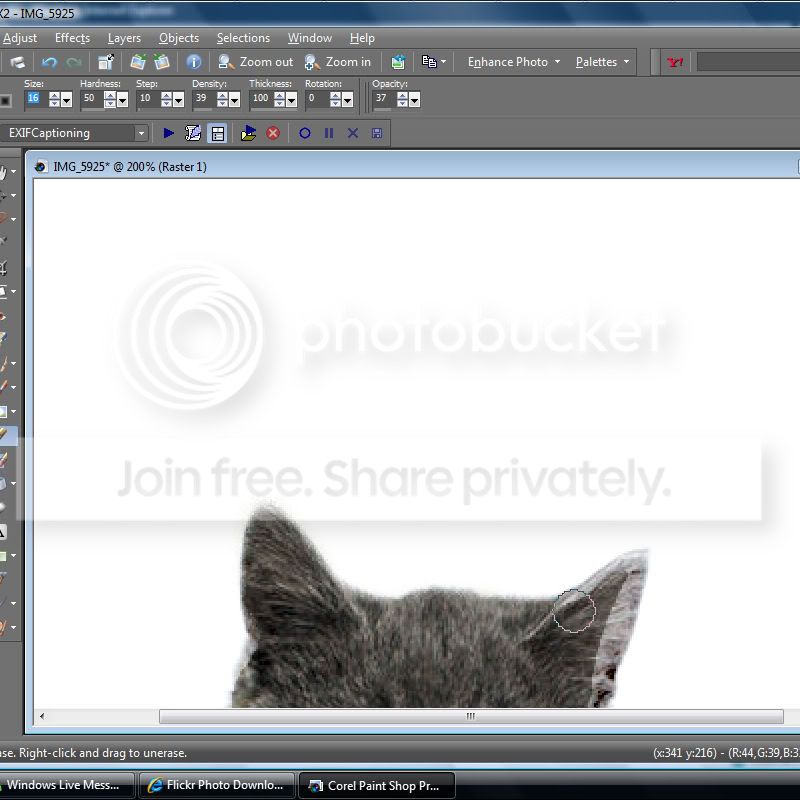
8. Using your eraser tool, rub out the edges. Note the settings of the tool above the image. I find these give the best blending results for me:
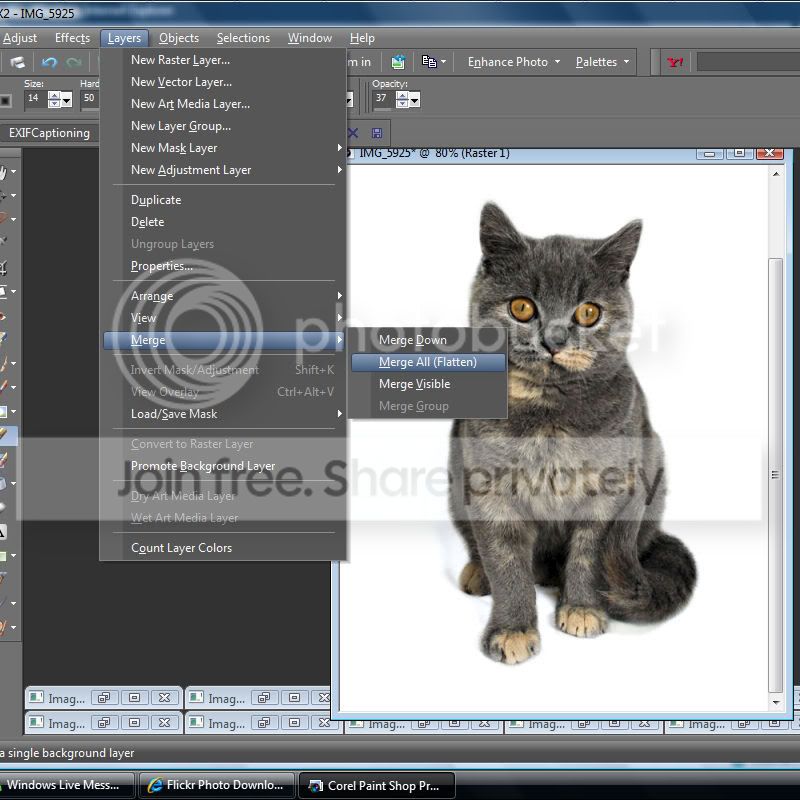
9. Lastly, you want to merge all layers before saving like so:
HTH. Again though, this is what I have done to achieve the results I want using the minimal space and equipment I have. Hopefully at some point I'll have the right gear and won't need to faff around quite so much, lol .
1. Open up your image in whatever software you use, then right click on the image > copy:
2. Right click on the image again > Paste > As new layer:
3. Then go to 'Adjust' in the menu at the top > Brightness and Contrast > Levels:
4. Move the sliders around until you get the look that you want for the background and click OK:
5. Select your free hand selection tool:
6. Draw a rough line around your subject to cut away the bulk, a bit quicker than using only the eraser tool:
7. Cut:
8. Selections > Select none:
8. Using your eraser tool, rub out the edges. Note the settings of the tool above the image. I find these give the best blending results for me:
9. Lastly, you want to merge all layers before saving like so:
HTH. Again though, this is what I have done to achieve the results I want using the minimal space and equipment I have. Hopefully at some point I'll have the right gear and won't need to faff around quite so much, lol .

Janice
Suspended / Banned
- Messages
- 11,626
- Name
- Janice
- Edit My Images
- Yes
I think i am leaning towards the reflective flooring as it gives a slight reflection whereas when it is completely white it gives the impression of floating or a pic of a cat/child pasted onto a white background.
IMHO of course!
Jo... when you say you used both lights... was one on the background and one on the cat or what?
IMHO of course!
Jo... when you say you used both lights... was one on the background and one on the cat or what?
Jo
Suspended / Banned
- Messages
- 3,667
- Name
- Jo Fisher
- Edit My Images
- Yes
I know what you mean! I keep trying to keep some shadows around the feet for that reason. I have to wait another week for my BIL to come back from his hols to see if he can get me some of this reflective stuff. Even then though, I don't particularly like it. I'd much prefer something with colour personally. But as DD rightly points out, it's more what the customer wants innit
DiddyDave
Suspended / Banned
- Messages
- 9,521
- Edit My Images
- Yes
I liked the original of the cat on the light grey background much more than 'floating cat'
If you can 'blast' away the background with your lighting, that only leaves a grey look around the sides and in front of the cat - this can more quickly be tidied up with a bit of 'Grey mopping' - a DD term
DD
If you can 'blast' away the background with your lighting, that only leaves a grey look around the sides and in front of the cat - this can more quickly be tidied up with a bit of 'Grey mopping' - a DD term
DD

DiddyDave
Suspended / Banned
- Messages
- 9,521
- Edit My Images
- Yes
oops wrong thread
It still popped into my Inbox Hoppy
So which thread was it for then?DD

HoppyUK
Suspended / Banned
- Messages
- 23,200
- Name
- Richard
- Edit My Images
- No
It still popped into my Inbox Hoppy
DD
This one http://www.talkphotography.co.uk/forums/showthread.php?t=172629 Taking your name in vain I'm afraid
Apologies for dragging it back to the top by mistake, but as it happens, quite topical.
Edit: Having now read this thread for the first time, I would have to disagree about the advice (often quoted) to over expose the background by two stops. IMO this is only good if you want to simulate a nuclear dawn and is a hang-over from film days when it was often the only way to get pure white all over, in the absence of the post processing option.
Having said that, the cut-out cat doesn't look right either. A full cut-out and a bit of selective 'mopping' (copyright DD) are not the same thing. The background of the cat is under-lit and so hasn't given the subject the high-key 'wrap' which is an important part of this style of portraiture.
All IMHO


jeniveeev
Suspended / Banned
- Messages
- 1,407
- Name
- Mac
- Edit My Images
- No
I liked the original of the cat on the light grey background much more than 'floating cat'
If you can 'blast' away the background with your lighting, that only leaves a grey look around the sides and in front of the cat - this can more quickly be tidied up with a bit of 'Grey mopping' - a DD term
DD
Sorry to gatecrash the thread while im snooping but what is "grey mopping"? how do you do that, is it similar to cloning but in large areas? thank you
DiddyDave
Suspended / Banned
- Messages
- 9,521
- Edit My Images
- Yes
Sorry to gatecrash the thread while im snooping but what is "grey mopping"? how do you do that, is it similar to cloning but in large areas? thank you
'Grey mopping' - my very own term
is a means of reducing or removing the grey (underexposed) areas of white flooring around your subject, while leaving enough to act as shadow to prove it's a 3D object and not simply floating in a sea of whitenessDD