NOTE: I have checked by PM with the OP that reworking his images is ok.
The PP seems a large part of the success here, are there any good guides from the bottom up for using Lightroom for this purpose?
On Lightroom in particular, see below. But after I had posted those two reworks above I was thinking about what I did (with Lightroom and Photoshop), and wondering what I would say if anyone asked what exactly I had done to the images (which the OP now has). And I was concerned that explaining what I did would make PP seem really difficult and complicated and time-consuming and possibly not worth the hassle, or the money.
So I wondered what I could do with free software, and do really simply. So I had another go at the first image, with Faststone Image Viewer. Now I do use Faststone a lot, but not for editing images, so that side of it is pretty unfamiliar to me.
So, starting with this, the as posted version of the first image ...
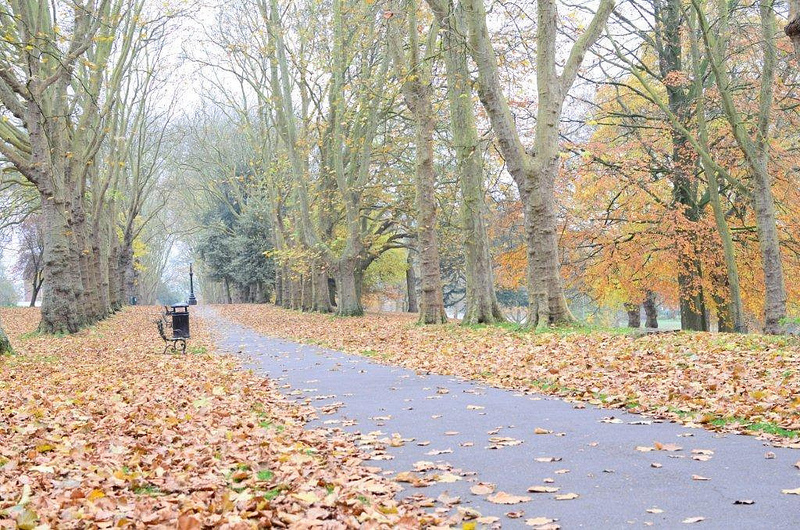 NOT MY IMAGE - kabooi - autumn 1 - original
 by
gardenersassistant, on Flickr
... I got to this ...
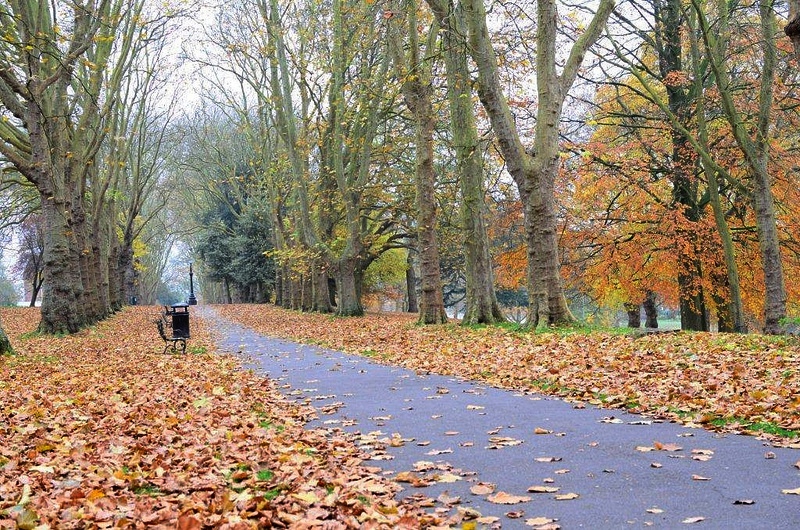 NOT MY IMAGE - kabooi - autumn 1 - FS1 Lem
 by
gardenersassistant, on Flickr
... by moving one slider, and it is a slider that is available in almost any software that lets you adjust a photo. And again using Faststone I got another version, which looks very similar, by moving another slider, which is quite often available.
The first slider is on something called Levels. Here is a screen shot of it in use in Faststone (the image is big in pixels, but very compressed so not horribly big in KB).
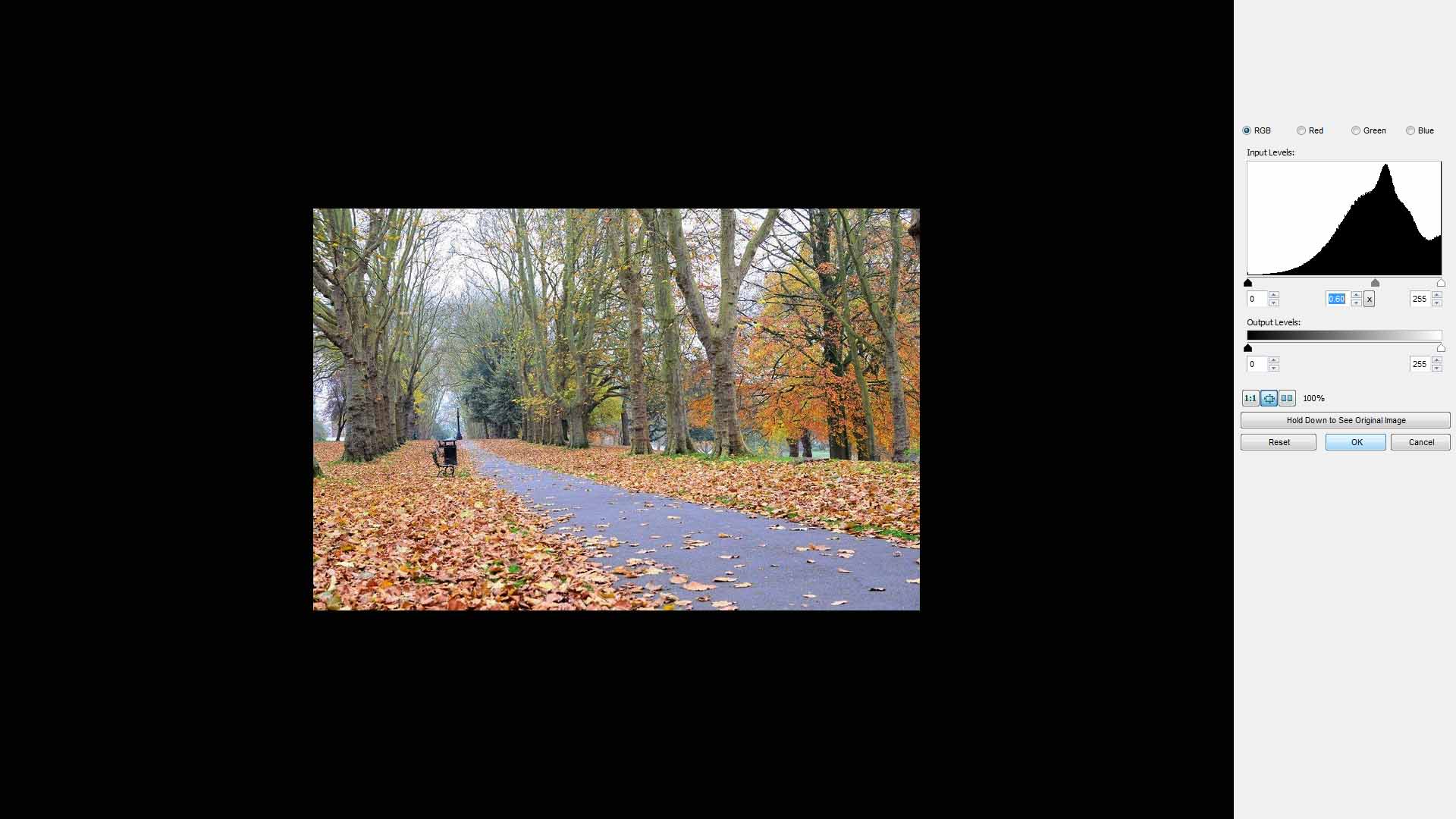 Levels in Faststone
 by
gardenersassistant, on Flickr
Over on the right you can see a graph; this is the histogram. It shows how the light is distributed in the image; the more of the graph that is over towards the left, the darker the image is, and the more of it that is over on the right, as in this case, the lighter the image is.
There are three little triangles under the histogram. The black one, on the left, is called the Black Point. The white one, on the right, is called the White Point. The Grey one is called the Grey Point, and it starts out right in the middle, half way between the Black Point and the White Point. As you can see, it is now over towards the right, because I dragged it there, and this had the effect of making the image "darker". (OK, strictly speaking not darker, but you can see what the effect is.) And that is the only difference between the first and second versions above.
My point? This may not be the best you can do with this image, but you can quite often make a big change to an image quite quickly and easily, and without expensive or sophisticated software. (But if you do have the expensive and sophisticated stuff, and you have learnt how to use it, with photo software like with cameras you can produce results that would not otherwise be possible, or if possible would be very difficult or tedious to achieve.)
Incidentally, the other slider I used in Faststone was called Highlights. You can use this to make the lighter parts of an image less bright. For this image it produced quite similar results to what I did with Levels. That isn't always the case.
What did I do in Lightroom and Photoshop? I used the workflow and techniques that I normally use for my insect and flower photographs. Comparing with these simpler approaches, I'm not convinced my more complicated approach produced a particularly good result here, so unless anyone really wants to know about it for some reason, I'm inclined to leave it at that.
Learning about Lightroom
I have only been using Lightroom for about three weeks, so I'm an expert in being a beginner with Lightroom.
The first thing I did was to watch a lot of videos about Lightroom on the adobe site. They were very instructive. Being able to watch things happening while they were being explained worked very well for me.
I then got recommended a book by Martin Evening, Photoshop Lightroom (4, in my case, but he has written about previous versions too). There must be loads of books about Lightroom, and I haven't read any of them so there may be better ones, but I did find this one extremely helpful.
It's a big book, about 650 pages, but it is an easy and quick read with lots of illustrations, and if you are most interested in the PP side of things you could start off by just reading the Chapter on Develop Module Image Editing (160 pages). It is a bit leaden, and possibly a bit repetitive, but very thorough, and like I said an easy read. Not for everyone I'm sure, but I found it very useful indeed.
(By the way, the book not only explains in great detail
how to do things, it also talks about some interesting things that are going on under the surface, which I too found helpful to understand.)




 . Ever since Fox Talbot produced the first negative, post processing has been an integral part of photography.