Velvia scanning problems

ChrisR

I'm a well known grump...
Suspended / Banned
Messages
11,730
Name
Chris
Edit My Images
Yes
Hi, this follows on from the thread on advice for scanning negatives.

You can't actually calibrate a scanner for colour negative films as the orange mask differs between each film. For slide though you definitely can by using IT-8 targets, and I would highly reccomend using them if you want to get scans similar to the original slides without extensive colour correction. I don't want to open another discussion about IT-8 though as every time it ends up as practically an argument between those who use it and those who don't over whether it's necessary to get good scans. In reality you can get good scans with or without it, but IT-8 makes it much more easier and convenient (when it is used properly).

For colour negative I use the lock exposure and mask colour options on a piece of the film leader (locking the exposure ensures that the maximal shadow detail is captured) in Vuescan to remove the individual orange mask colour, and using those settings then scan the pictures on the roll, making sure that none of the shadows/highlights are clipped (basically as flat as possible) and I don't apply any levels (the 'none' colour mode in Vuescan); I do usually use multi-pass scanning (2-6 passes) as I use a dedicated 35mm scanner that can reposition the head precisely unlike flatbeds and that helps reduce any noise that the scanner may induce.

I then import into Photoshop Elements, adjust each colour channels shadow/highlight levels until just before clipping is introduced, and then introduce some contrast using an S curve (I scan in 16/48 bit colour and try to keep it in 16/48 for as much as possible). I don't usually need to do anything else apart from a small amount of unsharp mask.

For slide the process is near identical, but I always use the same locked exposure value to ensure that the scanner profile adjusts the scan correctly (Vuescan's IT-8 profiling is basic so I used Lprof to create the profile and apply it to the scan afterwards). Aside from adjusting the levels and adding some sharpening that's all I need to get scans very similar to the original slides

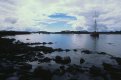
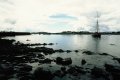
This was my original attempt to scan this frame of Velvia 50, using a profiled scanner but not locked exposure (bcause I don't know how to do that without reprofiling the scanner each time). I used curves in Vuescan, 4*multiscan, multiexposure, low dust removal, saved as JPEG. Bit of shadow recovery in Aperture.
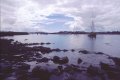
CS1407PMXA01.jpg

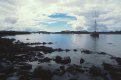
This is the same file in Aperture after using the Natural Grey white balance, eyedropper on the big rock near the centre:
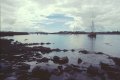
CS1407PMXA01w.jpg

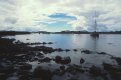
This is the rescan, trying to use the advice from the thread, ie scan as flat as possible with as much information as possible (curve flat diagonal [EDIT: got this completely wrong, curve for the image below was wildly out!], histogram black and white points as near the end of the info as possible), saved as 48-bit TIFF, colour channels separately adjusted in Aperture, some shadow recovery, lots of highlight recovery (but still clearly not enough), white balance using natural grey eyedropper on the same rock (I wasn't going to do this, but it was if anything even more magenta):
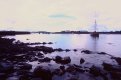
CS1407PMXA01r.jpg

This is not an improvement!

Any advice on what's going wrong, or rather, what I should do better?

I'm happy to put the 40 MB TIFF in my Dropbox and PM a link if anyone wants to try their hand...
 
Last edited:
I use auto levels in vuescan. It seems to come up with better scans from everything. I haven't scanned velvia but I have done kodachrome and a few others.

Also make sure any of the colour correction/restore fading is off as that can do some weird things.
 
Go on then @ChrisR PM me a link and I'll see what I can do in Lightroom.
 
I use auto levels in vuescan. It seems to come up with better scans from everything. I haven't scanned velvia but I have done kodachrome and a few others.

Also make sure any of the colour correction/restore fading is off as that can do some weird things.

Used Auto levels on the first two, no color correction or restore fading. White balance None for the last one.
 
Go on then @ChrisR PM me a link and I'll see what I can do in Lightroom.

Thanks @wickerman. PM sent.

Actually can't think of any reason why I shouldn't put the link up here, as it's marked as CC-BY anyway, and hardly likely to get stolen!
 
What's it meant to look like? Without seeing a photo of the slide against the window it's hard to guess how wrong it is... also if you're scanning using a flatbed scanner I think you'll struggle with velvia.
 
Hold the front page! looks like I screwed up the curves; set it to 0 and 1 and didn't check, d'oh. Needs to be set at .25 and .75 for a flat curve. Looks better but will have a play when I get back from compulsory exercise (AKA a walk).
 
Having had a play in Lightroom I can't really do much better than this:

CS1407PMXA01r v1 by wickerman6, on Flickr

I suspect that the real problem is that the image is outside the exposure latitude for Velvia 50.
 
Chris, are you up here? Want me to have a pop with my calibrated work flow?
 
Can't really improve on David's effort above. On the slide itself is there any detail in the foreground shadows? It looks like there will be in the sky highlights, but the shadows are where Velvia is going to hurt you
 
Having had a play in Lightroom I can't really do much better than this: [deleted]

I suspect that the real problem is that the image is outside the exposure latitude for Velvia 50.

Can't really improve on David's effort above. On the slide itself is there any detail in the foreground shadows? It looks like there will be in the sky highlights, but the shadows are where Velvia is going to hurt you

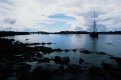
Sorry David and Chris, as mentioned above I found I had really screwed up the scanning. Instead of a flat curve I had the most S-shaped curve imaginable, massively overdoing the highlights and underdoing the shadows. I should have PM'd you, but I was being called away. Luckily I still had the image in Vuescan, so I was able to just cjange the curve to flat, check everything else and re-save the TIFF. I've now added that to the Dropbox folder and removed the original (it has a 2 on the end of the filename).

I've imported it into Aperture, and did the separate channel Levels thing. The result was still quite magenta, so I did a white balance, natural grey, with the pipette on that rock again. Result was much better, maybe a little green so I moved the white point for the green to the right in the Levels tool. This is the result, which is a definite improvement: [EDIT: wrong stuff deleted, not sure it IS much an improvement over the white balance one above].

CS1407PMXA01r2.jpg

So I've learned two things, one of which I knew already: it's easy to miss a setting in Vuescan, it's easy to be a dork, and the proposed method that I was trying to undertake does work... if there's some natural grey to pipette onto (ok that's three things, you shouldn't be at all surprised!). [EDIT: the last conclusion was wrong, I was comparing two images in Aperture the wrong way round!]
 
Last edited:
Chris, are you up here? Want me to have a pop with my calibrated work flow?

No, still darn sarth, hoping to get up in the next week if I can! Thanks for the offer though...
 
I've edited the posts above, to admit my mistakes, so that anyone who comes new to this thread shouldn't be too much misled. The TIFF on my Dropbox now is the revised one with the flat curve. If anyone wants to play with that in Aperture or Lightroom, I'd be grateful.

I've contacted Genie, Photo Express and UK FilmLab about scanning the set. I suspect the last two won't do it as it's transparency, and Genie will do it but charge me £1.50 per frame. :( If I don't send it off for pro scan I might send a couple of frames to @steveo_mcg .

My plan for future E6 35mm film is to use Genie, who have the cheapest medium res (~2000 dpi) process and scan at £8.79, AFAIK. They scan with an Agfalab, which I'm not all that keen on, for no very good reason. Actually, if you add the postage they are more expensive than AG (£10.97), but I suspect they're quicker and that counts!
 
I've scanned lots of slide, mostly Velvia 100F and the pictures above are very familiar.

The bottom line is if you know you're going to scan slide, you have to expose it with that in mind, you have to expose it in sympathy with the limitations of the scanner.

Slide doesn't scan like colour neg or b/w, the areas of deep dark colour and detail are just so much dencer in a slide that the scanner cannot penetrate it sufficiently to project what you see on a light box to the scanner sensor.

I adore slide, its beautiful, but since there is no way to print it optically (Ciba Ilfochrome) now I don't shoot it much, it has to be scanned.....fannied about with and then inkjetted, things I'm not that interested in doing.

That picture needed at least a 2 stop grad on the sky and exposed for the rocks to give it a chance at a scan.
I think you're gonna struggle to make much of that particular frame with software.

When I shot Velvia I learned that I can't shoot bright skies and unlit foreground if I want to scan and keep detail in both, it scans best when there is a balance, more parity between the dark and lighter elements of the picture.
In short, I wouldn't shoot unless 90% of the frame was in full sunlight :)
 
Thanks John. I had a grad on for most of the film (basic charity shop Cokin A120), but I may not have put it on at that point, having just changed from the Portra. Most of the other frames suggest it has a pretty horrid colour cast, which I hadn't noticed before (more worried by the colour cast from the slide film itself!). In this case I'm most concerned to get rid of the magenta cast while retaining something from the sky (something a bit better than the second image above).

Exposing for the shadows seems to be generally good advice that I'm trying to cram into my noggin!
 
Yes, I've re-read the thread and realise its actually about colour balance, not something I'd worry too much about for this particular frame but if its solely an excersize in that, its worth doing.
 
@ChrisR personally I wouldn't use the IT8 calibration in Vuescan as it's very basic in comparison to other freeware applications that can be used to create the profile (I use LProf and apply the profile after scanning in Vuescan). The flat as possible advice only really applies to negative film, you just want to preserve the highlights and as much shadow detail as possible.

If you just want to use Vuescan though with it's included profiling, here is how I would do it; regarding the exposure lock it's not necessary to re-profile every time so long as you save the options set so that you can load them later.

1. Put the target on the scanner, set Vuescan to the IT8 calibration mode, set the reference file etc.

2. Set the colour balance under the "colour" tab to "none", scroll down and set the "output colour space" to "device RGB" and finally turn "pixel colours" on so that you can see where there is clipping.

3. Press the "preview" button, align the grid over the target as best as possible (it doesn't read exactly from the squares but from a smaller area inside so it doesn't need to be exact), then scroll down on the "input" tab and enable "lock exposure".

4. Check if any of the colour patches are showing clipping, if any are overexposed then reduce the exposure time under the "lock exposure" option, and if any are under then increase it; press the preview button again to update the preview with the new exposure time (you'll need to re-preview every time the exposure time is changed). It'll take some trial and error, but eventually you'll get a preview where no or only minimal clipping is showing (a few pixels won't make hardly any difference).

5. Under the "profile" menu click "profile scanner" and the profile will be generated.

6. Make a note of the exposure time just in case, then change the input to slide film. If it's not already, set the new profile with the "scanner colour space" under the colour tab, check that the exposure lock time is is right and then go to the "file" menu and click "save options" save them as "slide scanning" or . something. This will enable you to rapidly load up the settings again for when your scanning slides.

You can use the same profile for all types of slide film, but don't adjust the "exposure lock" time as that will alter the colours being input. After scanning and saving you can set the levels at will in Photoshop, Aperture etc (which will brighten the image as obviously you don't want to clip the highlights during the scanning), or you can do it within Vuescan by using the "neutral" colour space and adjusting the black/white points. I would always scan in 16/48 bit and save in the "Adobe wide gamut" or "ProPhoto" colour spaces (select them under the "colour" tab - make certain to save in 16/48 bit though as they won't work well in 8 bit) as it's otherwise possible for the colours to clip in the smaller gamut colour spaces such as sRGB. When you edit later work in 16/48 bit for as much as possible, and then convert down to a smaller colour space such as sRGB or Adobe RGB and convert to 8 bit.

Hope you find this short guide helpful, if you've got any questions then I'll try to help.

Sam.
 
@ChrisR personally I wouldn't use the IT8 calibration in Vuescan as it's very basic in comparison to other freeware applications that can be used to create the profile (I use LProf and apply the profile after scanning in Vuescan). The flat as possible advice only really applies to negative film, you just want to preserve the highlights and as much shadow detail as possible.

If you just want to use Vuescan though with it's included profiling, here is how I would do it; regarding the exposure lock it's not necessary to re-profile every time so long as you save the options set so that you can load them later.

[ ... ]

6. Make a note of the exposure time just in case, then change the input to slide film. If it's not already, set the new profile with the "scanner colour space" under the colour tab, check that the exposure lock time is is right and then go to the "file" menu and click "save options" save them as "slide scanning" or . something. This will enable you to rapidly load up the settings again for when your scanning slides.

You can use the same profile for all types of slide film, but don't adjust the "exposure lock" time as that will alter the colours being input. After scanning and saving you can set the levels at will in Photoshop, Aperture etc (which will brighten the image as obviously you don't want to clip the highlights during the scanning), or you can do it within Vuescan by using the "neutral" colour space and adjusting the black/white points. I would always scan in 16/48 bit and save in the "Adobe wide gamut" or "ProPhoto" colour spaces (select them under the "colour" tab - make certain to save in 16/48 bit though as they won't work well in 8 bit) as it's otherwise possible for the colours to clip in the smaller gamut colour spaces such as sRGB. When you edit later work in 16/48 bit for as much as possible, and then convert down to a smaller colour space such as sRGB or Adobe RGB and convert to 8 bit.

Hope you find this short guide helpful, if you've got any questions then I'll try to help.

Sam.

Thanks Sam. I'm not quite sure where I've put my IT.8 target, but I will try this again later. I had missed the bit about saving the settings in your earlier guide, so this is very helpful.

One thing that does worry me about some of the (excellent) scanning advice is the implications for disk space. My Aperture library has grown from under 20 GB to 106 GB in less than 3 years, and my scanned files directory is another 20 GB. Nearly all of that is JPEGs. I understand that I can get better results by working with 48-bit TIFFS, but they take about 10 times the disk space (or more), and 99% of my images aren't worth that extra cost. I guess the way to go would be to scan to JPEGs first, triage the set, then go back and scan any much better frames to TIFF and give them the works.

I think the next thing I try though will be a commercial scan. I was surprised that Photo Express emailed me back this morning to say they can scan the whole set, for £5 [EDIT: plus postage]. I usually get my C41 processed and scanned by them, and I'm happy with the results; I got a couple of previous C41 films that were processed by someone else also scanned by Photo Express, and that worked well, too. I'm not quite sure what that says about their E6 scanning; the price probably says they don't spend much time adjusting each frame. I'll see what the others say and then decide.
 
Last edited:
Heres my attempt:


My attempt
by s162216, on Flickr

I used the Kodak Digital SHO plugin to selectively recover highlight and shadow information, then the Kodak Digital ROC plugin to correct the colour balance as much as possible (it's fantastic at recovering/restoring colour balance) and finally the Kodak Digital GEM plugin to reduce the scanner noise which was visible from the shadow recovery. Resized and sharpening applied.

I think that's the best I could do with it, as in the original some of the colour channels are clipped, which does limit what can be changed.

@ChrisR if your going to save as a jpeg you are likely to run into problems with the colour channels clipping due to the film gamut exceeding what the sRGB or Adobe RGB colour spaces can show (jpeg is 8 bit only so it can't use wider colour spaces without risking posterisation) - you could always scan as a 16 bit TIF, edit and save as a jpeg and then delete the original. Also, when saving as a 16 bit , take full advantage of it and select a wide gamut colour space such Adobe Wide Gamut or ProPhoto in Vuescan prior to saving as otherwise your essentially wasting any advantage it will bring if you use a small gamut colour space (remember to select the "tiff profile" box under the "output" tab for it to attach the profile when saving). When converting down to 8 bit for jpeg or tiff after editing in Photoshop etc, make sure to first downconvert to sRGB or Adobe RGB though.

Sam.
 
Thanks Samuel, that's come out really nicely, except for that area of magenta clouds round the yacht's mast.

I've tried again, saving it as 48-bit TIFF in the ProPhoto colour space (it's still sitting in Vuescan, so I don't have to re-scan!). It was still going green in the bright sky areas when I did the natural grey white balance, but I was able to tone that down a bit.

CS1407PMXA01r3.jpg
 
Last edited:
I looked at last week's AP in the Library this morning, and there was a comment from someone saying he never had problems scanning Kodachrome. It reminded me that I've scanned 40 or 50 films of Kodachrome or Ektachrome from the 1970s, when I first started scanning a couple of years ago and knew nothing. Using Silverfast at that time. I didn't remember any problems with colour casts. I've had a quick look back at a few, and some do have a bit of magenta, much less than I'm getting now, but nearly all look pretty darn nice to my eyes. Most taken with a Pentax Electro Spotmatic, or the later ones with a Pentax ME.
 
I thought I'd try re-scanning with SilverFast, but discovered that since I upgraded my Mac to 10.9 it won't run, and I'd have to buy another copy! No thanks.

I've now had replies about re-scanning. Photo Express will do it for £5 plus postage. UK Film Lab will do it for the same amount as process and scan, I assume they mean £10 in this case. Genia will do it for £4.40 plus VAT per strip (there are 8 strips)! Tim will do one frame drum scanned for £10... wouldn't really want to pay that for that one frame. Might try UKFL...
 
I've now had the scans back from Photo Express and from UK Film Lab. I'm trying to work out how best to show you; in particular, whether to show you the scans as provided, or after a little editing. The trouble is that the former doesn't look so great, and the latter is skewed by the different things I'll have done. What I might do is show (a) my best scan after editing, then (b) and (c) scans from the two companies, unedited, using the same image from above. Then I might show a couple of others that are a bit more interesting. (I chose the yacht pic as I knew I wouldn't want it for POTY!)
 
I've now had the scans back from Photo Express and from UK Film Lab. I'm trying to work out how best to show you; in particular, whether to show you the scans as provided, or after a little editing. The trouble is that the former doesn't look so great, and the latter is skewed by the different things I'll have done. What I might do is show (a) my best scan after editing, then (b) and (c) scans from the two companies, unedited, using the same image from above. Then I might show a couple of others that are a bit more interesting. (I chose the yacht pic as I knew I wouldn't want it for POTY!)

Did UKFL provide you with a feedback form? If so, what did they say?
 
Did UKFL provide you with a feedback form? If so, what did they say?

I thought it might be worth sharing the feedback, as I had previously no idea what I might get:

Any significant over-exposures: No :)
Any significant under-exposures: No, but there were a few frames that were on the side of under-exposed.
Other factors influencing the scans: No
Feedback related to your UKFL-Pro*: No.
Any other issues: No. Thanks for sending us your film!
 
OK, I said I'd show the scans of the yacht pic that came back from Photo Express (£5 per film, 3 days posted back to mat, with two other films processed and scanned) and UK Film Lab (£10 per film, 15 days posted to email with link to scans), after first showing my own best attempt. So, first mine (this was not re-scanned AFAICR, but I did adjust white balance, highlight and shadow recovery and mid-tone levels, and made several adjustments on the green channel):

CS1407PMXA01r3.jpg

Then Photo Express (straight off the CD, into Aperture, exported to Photobucket at size for TP):

72550037.jpg

Then UK Film Lab, similar approach:

CR290814000651-02.jpg

My feeling on this is that in the end I got my scan pretty much how I'd like it. The Photo Express scan is more flexible than the UK Film Lab scan in relation to the sky areas. The UK Film Lab scan is much less magenta, and edits much better in the darker area of the rocks than the Photo Express scan. Neither Photo express nor UK Film Lab offer a TIFF option, AFAIK.
 
Last edited:
A TIFF is to be honest unlikely to make absolutely any difference unless it's 16 bit (which may give some greater flexibility); JPEG compression makes pretty much no difference to how adjustable an image is compared to a standard 8 bit TIFF (except for practically unseeable compression artefacts assuming a maximal quality JPEG) although obviously you will get compounding of the artefacts every time you save unless you save in a lossless format.

I think the problem is that the dynamic range of the scene exceeds that which Velvia can show due to its inherently high contrast, and as so you have to make a choice between having the highlights or shadows. Exposure blending of the scans two extremes may be of help, but extreme differences usually result in very visible halos so I don't think that'll work (I'll have a go merging the two above scans just as a baseline). When using Velvia, or indeed any slide film you need to consider the dynamic range and avoid high contrast scenes unless you use something like an ND grad.
 
I think the problem is that the dynamic range of the scene exceeds that which Velvia can show due to its inherently high contrast, and as so you have to make a choice between having the highlights or shadows. Exposure blending of the scans two extremes may be of help, but extreme differences usually result in very visible halos so I don't think that'll work (I'll have a go merging the two above scans just as a baseline). When using Velvia, or indeed any slide film you need to consider the dynamic range and avoid high contrast scenes unless you use something like an ND grad.

I agree with this assessment. The contrast in the scene is seriously putting Velvia to the test and I think an ND grad filter really was needed in order to maximise detail in both the sky and foreground; no amount of scanning trickery is going to change that.
 
Last edited:
Thanks guys; you're probably right. IIRC it was early afternoon, and looking south. No direct sun, and I certainly didn't feel it was very high contrast at the time; however I know from other images I'm a poor judge of that. You know what they say, the first 20,000 photos are the worst! (Yes, it was 10,000 but I'm a slow learner, and I discovered today I have 18,000 images in Aperture!)

I think I mentioned that I did put a grad filter on for most of this film. I'll check out some of the images with the filter.
 
Chris, myself and the Hoolster have just acquired a Screen Cezanne Elite, once we've figured out how to make it do exactly what we want I'd be more than happy to fire this frame through it if you want? I'd be interested to see what can be pulled out of it having seen a couple of commercial lab scans!
 
Chris, myself and the Hoolster have just acquired a Screen Cezanne Elite, once we've figured out how to make it do exactly what we want I'd be more than happy to fire this frame through it if you want? I'd be interested to see what can be pulled out of it having seen a couple of commercial lab scans!

Paul, that would be interesting too. I was surprised at the differences in the scans. I'll have to get the film back from UKFL first, though!
 
I used to work in the field of digital preservation and curation. One of the major approaches in this field was the "performance model" from the National Archives of Australia. Effectively, you could look at the digital file like the score of a piece of music, which needs to be performed in order to be realised. Potentially, each performance is different.

Extending this analogy, I've been thinking of the digital version of the image (the JPEG, TIFF etc) as being the score, which is "performed" via a combination of post processing, viewing, printing etc. For digital cameras that seems to work quite well. I've been sort-of-assuming that once I've scanned my original, or had it scanned professionally, that that was the last word and I could regard the resulting file as definitive. Now though, it seems that the scanning is part of the performance process, and only the original negative or transparency can count as the definitive score.

I'm not quite sure what this means, but perhaps that I need to be more willing to regard any scan as a temporary, fallible representation, and that (under some circumstances) I should be more willing to revisit the scan.

I'm not sure this makes any sense to anyone else, but it's helping me clarify my thoughts a bit!
 
I used to work in the field of digital preservation and curation. One of the major approaches in this field was the "performance model" from the National Archives of Australia. Effectively, you could look at the digital file like the score of a piece of music, which needs to be performed in order to be realised. Potentially, each performance is different.

Extending this analogy, I've been thinking of the digital version of the image (the JPEG, TIFF etc) as being the score, which is "performed" via a combination of post processing, viewing, printing etc. For digital cameras that seems to work quite well. I've been sort-of-assuming that once I've scanned my original, or had it scanned professionally, that that was the last word and I could regard the resulting file as definitive. Now though, it seems that the scanning is part of the performance process, and only the original negative or transparency can count as the definitive score.

I'm not quite sure what this means, but perhaps that I need to be more willing to regard any scan as a temporary, fallible representation, and that (under some circumstances) I should be more willing to revisit the scan.

I'm not sure this makes any sense to anyone else, but it's helping me clarify my thoughts a bit!

I think you're in good company with that analogy.

The negative is comparable to the composer's score and the print to its performance. Each performance differs in subtle ways.

Ansel Adams

http://www.brainyquote.com/quotes/quotes/a/anseladams110426.html
 
Back
Top