Unable to get decent print

Halflap

Suspended / Banned
Messages
291
Name
Steve
Edit My Images
Yes
I am trying to get a 12x8 print done as a christmas present.
My screen is calibrated with a Pantone Huey Pro and is showing the correct exposure and colours.

A print done from Photobox had a noticable green cast so I reverted to the original file and did the colour correction again. I had heard good things about the printing at Costco so took it in there yesterday. Their print was correct colour but very dark. They told me that although I had a calibrated screen I should not expect the print to come out the same way.

I have tried printing the same shot on my Canon A4 printer and it is coming out a lot warmer than on the screen. Also, although my printer should be able to deal with 12x8 size paper it may be difficult to get that size paper.

I know I could over lighten the image and take it back to Costco but this would be a bit hit & miss.

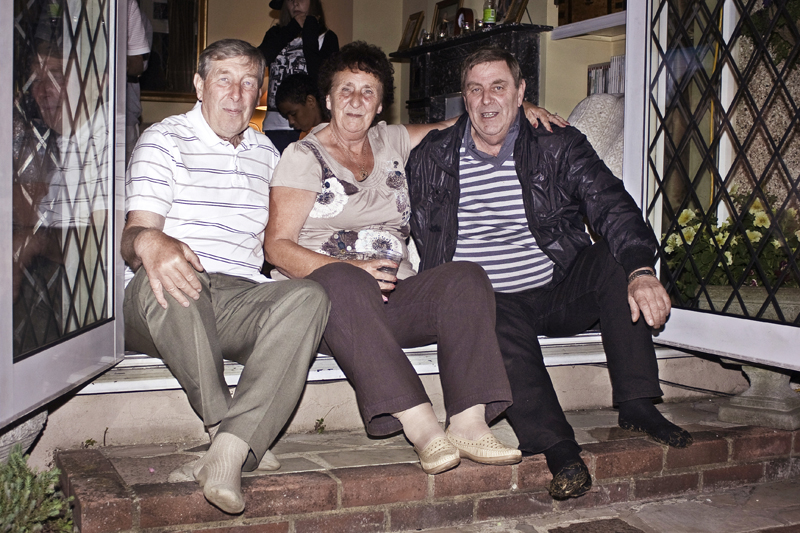
Just wondering if anyone has any other ideas. Posted pic below so also hoping that someone else with a calibrated screen can confirm that it is OK for colour and exposure.

4195004414_8a6d3507b9_o.jpg
 
I have the same problem as you...

Calibrated screen, printing at Costco and same result, slightly darker....

I am a bit confused, possibly something to do with profiles but i dont know enough to confirm this ...

Markw08
 
You should be able to cut A3 paper down to the size you want so you can print the picture at home. To be honest, it's probably easier to crop the sides of the photo slightly to bring it down to A4 size (297mm x 210mm), then your printer should be able to do a full page borderless print. To get the colour balance correct for the paper/ink combination, it may be best to do a few test prints on smaller sheets of the same paper, cut down from an A4. I would suggest you included the faces since they're the critical part as far as colours go. Somewhere in your printer dialogue box there will be some adjustrment sliders for the colours, fiddle with them until you get the result you want then save those settings as a profile for that paper.
 
Screens will always appear slightly brighter than a print because they are illuminated from behind a prints aren't. The other thing I've found is that although a Huey will give you correct colours it won't calibrate the screen brightness (I used to have a Huey and now use a Spyder3 for this reason).

If I were you I'd reduce the brightness of the monitor to more closely match the print, re-calibrate and then process the print so that it looks how you intended on the screen again and try printing again.
 
On my monitor that photo looks a little cool. In PS, hovering over the shirt of the chap on the left with the colour picker shows the white to be a little low in the red channel.

That may explain why your print from Photobox was a little off.
 
Many thanks for all the replies.
Lots of things for me to try, just not a lot of time left to try them.

Markw08
Glad its not just me then

Nod
I already have a frame and mount for this with
 
Forgot to say it has a slight green tint on my calibrated iMac monitor.
 
Dont know what happened with my last post it seemed to chop it off hals way through. Reposted complete.

Many thanks for all the replies.
Lots of things for me to try, just not a lot of time left to try them.

Markw08
Glad its not just me then

Nod
I already have a frame and mount for this with the mount cut for a 12x8. The frame is 16x12. If possible I wanted to get a decent print made rather than inkjet. It could be an option though if I cannot find another way.

KevM
I have recalibrated my monitor after turning the Brightness down and have added 1 stop exposure to the shot. This now looks better on screen. I think I need to play with this more to get a match to the Printers

ScottyB
It is using sRGB

Scarecrow
I colour corrected this using a method I found which used the Black, White and mid tone pickers on a Levels layer. This used a duplicate of the background with the average filter for the grey point and a Threshold layer to mark points for the black and white using colour sampler.

I have checked the white on the +1 stop exposure file. In Photoshop I have added 3 points on the white shirt with the colour sampler tool and get the following

R 248, R 246, R 242
G 249, G 247, G 243
B 253, B 251, B 247

How do I now correct this so they all show equal amounts of Red, Green & Blue.


After Christmas, once I have more time to play, I think I will have to spend some time getting my head around all this and follow some of the other suggestions
 
Have you had a colour chart from Photobox with which to adjust your monitor to match? They send one out with your first order, or they'll send one on request. My prints from Photobox have always come back ok, and I never had to use my colour chart. My aldi prints came back good too.
 
Email photobox and explain the problem. I had an evening seascape from photobox with a green cast, one email and they had a replacement print with the correct colour balance sent in 24hrs. They may not be the best but are good value. BTW your image has a slight green cast here too. HTH
 
I think that I am going to have to spend some time and money in the new year to get up to speed with understanding colour.

I think that the main problem is that I cannot see colour casts. The picture in my first post looked alright to me. I then recalibrated my screens and adjusted the color so that the white in the shirt was correct in Photoshop. This looked far too red to me so I left it on screen and went and did something else for a while. When I came back and took another look it looked correct. So I now had two copies that if I look at them in isolation they look correct but are completely different if viewed together. Time to get the wife involved. She says the first has a green cast and the 2nd looks OK. Also a print of the 2nd looks better ( closer to screen colours ).

I need to get the 12x8 by Monday so I have decided on the following.

As the print from Costco looks very dark I have created a copies of the hopefully correct coloured file with +0.5, 1.0, 1.5 and 2 stops exposure. I am goint to get all these printed to 7x5 at Costco on Monday (18p each) and then get the 12x8 done of which ever one looks the best.

Once again, many thanks for all the suggestions.
 
Have you had a colour chart from Photobox with which to adjust your monitor to match? They send one out with your first order, or they'll send one on request. My prints from Photobox have always come back ok, and I never had to use my colour chart. My aldi prints came back good too.

But that means changing your monitor to suit a flawed printing process.

With a calibrated screen you really would not want to do that. You are supposed to use their printer profile to preview, but that is hit and miss too.

I gave up using Photobox for accurate prints. I don't think anyone offers a truly 'accurate' service. Now someone will disagree, but that's not been my experience.

Graham
 
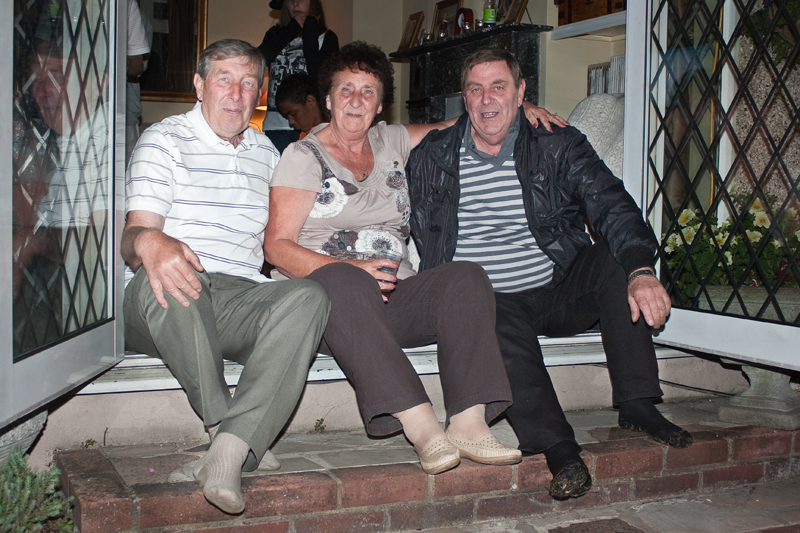
Here is the supposedly colour corrected version. In Photoshop the White and Black show no appreciable colour bias using the colour picker tool. It also has +1 stop exposure.

4197982034_c330227016_o.jpg
 
What profile are you saving it in for the printers?
this is not the colour space which shold be sRGB but teh printer profile?

Not quite sure what you mean by this. In the print dialog it is set for my Canon iP4300

In the copy you posted, how did you remove the magenta cast. I checked the white in the shirts and the black in the fireplace in the background to make sure that the equal (ish) amounts of red, green and blue
 
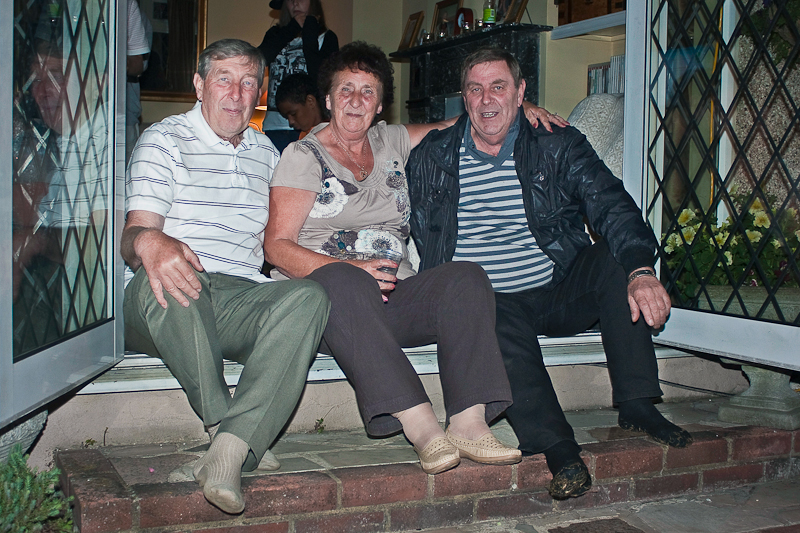
Now I am really getting frustrated. Went back to the original RAW file and it looks better than the corrected one. Copy below is as shot with just +1 stop exposure.

Thinking maybe I should just buy my father some socks for christmas and sell all my camera gear.

4197688395_c7e9f86e09_o.jpg
 
every picture I have taken to Costco and had great service, if you feel there is a cast they will adjust there and then while you watch and advise then print again and only charge for the final image (Haydock store) great service

J
 
I went to Lakeside. The guy there was very helpful with advice but certainly did not mention that they could do any adjustments. I got the feeling that he was limited to taking what I had uploaded and outputting it as it was.
 
I went to Lakeside. The guy there was very helpful with advice but certainly did not mention that they could do any adjustments. I got the feeling that he was limited to taking what I had uploaded and outputting it as it was.

That would defeat any chance of getting what YOU ordered originally. If the operator constantly changes settings what chance have you got.

Seems like a moving target to me.

Graham
 
One tip/thing to note is that when you calibrate a monitor, it isn't just 'calibrated' or 'not calibrated', but calibrated to a target. At work I will calibrate our screens to 5000k as this is what the paper profiles and viewing conditions (we use a 5000k lighting booth) are set to. So just because you calibrate a screen, does not necessarily mean it has been calibrated to the same colour temperature and luminosity as the paper profile and viewing conditions.
 
I gave up using Photobox for accurate prints. I don't think anyone offers a truly 'accurate' service. Now someone will disagree, but that's not been my experience.

I gave up sending my images away some two years ago.
Purchased a Epson 2400 with Permajet CIS and I only use Permajet papers.

I calibrate my monitor using a Pantone Huey and Permajet made me 2 custom profiles (free) for Printer/Ink and Paper (Gloss & Oyster).

In 2 years of continued use, not once have I had to scrap a print :thumbs:
 
Back
Top