THE PP GAME!

I'll have a go (despite being new to pp I am keen to improve).

Hope I have done it right


ppgame by sponner (staffs), on Flickr

HDR from 6 exposures
Cool tone in topaz
cropped 16:9
 
I can't see the JPEG whatever it is.. nothing appearing for me.

anyway...

LR:

lens profile and CAs
levels, slight yellow desat.
slight highlight recover
slight shadow recovery
Lowered luminance on blues.

PS:
selective curves on yellow and green
Custom Kodak Portra 160NC profile

That's it.

7 mins or so. Some images just don't need messing with much.

Jr7zLL6.jpg
 
Hi Sponner welcome to the thread. It's good fun & I've found it a good way to help me rethink on my PP'ing - lot to learn :gag:
 
Sorry David if getting to the full sized images wasn't made clear so just edited my OP to explain in more detail :thumbs:
 
Motorbike - cheeky self portrait in this one John? :thumbs:

Opend JPG in CS2,
Needed lightening so made duplicate layer with blend mode set to SCREEN
layer mask over sky which didn;t need lightening
duplicated this layer twice more to further lighten image
cloned the two half boats either side of the bike
saved
made filtered B&W layer with red filter in picasa
opened this back in CS2 and performed the much maligned selective colour. :D
high pass filter with soft light blend mode
picasa for crop

CLICKIT FOR BIGGER
 
Motorbike - cheeky self portrait in this one John? :thumbs:

Last evening (when I had eventually sorted out this shot) was the first time I realised I was in it (in the wing mirror) so well spotted Graham. I'm the one in the wheelchair with my wife behind as my pusher well 'steerer' as it has a motor.
 
Last edited:
Edited my last post :)
sorry for the delay... wasn't feeling good last few days
Well done john :clap:

Here is mine:

IMG_1869.jpg


In LR:
straightened and cropped
Increased the shadows, clarity and whites
Decreased the blacks, luminance of blue
done :)
took me about 10-15 min
 
Well done John, considering the manipulation of the pencils to be your first attempt at that kind of edit, I thing your winning is spot on.
Next time you might consider changing the colour of the individual pencils and remove the repetition of the marks on the sides.

Welcome sponner. It’s nice to see new blood, it adds to the mix of ideas.
Sponner is that like ommer, as in toolbox?

Edit to the bike.
Open in ACR hit auto and open in PS.
Crop
Copy layer, and copy again.
Make a selection of the bike, contract by 2 pixels, feather by 2 pixels, copy and paste into new layer, name the layer BIKE.
SAVE.
On the background - copy two layer, drop the exposure by a stop, add a green filter then mask the sky and the foreground including the flowers. (The sky and foreground from background "copy one" show through.)
Clone out the white line and bits of rubbish.
Remove the boats from the river by cloning and making selections of the water, then copy and pasting the selections into new layers, followed by transforming them with free transform and moving over the items to be removed.
SAVE.
On the bike layer, adjust the brightness and contrast, saturation. Dodge the highlights.
Mask the windshield.
Shorten the aerial. (Too close to the edge of the frame)
Make new layer on top of stack, create border using stroke and bevel and emboss.
Flatten image.
SAVE.
Save for web

TP-BIKE-WEB1.jpg


Rhodese.
 
Last edited:
straighten
sliders in raw
incresae blue slightly
sharpen
done

IMG_1869 by flying giraffe, on Flickr

2nd
opened in raw and sliders
duplicate layer
use topaz filter pencil drawing
erase layer on 12% to reveal some of the lower layer
merge down
done


ppbike by flying giraffe, on Flickr
 
Last edited:
Well done John, considering the manipulation of the pencils to be your first attempt at that kind of edit, I thing your winning is spot on.
Next time you might consider changing the colour of the individual pencils and remove the repetition of the marks on the sides.

Rhodese.

Thanks Rhodese good idea about changing the colour of the pencils - next time perhaps as by the time I had finished I'd had enough of needles & pencils :gag:
 
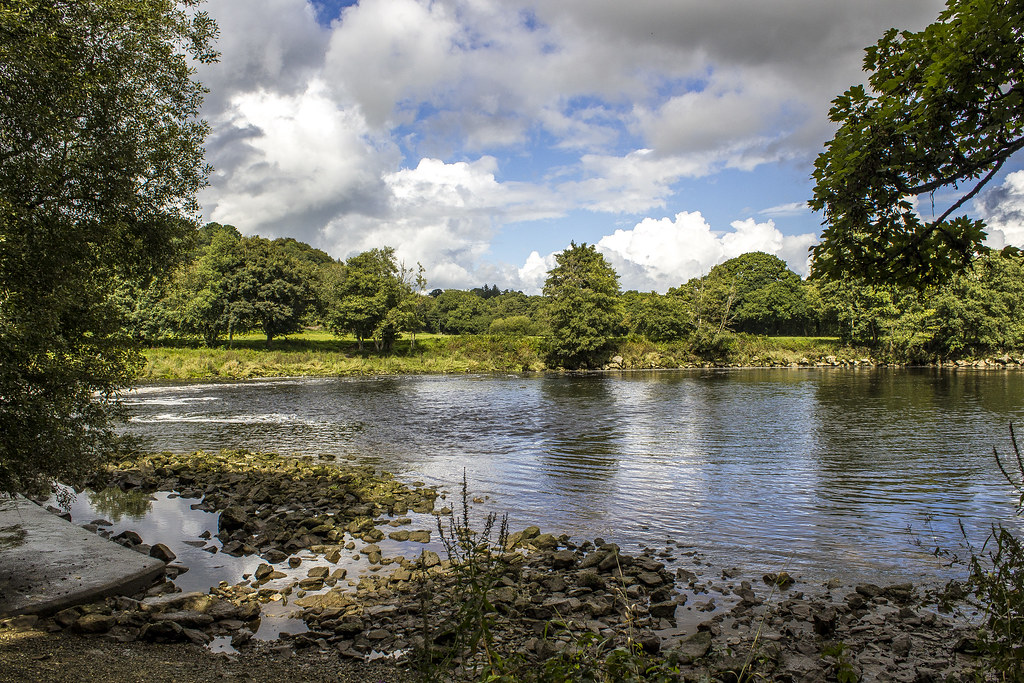
OK.. here's the other one.

yam2_zpsfae67105.jpg


Shadow recovery
selected highlight recovery around screen
removed two most annoying boats
crop
removed some litter
very slight high pass
selected curves adjustments to warm shadows

5 mins
 
Last edited:
By the way the motorbike was taken in the public car park in Kingsbridge & the other on Dartmoor somewhere :thinking:
 
Not a stack of entries but nevertheless good standards being achieved.

Sponner good to see you joining in as this is great thread to get the inspiration to progress with PP but sorry you're not the winner this time.

The Dartmoor water shot had really good edits from David, Neil & SMAM so wasn't too sure which way to go on that shot. It never really inspired me even though it was a beautiful peaceful spot to be.

The motorbike shot was interesting as it was so shiny & driven by a couple of really old folks - even older than me & I'm a pensioner (just :lol:). Graham & Neil have let their hair down (assuming you two have hair) with something different but it was David's edit that really caught my eye. Rhodese your edit seems a little on the dark side unless that was intentional?

My edits are below but were done so long ago I'm sorry but I can't recall the editing workflow other than done in LR4 & PE10. The Dartmoor shot didn't require much as David says. The motorbike shot turned out better than I thought & it still makes me smile when I think of the riders.

Don't I waffle but I'm giving this round to David as the motorbike edit swung it for me - David you're not an 'Hells Angel' are you? :lol:


Cheers John.. no I'm not... but a nice machine, is a nice machine :).

I'll be back in a bit when I've picked an image.
 
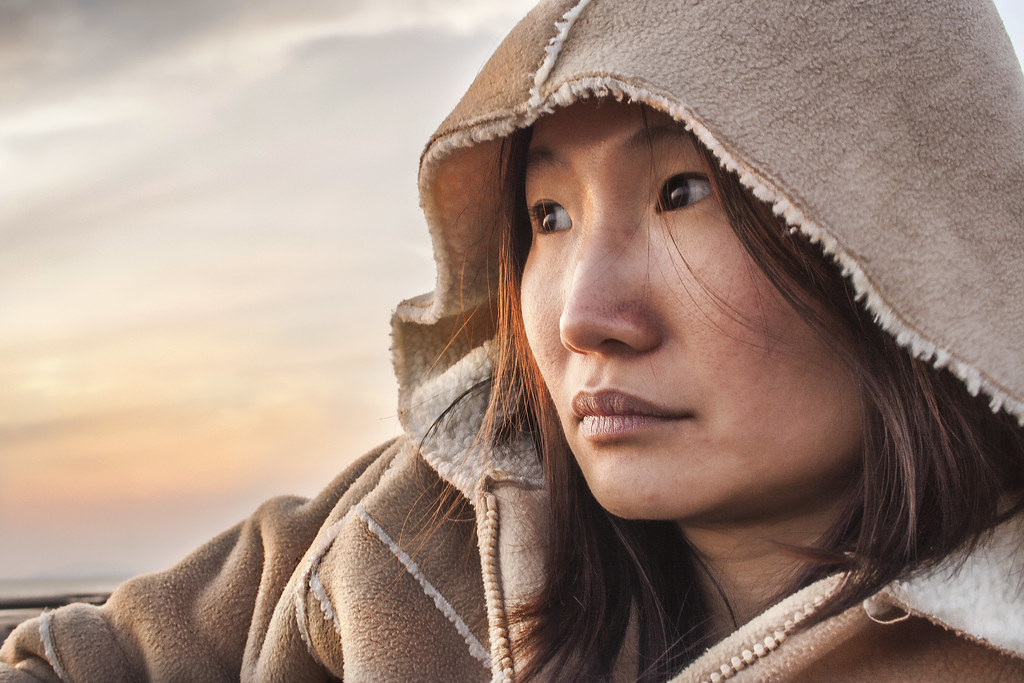
OK... just happened across this I took years ago on my little travel camera... still 8MP.. good enough to edit.

Let's see what you do with this.

ETIFkPH.jpg


Click for RAW file.


I'll call this one Saturday afternoon?

[edit]

Forgot it was Thursday today... probably Sunday afternoon would be better.
 
Last edited:
David such a beautiful photograph & I'm scared of screwing it up with one of my edits. I have been trying but portraits are again outside of my learning curve but will spend some more time on it when I've looked at a few tutorials :thinking:
 
Here's mine, the same concerns as John, sooooo, on the less is more theme......

In DPP
WB set
+0.333 EV
contrast down
highlights up
SAVE as TIFF
IN PS
healing brush on two or three small blemishes
slight brighten of whites of eyes
reduced opacity of this adjusted layer to 50%
Clone out hair across right eye
Triangle in top right corner had tint of blue, so painted over white.
Slight smart sharpen

That's it, did try a number of other things, crops, selective colour :eek:, B&W, lens flares :shake:, split toning etc, but decided to leave that type of thing to those who know what they're doing :lol:

Probably 10-15 mins spent on the things I did, plus another 10-15 on the things I tried, but didn't do!

CLICKIT FOR BIG
 
First time playing this, so had a quick 15 minutes! :-)

I liked the shadows, but felt the blandness of the sky was a loss to the image.

So, in Raw, generated two versions of the image, 1 at about -3 EV to bring back the detail from the original sky and another exposed for the girl.

Dropped each image in its own layer in PS and used a simple mask to allow the sky detail through.
Some spot healing brush
a little cloning of stray hair
Used a little dodge/burn and the Nik Viveza plugin to play with the warmth and brightness of a number of shadow areas

i-RLxprpw-XL.jpg
 
This one was a bit tricky :)

MG_0612.jpg


In LR:
Increased the contrast, shadows, whites, saturation
Decreased the exposure, highlights
Lowered the saturation of orange
Increased the hue of yellow
Done

took me about 10-15 min to finish :cool:
 
Congratulations David.:1st:

This one for me is all about the difference in contrast on the left to the right of the face and the way the harsh light on the left has highlighted the faults in the skin, the burn on the upper nose is a big distraction.
So to my edit.
Open in ACR, auto, open in PS.
Copy layer.
On the top layer, change the blending mode to “Overlay” This increases contrast and saturation.
Apply a high pass filter, (filter-other-high pass) set to 8 pixels. Hit OK.
Invert the image.
Lower the opacity, to fine tune the softness of the skin.
SAVE.
Add a layer mask and with the foreground colour set to black, the background set to white and then using soft round brush set at 25% opacity paint over the eyes, mouth, nostrils etc gradually bringing back the sharpness wanted by masking the softness. Swapping to white using the X key to paint away any errors made.
Now still in the mask
Enlarge the brush and increase the opacity, paint over the rest of the image leaving only the skin of the face and neck appearing soft.
SAVE.
When happy flatten, copy layer.
Using clone, spot healing and the healing brushes remove unwanted hair, spots and the mark at the left upper nose.
SAVE.
New layer, using colour taken from the highlight in the hair add a grad from the bottom left up to the where the arm meets the hood, drop the opacity and adding a mask hide the grad on the arm of the coat.
New layer using the same colour pull a grad from the top left corner to the hood then drop the opacity to liking. (I think the grads complement the warmth in the face.)
On the background copy layer, add a warming filter (85) at 30%.
Clone over the empty space at the top right of the image.
SAVE.
New layer, using colours taken from the hair, make a border using stroke and fx bevel and emboss.
Flatten.
SAVE.
Save for web

TP-GIRL-WEB.jpg


Rhodese.
 
Last edited:
Dam I have done almost the same as Bascule!

Opened in ACR and darkened/ tweaked to get the detail in the cloud before opening in CS5.
Opened again in ACR and tweaked for the girl.

Combined the two in CS5 using a mask. Tried in mono but I like the gloden tones so kept in colour.

Given a high pass sharpen and tweak over the eyes to make them stand out a bit.
Then used the Florabella collection clean base plug in (opacity down to 45%) to lighten and warm it some more.

Then given a level and curves tweak to replace the tone that photobucket sucks out of it!

Flipped for something different.

 
What a great image to work on, thanks to all the people who have detailed their steps, I am learning a fair bit.


2_pp_upload by sponner (staffs), on Flickr

I have spent rather too long fiddling with this.
Opened in LR, 2 exposures, one for sky and one for face. tweaked colours to get more drama in the sky.
Used layer mask in PS to combine the two layers and flattened
Portrait Pro to smooth skin etc.
Faststone to clone out hair and paint in a bit of sky top right
Topaz filter, warm pre-set then adjusted some.

Was looking for dreamy sunset look,
 
Last edited:
My edit in LR5 trial.

_MG_0612.jpg


Dropped exposure about 1 stop.
Shadows +100 highlights - 59. Adjusted whites and blacks to fill histogram.
Clarity -31.
Realised there was a bit of sky showing top right so cropped that.
Experimented with some colour variations and decided on black and white.
Tinted it with the curves - added point in middle of red and green curves and moved up.
Bit of skin softening with adjustment brush - very low clarity and sharpness.
Shadow boost and clarity and sharpening on eyes - really got some white highlights showing.
Subtle vignette.
Painted negative exposure with smallish adjustment brush on sky from left edge to the middle going up slightly - low flow/density so could build up a slightly more streaked sky.
Soften edges - gradient filters with -100 sharpness along all 4 sides.
Final adjustment of any shadows/highlights/whites/blacks etc.
 
Browsing the forums, thought i'd give this a bash :wave:


PP Game-1 by Jason-Gardiner, on Flickr

All done in LR4:
Warmed it up.
Slight distortion change and a crop.
Softened the skin.
Gradient filter on the sky.
+ Exposure, yellows, contrast, vibrants and blacks.
- Whites, highlights and tint.
Very small tone curve adjustment.
Over sharpened :bonk:

Good fun this :)
 
basic sliders in raw
sharpen slightly
open in ps, smooth the face, except lips which i high passed and hard ovelayed
duplicate layer and increase the red in the sky then erased through sky plus some red on her coat
done


_MG_0612 by flying giraffe, on Flickr
 
Wow.. so many edits already.. LOL


This will be a nightmare to judge!

I look forward to Sunday :)
 
some great edits on this one!

ok you lot are pros at this and im still learning but here goes!

used a 5 layer technique i made up a few weeks ago, I imported 5 raw edits
one for skin tone (dark)
one for skin tone (light)
one for the coat neutral - (we have some tricky fringing onthis)
and one for the sky
and one for tone mapping (virtually black with detail on the highlight of the face)
and dodge and burn on the eyes/folds of the jacket and hair :)

not 100% happy with it but its bed time.....


comp-Edit.jpg by dark mavis, on Flickr
 
Last edited:

asian_lady_sunset_1024 by btyreman, on Flickr

LARGE HERE: http://farm8.staticflickr.com/7306/9098247468_51b815ef7e_o.jpg

Opened in LR 4.4

cropped out the right side,
custom white balance,
decreased highlights to improve the sky detail,
increased shadows a bit,
increased vibrance,
increased clarity a tiny amount,

used lots of the healing brush on her face to smoothen out spots and blemishes,
used a brush on her lips only slightly increasing red colour and saturation,
used brush on her eyes and then boosted exposure clarity and saturation,

slip tone: increased reds and oranges in highlights and shadows to warm it up even more,

sharpened and added a small amount of noise.

Hope you like it :thumbs:
 
There's some great edits done on this image......and I tried various ways of editing it....without ruining it.
My edit, done in Lightroom 4, first I rotated and cropped it, and added a slight vignette....
After that I probably adjusted every single slider there is in Lightroom, so, needless to say I've fiddled and increased and decreased the sliders...it's a long list of stuff that probably didn't need doing, so it took ages....but I found out a lot of stuff whilst doing this edit......

 
ok... time to call this.

Some interesting edits here. I'm gonna be tough with this one, as it's actually an image I like :)

Rhodese: nice method for smoothing skin. Nice balance of tones. Pleasing result. Not keen on the border though! Some slight halo around the arm.... and seems a little on the pink side.

Bascule: I agree the sky was pale, but I think that's going too far in the other direction.... same with vettahead. Points for retouching face though Bascule. I was surprised there were so many that didn't. Nice work with the sky though Bascule.. avoiding the usual halo.

SMAM: I feel it's too yellow, and the face very dark. I think the contrast and shadow adjustments you made really aren't flattering to the model. The increased contrast makes the darker areas darker, and the shiny parts shinier.

The goblin: nice tones, nice feel and colours, but not sure on the flipping laterally. There's also a halo around the subject where you've darkened the sky.

Sponner: Nice colours and tones. Sky's a bit dark I feel, and there's a blurriness around the jacket... looks like it's been smudged with the blur tool. You have at least tried to retouch the face though, but as usual portrait pro has removed far too much detail in the skin. If you're going to retouch a face, I really do feel it should be invisible.

andrewp: That's a really nice image. Even though I never saw it as black and white, that really looks nice. The eyes look really glassy and shiny though.... kinda creepy. I think those steps you took on the eyes were the straw that broke the camel's back.

Im_bald_Ok: Nice balance between sky and subject, but a halo around the subject. I feel the skin softening is too much. The flesh tones appear to bleed into darker tones. Usually a sign of too much -clarity.

Flying giraffe: lovely colours in the sky... probably the closest to reality here.... but that hard overlay exaggerates every blotch and blemish. She looks very blotchy. It's a portrait, so anything that makes the model look worse than reality has to be a problem. There's a slight halo around the arm too. Makes it more obvious the sky has been darkened.

SymmetricalOCD: Very interesting sky... where's the green coming from? LOL No idea how you did that... kind of like a Monét painting. I feel the face is too dark though... and use of +clarity hasn't done her any favours.... made her skin look more shiny.

Solo_Man: Interesting choice of angle. I feel it's too yellow though. I'd have liked to know what you did too, but part of what I reward when I do this is a good working practice. If you fiddled with every slider, then could you repeat this is you needed to? The result is really nice though.... but it is very yellow.

Despite the incredibly awful working practice... and despite bearing no resemblance to what I did with the image, I'm giving this to Solo Man. It's an inventive crop, and despite being too yellow, the limited palette makes the model look good, and as this is a portrait.. that can't be ignored. The slight downward gaze as a result adds a melancholic vibe too.


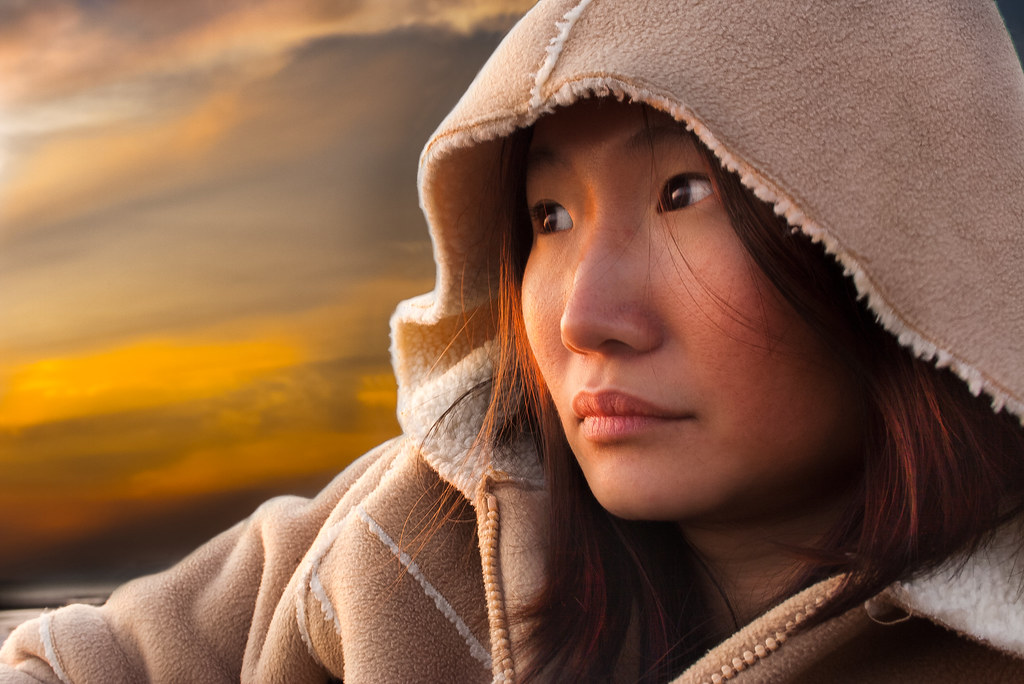
As usual, here's what I did with it.

CLICK FOR BIG, then click again to zoom in.
 
Last edited:
Well done Solo Man :clap:

& Well done David for the excellent critique from which we can learn :thumbs:
 
Last edited:
I hope the crit didn't come across as harsh.

Over to you Lee.
 
Well, seeing as I wasn't going to put up my edit, I'm really surprised to see it chosen..... thanks David. :)
It was really interesting to read your critique, and, also to read what spoilt the image for you about everyone's edits...as some of the things you mentioned I hadn't picked up on.

With regards to my edit..... I did umpteen edits of this, and, I originally got pretty much the same edit as everyone else, so, from that edit I then cropped and rotated and converted it to black and white, edited it a bit more(decided B&W wasn't the way to go) I then converted that edit to colour, and worked that some more and as a result got my final edit....it is a lengthy list, but, I could probably break it down... as I saved the other edits using the 'Snapshot' option....if I do, I will update my post....
On my screen it looks more orange than yellow, something I'll bear in mind in future.

On to finding an image .....


RAW file here....
https://www.dropbox.com/s/kpi257euqdiumig/DMT_4409.CR2
 
Last edited:
Back
Top