
and please use their services
You are using an out of date browser. It may not display this or other websites correctly.
You should upgrade or use an alternative browser.
You should upgrade or use an alternative browser.
THE PP GAME!
- Thread starter Phil Young
- Start date


Dr_O
Suspended / Banned
- Messages
- 1,517
- Name
- Dr Ozone
- Edit My Images
- Yes

wallyboy
Suspended / Banned
- Messages
- 2,805
- Name
- walter
- Edit My Images
- Yes
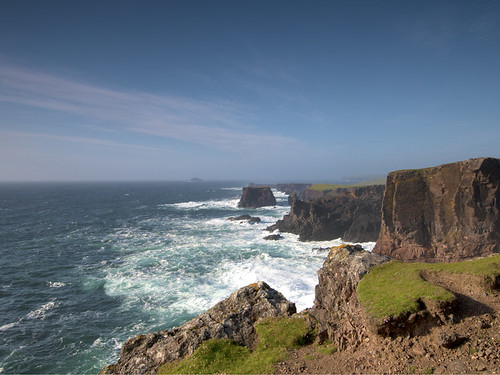
heres a go seen that pic before somewhere now where 
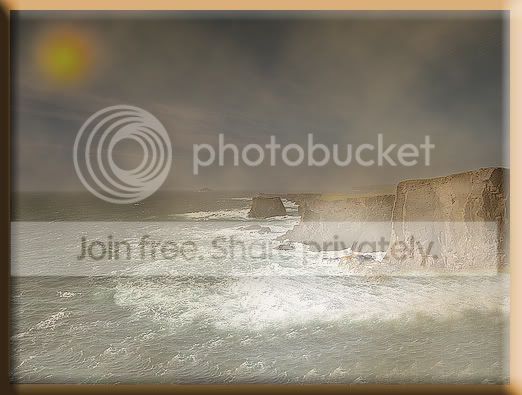
clone out bottom rock,
levels adjustment, to tone down image,
flatten
duplicate layer, add sun white orange yellow with brush smaller each time.
filter render clouds,
add mask brush out some of cloud on bottom of image,
add border crop tool
add edge
clone out bottom rock,
levels adjustment, to tone down image,
flatten
duplicate layer, add sun white orange yellow with brush smaller each time.
filter render clouds,
add mask brush out some of cloud on bottom of image,
add border crop tool
add edge

swanseamale47
Suspended / Banned
- Messages
- 10,876
- Name
- wayne clarke
- Edit My Images
- Yes
Well done Dr O.
photoimaging
Suspended / Banned
- Messages
- 330
- Name
- Joan West ARPS
- Edit My Images
- Yes
Can you let us have the raw at all? the jpeg file is already pretty pixellated
Dr_O
Suspended / Banned
- Messages
- 1,517
- Name
- Dr Ozone
- Edit My Images
- Yes
Can you let us have the raw at all? the jpeg file is already pretty pixellated
Forgot about that- I did start looking but every site required some form of registration or wouldn't recognise the file. Any good sites?
Edit: It's ok, found one

Last edited:
photoimaging
Suspended / Banned
- Messages
- 330
- Name
- Joan West ARPS
- Edit My Images
- Yes
Here's a bash, it's from the jpg - the raw didn't want to download.

and layers

and layers
OP

Phil Young
Suspended / Banned
- Messages
- 6,584
- Name
- Phil
- Edit My Images
- Yes
photoimaging said:Here's a bash, it's from the jpg - the raw didn't want to download.
and layers
Niiiice!
swanseamale47
Suspended / Banned
- Messages
- 10,876
- Name
- wayne clarke
- Edit My Images
- Yes
Here's a bash, it's from the jpg - the raw didn't want to download.
Raw worked for me but only after a popup advert.

stormcrow
Suspended / Banned
- Messages
- 1,503
- Name
- Dale
- Edit My Images
- Yes
In camera raw I de-saturated the image with the saturation slider.
I did an exposure adjustment in raw opened the image in photoshop.
I then opened the image in raw again and I did another adjustment opened it and layered it on top of the original then used a mask to apply the adjustment repeated this several times to different areas of the image.
I finished off with sharpening the shadows, midtones and highlights separately and a tiny bit of dodging and burning.

I did an exposure adjustment in raw opened the image in photoshop.
I then opened the image in raw again and I did another adjustment opened it and layered it on top of the original then used a mask to apply the adjustment repeated this several times to different areas of the image.
I finished off with sharpening the shadows, midtones and highlights separately and a tiny bit of dodging and burning.
Last edited:
swanseamale47
Suspended / Banned
- Messages
- 10,876
- Name
- wayne clarke
- Edit My Images
- Yes
Heres my version, I went for a Lomo effect (done with an action of mine.) and added a frame.

Heres the layers palette.

Duplicated background layer
Added grain and motion (zoom) blur
applied a gradient map ajustment layer
brightness/contrast ajustment layer
Vignette
then composite all layers into one for a levels ajustment layer tweek.
Add frame made previously.
Heres the layers palette.
Duplicated background layer
Added grain and motion (zoom) blur
applied a gradient map ajustment layer
brightness/contrast ajustment layer
Vignette
then composite all layers into one for a levels ajustment layer tweek.
Add frame made previously.

Flying giraffe
Suspended / Banned
- Messages
- 1,189
- Name
- Neil
- Edit My Images
- No
made 3 copies 0, -1, and +1 exposure, combined images, adjusted colours in the hsl tab, increasing reds and green, and blues, sharpened, and added a slight vignette

photoimaging
Suspended / Banned
- Messages
- 330
- Name
- Joan West ARPS
- Edit My Images
- Yes
Nice to see a revival here 
photoimaging
Suspended / Banned
- Messages
- 330
- Name
- Joan West ARPS
- Edit My Images
- Yes
Diolch (thankyou)Niiiice!
OP
Phil Young
Suspended / Banned
- Messages
- 6,584
- Name
- Phil
- Edit My Images
- Yes
Diolch (thankyou)
Mae croeso i chi (you're welcome) LOL!

Scottie68
Suspended / Banned
- Messages
- 1,828
- Name
- Scott
- Edit My Images
- Yes
Ok, here goes ... be gentle with me 
A ye olde photo attempt made with a couple of textured layers

old by surfinscottie, on Flickr

Photoshop by surfinscottie, on Flickr
Edited .... frame added !!
A ye olde photo attempt made with a couple of textured layers
old by surfinscottie, on Flickr
Photoshop by surfinscottie, on Flickr
Edited .... frame added !!
Last edited:
Dr_O
Suspended / Banned
- Messages
- 1,517
- Name
- Dr Ozone
- Edit My Images
- Yes
Raw worked for me but only after a popup advert.
Aye, didn't realise it wasn't quite as easy to retrieve the image as it was to upload. I guess it's either register and have another logon/password to remember and get bombarded with more spam via email or upload without registration but have pop ups and advertising to navigate round.
Really interesting effect Wayne
- hadn't come across Lomography before- there's certainly something to be learned from their communities outlook on photography.
Dr_O
Suspended / Banned
- Messages
- 1,517
- Name
- Dr Ozone
- Edit My Images
- Yes
Ok, here goes ... be gentle with me
A ye olde photo attempt made with a couple of textured layers
Ha ha
Great stuff Scott- what a contrast to the other one- you seem to have endless imagination/ creativity

swanseamale47
Suspended / Banned
- Messages
- 10,876
- Name
- wayne clarke
- Edit My Images
- Yes
Aye, didn't realise it wasn't quite as easy to retrieve the image as it was to upload. I guess it's either register and have another logon/password to remember and get bombarded with more spam via email or upload without registration but have pop ups and advertising to navigate round.
Really interesting effect Wayne
I have an action if your interested in playing further Dr.O.
Dr_O
Suspended / Banned
- Messages
- 1,517
- Name
- Dr Ozone
- Edit My Images
- Yes
I have an action if your interested in playing further Dr.O.
Thanks Wayne- that would be really good
. Actions are another area I need to investigate as well. I could see it saving a lot of time although at the moment it's good to reinforce the skills.
Dr_O
Suspended / Banned
- Messages
- 1,517
- Name
- Dr Ozone
- Edit My Images
- Yes
OK tough decision as I like aspects of them all
1st place-- Wayne
2nd place-- Scott
3rd pace-- Joan
Well done to all who entered as I felt they were all good
Here's mine:
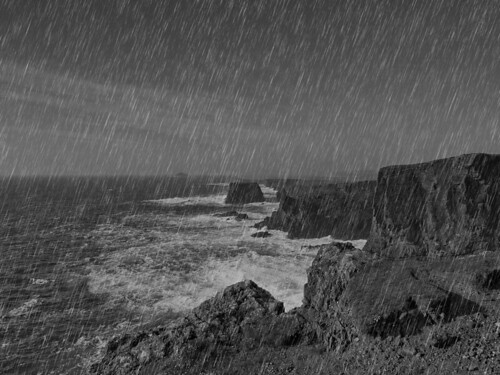
Shetland1 by Dr_Ozone, on Flickr
Opened in ACR and converted to grayscale with strong contrast
In CS5 created adjustment layer and decreased the exposure
Created a new layer with black foreground, applied monochromatic noise filter then motion blur with an angle and pixels to 100
Next levels adjustment on that layer and move sliders in until the lines start to form.
All tweaked to taste.
1st place-- Wayne
2nd place-- Scott
3rd pace-- Joan
Well done to all who entered as I felt they were all good
Here's mine:
Shetland1 by Dr_Ozone, on Flickr
Opened in ACR and converted to grayscale with strong contrast
In CS5 created adjustment layer and decreased the exposure
Created a new layer with black foreground, applied monochromatic noise filter then motion blur with an angle and pixels to 100
Next levels adjustment on that layer and move sliders in until the lines start to form.
All tweaked to taste.
photoimaging
Suspended / Banned
- Messages
- 330
- Name
- Joan West ARPS
- Edit My Images
- Yes
Congrats Wayne.
Close, but no cigarMae croeso i chi (you're welcome) LOL!

new2me
Suspended / Banned
- Messages
- 6,925
- Edit My Images
- Yes
Nice one Wayne
enough of that! get back to the darkside and post a piccie Scott

Well done the pair of ya!

swanseamale47
Suspended / Banned
- Messages
- 10,876
- Name
- wayne clarke
- Edit My Images
- Yes
Thanks guys, whos putting up a pic Scott or me?

arad85
Suspended / Banned
- Messages
- 9,438
- Name
- Andy
- Edit My Images
- Yes
You Wayne "the dark side" is the other thread...Thanks guys, whos putting up a pic Scott or me?
Scottie68
Suspended / Banned
- Messages
- 1,828
- Name
- Scott
- Edit My Images
- Yes
OK tough decision as I like aspects of them all
1st place-- Wayne
2nd place-- Scott
3rd pace-- Joan
Its you Wayne, your the champ :1st:
swanseamale47
Suspended / Banned
- Messages
- 10,876
- Name
- wayne clarke
- Edit My Images
- Yes
Ok here you go ladies and gents. No raw I'm afraid it's off a compact.

Scottie68
Suspended / Banned
- Messages
- 1,828
- Name
- Scott
- Edit My Images
- Yes
I'll go first ... went for a dreamy look with a slight colour boost

6800522149_2b968bfb40_b_tonemapped by surfinscottie, on Flickr
Raised the levels and saturation then reduced the noise. I added a little sharpening, contrast and brightness. Done!
6800522149_2b968bfb40_b_tonemapped by surfinscottie, on Flickr
Raised the levels and saturation then reduced the noise. I added a little sharpening, contrast and brightness. Done!
Flying giraffe
Suspended / Banned
- Messages
- 1,189
- Name
- Neil
- Edit My Images
- No
cloned out the barbed wire and added another wire rail, cloned extra rocks and purple flowers, increase saturation, high pass filtered, run through texturizer filter

photoimaging
Suspended / Banned
- Messages
- 330
- Name
- Joan West ARPS
- Edit My Images
- Yes
Here's mine

and layers

plus butterflies.
Joan
and layers
plus butterflies.
Joan
Dr_O
Suspended / Banned
- Messages
- 1,517
- Name
- Dr Ozone
- Edit My Images
- Yes
Well I started off tweaking curves, levels and vibrancy and wasn't really happy soooooo.... I decided what was needed was a time of day change and then probably needed the moon too to brighten up. I did leave as colour but turned my black and white back layer back on and it looked much better so that's what I went with.
Now I realise I am probably nearer one side of the rules but having a quick check of some historical stuff I feel it's ok- no fictional or out of place elements have been added like flying badgers and I thought it might be good to write out the steps as it's something more unusual for this thread.
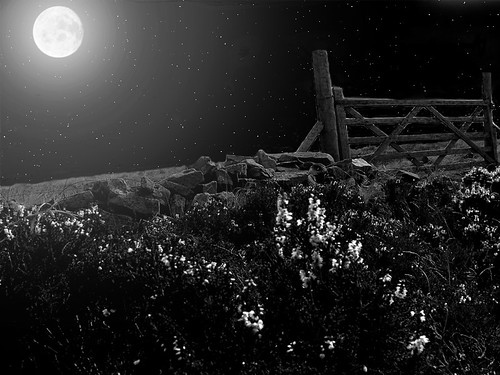
Edit11 by Dr_Ozone, on Flickr
Okay steps (CS5) (more due to my haphazard workflow)
1.Duplicate background in case of accidents
2. Create new layer (best called stars but I'm lazy and don't bother) with mode set to screen then tick fill screen with neutral colour (black). You could also create a new layer with mode normal and then make foreground colour black then go to edit and fill
3. Go to filter> Add noise- here I had it to about 80% but have used 100-110 in the past, guassian and monochromatic checked.
4. Next go to filter and blur- I selected 0.4 pixels
5. Then choose filter> new adjustment layer> levels. You want to check the 'use previous layer to create clipping mask' so that it's only affecting this layer
6. Muck about with the sliders moving black to the right and basically moe around until you like what you see
7. Now move the stars layer and the adjustment layer below your background copy
8. Take the eraser (i like a soft edge brush) and brush over the sky and the stars will come through. I brushed out some of the fence as this bit is quite footery and I'm really slow
9. Next I created an adjustment layer linked to my background copy for vibrancy and tweaked that a bit which brought out some texture in the fence and rocks
10. Next created a black and white adjustment layer
11. Create new layer and add 1 moon (cos we live on earth and only have 1) cut out from pic with quick selection tool then use move tool and then use edit> free transform to sort to size and then with a very low opacity (about 10%) brush brushed over that with a large brush and then used a smaller brush with about 20% and then a smaller brush again with about 50%- so every decreasing around the moon.
12. Did a slight crop
Probably easier more efficient ways to do it I'm sure
. I did leave as colour but turned my black and white back layer back on and it looked much better so that's what I went with.Now I realise I am probably nearer one side of the rules but having a quick check of some historical stuff I feel it's ok- no fictional or out of place elements have been added like flying badgers and I thought it might be good to write out the steps as it's something more unusual for this thread.
Edit11 by Dr_Ozone, on Flickr
Okay steps (CS5)
(more due to my haphazard workflow)1.Duplicate background in case of accidents
2. Create new layer (best called stars but I'm lazy and don't bother) with mode set to screen then tick fill screen with neutral colour (black). You could also create a new layer with mode normal and then make foreground colour black then go to edit and fill
3. Go to filter> Add noise- here I had it to about 80% but have used 100-110 in the past, guassian and monochromatic checked.
4. Next go to filter and blur- I selected 0.4 pixels
5. Then choose filter> new adjustment layer> levels. You want to check the 'use previous layer to create clipping mask' so that it's only affecting this layer
6. Muck about with the sliders moving black to the right and basically moe around until you like what you see
7. Now move the stars layer and the adjustment layer below your background copy
8. Take the eraser (i like a soft edge brush) and brush over the sky and the stars will come through. I brushed out some of the fence as this bit is quite footery and I'm really slow
9. Next I created an adjustment layer linked to my background copy for vibrancy and tweaked that a bit which brought out some texture in the fence and rocks
10. Next created a black and white adjustment layer
11. Create new layer and add 1 moon (cos we live on earth and only have 1) cut out from pic with quick selection tool then use move tool and then use edit> free transform to sort to size and then with a very low opacity (about 10%) brush brushed over that with a large brush and then used a smaller brush with about 20% and then a smaller brush again with about 50%- so every decreasing around the moon.
12. Did a slight crop
Probably easier more efficient ways to do it I'm sure
Last edited:
Scottie68
Suspended / Banned
- Messages
- 1,828
- Name
- Scott
- Edit My Images
- Yes
Dr_O said:11. Create new layer and add 1 moon (cos we live on earth and only have 1)
We certainly do, but I'm not so sure about yourself
Great edit by the way
Last edited:
swanseamale47
Suspended / Banned
- Messages
- 10,876
- Name
- wayne clarke
- Edit My Images
- Yes
Blimey this s going to be a tricky one to judge, say friday evening?