OP

- Messages
- 18,695
- Name
- LongLensPhotography
- Edit My Images
- No
so would you go for ANY of the CHA_FANx?


so would you go for ANY of the CHA_FANx?


Yes, linking fans to CPU temperature isn't good because it spikes regularly and doesn't require immediate fan response. Doing so just creates a system where you can hear the fan speed changing all the time.
For my case fans, I use the temperature sensors I've placed on heatsinks. For GPU it's really accurate, more or less in line with GPU temperature, but massively smoothed out. For CPU, I've found placing temperature probes on the VRM heatsink gives better reading than CPU heatsink. VRM heatsink is well matched to its heat output, whereas D14 is not really working hard for overclocked i7 2700k even less so with R5 3600.
My CPU fan is connected to CHA fan header and doesn't spin until CPU exceeds 45c. The case 180mm fan at 400-500rpm pushes enough air over D14 this rarely happens in light workload. Noctua A15 at below 800rpm is completely silent anyway.
GPU fan is controlled by MSI Afterbuner with a large hysteresis and a long sample rate, so fan speed doesn't jump up and down too much. It also stops during idle.
Effectively during light workload, only two 180mm fan runs at 400-500rpm, at bottom of the case, pretty much completely silent. I haven't needed to change this setup for close to 10 years now. Silverstone FT02 is such a well designed case.....


I don't believe that's the case. It has always been incremental increases. When DDR4 came out, 2666 MHz was normal, buying 3600 MHz kits were really expensive. Whereas now, although you can technically run 2666 MHz with Ryzen 5000 series, it does not unleash the CPU true potential. End of the day, it's a simple case of buying whatever matches at time of purchase. As always, remember, the system you have now does not magically become slower when new stuff comes out.Something to look forward to later this year, DDR5 will make all our computers old tat sneered at by spoiled teens and reviewers everywhere. As always happens with the RAM releases. I remember DDR3, overnight it died a death and you couldnt give away a DDR3 system.
Cpu fan is for cpu
Cpu opt is secondary cooler fan
cha fan is chassis fans
if your fan cables are to short use extenders or splitters.
Do you have all your fans already? How many?
Thanks. I think I got past this stage. In the bios I just had to select PWM for FAN3 and they now play as expected. I am a little overwhelmed with the number of options down there but luckily most can be just left as default for now. I think something makes a little bit of buzzing noise; could be either PSU or GPU.
The next hurdle is getting any OS installed and all the mis-behaving with bluetooth peripherals. Unlike apple they don't ask you to configure one so I'm now hunting around the house for old wired stuff just to get me past that. In fact I'm not too sure what to do about the mouse. I like magic mouse v1 but it is tied to MBP for now and there is no 1..2..3 switch like on the logitech keyboard. Perphaps I'll have to source another. I think I much prefer the replaceable batteries vs USB port that eventually get's broken off.
Aaaaaand, that's why I pay people to build computers for me
There is something satisfying about building own you own computer. Perhaps 'caveman build fire' instinct reward or something haha, but I liked to know what components were going in my machine and also that it was all being put together properly. I guess not so much of an issue these days now that you can spec your build components.

Logitech offer value and long battery life with their wireless stuff, it's nice they offer a full range from cheap to expensive. Their upper end MX stuff is really nice.
Neither should buzz, possibly gpu under load being coil whine. Or something loose. If at idle neither should make any noise and if your psu does that then replace.
You should be able to set display scaling separately for each monitor. I have my work 1080p 14inch laptop set to be 1.25x and external monitor set to be 1x.* Screens / Windows. Due to different resolution and size the two screens are rather different. 32"4K and old subFHD 20" (used mostly for email inbox). Windows kindly offers me to scale 4K one at 150% making the screen unusable for any graphics or editing work. I want to leave it alone just as a I did on the mac and only scale text a little bit (like 120-125%). But they force the same text setting across both screens, and the other one looks stupid at over 100%. I'd rather not to have to buy another screen(s) right now just because of that. Let's wait for some new gen 6k/8K tech first, whichever behaves better at 32".
* Calibration. Hopefully that will work out. One thig I don't get is the 3rd tab in the Colour management properties window (advanced). I wonder if any of it matters at all.
* RAM. For whatever reason the AUTO settings set it to 2600MHz (instead of 3600). WFT? Am I supposed to manually set these things and all the voltages and everything?
* The case USB-C port is not connected because the MB has no such header. This is a bit OCD but it bugs me when things are incomplete.
You should be able to set display scaling separately for each monitor. I have my work 1080p 14inch laptop set to be 1.25x and external monitor set to be 1x.
Use your screen calibration software? I've no idea how colour profile works in Windows, I just rely on the fact colours look correct after doing screen calibration using the USB calibration thingy.
For RAM speed, Auto will default to fastest JEDEC speed. But RAM advertised speed are actually saved as XMP normally at 1.35v for DDR4, according to Intel, that is considered RAM overclocking. So you need to manually select XMP. https://www.tomshardware.com/uk/reviews/how-to-enable-xmp-ddr4-overclocking,6133.html
If the motherboard has 2 front USB-C connectors, you can buy something like this to adopt one of it to USB-C header: https://smile.amazon.co.uk/EZDIY-FA...20+pin+internal+adapter&qid=1612706324&sr=8-6
Try the sticks in different slot? My motherboard manual says to use 2 grey slots rather than the 2 black slots first, I got 3400 MHz overclock in the grey slots but cannot go above 3200 MHz on the black shots. The RAM is 3000 MHz factory XMP. It's to do with the quality of traces on the motherboard.Thanks. In the end I figured out in AMD-speak it is DOCP. And it resulted in unbootable system. 3200MHz / and all else Auto works well enough. Something is really s*** at 3600, just not sure if that is MB, RAM or BIOS. I'm not in the mood of frying something today other than a piece of meat for dinner.
Unfortunately not, that requires a hub chip. Alternatively, you could try buy a USB2 to USB3 internal connector adapter, which slows down your Type A ports to USB2 speeds. It might stack with the Type C adaptor allowing you to at least get USB 2 speed on the Type COnly 1. That's 2X USB3 type A ports at the front. Is there a splitter type connector with both kinds presuming it can handle 3 ports in total?


I just ran the test and your memory score is lower than expected, my 32GB 3000Mhz CL16 got score of 3165 (I've removed my 3400MHz overclock because it's not really noticeable).. You sure it's running the XMP settings?
Very nice disk score!
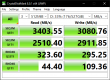
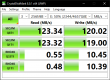
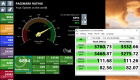
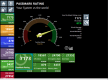

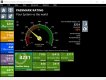
 overall 75% percentile, passmark was 5910 which sounds about right for a mid range PC? 2600x with 16GB 3200 RAM and GTX 1660, so mediocre but all that I'd need to do for next few year
What's confusing you with the network.Wacom Intous Pro small arrived today. Setup in Windows was fairly quick following the instructions on the insert.
First impressions:
A) Touchpad.
It operates just like a large advanced trackpad. There is pretty much no more need for a mouse which was the main point of this exercise. The touch surface is notably rougher than the glassy apple Magic trackpad, so the fingers don't slide along as smoothly but I am sure this is just a matter of getting used to it. On Medium you could change the surface to smoother, not sure how much that would be and whether that would be any good for the pen.
Small size is plenty big for a trackpad.
A minor complaint is that it lies flat on the surface and I find wedged trackpads and drawing pads much more natural. It is easy to fix by propping up one edge with something like a mouse mat but ideally I'd like to have some inbuilt mechanism like the keyboard legs.
B) Pen.
It is possible and pretty much necessary to disable touch input while using the pen. There is a simple switch on the side of the tablet.
Pen is very sensitive. Very. It takes some getting used to but looks doable. In Photoshop I can do things that I can't even think about with the mouse. Dodging, burning and shading will be really nice. Cloning feels about the same like with the mouse.
Small size so far seems adequate enough so far and I have 32" screen.
Looks like a win win so far and should be useful for most of you as well. I'll have to next test on Linux and see if it retains any useful functionality over VMs.
----------
Network setup is going to be the next interesting thing. NAS has 2x 1GBE ports. PC has 1x 2.5GE. EE box has 3x 1GBE free ports. That just doesn't add up properly. I am even worried this may slow down the whole network? WIFI 5 is useless and on this box tops at 12MB/s internal.
The simple (but very expensive) and answer would be to buy top of the line Wifi 6 router with 2.5GBE ports or some fancy 10GBE or at least 2.5GBE switch. Now there are plenty of cheap Gigabit switches if that would somehow make things better.
What's confusing you with the network.
Plug the NAS into the router and plug your pc into the router, everything will work at 1GB. You'll get about 120mb/s file transfer speeds.
You'll need to run 2.5gbe then, so new NAS and a switch. Wouldn't worry about the router unless you're on fiber internet 120mbs won't be holding you back.Drives, NAS and my PC should be easily capable of over 200MB/s according to specs. I would really like to use it after paying a premium for it. It appears the standard ee WIFI router may be not fully up to the task even if it doesn't start overheating and slowing the internet down.
You'll need to run 2.5gbe then, so new NAS and a switch. Wouldn't worry about the router unless you're on fiber internet 120mbs won't be holding you back.
No need to get defensive. Are you getting one switch or two?DS718+ is a capable of combined 2x 1GB so that's 2GBE in total. So No I really don't need a new NAS because of 0.5GBE. Switch - looks like it...
No need to get defensive. Are you getting one switch or two?
You'll definitely need a new switch or router to enable your motherboard 2.5GbE to run at over 1Gbps speed. But to get the Synology box to achieve that speed, it'll need supported switch/router. The list of affordable 2.5GbE switches plus supporting link aggregation should be pretty small.