PC build specs

so would you go for ANY of the CHA_FANx?

Might be worth finding out which ones are PWM, Voltage or 100% full power. My MSI board is sneaky and has x2 four pin fan headers, but the forth pin isn't used. I had to delve deep in the online manual to find out. The remaining x2 fan headers are 3 pin full power. You need to match up fan types as well to get full capability.

I got around the lack of decent fan headers by using splitter cables.

I think in pretty much all motherboards the CPU fan header(s) will be PWM. I would also expect a few PWM case fan headers as well. Gigabyte do hybrid headers which cover all types.

What's the motherboard model?
 
In addition to some don't do voltage control. There are also sneaky restrictions like no fan stop functionality on some fan headers, or CPU_OPT and CPU fan header are actually controlled by the same setting.


For the first restriction, I use CHA_1 for my CPU fan instead. The massive D14 is usually run in passive mode, fan only spins up when CPU temperature goes above 45c.

To have true full control of your fans, a dedicated controller will always work better. I use T-balancer BigNG (out of production now). It can do fan stop, voltage control meaning works with any fan, won't need PWM fans. After saving setting up, it's 100% hardware based, so always works and doesn't rely on having any software running.

Corsair Commander Pro seems like a good modern fan controller. But my brief time with one tells me it's more geared towards RGB rather than fan control. At least the software isn't as fully featured as my one for fan control. No hysteresis or fan jump start speed setting, minimal for my 180mm fans are over 500rpm whereas I know they can go to 400rpm after a higher voltage jump start.
 
Aye I bought the Noctua NA-FC1 fan controller only to overlook that it only works with PWM headers so that was a bit of a bust. I also tried using fan splitters on the CPU fan header to control a few case fans as well but the heat disparities between the CPU and the case meant that I would have case fans spinning up unnecessarily and making extra noise.

Ended up with the CPU fan header dedicated to my mid sized Noctua heatsink fan and using splitters on my two voltage controlled case fans to control four case fans. Then set up the parameters in BIOS. The remaining two 3 pin fan headers remain unused. It works well, temps are low and it's fairly quiet most of the time.
 
Yes, linking fans to CPU temperature isn't good because it spikes regularly and doesn't require immediate fan response. Doing so just creates a system where you can hear the fan speed changing all the time.

For my case fans, I use the temperature sensors I've placed on heatsinks. For GPU it's really accurate, more or less in line with GPU temperature, but massively smoothed out. For CPU, I've found placing temperature probes on the VRM heatsink gives better reading than CPU heatsink. VRM heatsink is well matched to its heat output, whereas D14 is not really working hard for overclocked i7 2700k even less so with R5 3600.

My CPU fan is connected to CHA fan header and doesn't spin until CPU exceeds 45c. The case 180mm fan at 400-500rpm pushes enough air over D14 this rarely happens in light workload. Noctua A15 at below 800rpm is completely silent anyway.
GPU fan is controlled by MSI Afterbuner with a large hysteresis and a long sample rate, so fan speed doesn't jump up and down too much. It also stops during idle.
Effectively during light workload, only two 180mm fan runs at 400-500rpm, at bottom of the case, pretty much completely silent. I haven't needed to change this setup for close to 10 years now. Silverstone FT02 is such a well designed case.....
 
I'll be moving from my mid to a full tower with the next build as I like space to play around in. At the moment my side fan just about touches one of the GPU PSU cables and I'm restricted with my CPU heatsink - no behemoth monoliths for me! haha
 
CPU-OPT is for an optional (2nd) CPU fan or heatsink as @gman states. The cha_fanX are for chassis (case) fans. Hope this helps but if you're still having problems then please let me know what MOBO you have and hopefully I can give more detailed advice.
 
Yes, linking fans to CPU temperature isn't good because it spikes regularly and doesn't require immediate fan response. Doing so just creates a system where you can hear the fan speed changing all the time.

For my case fans, I use the temperature sensors I've placed on heatsinks. For GPU it's really accurate, more or less in line with GPU temperature, but massively smoothed out. For CPU, I've found placing temperature probes on the VRM heatsink gives better reading than CPU heatsink. VRM heatsink is well matched to its heat output, whereas D14 is not really working hard for overclocked i7 2700k even less so with R5 3600.

My CPU fan is connected to CHA fan header and doesn't spin until CPU exceeds 45c. The case 180mm fan at 400-500rpm pushes enough air over D14 this rarely happens in light workload. Noctua A15 at below 800rpm is completely silent anyway.
GPU fan is controlled by MSI Afterbuner with a large hysteresis and a long sample rate, so fan speed doesn't jump up and down too much. It also stops during idle.
Effectively during light workload, only two 180mm fan runs at 400-500rpm, at bottom of the case, pretty much completely silent. I haven't needed to change this setup for close to 10 years now. Silverstone FT02 is such a well designed case.....


Aaaaaand, that's why I pay people to build computers for me :)
 
The motherboard manuals say about everything needed to know in my experience, i used to read them several times over before even starting the build.

Something to look forward to later this year, DDR5 will make all our computers old tat sneered at by spoiled teens and reviewers everywhere. As always happens with the RAM releases. I remember DDR3, overnight it died a death and you couldnt give away a DDR3 system.
 
Cpu fan is for cpu
Cpu opt is secondary cooler fan
cha fan is chassis fans

if your fan cables are to short use extenders or splitters.

Do you have all your fans already? How many?
 
Last edited:
Something to look forward to later this year, DDR5 will make all our computers old tat sneered at by spoiled teens and reviewers everywhere. As always happens with the RAM releases. I remember DDR3, overnight it died a death and you couldnt give away a DDR3 system.
I don't believe that's the case. It has always been incremental increases. When DDR4 came out, 2666 MHz was normal, buying 3600 MHz kits were really expensive. Whereas now, although you can technically run 2666 MHz with Ryzen 5000 series, it does not unleash the CPU true potential. End of the day, it's a simple case of buying whatever matches at time of purchase. As always, remember, the system you have now does not magically become slower when new stuff comes out.

I used DDR3-1600, PCIe 2 up until mid last year. the upgrade to DDR4-3400 wasn't noticeable at all in terms of speed. In fact, outside of CPU intensive tasks, the CPU/RAM/mobo upgrade isn't really noticeable in everyday use.

The ONLY reason why I'd choose DDR5 when the standards straddle is for future compatibility, but that means spending over the odds to buy the faster RAM so that it can still match newer systems. Financially, it doesn't make sense.
 
Cpu fan is for cpu
Cpu opt is secondary cooler fan
cha fan is chassis fans

if your fan cables are to short use extenders or splitters.

Do you have all your fans already? How many?

Thanks. I think I got past this stage. In the bios I just had to select PWM for FAN3 and they now play as expected. I am a little overwhelmed with the number of options down there but luckily most can be just left as default for now. I think something makes a little bit of buzzing noise; could be either PSU or GPU.

The next hurdle is getting any OS installed and all the mis-behaving with bluetooth peripherals. Unlike apple they don't ask you to configure one so I'm now hunting around the house for old wired stuff just to get me past that. In fact I'm not too sure what to do about the mouse. I like magic mouse v1 but it is tied to MBP for now and there is no 1..2..3 switch like on the logitech keyboard. Perphaps I'll have to source another. I think I much prefer the replaceable batteries vs USB port that eventually get's broken off.
 
Thanks. I think I got past this stage. In the bios I just had to select PWM for FAN3 and they now play as expected. I am a little overwhelmed with the number of options down there but luckily most can be just left as default for now. I think something makes a little bit of buzzing noise; could be either PSU or GPU.

The next hurdle is getting any OS installed and all the mis-behaving with bluetooth peripherals. Unlike apple they don't ask you to configure one so I'm now hunting around the house for old wired stuff just to get me past that. In fact I'm not too sure what to do about the mouse. I like magic mouse v1 but it is tied to MBP for now and there is no 1..2..3 switch like on the logitech keyboard. Perphaps I'll have to source another. I think I much prefer the replaceable batteries vs USB port that eventually get's broken off.

Neither should buzz, possibly gpu under load being coil whine. Or something loose. If at idle neither should make any noise and if your psu does that then replace.

Logitech offer value and long battery life with their wireless stuff, it's nice they offer a full range from cheap to expensive. Their upper end MX stuff is really nice.
 
Last edited:
Aaaaaand, that's why I pay people to build computers for me :)

There is something satisfying about building own you own computer. Perhaps 'caveman build fire' instinct reward or something haha, but I liked to know what components were going in my machine and also that it was all being put together properly. I guess not so much of an issue these days now that you can spec your build components.
 
There is something satisfying about building own you own computer. Perhaps 'caveman build fire' instinct reward or something haha, but I liked to know what components were going in my machine and also that it was all being put together properly. I guess not so much of an issue these days now that you can spec your build components.

I totally get that - and I do like to build things. But for the cost saving and the risk involved, I'd rather hire somebody who was interested enough in chip speeds and heat sink flavours to put something together. For my own PC (specified by the nice people of this forum) at the last minute a perfectly normal card just failed to work with my perfectly normal mobo. So the builders sorted it. I don't need that satisfaction :D

Logitech offer value and long battery life with their wireless stuff, it's nice they offer a full range from cheap to expensive. Their upper end MX stuff is really nice.

MX Master is probably the nicest mouse I've ever used. I charge it maybe once a month. I have the MX2 which is much cheaper than the 3 and plenty good enough. If you already have a 123 keyboard it fits right in - I have mine connected to desktop, laptop and MacBook.
 
Neither should buzz, possibly gpu under load being coil whine. Or something loose. If at idle neither should make any noise and if your psu does that then replace.

Turned out it was a portable HDD resonating with the desk after heavy reshuffling. WD My passport ultra 5TB, the one in a posh metal enclosure seems to be much more vocal than the plain non-ultra. As a short term solution I will have to resort to placing them on some sort of soft mouse matt or similar... Long term I think 8TB SSD looks pretty inevitable apart from maybe some networked storage server. There is a lot to think about here.
Generally the thing is whisper quiet and only really starts making a bit of noise when pushing it in a game. I'd say the old 13" MBP is louder on load.

I got the core system up and running. There are lots of unknowns and niggles at this point, so it is not "production ready" yet.

* Keyboard and mouse. I am close to giving up on anything with bluetooth. Nothing works in BIOS and GRUB. That's kind of a big deal when you can't select / change the OS. Furthermore, Windows and linux just can't share the same bloody Logitech K760 keyboard even though it has 1, 2, 3 device presets. I'm not sure what to do exactly because remember there is also the mac on the same desk too, and I don't want 2 or 3 sets of different keyboards and mice. We are back to 2004!!! I'll have to dig out the floppy drive too!

* Screens / Windows. Due to different resolution and size the two screens are rather different. 32"4K and old subFHD 20" (used mostly for email inbox). Windows kindly offers me to scale 4K one at 150% making the screen unusable for any graphics or editing work. I want to leave it alone just as a I did on the mac and only scale text a little bit (like 120-125%). But they force the same text setting across both screens, and the other one looks stupid at over 100%. I'd rather not to have to buy another screen(s) right now just because of that. Let's wait for some new gen 6k/8K tech first, whichever behaves better at 32".

* Calibration. Hopefully that will work out. One thig I don't get is the 3rd tab in the Colour management properties window (advanced). I wonder if any of it matters at all.

* Networked Canon IPF printer. Something is blocking the communication dead. I barely managed to install the driver after disabling the firewall but now even that doesn't help to make it print. I tried loads of things and I think I've got a very good nose for it in general but so far nothing. That's a very big showstopper. Linux can see it clearly but obviously has no driver. Mac works perfectly.

* RAM. For whatever reason the AUTO settings set it to 2600MHz (instead of 3600). WFT? Am I supposed to manually set these things and all the voltages and everything?

* The case USB-C port is not connected because the MB has no such header. This is a bit OCD but it bugs me when things are incomplete.

* The general look and feel of windows aka MS DOS or Win 3.1. Can anything be done about it? Linux has like gazillion of different styles.
 
* Screens / Windows. Due to different resolution and size the two screens are rather different. 32"4K and old subFHD 20" (used mostly for email inbox). Windows kindly offers me to scale 4K one at 150% making the screen unusable for any graphics or editing work. I want to leave it alone just as a I did on the mac and only scale text a little bit (like 120-125%). But they force the same text setting across both screens, and the other one looks stupid at over 100%. I'd rather not to have to buy another screen(s) right now just because of that. Let's wait for some new gen 6k/8K tech first, whichever behaves better at 32".

* Calibration. Hopefully that will work out. One thig I don't get is the 3rd tab in the Colour management properties window (advanced). I wonder if any of it matters at all.

* RAM. For whatever reason the AUTO settings set it to 2600MHz (instead of 3600). WFT? Am I supposed to manually set these things and all the voltages and everything?

* The case USB-C port is not connected because the MB has no such header. This is a bit OCD but it bugs me when things are incomplete.
You should be able to set display scaling separately for each monitor. I have my work 1080p 14inch laptop set to be 1.25x and external monitor set to be 1x.

Use your screen calibration software? I've no idea how colour profile works in Windows, I just rely on the fact colours look correct after doing screen calibration using the USB calibration thingy.

For RAM speed, Auto will default to fastest JEDEC speed. But RAM advertised speed are actually saved as XMP normally at 1.35v for DDR4, according to Intel, that is considered RAM overclocking. So you need to manually select XMP. https://www.tomshardware.com/uk/reviews/how-to-enable-xmp-ddr4-overclocking,6133.html

If the motherboard has 2 front USB-C connectors, you can buy something like this to adopt one of it to USB-C header: https://smile.amazon.co.uk/EZDIY-FA...20+pin+internal+adapter&qid=1612706324&sr=8-6
 
You should be able to set display scaling separately for each monitor. I have my work 1080p 14inch laptop set to be 1.25x and external monitor set to be 1x.

That's precisely what I don't want to touch because it makes everything look hopelessly blurry. Unless it is 200%, 400%, etc but that will obviously require getting a 6K or 8K screen first.

Use your screen calibration software? I've no idea how colour profile works in Windows, I just rely on the fact colours look correct after doing screen calibration using the USB calibration thingy.

That's the plan. I hope it will take care of the settings for me. For now I just tried to load same old profiles from the mac to get started quickly.

For RAM speed, Auto will default to fastest JEDEC speed. But RAM advertised speed are actually saved as XMP normally at 1.35v for DDR4, according to Intel, that is considered RAM overclocking. So you need to manually select XMP. https://www.tomshardware.com/uk/reviews/how-to-enable-xmp-ddr4-overclocking,6133.html

Thanks. In the end I figured out in AMD-speak it is DOCP. And it resulted in unbootable system. 3200MHz / and all else Auto works well enough. Something is really s*** at 3600, just not sure if that is MB, RAM or BIOS. I'm not in the mood of frying something today other than a piece of meat for dinner.

If the motherboard has 2 front USB-C connectors, you can buy something like this to adopt one of it to USB-C header: https://smile.amazon.co.uk/EZDIY-FA...20+pin+internal+adapter&qid=1612706324&sr=8-6

Only 1. That's 2X USB3 type A ports at the front. Is there a splitter type connector with both kinds presuming it can handle 3 ports in total?
 
Thanks. In the end I figured out in AMD-speak it is DOCP. And it resulted in unbootable system. 3200MHz / and all else Auto works well enough. Something is really s*** at 3600, just not sure if that is MB, RAM or BIOS. I'm not in the mood of frying something today other than a piece of meat for dinner.
Try the sticks in different slot? My motherboard manual says to use 2 grey slots rather than the 2 black slots first, I got 3400 MHz overclock in the grey slots but cannot go above 3200 MHz on the black shots. The RAM is 3000 MHz factory XMP. It's to do with the quality of traces on the motherboard.
I thought MSI uses XMP, only Asus uses DOCP. Glad you've figured it out.

Only 1. That's 2X USB3 type A ports at the front. Is there a splitter type connector with both kinds presuming it can handle 3 ports in total?
Unfortunately not, that requires a hub chip. Alternatively, you could try buy a USB2 to USB3 internal connector adapter, which slows down your Type A ports to USB2 speeds. It might stack with the Type C adaptor allowing you to at least get USB 2 speed on the Type C :ROFLMAO:


I saw this video, it talks about USB4 compatibility with TB3. Might be of interest to you if you are thinking of keeping the Lenovo external GPU enclosure.
View: https://youtu.be/Q0W7fHJMnyg
 
Last edited:
Mouse [choice] is proving a bit of an issue. I narrowed my searches down to either A) Apple Magic Trackpad 2 or B) Wacom Intuos Pro (S or M).

A) there is open source driver that let's you have most of the original functionality. And it can connect via cable too.. But it costs a lot and the question is whether it is any good for photoshop work. I didn't enjoy Trackpad v1 all that much and sold it a while ago. They say v2 is much better but is it really?

B) I am sure the Wacom is awesome for Photoshop drawing. How much I require it for my line of work is uncertain but the big question is can it be as good as Apple Trackpad for the general finger based use? Of course the cost is ridiculous for something I didn't plan for at all so I need to be sure.

I am totally against any sort of gaming mouse as I require all direction scrolling and nimble controls. My Magic mouse which I loved on apple sadly loses half the functionality on Windows and is plain unworkable (disconnecting) on linux. What a shame.

---
I just received a new basic USB keyboard. Rii thingy from Amazon for £11. It's perfectly OK except the cable could be slightly longer. I'm debating whether I should let go my BT Logitech K760. I have no space for it on the desk now. But maybe I will get a new mac when they release something better...

---
I am actually very surprised how good Linux (bubuntu) with displays. It detected all the sizes and text looks perfect right out of the box with no bloody scalings needed. That's the way it should be. Color profile installed in a couple of clicks and it's all good. I even managed to load another linux inside a virtualbox and even make it load the colours correctly. I am running it now as I type.

What a shame Win10 is an absolute turd and can't manage any of these basics. And shame on Adobe for not releasing their stuff for Linux. Da Vinci Resolve is up and running beautifully. Take that greedy suckers! Perhaps if I can get the color management to work over VM in Win I should get back to the old plans.
 
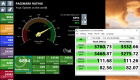
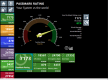
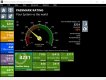
passmark.jpg

I did a bit of benchmarking last night. 1) Win10 on bare metal (above). Looks quite reasonable. CPU is down 1760 against average for 5600X. It's not a big deal but slightly irritating. Same deal for 2060 RTX in 2D performance (3D is on par).

No 2 was Win 10 on VirtualBox / Ubutunt running 2 threads, 8GB RAM and 256MB (max) VRAM, 3D enabled.
Overall - 467
CPU - 3970
2D - 32.9
3D - 1838
Mem - 2487
Disk - 9969

3D was obviously not feeling right and I had to disable aero effects to make it usable. Without 3D enabled it felt perfectly fine, but color management was off (It works with 3D on!!!!!). It was the only one that allowed VCDS through on a a mac hence I stuck with it till now.

And no 3. same on VMWare player / Ubuntu 2 threads, 8GB RAM, 2GB VRAM
Overall - 2863.5
CPU - 5650
2D - 318
3D - 10046
Mem - 2550
Disk - 12540

Much better results overall. Aero was working fine here as well as color management. However it only worked on ext4 drive, whereas VirtualBox was fine on NTFS too, and somehow VirtualBox would boot much faster. I reckon with 6 threads it would be quite useful already. Shame I only bought a 6 core CPU. 5950X would be amazing here.
I'll have to try OSX as a guest too. Because why not. I may as well pick the best. Bare Windows is an absolute disaster to live with.


------------------

Mouse replacement / tablet. Still looking / thinking.

-------------------

Finally storage. This is getting really scary and potentially really expensive. Mac had time machine and I could do with 3 ordinary external largish drives. Now they no longer talk between, mac, windows and linux and backups are all but impossible like this. Potentially I'm looking at a monster NAS server, at least 2x 8TB raid 1 with versioning support, and a minimum of 2.5GBE network. This gives me multi-platform support and redundancy. It also makes Mac the by far cheaper option.
 
Last edited:
Make sure the AMD virtualisation function is enabled for running your virtual machines. It's called SVM or AMD-V.

The Mac computers can create samba shared folders for Windows, I've used it many times and it's not too shabby. But if you want proper file storage, yes, a dedicated NAS of some sort is the way to go.


I just ran the test and your memory score is lower than expected, my 32GB 3000Mhz CL16 got score of 3165 (I've removed my 3400MHz overclock because it's not really noticeable).. You sure it's running the XMP settings?

Very nice disk score!
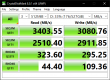
 
I just ran the test and your memory score is lower than expected, my 32GB 3000Mhz CL16 got score of 3165 (I've removed my 3400MHz overclock because it's not really noticeable).. You sure it's running the XMP settings?

Partly. I had to lower frequency to 3200 to be able to boot. The rest is as recommended for 3600. I didn't feel adventurous enough to change anything else.

Very nice disk score!

WD SN750. Probably in the top 3 of the older ones. I still can't get rid of the idea of loading SN850 or Samsung 980 PRO. In theory the SN750 should be able to go into '14 MBP with an adapter raising its resale value quite considerably. https://www.amazon.co.uk/Convert-Adapter-Upgraded-MacBook-2013-2017/dp/B07T6L2RJM

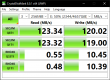
sn750-1tb.png

What is more concerning is the WD data drive, just a few months old. Random read looks hopeless and indeed it feels this way.
5tb.png
 
Don't know why, my RAMdisk isn't giving me anything more than normal NVMe speeds. But it still gives better PassMark disk score than C drive so I'm slightly cheating by using that.
My almost full MP510 SSD is not giving full write performance. It should be not far behind SN750.

AMD 3600 with PBO enabled, 32GB 3000MHz cl16 memory, 2080 Ti at factory overclocked default.
1613229402443.png

edit:
Now with RAM overclocked to 3400MHz cl16, nothing else changed. Looks like this overclock is worth keeping after all.
1613251204388.png
 
Last edited:
Where can I get this test software? would be interested in seeing how my little rig fares
 
It was an expensive day today. DS718+ 2x6tb and Wacom Pro Small should be hopefully with me by the end of the week. This PC ended up costing rather a lot with that added on. Just need to get the speakers and I think I'm done.
 
Wacom Intous Pro small arrived today. Setup in Windows was fairly quick following the instructions on the insert.

First impressions:
A) Touchpad.
It operates just like a large advanced trackpad. There is pretty much no more need for a mouse which was the main point of this exercise. The touch surface is notably rougher than the glassy apple Magic trackpad, so the fingers don't slide along as smoothly but I am sure this is just a matter of getting used to it. On Medium you could change the surface to smoother, not sure how much that would be and whether that would be any good for the pen.
Small size is plenty big for a trackpad.
A minor complaint is that it lies flat on the surface and I find wedged trackpads and drawing pads much more natural. It is easy to fix by propping up one edge with something like a mouse mat but ideally I'd like to have some inbuilt mechanism like the keyboard legs.
B) Pen.
It is possible and pretty much necessary to disable touch input while using the pen. There is a simple switch on the side of the tablet.
Pen is very sensitive. Very. It takes some getting used to but looks doable. In Photoshop I can do things that I can't even think about with the mouse. Dodging, burning and shading will be really nice. Cloning feels about the same like with the mouse.
Small size so far seems adequate enough so far and I have 32" screen.

Looks like a win win so far and should be useful for most of you as well. I'll have to next test on Linux and see if it retains any useful functionality over VMs.

----------

Network setup is going to be the next interesting thing. NAS has 2x 1GBE ports. PC has 1x 2.5GE. EE box has 3x 1GBE free ports. That just doesn't add up properly. I am even worried this may slow down the whole network? WIFI 5 is useless and on this box tops at 12MB/s internal.
The simple (but very expensive) and answer would be to buy top of the line Wifi 6 router with 2.5GBE ports or some fancy 10GBE or at least 2.5GBE switch. Now there are plenty of cheap Gigabit switches if that would somehow make things better.
 
Wacom Intous Pro small arrived today. Setup in Windows was fairly quick following the instructions on the insert.

First impressions:
A) Touchpad.
It operates just like a large advanced trackpad. There is pretty much no more need for a mouse which was the main point of this exercise. The touch surface is notably rougher than the glassy apple Magic trackpad, so the fingers don't slide along as smoothly but I am sure this is just a matter of getting used to it. On Medium you could change the surface to smoother, not sure how much that would be and whether that would be any good for the pen.
Small size is plenty big for a trackpad.
A minor complaint is that it lies flat on the surface and I find wedged trackpads and drawing pads much more natural. It is easy to fix by propping up one edge with something like a mouse mat but ideally I'd like to have some inbuilt mechanism like the keyboard legs.
B) Pen.
It is possible and pretty much necessary to disable touch input while using the pen. There is a simple switch on the side of the tablet.
Pen is very sensitive. Very. It takes some getting used to but looks doable. In Photoshop I can do things that I can't even think about with the mouse. Dodging, burning and shading will be really nice. Cloning feels about the same like with the mouse.
Small size so far seems adequate enough so far and I have 32" screen.

Looks like a win win so far and should be useful for most of you as well. I'll have to next test on Linux and see if it retains any useful functionality over VMs.

----------

Network setup is going to be the next interesting thing. NAS has 2x 1GBE ports. PC has 1x 2.5GE. EE box has 3x 1GBE free ports. That just doesn't add up properly. I am even worried this may slow down the whole network? WIFI 5 is useless and on this box tops at 12MB/s internal.
The simple (but very expensive) and answer would be to buy top of the line Wifi 6 router with 2.5GBE ports or some fancy 10GBE or at least 2.5GBE switch. Now there are plenty of cheap Gigabit switches if that would somehow make things better.
What's confusing you with the network.
Plug the NAS into the router and plug your pc into the router, everything will work at 1GB. You'll get about 120mb/s file transfer speeds.
 
Last edited:
What's confusing you with the network.
Plug the NAS into the router and plug your pc into the router, everything will work at 1GB. You'll get about 120mb/s file transfer speeds.

Drives, NAS and my PC should be easily capable of over 200MB/s according to specs. I would really like to use it after paying a premium for it. It appears the standard ee WIFI router may be not fully up to the task even if it doesn't start overheating and slowing the internet down.
 
Drives, NAS and my PC should be easily capable of over 200MB/s according to specs. I would really like to use it after paying a premium for it. It appears the standard ee WIFI router may be not fully up to the task even if it doesn't start overheating and slowing the internet down.
You'll need to run 2.5gbe then, so new NAS and a switch. Wouldn't worry about the router unless you're on fiber internet 120mbs won't be holding you back.
 
You'll need to run 2.5gbe then, so new NAS and a switch. Wouldn't worry about the router unless you're on fiber internet 120mbs won't be holding you back.

DS718+ is a capable of combined 2x 1GB so that's 2GBE in total. So No I really don't need a new NAS because of 0.5GBE. Switch - looks like it...
 
DS718+ is a capable of combined 2x 1GB so that's 2GBE in total. So No I really don't need a new NAS because of 0.5GBE. Switch - looks like it...
No need to get defensive. Are you getting one switch or two?
You should read up on 802.3ad because it doesn't do what you think it does. You'll most likely lose speed, search for overheads specifically.
 
Last edited:
I've had DS218+ for close to 3 years now. They are great little boxes.

The DS718+ is said to be able to do up to 226MB/s, which is definitely result of combined 2x1GbE bandwidth. This is Synology's how-to page on this: https://www.synology.com/en-global/...p/DSM/AdminCenter/connection_network_linkaggr

You'll definitely need a new switch or router to enable your motherboard 2.5GbE to run at over 1Gbps speed. But to get the Synology box to achieve that speed, it'll need supported switch/router. The list of affordable 2.5GbE switches plus supporting link aggregation should be pretty small.
 
No need to get defensive. Are you getting one switch or two?

I think one is quite enough

You'll definitely need a new switch or router to enable your motherboard 2.5GbE to run at over 1Gbps speed. But to get the Synology box to achieve that speed, it'll need supported switch/router. The list of affordable 2.5GbE switches plus supporting link aggregation should be pretty small.

I wonder if I need to connect 2.5G link to PC or if I could aggregate 2x 1G, with the other port being USB3 to ethernet adapter?
 
I think you'll struggle to find a 2.5gb switch with 802.3ad.
The industry is mostly skipping over 2.5gb and going for 5gb and even those are hard to find at the minute even less so with 802.3ad.
You still won't increase speed doing this though it's not what it's for.

Have you thought about a 2.5gbe usb3 adapter for your Nas?
That way you just need a standard switch.
 
Last edited:
Back
Top