LR to PS

Bennp2000

Suspended / Banned
Messages
340
Name
Paul
Edit My Images
No
I've been using LR3 for organisation and global adjustments to images (so a fancy catalogue and raw development type arrangement) as I prefer to make localised adjustments using masks in PS.

However it's just dawning on me that this mightn't be such a good way to go about things.

Localised adjustments often entail (for me) bringing up a shadowed face (exposure adjustment) and some selective dodge/burn and curves (also saturation etc.). Would it be better to make these adjustments using RAW rather than the exported TIFF file (that's what I'm thinking)?

Is there any way to force LR to export a RAW with adjustments to PS or other way to do this?

I know this could be achieved using a RAW developer straight into PS but I'm loathed to lose the catalogue ability of LR.

Many thanks for any advice that follows :love:
 
Not my area..... but i think PS cant open a raw file anyway can it? so your just substituting one raw file converter (LR) for another (not LR)
 
that's a good point.

There must therefore be a way to use LR to do localised adjustments better than I've managed before [tumbleweed]?
 
I just find it quite hard to keep the 'selection' correct without a mask that you can then go and finesse.

I'm wondering if its worth upgrading to LR4 for the shadow and highlight treatment too, I've finally stopped under exposing and I'm a bit nervy about my highlights from the latest batch (980 images).
 
Bennp2000 said:
I just find it quite hard to keep the 'selection' correct without a mask that you can then go and finesse.

I'm wondering if its worth upgrading to LR4 for the shadow and highlight treatment too, I've finally stopped under exposing and I'm a bit nervy about my highlights from the latest batch (980 images).

Press o it brings up a mask you can add to this (and delete) if that helps? You might need o adjust the brush to get a hard edge if that's what your after?
 
that's really helpful, thanks.

How do you 'take away' from the mask? Softness depends on which part of the image I'm fiddling with but yes, sometimes a hard edge is required.
 
Bennp2000 said:
that's really helpful, thanks.

How do you 'take away' from the mask? Softness depends on which part of the image I'm fiddling with but yes, sometimes a hard edge is required.

The is a delete or eraser option ( sorry cant remember what it's call off hand) works the same way as the brush, but in reverse :)
 
The Adjustment brush is very clever. I'm not sure yet whether it could (for me at least) replace layers and masks. That is definitely an open question in my mind - experiments are ongoing. :)

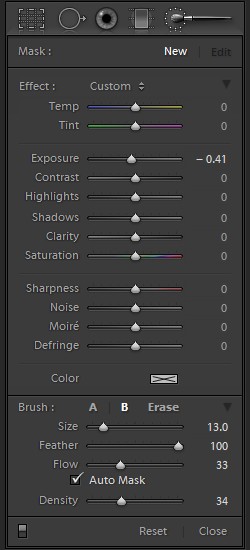
Each time you put a new Adjustment Brush "pin" down you brush out an area where the adjustment(s) associated with that pin will be active. These are the available adjustments.

8158121345_100ce61909_o.jpg


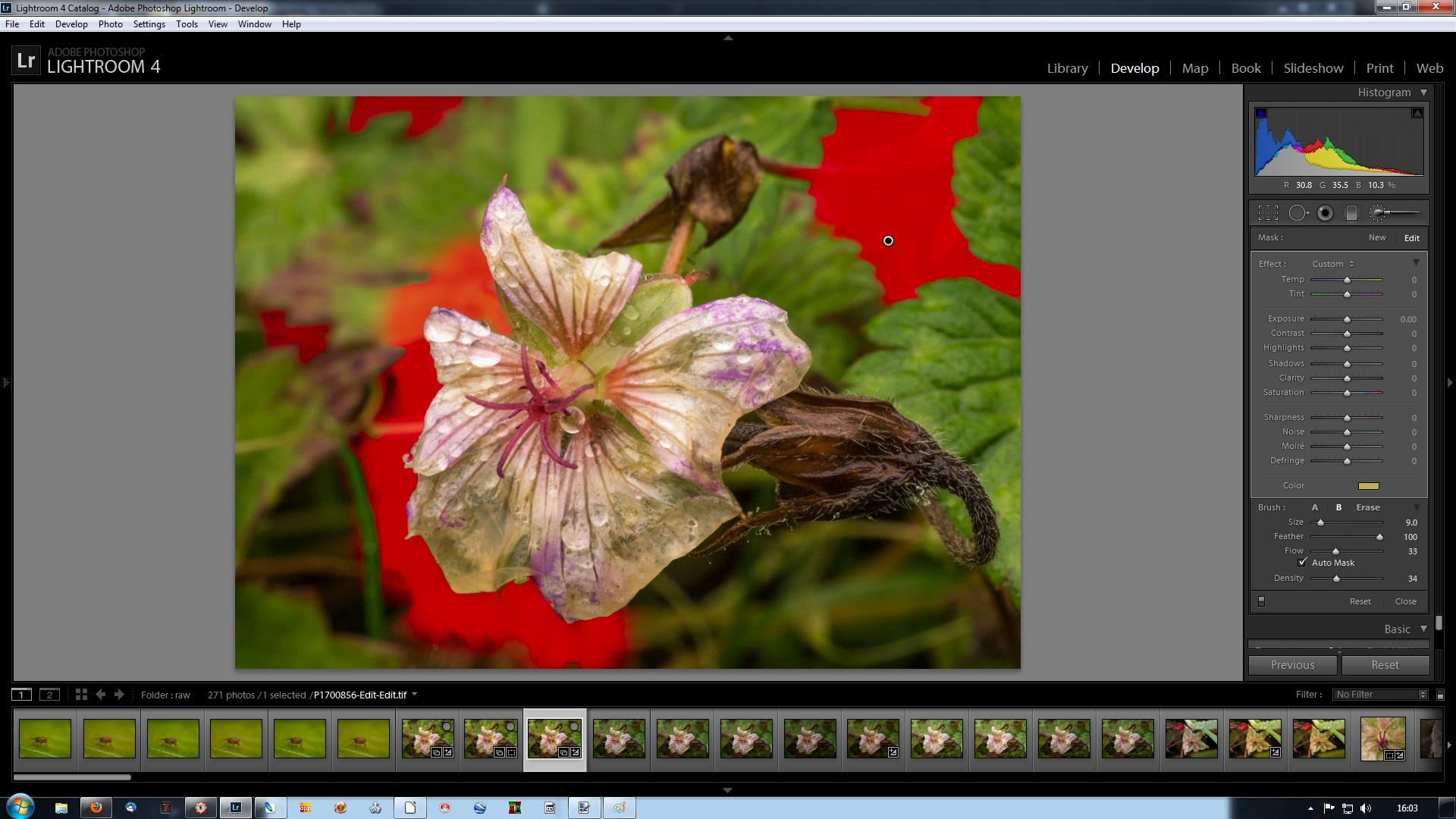
Here is an image with some areas brushed on to it. The red areas are the "Paint Overlay" (aka "mask") associated with the Adjustment Brush pin that you can see in the red area on the right.

Unfortunately I haven't been able to screen-capture the brush. It is two concentric circles with a cross in the middle. The inner circle is the brush, and the area between the two circles is where the feathering takes place. You can alter the size of the brush by rolling the mouse wheel and change the size of the feather distance (down to zero for a completely hard edge) by holding down the shift key as you roll the mouse wheel. Tasty.


8158140829_6155486494_o.jpg


You can change the flow rate for the brush and the maximum opacity which it can lay down.

As you are brushing, as long as you keep the little central cross in the area you want to brush, the rest of the brush can overhang the edge of the area, but the brush will only effect the area that the cross is in. This makes it very easy to brush around boundaries. On the left hand side of the flower is an area brushed out in one movement around the flower with a quite big brush. This is an easy boundary because it is "hard". The area on the right that the pin is in is more difficult, as the boundary between "in" and "out" is softer, as you can see from the small unbrushed area at the bottom left of the brushed area. But it did pretty well here too.

At the upper left there is an area where I turned the maximimum opacity ("Density") down to 50% or so. And below that there is a small area where I turned the opacity down even more and turned the flow rate down too, which gave very slow, controlled painting.

To erase mistakes you simply hold down the Alt key and brush away the mask.
 
The Adjustment brush is very clever. I'm not sure yet whether it could (for me at least) replace layers and masks. That is definitely an open question in my mind - experiments are ongoing. :)

Hmmm.... It looks like there is no equivalent of "Invert Selection" for Lightroom Adjustment Brush Paint Overlays.

I'm trying to recreate in Lightroom an effect I have been using on very noisy high ISO images in CS2 (plus Noiseware plugin). This involves giving (radically) different amounts of noise reduction and sharpening to the subject, the background and in some cases "middle ground" areas. I have been using layer masks to help achieve this.

An alternative using the Lightroom Adjustment Brush might have been to apply different treatment to a selection and its complement. However, with no Invert Selection operation this would mean doing the selection twice (once "from the inside" and once "from the outside"). These selections can be fiddly - not sure I want to do them twice. And in any case would they "join up" properly? If not would this matter? Don't know. To be continued ...
 
Sorry I can't answer that but thanks for your detailed reply, amazingly helpful!

I get the feeling that no matter how long I spend in LR, there'll be something I'm missing to make my life easier!
 
Sorry I can't answer that but thanks for your detailed reply, amazingly helpful!

I get the feeling that no matter how long I spend in LR, there'll be something I'm missing to make my life easier!

(I'm very new to Lightroom, so I will welcome being corrected about any of what follows.)

Lightroom strikes me as a product with rather greater capabilities than is at first apparent.

Some of the power seems to be a bit "hidden", being accessible only through shift/Alt/Ctrl key modifiers, or using non-obvious (to me at least) concepts I haven't come across before like "most selected".

Some of the power seems to be hidden "under the surface" in terms of what happens as you use the sliders etc - I'm thinking of the Develop mode here. I'm working my way through the Develop section of Martin Evening's Lightroom 4 book and it is hugely informative about what is going on as you use the sliders etc, and very clever some of it is too. Not just clever as in highly functional, but clever as in delivered in a way that allows for really rather quick, easy and above all intuitive use.

With Photoshop I have tended to do a number of things which collectively have improved (to my eye) an image, but have found it difficult to pull apart exactly how much and in what way each step is contributing to the overall effect. In part this may be a case of getting caught up in the sometimes complicated mechanics of achieving particular results and losing focus on the image as a "picture". But I think my difficulty in grasping (and hence controlling) precisely what is going on is partly because the steps in Photoshop etc can overlap/have side effects, so for example you may have to do less of something than immediately looks appropriate because another step later on is going to have a side-effect of further enhancing the effect.

I get the impression that in Lightroom they have managed to deliver functions that don't seem to have so much by way of side-effects. This makes it much easier to look at an image, see a change you would like to make, and make it. More direct. More intuitive. Well, that's how it feels to me.

Another thing that is increasingly apparent from Martin Evening's book is that they have arranged the Develop functionality so it makes sense to start at the top of the Develop panel and simply work your way down. I find that rather intuitive too.

Obviously, I'm rather impressed with Lightroom. However, I'm increasingly of the view that it is wonderful (better than Photoshop or anything else I have used) for the "first half" of PP, for raw images (where I don't have much experience) and also for JPEGs (where I do). Roughly speaking, for me this involves getting a composition that works well and a good (vibrant, moody, well-balanced, punchy, subtle, realistic or whatever) intensity and distribution of light and colour in the image. I am getting better results on the light and colour front, and doing so more consistently, than I have done before using Photoshop or any other of the pixel-based applications. I'm also finding composition working well in Lightroom.

However, despite the fact that Lightroom delivers its noise reduction and sharpening in delightfully intuitive ways, I can consistently get better results (to my eye) using Photoshop (with a noise reduction plugin) for "second half" PP, which for my images often involves targeted/differential and very highly controlled noise reduction and sharpening, for which I am now using layers and masks. Also, prior to that, any awkward cloning and warping operations also seem to be outside of Lightroom's capability.

So yes, for me Lightroom is great; I'm adopting it as an integral part of my toolkit. But for my purposes I do still need a pixel-based application for the rest of my workflow. YMMV, of course. :)

btw, in answer to one of your original questions, I have the impression that passing across tif files is fine.
 
I tend to agree with you on the whole.

I note that its a .cr2 file that Photoshop has as its name (whether this is actually the RAW file or just a name I don't know) when read into LR, this is then returned as a TIF file back into LR.

Can you use your noise reduction plugin (which one out of interest?) directly in LR, I know many of mine work this way and using control points you can get pretty close to masking. Often for my subjects they remove a lot of the detail in the surrounding environment so LR seems to be pretty good for me in this respect (used minimally).

Like you I use it to keep my photos tidy and for that initial RAW development and cropping. Syncing images is great, I've got a fair few images to submit to an editor this week and its great knowing I can get consistency across images from the same set. Its even better that I know this is almost a one click operation!

I agree with you regarding the develop module apart from one bit, the first thing I need to select is which Camera profile is used as a starting point which is dependant on subject matter. I can obviously drag this to the top but haven't as of yet. Do you not use this part of the dialogue box?
 
I note that its a .cr2 file that Photoshop has as its name (whether this is actually the RAW file or just a name I don't know) when read into LR, this is then returned as a TIF file back into LR.

I'm afraid you've lost me here. My sequence is:

Load raw files from camera into file system (using Faststone) and make backup copy on external drive.
Compare, select and process ("first half PP") in Lightroom.
Send across to Photoshop as tif.
"Second half PP" in Photoshop to produce a JPEG for screen viewing (900 pixels high)
If printing (rare for me), undo output sharpening and resize, and resharpen for printing, with no resize. (Or more often, only decide some time later to print, and at that point reprocess from the original.)
Don't save the Photoshop version (other than the screen-ready and, optionally, print-ready JPEGs).
In LR4, delete the tif (which is, conveniently, what is selected when I go back to LR).

I suppose the difference is that I don't use Lightroom to keep my images organised, and I regard the tif files as disposable temporary files, so I'm not passing anything back to Lightroom from Photoshop.

I see .rw2 rather than .cr2 as I am using a Panasonic camera, but the only time is see .rw2 is incoming to the file system and then on into Lightroom.

Can you use your noise reduction plugin (which one out of interest?) directly in LR, I know many of mine work this way and using control points you can get pretty close to masking. Often for my subjects they remove a lot of the detail in the surrounding environment so LR seems to be pretty good for me in this respect (used minimally).

No, my Noiseware plugin doesn't work in Lightroom.

I have tried trial versions of Nik DFine and Topaz DeNoise in LR4. I'm sure they are very good, and I rather like DFine, but my stumbling block was

(a) not being able to make a selection in Lightroom using Lightroom's clever auto-mask brush, and then apply the noise reduction to that area (like I can with making a selection in Photoshop and then applying Noiseware to the selected area), and

(b) even if that had worked, with LR4 not having the capability to invert selections it would still have meant doing the selection twice, rather than making it once, working on those areas, then simply inverting the selection and working on the rest.

So the only way I have (very recently) found to make NR (and sharpening) work (at the output stage) how I want them to is to use layers and masks in Photoshop. So I only use the default sharpening when importing the images into Lightroom, and currently I'm not using any noise reduction at all in Lightroom.

I'm still in the early stages of experimenting with this. I've just put up my first run through with raw images here at flickr, and as you can see they range from ISO 160 to ISO 3200 (1 image at ISO 160, 10 at ISO 800, 2 at ISO 1600, 6 at ISO 3200). Up until now ISO 800 has been my self-imposed maximum ISO with my G3, but when I was recently persuaded to try raw I wondered if it would enable me to work with higher ISOs. So once I had decided to seriously try raw I needed some raw files to work on and so went out into the garden to get some. As is evident from the shutter speeds, the light was not very good, and there weren't many nice subjects around, animal or vegetable, and it was rather breezy. So it is a bit of a technical set. But it has provided fodder for lots of experimentation with Lightroom, add-ons, techniques etc with some not very wonderful quality source files. And the lowish IQ was fine by me, because good quality source files are easy to deal with - its the not so good ones, which is most of what I end up with, that I need to sort out how to deal with.)

Like you I use it to keep my photos tidy and for that initial RAW development and cropping.

I don't think I'll be using Lightroom for file management. I have an organisation using the bare file system and associated (manual) file management processes that work for me, independent of any particular software that I may use, change to, drop etc. I don't think I'll be changing that. But I'm only doing this for myself, so I don't have editors, clients, deadlines etc to be concerned about. So if for example it takes a while to find a particular image (because I'm not using metadata) that isn't a problem for me.

Syncing images is great, I've got a fair few images to submit to an editor this week and its great knowing I can get consistency across images from the same set. Its even better that I know this is almost a one click operation!

I haven't tried syncing yet. I can understand that it would be brilliant for sets of images where the capture environment was sufficiently stable, but I'm not sure it would work for my stuff, where the capture environment can change a lot as I poke around in the undergrowth, changing the amount and direction of the available light, turn flash on and off, change the flash direction and diffusion arrangements, turn towards and away from the sun (the sun, ha! I should be so lucky), use different magnifications, move from dark to light subjects etc etc. 90 - 98% or so of my images get thrown out without seeing any sort of PP, but those that do get PP tend to get individual attention. I do sometimes get a run of images of a particular subject in the same conditions, and I can see that syncing is something I should try for those.

I agree with you regarding the develop module apart from one bit, the first thing I need to select is which Camera profile is used as a starting point which is dependant on subject matter. I can obviously drag this to the top but haven't as of yet. Do you not use this part of the dialogue box?

No. I just start every time with the standard settings.

 
Some good points and explanations Nick - thanks for sharing :thumbs:
 
Wouldn't opening the RAW file as a Smart Object in Photoshop to do local adjustment as you would like be what you're after?

You can make adjustments as normal once in Photoshop, but you can go back and make adjustments to the RAW file just by double clicking on it.
 
Back
Top