Help - issue with CS3 Camera raw and CS3 colour

  • Thread starter Thread starter Yv
  • Start date Start date

Yv

TPer Emerita
Suspended / Banned
Messages
25,725
Name
Yvonne, pronounced Eve...
Edit My Images
Yes
OK, just opened adobe bridge to find a couple of pics I want to have a play with. Found the 1st one I wanted [a blue and white car from brands last week], but when I double click to open it in CS3 it opens via Camera Raw, thats fine, its a NEF file and thats what its meant to do, but its once in CR its changing all the colours and I cant see why or how. So for instance, a navy blue car goes purple, very purple! A red car goes lumious reddy orange, normal British green grass takes on a tropical rain forest bright green that is painful on the eyes. :shake:

I have gone through all the settings in camera raw and all seem to be at default. I cant open anything, including jpgs in CS3 without them going through CR first [well it seemed a good idea at the time :cuckoo: ] nad its changing anything I do!

I can post some screen shots if needs be, but anyone got any ideas what setting I must have changed? I have tried changing between colour profiles once fully opened in cs3, but with no luck.

:bang:

Please, any help appreciated.


edit: btw, I can open jpgs in say Microsoft picture manager and they are fine.
 
This wont help much LL but this happened to me over a year ago... and for the life of me I can not remember what caused it... However it was so simple to correct I felt a right spanner....


I will try and strain the grey matter.....

Shutterman
 
Thankyou. I know I will have missed something so bloody obvious, but for the life me I dont know what.

Screen shots

What it should look like.....

issue2.JPG


what I get when I open in CS3

issue1.JPG


:dunno:
 
Make sure the colour profile in Photoshops colour settings (Edit > Color Settings) is the same as the monitor (i have sRGB for both of mine, as well as in camera)

It sounded to me like you were changing embedded profiles in images before, make sure the general photoshop settings are correct too.

I recall when I added my second screen and left the Samsung colour profile on, instead of sRGB, if I dragged an image over, it went hugely green.
 
Thats exactly what I was just looking at funnily enough. Both cameras are set to sRGB [and that has never changed and I am getting th eissue with all pictures regardless of when they were taken]

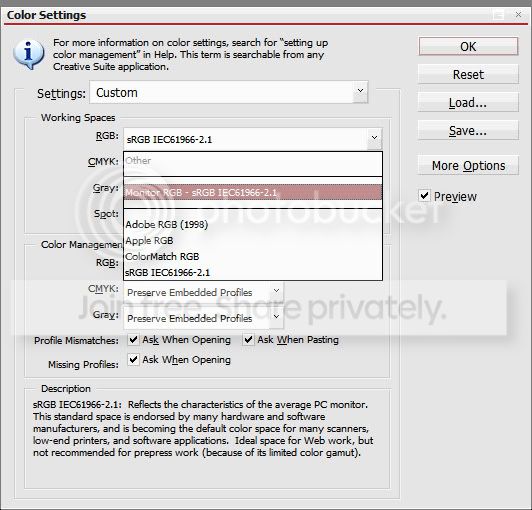
Here is what the colour profile on CS3 currently says - I have tried changing it in several ways, all with no success, but here is what the original settings were when I started using it this morning. I havent knowingly changed any embedded profiles [waaay too technical for me] but that doesnt mean I havent done accidently :shrug: Maybe this screenshot can shed some light?

issue3.JPG
 
If you go to your desktop, right click in some empty space and choose Properties, you'll get taken to 'Display Properties'

From there go to the 'Settings' tab and hit advanced near the bottom. The next window will differ depending on what graphics card you have, but flick through the tabs and see if you can find anything that says about which profile the monitor is using. It wouldn't surprise me if that had randomly changed itself.
 
What happens is you reset (making a note of the current settings first)?
 
If you go to your desktop, right click in some empty space and choose Properties, you'll get taken to 'Display Properties'

From there go to the 'Settings' tab and hit advanced near the bottom. The next window will differ depending on what graphics card you have, but flick through the tabs and see if you can find anything that says about which profile the monitor is using. It wouldn't surprise me if that had randomly changed itself.

OK, will trythat as soon as I get back home - had to come into work - though wouldnt that affect opening them in anything, not just CS3? :thinking:.

What happens is you reset (making a note of the current settings first)?

Still get the same problem
 
OK, will trythat as soon as I get back home - had to come into work - though wouldnt that affect opening them in anything, not just CS3? :thinking:

Not sure, I find Photoshop due to being more a more professional application will do exactly what it is told so that the people who require that of it can set up precisely, where other things will just adjust to work if they feel the need to.

edit - also, when you open a NEF in Camera RAW, what 'Space' is it set to in the Workflow panel? Because although Photoshop is set to sRGB, it isn't set to question you if you open something with a different embedded profile, it will just use the embedded one, regardless of what it is. So if Camera RAW has started converting your NEFs to 'ColourMatch RGB' or something, that might explain it.
 
In explorer try making a copy of the suspect file and give it a new name. Keep it as a NEF file, now find it in bridge and then open in Photoshop. Does it still change colour. Doing the copy and rename should clear any associations the file has either within bridge and Photoshop.

Also try opening the file from Photoshop not bridge, see if this makes a difference
 
Not sure, I find Photoshop due to being more a more professional application will do exactly what it is told so that the people who require that of it can set up precisely, where other things will just adjust to work if they feel the need to.

edit - also, when you open a NEF in Camera RAW, what 'Space' is it set to in the Workflow panel? Because although Photoshop is set to sRGB, it isn't set to question you if you open something with a different embedded profile, it will just use the embedded one, regardless of what it is. So if Camera RAW has started converting your NEFs to 'ColourMatch RGB' or something, that might explain it.

OK, done that and no difference.... :shrug:


In explorer try making a copy of the suspect file and give it a new name. Keep it as a NEF file, now find it in bridge and then open in Photoshop. Does it still change colour. Doing the copy and rename should clear any associations the file has either within bridge and Photoshop.

Also try opening the file from Photoshop not bridge, see if this makes a difference

Its not a single suspect file, its every picture file and regardless of whether its a NEF, jpg, tiff or anything else, just tried a psd and that was the same.

So, I am now going to have some dinner while CS3 uninstalls, then try and reinstall and see what happens :bonk:

Thanks for the advice so far guys, it is appreciated, I am just bloody frustrated by what its playing at :shake:
 
yep - I have a pantone huey, monitor profile was set to that, so reset to sRGB and turned the huey program off completely and physically removed it from USB port, but still the same. Oh and just to add to the fun, you know the screen shot of the colour settings window in CS...the reset button is no longer there, just a cancel button instead. :shrug:

For extra info, the huey has not asked to recalibrate for over a week, adobe has not shown any updates for at least a similar period, so in theory it should all work just as it did yesterday.

This is driving me bloody mad quite frankly! Hair tearing time :help:
 
Mine has never had a reset button, I wouldn't worry about that too much.

I shall ponder some more on this though, there will be a solution, it's just a case of finding it. Don't let it get to you!

edit - also, just to check, in the color profile settings in photoshop, tick the boxes so that it asks about mismatched/missing profiles when you open, that way it will let you change them and we can see if that makes any difference.
 
Thats exactly what I was just looking at funnily enough. Both cameras are set to sRGB [and that has never changed and I am getting th eissue with all pictures regardless of when they were taken]

Here is what the colour profile on CS3 currently says - I have tried changing it in several ways, all with no success, but here is what the original settings were when I started using it this morning. I havent knowingly changed any embedded profiles [waaay too technical for me] but that doesnt mean I havent done accidently :shrug: Maybe this screenshot can shed some light?

issue3.JPG

In your colour settings try changing the CMYK settings in the Colour Management Policies box to the same as the RGB setting ie: Preserve Embedded Profiles.
 
In your colour settings try changing the CMYK settings in the Colour Management Policies box to the same as the RGB setting ie: Preserve Embedded Profiles.

That's a good spot, mine is set to preserve embedded, I hadn't spotted that set to Off on there.
 
In your colour settings try changing the CMYK settings in the Colour Management Policies box to the same as the RGB setting ie: Preserve Embedded Profiles.

Thanks admirable, I have tried that, tried every possible combination of those three bottom boxes, all with no luck. Also tried using the various preset working space options and again, no joy.

I think I am going to leave it for now and try and get in touch with Adobe support or something, I pressume they have some sort of help on their website?
 
They do, though all that's on there relating to colour problems tells you to calibrate your screen with Adobe Gamma and make sure the monitor profile is correct. I imagine any email contact will lead to being linked to that, so make sure you inform them of exactly what you have tried here.

You might get told your graphics card is broken, if you do, bear in mind that's exceedingly unlikely to be the case.
 
So what happens if you change the 1st setting 'Custom' back to North America General Purpose 2 ?
 
They do, though all that's on there relating to colour problems tells you to calibrate your screen with Adobe Gamma and make sure the monitor profile is correct. I imagine any email contact will lead to being linked to that, so make sure you inform them of exactly what you have tried here.

You might get told your graphics card is broken, if you do, bear in mind that's exceedingly unlikely to be the case.

hmm, great, but ok, thanks for that.

So what happens if you change the 1st setting 'Custom' back to North America General Purpose 2 ?

Same thing, thats what its now set on, with all the embedded profiles set to preserve in the colour management policies box.

The only odd thing I can now find is that if I ask it to tell me when there is a profile mismatch, and set working space to sRBG, it tells me the images are Adobe rgb embedded. So, tried two things - checked the exif in other programs,[bridge and MS picture manager] they all say sRGB, as does the menu on the cameras. If I change the working space to Adobe RGB, still get the same wierd colours but with out the warning of a mismatch. :shrug: Dont know if that stirs any ideas for you at all?
 
In light of my last comment, I just tried an experiment - changed camera setting to Adobe RGB, and workspace to adobe rgb, shot one pic in raw and loaded onto computer - same problem.

Just for the sake of it, going to run a virus scan, doubt it will help, but no stone unturned and all that :shrug:
 
If I open a NEF in ACR to use in Photoshop, it is in AdobeRGB for some odd reason (everything of mine is sRGB, as yours seems to be), though i've always converted to sRGB without thinking, so i've never seen what happens if left in AdobeRGB.

Let me try it and see if anything happens.

edit - well, mine go through ACR as AdobeRGB because that's what the 'Workflow Space' is set to at the bottom of the screen, though my colors stay the same. When you convert, change the Space in the conversion windows to sRGB, though I doubt this will make a difference.
 
One other idea.

In Color Settings, in the Working Space - RGB box, do you have the option for 'Monitor RGB - Huey Pantone' or something?

As mine shows this;

rgbidea.jpg


Which i'm guessing it's finding by looking at the monitors currently selected profile. Try changing yours to that instead of just the plain sRGB option?

edit - lol, seems I have reset button now, wonder why that appeared :S
 
:lol: I think I just worked out why mine disappeared though! pressumable something to do with monitors and calibrators!

Will have a look and see what happens. ;)


EDIT: ok, if I change just the work space to monitor, its still the same, but if change the 'Settings' to monitor colour too, it opens in ACR with the wierd colours, but then asks me if I want to discard the embedded colours when I open inot CS3 - if I tick the discard embedded settings box, it opens it with what seem to be the right colours. This works whether the huey is on or off, so I am discounting that as the issue, but we maybe onto something here.
 
Do you want to try emailing me the file to try on my PC?
 
Do you want to try emailing me the file to try on my PC?

It's not just one though is it?

It's every NEF, Jpeg, TIFF whatever that she opens, which is why i'm sure it's color profile related. I'm really surprised the monitor profile changing earlier didn't affect things.
 
It's not just one though is it?

It's every NEF, Jpeg, TIFF whatever that she opens, which is why i'm sure it's color profile related. I'm really surprised the monitor profile changing earlier didn't affect things.

Yep, thats it, every image file I have.

Ok, I can now open them into CS3 looking normal, by using monitor colour settings and discarding the embedded colour profiles, but they are still weird colours in ACR. Also, if I go to the actual monitor settings, I can use either sRGB or Huey settings and get the same result - they are the only two options available under colour management in the advanced settings on desktop properties.
 
What about converting to working space, instead of discarding? You want to avoid discarding colour profiles if possible.

In ACR, does choosing sRGB in the options at the bottom instead of AdobeRGB help? (If you do that, you shouldn't get warnings about mismatched profiles when the image moves from ACR to PS either)

The monitor profile things sounds fine, mine only has two, those being sRGB and the relevant Samsung profile for the screen i'm looking at the properties of.

Try changing the AdobeRGB to sRGB in ACR and see if that makes it look better in ACR.
 
Nope, will only work if I discard, which is not ideal, like you say. Tried the various colour space profiles in ACR, it changes the colours marginally, but not back to 'as shot' as it were, blues are still wildly purple and so on.

Yep, I also have sRGB and Dell Huey sRGB and doesnt matter which I use or whether the huey is on or off, the result within CS3 are the same - set it to monitor colour and discard the embedded sGRB and the colours look right. :shrug:

Divine, thankyou so much for your help so far, and admirable, at least I dont feel alone in being totally madened by the wonders of modern technology :lol:

Definately time to sleep on it I think, if I get any sudden flashes of inspiration as head hits pillow that work, will be sure to let you know. :hug: thanks again ;)
 
Aye, sleep is a good idea, it will be fixable though, if it worked before, it can work again!!
 
Just a thought. What you've got looks like what happens when you whack the hue slider (CTRL U) over to one side.

You can always "hard reset" , as follows
A lot of Photoshop problems can be fixed by dumping the preferences file: While launching Photoshop, Hold down Alt+Ctrl+shift on the PC or Cmd+Option+Shift on the mac. When asked to reset the preferences say yes.
 
It's defo a hue shift. I've just had a play and can reproduce it, although how you get it to do it consistently???

Another thought. Have you checked that Bridge and RAW converter and PS3 are all on the same workspace.

(if you are going to kill your preferences you might want to keep a copy of the old ones first - they are held in your "My Documents" area somewhere, I forget exactly where ... do a google)
 
Tried it Paul, still the same. Its definately a colour management issue - I have found that if I turn ON colour management in Adobe Bridge, I get the same problem.

Anyway, I think I may have found the problem...the last pictures I was playing with before it went t**s up - Adobe is officially pished! :nuts:

drink.jpg


Anyways, got to go hospital visiting, will be back at lunchtime to caryr on the good fight :bonk:
 
Been racking the old grey matter to try and figure out what's gone wrong. Unfortunately all my ideas come to naught as they say, as the problem also occurs in bridge.

Paul's suggestion of dumping the preferences seems like a good one
Here's a link from the adobe forums, I couldn't remember where it was either

http://www.adobeforums.com/webx/.ef4a07f

Just before you do this, do you have XP/Vista. Try using a restore point from before the "troubles". May help!

As the say in Mission Impossible .... "Good Luck"

John C
 
Back
Top