Help in deciding how to edit

Amy B

Suspended / Banned
Messages
268
Name
Amy
Edit My Images
Yes
Ok, so I need some help. Ive just scanned in around 200 photos as im doing a blurb book for my grandma and I was wondering what the best way to edit these photos would be. I scanned them in at 600dpi but some of these photos are 18 years old, so they may not be the best. Im using photoshop CS and my knowledge is basic. I dont need them to look professional, and the photos themselves may not be the greatest photos in the world, but they hold a lot of memories.

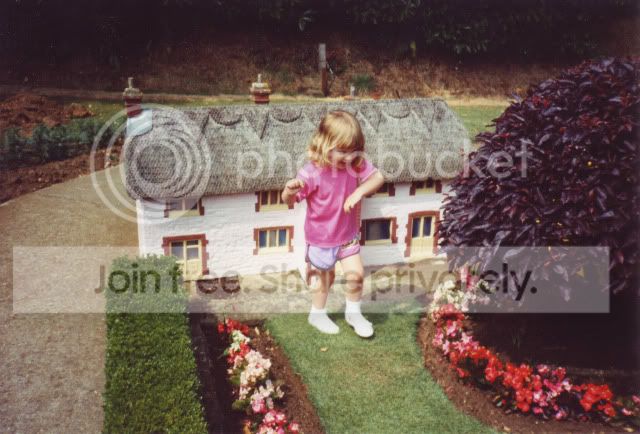
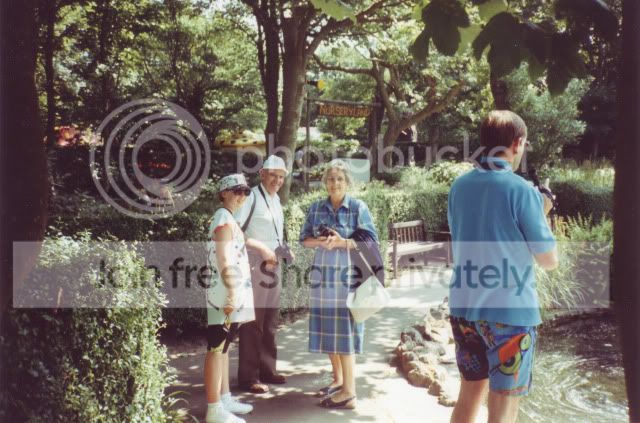
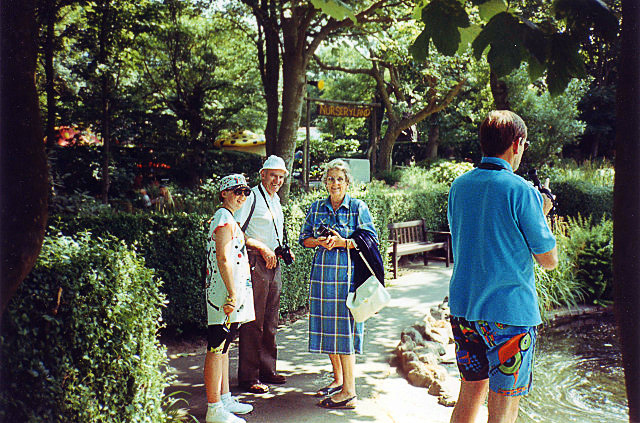
Here are a couple of examples of the photos:

15.jpg


12.jpg


What can you suggest? Do you even think they need editing? Maybe just up the contrast or something?

Thanks in advance
 
Hello Amy

Is that you in the 1st shot?

They don’t look bad at all at this size. Sharpening might be an issue in the final product?

The contrast looks reasonable to me. Rather than rely on the monitor I used my rectangle mask tool on the highlight areas. With both shots the highlights have held with little to spare. If you try to add more pop you may lose detail and then even more in the photo book itself.

You may need to boost colour and adjust contrast a little on some faded prints -- and maybe after some colour correction. Look out for hairs and fluff too.

I’ve done a lot of this myself and it’s amazing how well a poor print can look after a few adjustments.

Good luck!

Sam
 
Last edited:
Try not to over process the images. If they are "old" then keep them that way as they have character. Try not to blow out the highlights or let the shadows go to solid.

I'd also simply make small adjustments to remove colour casts if they are objectionable, and maybe increase the saturation if needed. If you can try and keep the colour similar for all the photo's as it will look better in a book
 
Thanks for your responses :)

Undercrank - Yes, that is me in the first photo, rather a long time ago now! And what do you mean by colour correction? Im not sure how to do that on photoshop.

Chappers - I think keeping them with that old look is best too. How can I remove the colour casts?

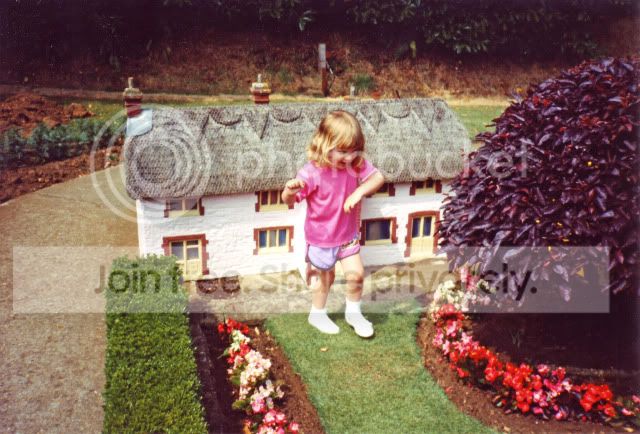
Is this better?:

Altered.jpg


Also, do you think its worth cloning out all the dust specks, or just the major ones?
 
Cute Amy!

Here's some eye-glazing stuff on colour correction:

"One of the basic rules of color correction is that if the neutral tones in an image are wrong, everything else is likely to be wrong… One of the main tenets of color correction is that the major problems should be fixed first, which is why exposure issues – proper highlights and shadows – take precedence.

The next priority must be to eliminate any color casts and restore proper color balance, so that colors throughout the tonal range look 'right' both by themselves and with other colors. And the colors in an image will look balanced only when areas that are supposed to be neutral actually are neutral" (Michael Kieran).

If you prefer the original older look of the prints then just stick more or less with the scans. Either way your Grandma will be thrilled.

:thumbs:

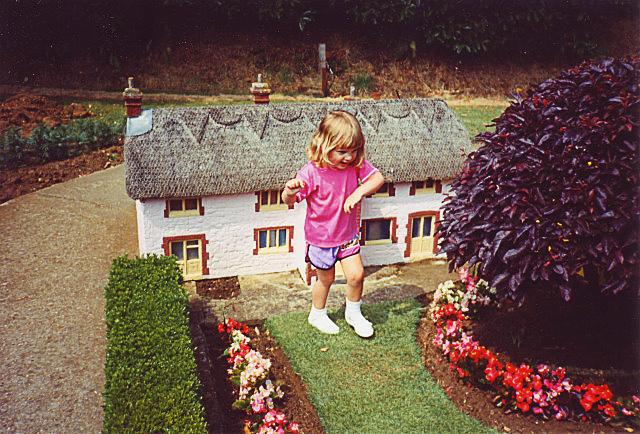
The first image has a redish colour cast and is a little dull. I lifted the mid-tones and contrast, pulled back the red channel slightly and lifted the blue even less in Curves. Then I subtly sharpened the image at this size. If you're sending the images bigger then sharpness adjustments here is meaningless. With these adjustments I'm just losing a little tone in the shoes. But it hardly matters.

If you look to the left side of the miniature house and to part of the path beside it you'll see I have your original scan showing through. You can really see the difference on brightest part of the edge of the house.

amy1.jpg
 
Here's more on colour correction:

Color correction is usually concerned not with the artistic content of an image, but with remapping tonal values in an existing photographic image to optimize color reproduction, in particular to improve the appearance of highlight and shadow areas, midtone neutrals, and overall contrast.

Don’t freak out just because there are gaps in your histograms after color correction, but at the same time do everything possible to avoid them by minimizing the number of image processing operations such as curves, levels, and other tonal adjustments.

There are many different factors that can ruin a photograph, but exposure errors seem to be the most common. We’ve all seen underexposed pictures that seem to show a black dog in a coalmine at night, or overexposed images that appear to be polar bears in a snowstorm.

So, it’s no surprise that the single technique used most often in color correction involves finding and resetting the lightest and darkest parts of the image: the highlights and shadows.

Setting proper highlight and shadow values is central to color correction because these two points define the maximum tonal range of an image, and therefore its contrast… Also, making the highlights and shadows neutral helps maintain proper neutral tones throughout an image, ensuring overall colour balance.

Regardless of why an original image looks wrong, you can always improve it by establishing proper highlight and shadow values, ensuring midtone neutrals are really neutral, enhancing contrast in the area of interest, and applying sharpening in a manner appropriate to the image content and output conditions.

One of the basic rules of color correction is that if the neutral tones in an image are wrong, everything else is likely to be wrong… One of the main tenets of color correction is that the major problems should be fixed first, which is why exposure issues – proper highlights and shadows – take precedence. The next priority must be to eliminate any color casts and restore proper color balance, so that colors throughout the tonal range look “right” both by themselves and with other colors. And the colors in an image will look balanced only when areas that are supposed to be neutral actually are neutral.

…when neutral colors have a color cast, even a small color cast, so do all of the other colors in the image. That’s why it’s essential that every image be properly corrected for gray balance… a little detective work is often necessary to find something in an image that is (or should be) neutral gray.

One helpful hint is that when you’re not really certain that an image has been properly neutralized, even if the numbers are right, look for colors that don’t seem to believable. Even if the colors do seem believable on the screen, it’s still a good idea to drag the eyedropper tool through the image, noting the relationships between each channel and looking for anything out of whack.

[The] Levels [Tool] is easier to use and understand, but Curves is more powerful... Curves provide the most powerful way of precisely remapping tonal values… So ignoring a color cast can ruin an image, but overcorrecting a color cast can also ruin it, turning all the ambient warm tones cold and sterile. The best way to deal with this uncertainty is to always, always, always apply curves and other tonal changes on an adjustment layer, rather then directly on the image.

From Photoshop Color Correction by Michael Kieran

 
Last edited:
I think colour correction and a bit of contrast is all they need. I certainly wouldn't try sharpenning them since there isn't the detail to sharpen and they end up looking worse
 
i think undercranks version is really good. if u try to overdo it, the print might end up bad. also, i think the photobook *** (not sure about blurb) typically edit the photos?
 
Back
Top