Extending display from laptop to external monitor.

gramps

Suspended / Banned
Messages
44,805
Name
'Gramps'
Edit My Images
No
So I am trying to extend duplicate my Dell XPS laptop display via HDMI cable to my Logik TV.
The reason I am doing this is to display the output from my TACX Cycling Training Desktop App which outputs video of a chosen route that is linked to the Smart Trainer.
I have gone through the detecting of monitors and each is correctly detected and identified [1] & [2].
With the TACX Desktop App running on my laptop, I can see the video etc displayed on my laptop screen but all I see on the TV is my laptop's Desktop, not what is actually displayed on the laptop screen. :thinking:
This, coupled with the fact that when I unplug the HDMI cable all of my Desktop icons are scrambled out of order, is rather irritating! :banghead:
I can't think of what else to try, anyone any ideas please?
 
Last edited:
Drag and drop the output from your laptop to the other monitor, sounds like you have them set as "extending". I'm working on my laptop now which has an external monitor at home and I get different images on each screen if I configure it that way. You can set it as duplicate too I believe.
 
Drag and drop the output from your laptop to the other monitor, sounds like you have them set as "extending". I'm working on my laptop now which has an external monitor at home and I get different images on each screen if I configure it that way. You can set it as duplicate too I believe.
Thanks, I'll check that out. :)
 
Looks like I an extend, choose 1 or 2 but not duplicate. :(
 
For many years I have run a simple App called "Desktop Save & Restore". If I move around any of my 106 Icons on my Desktop I save so if they become scrambled, it is simple to restore.

Dave
 
For many years I have run a simple App called "Desktop Save & Restore". If I move around any of my 106 Icons on my Desktop I save so if they become scrambled, it is simple to restore.

Dave

That's easy and very useful, thank you :)
 
Looks like I an extend, choose 1 or 2 but not duplicate. :(
I am back home now hooked up to two monitors, Laptop and spare.
On Windows 10, right click the little window icon left on task bar, go to System, under display, left click, if needs be slide down the window (it isnt obvious you can do this), there's a hidden slider bar on right hand side of the window/task that gets you to multiple displays and under that is the option to extend or duplicate.
 
On Windows 10, right click the little window icon left on task bar, go to System, under display, left click, if needs be slide down the window (it isnt obvious you can do this), there's a hidden slider bar on right hand side of the window/task that gets you to multiple displays and under that is the option to extend or duplicate.
Thanks for the follow-up. :)
I don't have that option, scrolling down just gives me options to 'Detect' multiple displays then I have a drop down box to select 'Extend', "1" or "2", there is no option to 'Duplicate'.
Scrolling further down gives me a link for 'Advanced Display Settings' but that doesn't offer the option to duplicate.
 
Odd maybe it has something to do with the graphics card, I'm using a high-end CAD Laptop and we normally have 2 screens attached for which we need different output on each.
 
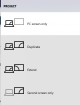
Windows Key + P should bring up the "Project" right sidebar that offers you display choices.
This machine doesn't even have 2 monitors - no idea what would happen if I chose one of the options.

1568280613341.png
 
Windows Key + P should bring up the "Project" right sidebar that offers you display choices.
This machine doesn't even have 2 monitors - no idea what would happen if I chose one of the options.

View attachment 255008

Interesting ... Using that method I do get the same options as you, (though I'm not connected to the TV ATM), that will be the next option to try - thank you. :)
 
Windows Key + P should bring up the "Project" right sidebar that offers you display choices.

This is what I've done when I've hooked up my laptop to a projector or the desktop monitor. You see the options whether you're connected to a second display or not. Just don't select second screen only if there isn't one!
 
Unless things have changed on Dell laptops, pressing the blue Fn key and F8 gave you the extend/duplicate/2nd screen only display options
 
Unless things have changed on Dell laptops, pressing the blue Fn key and F8 gave you the extend/duplicate/2nd screen only display options
Fn is now red :)
Doesn't seem to be applicable on this laptop though.
 
Back
Top