
Colour Managed confusion

PaulButler

Suspended / Banned
Messages
3,194
Name
Paul
Edit My Images
No
Apologies for the long post. I thought I understood the basics of a colour managed workflow but now I'm no so sure ...

I noticed when I responded to a comment on an image on another website that the image looked a little warmer, my wife described it as more blushy, and that is rather accurate imo. When I opened LR and compared the side by side it was indeed more blushy on the website. I then checked the jpg I uploaded, in the Win 10 photo app it looked the same as on the web, in Windows Photo Viewer it looked the same as in LR.

I have tried a number of different web browsers with the same outcome. However, Chrome is meant to be colour managed and I believe it is.

I have re-calibrated my monitor, it is a Dell U2413, it is hardware calibrated and I have ensured I am calibrating and using Cal 1. Same results.

The calibration process produces a .icm file (the profile file). Checking the monitor properties the file produced was being used (I deleted the previous one and it was regenerated during calibration). I believe it is this that is causing the issue, if I remove it and re-boot then the image in LR and on the web look the same, albeit too blushy, I've posted examples of what I mean below:

On the left is the image in LR with the monitor profile loaded and is how I want it, on the right is how it appears in Chrome (it is the same in every other app/browser except Photo Viewer and PS where it looks the same as LR).
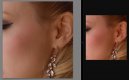
a1.JPG

This is how it appears after I have removed the profile and re-booted the pc, left is LR and right is Chrome, same image, no edits - they look the same.
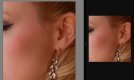
a2.JPG


This is my typical workflow when editing portraits:
Import into LR without any presets
In the Develop module set Camera Profile to Camera Portrait
Crop if required
Make any adjustments to WB and exposure (inc highlights/shadows etc ...)
Remove any blemishes etc in the skin
Do any eye, teeth, lips enhancements if desired.
Edit in PS - tiff, 16 bit, ProFoto RGB, no compression
In PS do any skin smoothing using Frequency Separation
Save back to LR as a tif file.
Export as jpg for web use, 85% qual, size as approriate (usually 1024 x 1024) and sRGB as colour space​

LR only works in ProFoto RGB as far as the develop module is concerned (in the library module I believe it uses Adobe RGB). PS can work in many colour spaces but it makes no sense to me to convert if the image is going back into LR. Even then I'm not convinced it will change things.

This is driving me nuts!

Can anyone explain this or help me understand why? Should I not be using the generated profile, is it that simple?

Where is @Pookeyhead when you need him ...
 
Already seen that Peter, only added to my already confused state ;)

I'me getting two "sets" of consistent colours with the profile loaded, with no profile I get one set of consistent colours ... allegedly the monitor itself is calibrated/profiled so the colours should be correct - if only I could prove it to myself ...
 
In order to see your edits in LR with the output color space you need to enable softproofing and select sRGB.
Just as a sanity check, I have repeated this step, it still looks fine in LR - no visible change to the colours, but different in Chrome, Photos (Win 10 app) and the same in Photo Viewer ...

I'm beginning to think the profile should NOT be loaded when the monitor itself is hardware calibrated. This is going to be a PITA as I'll have to re-edit quite a number of images ...
 
Ok, let me try to explain... first off, I believe you are doing everything correctly.
Monitor calibration is not to a specific color space... it is to display as many colors as possible, as correctly as possible. This is the max that you will be able to see, but perhaps not the max recorded in the image. An embedded color space in the file tells the program how to interpret/display the colors within what the monitor can display.
In the library module LR uses whatever color space is embedded into the file... if there is no color space (i.e. a raw file) it uses Adobe RGB. In the develop module it uses ProPhoto (which is Adobe RGB, just w/ a different gamma curve) which is basically the same as using "assign profile" in PS... unless you enable softproofing and assign a different profile.

In your workflow you are opening/editing the raw file in ProPhoto (LR) which will encompass all of the colors recorded, but may include colors you cannot see.

It is then converted to a tiff w/ ProPhoto embedded and returns the same (to/from PS). At this point the library module and the develop module will both be using ProPhoto to interpret the image. And up to this point you have not seen the image in sRGB, and you probably have not seen all of the colors in the image (due to monitor limitation).

You then output the file as a jpeg w/ sRGB embedded... at this point everything that was in the file (including what you could not see) is now converted into a color space that can (probably/mostly) be displayed by your monitor, and it will be interpreted correctly by any program that recognizes embedded color spaces or which applies sRGB by default. This is probably where you are getting messed up... the conversion/compression of what you cannot see (ProPhoto) into what you can see (sRGB).

There are three clues that you are working with colors you cannot see... if color adjustments (sat/vibrance/etc) are being made but do not seem to affect the image on screen, it is probably due to the changes not being able to be displayed by your monitor. When you switch softproofing profiles you may see the histogram change significantly w/o an apparent visible change. And when you enable softproofing there are out of gamut warnings for output and screen display (at the top of the histogram). If you hover over the monitor icon (or click on it) it will highlight colors that are compressed/clipped when displayed on your monitor, and when you hover over the destination (paper) icon it will show you what is out of gamut for whatever output color space capabilities you have selected... but you still may not be able to see them. And you may not be able to see the difference until after the conversion.

In my case I have a MBPr that calibrates to 98% sRGB... That means that I can never see an image in more than sRGB regardless of the color space in use. And it means I will only ever see all of the colors on my monitor after they have been converted into sRGB (and even then I will only see 98% on my monitor)... this is where there are sometimes small shifts between what is expected and what actually happens.
Another potential issue is if you are calibrating to a V4 monitor profile... it's supposed to be the current standard, but it doesn't seem to be widely supported by a lot of programs. If you are using a V4 profile, try generating/using a V2 profile instead.
 
Last edited:
Thanks Steven for the reply, very much appreciated ...

Ok, let me try to simplify... first off, I believe you are doing everything correctly.
Re-assuring! believe me, it is driving me mad

Monitor calibration is not to a specific color space... it is to display as many colors as possible, as correctly as possible. This is the max that you will be able to see, but perhaps not the max recorded in the image.
Understood.

An embedded color space in the file tells the program how to interpret/display the colors within what the monitor can display.
Also understood :)

In the library module LR uses whatever color space is embedded into the file... if there is no color space (i.e. a raw file) it uses Adobe RGB. In the develop module it uses ProPhoto (which is Adobe RGB, just w/ a different gamma curve) which is basically the same as using "assign profile" in PS... unless you enable softproofing and assign a different profile.

In your workflow you are opening/editing the raw file in ProPhoto (LR) which will encompass all of the colors recorded, but may include colors you cannot see.

It is then converted to a tiff w/ ProPhoto embedded and returns the same (to/from PS). At this point the library module and the develop module will both be using ProPhoto to interpret the image. And up to this point you have not seen the image in sRGB, and you probably have not seen all of the colors in the image (due to monitor limitation).
OK, now I've learnt something, didn't realise that the library will use the embedded profile, though logically I guess it makes sense!

Question, If I add the exported jpeg to the LR catalogue would I expect to see the colour change? I'll give it a go after I post this message.

You then output the file as a jpeg w/ sRGB embedded... at this point everything that was in the file (including what you could not see) is now converted into a color space that can (probably/mostly) be displayed by your monitor, and it will be interpreted correctly by any program that recognizes embedded color spaces or which applies sRGB by default. This is probably where you are getting messed up... the conversion/compression of what you cannot see (ProPhoto) into what you can see (sRGB).
I also tried the export using Adobe RGB and ProFoto RGB and got the same results as with sRGB - exiftool reported "Uncalibrated" (which I believe it should do) for ARGB and PF RGB though the other tags in there looked correct.

There are three clues that you are working with colors you cannot see... if color adjustments (sat/vibrance/etc) are being made but do not seem to affect the image on screen, it is probably due to the changes not being able to be displayed by your monitor.
These do show, even relatively small changes can be seen.

When you switch softproofing profiles you may see the histogram change significantly w/o an apparent visible change.
Now this I do see

And when you enable softproofing there are out of gamut warnings for output and screen display (at the top of the histogram). If you hover over the monitor icon (or click on it) it will highlight colors that are compressed/clipped when displayed on your monitor, and when you hover over the destination (paper) icon it will show you what is out of gamut for whatever output color space capabilities you have selected... but you still may not be able to see them. And you may not be able to see the difference until after the conversion.
I get the tiniest amount of OOG on the paper icon, it is literally some shadow area in her hair and would be no more than 1% f the image and probably less. No OOG on the monitor icon.

In my case I have a MBPr that calibrates to 98% sRGB... That means that I can never see an image in more than sRGB regardless of the color space in use. And it means I will only ever see all of the colors on my monitor after they have been converted into sRGB (and even then I will only see 98% on my monitor)... this is where there are sometimes small shifts between what is expected and what actually happens.
According to the spec sheet the Dell U2413 has Wide Gamut
103% NTSC (CIE 1931), 99% Adobe RGB, 100% sRGB coverage ...

Another potential issue is if you are calibrating to a V4 monitor profile... it's supposed to be the current standard, but it doesn't seem to be widely supported by a lot of programs. If you are using a V4 profile, try generating/using a V2 profile instead.
Was aware of the V2 vs V4 issue and calibrate to V2.

I'll post the results of the test with uploading the jpeg back into lightroom.
 
OK, added the exported jpeg back into LR - it displays in there the same as the tiff and the nef file. If I remove the profile from the display settings, then the images in LR display the same as they do in Chrome ... albeit to "blushy"

Going back to the histogram changes, when enabling softproofing the histogram lowers (less saturation??) also the exported jpeg has a very similar histogram to the tiff/nef files.

This is really hurting my head, the only way I have been able to achieve consistency is to remove the profile from the display settings, IF the display is really using it's inbuilt lut (so I'm guessing calibrated) then at least the colours I'm seeing are right and all I have to do is re-edit a few hundred files :(

fwiw all the guides I've read (@pookeyheads instructions and the ones on photography life where there are two) don't say anything about removing the profiles AFTER calibrating, nor could I find anything on the Dell website or anywhere else on the web.
 
Color management is basically a 3 step process... there is the programs color profile/setting, which interprets/switches to the image profile if tagged (or softproofing color space), and converts for display in the monitor profile. I think chrome is having an issue w/ conversion to the wide gamut monitor profile which is known to cause oversaturation, particularly w/ reds.

I.e. the issue may be w/ the chrome browser.
 
I.e. the issue may be w/ the chrome browser.
I thought that and have tried different browsers (Edge and ie) same results - reading the Ballard article I may have to download and test with Firefox, I uninstalled that a while back after it became a resource hog :(
 
The three steps are assume (program's profile), assign (embedded profile), convert (monitor profile). They equate to unmanaged, color managed (many browsers and programs), fully color managed (PS/LR/Firefox/etc). Color managed browsers/programs stopping at "assign" isn't a problem for most monitors that are only/near sRGB, but it is a problem for wide gamut monitors. Does your monitor have sRGB mode? I *think* using that would "fix" the issue and display the image the same as most others will see it. I believe that is the purpose of it, but not having used a wide gamut monitor I'm not certain.
 
The three steps are assume (program's profile), assign (embedded profile), convert (monitor profile). They equate to unmanaged, color managed (many browsers and programs), fully color managed (PS/LR/Firefox/etc). Color managed browsers/programs stopping at "assign" isn't a problem for most monitors that are only/near sRGB, but it is a problem for wide gamut monitors. Does your monitor have sRGB mode? I *think* using that would "fix" the issue and display the image the same as most others will see it. I believe that is the purpose of it, but not having used a wide gamut monitor I'm not certain.
If I use the sRGB option on the monitor then there is no point in hardware calibration as it cannot use it with that option enabled. I am currently calibrating to Native so suspect that is the widest gamut. I am reluctant to reduce the working space, and I'm not convinced that I would be seeing colours correctly anyway.

I've just installed Firefox and it is no different, so it would suggest the other browsers are not at fault.

What I will try is to calibrate Cal 2 to sRGB and see what happens then, as I can switch between them - it will be a royal PITA though.
 
Going back to the histogram changes, when enabling softproofing the histogram lowers (less saturation??)
Not exactly the height of the curves is the number/percentage of pixels at that level. Saturation is more the location/width of the curve. If they lower and widen then that would indicate greater saturation... if they reach either end of the histogram, that would indicate clipping.
 
Last edited:
I've just installed Firefox and it is no different, so it would suggest the other browsers are not at fault.
By default Firefox is set to color managed (tagged images) and not full color management... you have to change a setting.
This is because it is safer to not convert to a monitor profile that may be bad/corrupt.

I don't think it would be beneficial to reduce the color space in general... just as a check/test.
 
Last edited:
Not exactly the height of the curves is the number/percentage of pixels at that level. Saturation is more the location/width of the curve. If they lower and widen then that would indicate greater saturation... if they reach either end of the histogram, that would indicate clipping.
Yep, makes sense - told you I was getting brain dead ;)

By default Firefox is set to color managed (tagged images) and not full color management... you have to change a setting.
This is because it is safer to not convert to a monitor profile that may be bad/corrupt.

I don't think it would be beneficial to reduce the color space in general... just as a check/test.
I will change the setting and try the test once the calibration is done. I'm re-doing the calibration just in case, even though I am sure I did it correctly earlier!

(I'm using my laptop just now)
 
OK, Now I am totally confused ... I have enabled the full colour management on Firefox and the image shows as it does in LR (hooray!) BUT it now also shows correctly in Chrome too! When I say correctly I mean as I wanted when I edited it in LR btw ;)

The W10 photo app still over saturates it though - but I understand that is not colour managed/aware. I have tried the image in IE and Edge, both over saturate so I'd guess they don't colour manage properly if at all. Seems it is best to use Firefox or Chrome - wonder if I can get the default browser for Mac on windows?

Steven (@sk66 ) I cannot thank you enough for your time and help, you are a genuine star!
 
Just for completeness, I deleted the originally created profile, reset all monitor settings (using the monitors OSD) including setting back to factory defaults and then re-calibrated using the Dell supplied s/w and the i1 Display Pro. I have also disabled the LOGO loader (the s/w that loads system based profiles from xRite I think).
 
OK, Now I am totally confused ... I have enabled the full colour management on Firefox and the image shows as it does in LR (hooray!) BUT it now also shows correctly in Chrome too! When I say correctly I mean as I wanted when I edited it in LR btw ;)
I have no idea why Chrome would change it's behavior... but who cares. I'm glad you got it sorted.
 
I had a similar issue with photo viewer on my works laptop (Windows 7) following calibration with an i1 Display. I did however find the issue from a search, can't remember exactly now, but had to remove some element to get it to work properly.
 
I had a similar issue with photo viewer on my works laptop (Windows 7) following calibration with an i1 Display. I did however find the issue from a search, can't remember exactly now, but had to remove some element to get it to work properly.
I think that is what ended being the problem with me too, the calibration s/w installs a loader which when I disabled it solved the problem.
 
Back
Top