Calibrating...

Kell

Suspended / Banned
Messages
5,130
Name
Kell
Edit My Images
Yes
Unsure if this should stay here or be moved to printing as the question sort of relates to both.

I've sent some shots off to be printed (properly) for the first time in ages and am a bit disappointed by the colours (or lack thereof) from one of the full-colour images.

I think it's my fault, so I don't want to name the printer till I figure this out as they've been quite helpful.

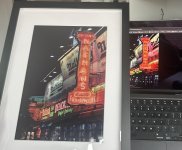
Essentially, it's this shot:


Nathan's Hot Dogs, Coney Island by Kell, on Flickr

But the print hasn't captured any of that glow and brightness.

So the question is: what do I need to do to my images/monitor in order for me to get a print that comes close to what I see on my screen?

For the record, the screen is one of the latest Mac Books with whatever profile that was installed at build. It has not been calibrated in any way.
 
Last edited:
You'll need to calibrate the screen, I edit at 90 nitts with an OLED screen.

Paper will never match a screen for punchy colour as screens are back lit.

Paper and printer gamuts vary too.

But screen calibration is a must.
 
You'll need to calibrate the screen, I edit at 90 nitts with an OLED screen.

Paper will never match a screen for punchy colour as screens are back lit.

Paper and printer gamuts vary too.

But screen calibration is a must.
I sort of figured it would come down to that.

What am I looking at for calibrating? i.e. what is a good product?

I was also toying with the idea of a new monitor for editing, so whatever I buy would have to cover both my Mac and an external monitor.
 
Keith has a lot of info if you want to dig deeper :)

 
do you know what paper your image was printed on - make and Media type

Out of the box, the colour space on Mac's, particularly the laptops, is (very) bright and full coloured .........(I calibrated my iMac and Mac Book air which resulted in the screens being less so)............which brought them very near to my calibrated BENQ photo display

what parameters did you use to download the file to send to the printers

I have spent a lot of time over the past couple of weeks calibrating 3 displays and printing images on various media types using (printer/paper) profiles.

there are quite a number of factors you need to take into consideration to get a "good" print

Keith Cooper is very very good but his uTube vids can be very long and the data on his web site complicated at a first read ........ but this printing lark is complicated

(what I would say is that the prints I am now making on my Epson. ET 8550 is way way better than anything I have received from these on-line printing companies)
 
Last edited:
It was sRGB.

I did ask the printer if I should be exporting in CMYK as it's print, but they said it was fine and that I needed to view the image on a mac screen set to about 30% to be able to assess the level it would print at.

Which, to be fair, I've just done and it's pretty accurate.
 
Last edited:
do you know what paper your image was printed on - make and Media type

Out of the box, the colour space on Mac's, particularly the laptops, is (very) bright and full coloured .........(I calibrated my iMac and Mac Book air which resulted in the screens being less so)............which brought them very near to my calibrated BENQ photo display

what parameters did you use to download the file to send to the printers

I have spent a lot of time over the past couple of weeks calibrating 3 displays and printing images on various media types using (printer/paper) profiles.

there are quite a number of factors you need to take into consideration to get a "good" print

Keith Cooper is very very good but his uTube vids can be very long and the data on his web site complicated at a first read ........ but this printing lark is complicated

(what I would say is that the prints I am now making on my Epson. ET 8550 is way way better than anything I have received from these on-line printing companies)

I don't - I just ticked 'glossy'. Didn't specify a particualr type - though I know you can on this site.
 
I don't - I just ticked 'glossy'. Didn't specify a particualr type - though I know you can on this site.

I'm not sure if this helps but,

If I'm printing an image I process in LR and then export the full, (i.e. biggest), file using the paper profile for the printer that I am using, (IF there is a paper profile supplied, (as a download from the web), by the paper manufacturer)...... and of course when I print the image I stick to that profile in my printing app.

If there is no paper profile, i.e. with some cheap papers, I export the file in Adobe RGB and then when I use my printer app select a media type near to the paper I am using OR I export the file using a profile from the drop down list in LR that I think is appropriate for the paper that I will use based on the description on the manufacturer's box.

I would never select sRGB if I intend to print the image, (with no paper info I select AdobeRGB as a default), sRGB images can be (very) drab .....

Just what I have done since I got my printer a couple of weeks ago and I'm very happy with the prints. my printer goes to A3
 
Last edited:
Thanks for all the help.

I’ve ordered the calibration tool and will try again once that arrives.

One more question though.

If you have a shot you’re printing but also sharing online do you then have to do two versions?
 
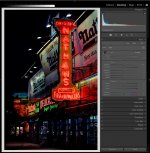
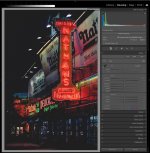
You should always soft proof an image before printing. In lightroom the shortcut is S; or menu View>Soft Proofing>Show Proof. It is best if you can get a printer/paper profile from the shop you are using, but in this case I just used a gloss paper profile I already had installed.

Normal view
basic.jpg

Soft Proof w/ gloss paper profile; note the loss of saturation and blacks.
soft.jpg

In the proof setup section under the histogram there is the option to create a proof copy. You would create a copy and edit it for printing on that printer/paper; and that info gets amended to the image (copy) name... because that use is the only thing the edited copy image is good for. If you can't edit it to look as you would like, than consider using a different paper/printer. Also keep in mind that everything is just "approximate" up to the final print; even if everything is fully color managed/calibrated.

If you have a shot you’re printing but also sharing online do you then have to do two versions?
Yes, multiple copies as necessary for specific uses; may also include different levels of sharpening, noise reduction, etc.
 
Last edited:
Thanks Steven

Perceptual or Relative?
 
Last edited:
I'm not sure if this helps but,

If I'm printing an image I process in LR and then export the full, (i.e. biggest), file using the paper profile for the printer that I am using, (IF there is a paper profile supplied, (as a download from the web), by the paper manufacturer)...... and of course when I print the image I stick to that profile in my printing app.

If there is no paper profile, i.e. with some cheap papers, I export the file in Adobe RGB and then when I use my printer app select a media type near to the paper I am using OR I export the file using a profile from the drop down list in LR that I think is appropriate for the paper that I will use based on the description on the manufacturer's box.

I would never select sRGB if I intend to print the image, (with no paper info I select AdobeRGB as a default), sRGB images can be (very) drab .....

Just what I have done since I got my printer a couple of weeks ago and I'm very happy with the prints. my printer goes to A3
That's something of a distraction, Bill, since the OP is sending to a print lab. 8-bit sRGB is quite a norm for sending to lab, however you might have chosen to process the image beforehand.

My feeling is that calibration can get over-hyped & isn't necessary for everyone. But there are some ground-rules, one of which is that many displays need setting to circa 50% brightness before you begin. That's about balancing lightness / darkness of screen relative to print.

Colour balance, these days, I'd claim is pretty good out of the box, which leaves us with tonality. And that's the second thing after overall brightness that I'd address.

Soft proof! Download the appropriate paper profile, and action it in software (LR, PS, or whatever you've got) on the chosen image. Adjust the tone curve till the image looks right (having to up the contrast is quite normal).

Save the image for print with your tonal adjustments embedded, but NOT the soft-proofing paper profile - the lab printer will make that adjustment by itself - what you've just done is compensate for what happens between your screen & the machine.

Save out for print as sRGB with pixel size to suit final print @ 300 ppi.

There may be variations, but that's a common basis.
 
That's something of a distraction, Bill, since the OP is sending to a print lab. 8-bit sRGB is quite a norm for sending to lab, however you might have chosen to process the image beforehand.

My feeling is that calibration can get over-hyped & isn't necessary for everyone. But there are some ground-rules, one of which is that many displays need setting to circa 50% brightness before you begin. That's about balancing lightness / darkness of screen relative to print.

Colour balance, these days, I'd claim is pretty good out of the box, which leaves us with tonality. And that's the second thing after overall brightness that I'd address.

Soft proof! Download the appropriate paper profile, and action it in software (LR, PS, or whatever you've got) on the chosen image. Adjust the tone curve till the image looks right (having to up the contrast is quite normal).

Save the image for print with your tonal adjustments embedded, but NOT the soft-proofing paper profile - the lab printer will make that adjustment by itself - what you've just done is compensate for what happens between your screen & the machine.

Save out for print as sRGB with pixel size to suit final print @ 300 ppi.

There may be variations, but that's a common basis.

"Save out for print as sRGB with pixel size to suit final print @ 300 ppi."

Thanks droj - I'm still learning but why not save the image in AdobeRGB which has more colours and shades than sRGB?
 
why not save the image in AdobeRGB which has more colours and shades than sRGB?
By all means do that if it suits your in-house workflow, but the original issue related to sending to a lab.
 
"Save out for print as sRGB with pixel size to suit final print @ 300 ppi."

Thanks droj - I'm still learning but why not save the image in AdobeRGB which has more colours and shades than sRGB?
Some labs don't use color managed programs and their workflow "assumes" sRGB; the same way a lot of computer programs do. Also, it doesn't matter how many colors the image colorspace is capable of if they fall outside of the colorspace the printer is capable of reproducing; much like most monitors are not capable of much more than sRGB. And, if your monitor can't display all of AdobeRGB, then how can you actually see/edit what your image will look like?

The safe answer when working with a lab is to get a paper/printer profile and soft proof using that RGB profile, and then save the image as an sRGB jpeg.

If you are doing more advanced printing you might want to use a different color space and file format (i.e. Adobe/Tiff), probably along with more involved calibration as well (printing at home, making your own printer/paper profiles, etc).

FWIW, I rather disagree with the 300 ppi print size, unless you are going to be evaluating it with a 10x loupe. the 300 ppi thing is primarily a carryover from scanning resolution for reproducing photographs; many/most printers can't even produce 300 ppi per color/ink (or couldn't a few years ago).
Anything over ~ 125 ppi is suitable for typical use, and ~ 200 ppi for critical use/viewing. Also note that the actual detail in the image is relevant here; you could print an image of a flat white wall at 1 ppi just fine. Most monitors are at around 100 ppi (even if capable of more), and are viewed more critically/closer; basically, if it looks fine on your monitor it should print well at similar size.
 
Last edited:
Some labs don't use color managed programs and their workflow "assumes" sRGB; the same way a lot of computer programs do. Also, it doesn't matter how many colors the image colorspace is capable of if they fall outside of the colorspace the printer is capable of reproducing; much like most monitors are not capable of much more than sRGB. And, if your monitor can't display all of AdobeRGB, then how can you actually see/edit what your image will look like?

The safe answer when working with a lab is to get a paper/printer profile and soft proof using that RGB profile, and then save the image as an sRGB jpeg. Luckily, sRGB is capable of reproducing more colors than a human can see/differentiate.

If you are doing more advanced printing you might want to use a different color space and file format (i.e. Adobe/Tiff), probably along with more involved calibration as well (printing at home, making your own printer/paper profiles, etc).

FWIW, I rather disagree with the 300 ppi print size, unless you are going to be evaluating it with a 10x loupe. the 300 ppi thing is primarily a carryover from scanning resolution for reproducing photographs; many/most printers can't even produce 300 ppi per color/ink (or couldn't a few years ago).
Anything over ~ 125 ppi is suitable for typical use, and ~ 200 ppi for critical use/viewing. Also note that the actual detail in the image is relevant here; you could print an image of a flat white wall at 1 ppi just fine. Most monitors are at around 100 ppi (even if capable of more), and are viewed more critically/closer; basically, if it looks fine on your monitor it should print well at similar size.

I have a monitor than allows switching from Adobe RGB to sRGB at the press of a button ........ depending on the image there is a big difference in colours, saturation and general intensity if those are the correct words ...... sRGB seems almost "flat" compared with Adobe RGB.
What I do now is if I am posting to the web is, in LR create a virtual copy and look at the image in the sRGB colour space adjusting it to get it as close to the Adobe RGB image and then use that image for web posting
 
IME, neon (especially) and other lights lose a LOT of their impact in prints compared to real life or on screen. A bright paper and bright viewing light can help but still won't let them pop properly.
 
I have a monitor than allows switching from Adobe RGB to sRGB at the press of a button ........ depending on the image there is a big difference in colours, saturation and general intensity if those are the correct words ...... sRGB seems almost "flat" compared with Adobe RGB.
That's because the same RGB values are actually different colors in the different color spaces. I.e. if you convert the image to adobe rgb the color values will change; but they will look the same (be the same color). However, if you just change the display color space the color values will remain the same; but they will look different (be a different color). Basically, by changing the display color space without altering the color information to display "correctly" you are essentially doing a massive global edit. It rather sounds like there is a color management step being missed... the step of image space to monitor space.

No matter what the color space is, to define a color you have limited values. E.g. 0-255 for RGB colors using 8bit. So a red color that is 125, 25, 25 will be closer to the center in a wider color space (aRGB) than it will be in a narrower color space (sRGB) and it will appear/be different. But if you converted that color to display correctly in the wider color space (sRGB > aRGB) the new values would be 164, 0, 32; and it would appear the same.

If the original colors fell within the sRGB color space (gamut), then there is no benefit to displaying them in the adobeRGB space. And incorrectly displaying them in the adobeRGB space isn't really helpful either.
 
That's because the same RGB values are actually different colors in the different color spaces. I.e. if you convert the image to adobe rgb the color values will change; but they will look the same (be the same color). However, if you just change the display color space the color values will remain the same; but they will look different (be a different color). Basically, by changing the display color space without altering the color information to display "correctly" you are essentially doing a massive global edit. It rather sounds like there is a color management step being missed... the step of image space to monitor space.

No matter what the color space is, to define a color you have limited values. E.g. 0-255 for RGB colors using 8bit. So a red color that is 125, 25, 25 will be closer to the center in a wider color space (aRGB) than it will be in a narrower color space (sRGB) and it will appear/be different. But if you converted that color to display correctly in the wider color space (sRGB > aRGB) the new values would be 164, 0, 32; and it would appear the same.

If the original colors fell within the sRGB color space (gamut), then there is no benefit to displaying them in the adobeRGB space. And incorrectly displaying them in the adobeRGB space isn't really helpful either.

I'm afraid that the above is too technical for me to understand

But what I said works for me - I was unhappy with the images I posted on this forum - so what I do now is (create a virtual copy) and look at them with my Display switched to sRGB .....I then EDIT them, (the virtual copy), in LR so that I am happy with the result .......then export them as sRGB images and post them on here ....... works for me and they look better than when I just exported an Adobe RGB image and posted it on here, letting the forum software convert it to an sRGB image, (as I understand)
 
Last edited:
works for me and they look better than when I just exported an Adobe RGB image and posted it on here, letting the forum software convert it to an sRGB image, (as I understand)
Do you then go back to viewing everything with your monitor set to aRGB? Xenforo (the forum software) does not do color space conversion when images are uploaded here (nor does flickr, etc). And by default, any jpeg exported from Lightroom is automatically converted to sRGB as that is the correct/default color space for them.

If it works for you, I guess that's all that really matters; but I think something is probably broken in your setup/workflow... If the image contains colors that do not exist in the sRGB color space you shouldn't be able to edit an image to look the same; at least not any better than a properly implemented monitor profile would/should do automatically.

Let's assume all of the colors in your image exist in the smallest common color space, the printer/paper space. In that case, it does not matter which color space is used because all of the color spaces/devices can reproduce the colors accurately. And the colors should not shift at all regardless of which color space/device is in use if everything is properly color managed/profiled.
The only thing the image color space information does is tell the next device that 125/25/25 means a specific red because it is in sRGB numbers. The next device then converts those values into its' color space so that it is reproduced as the same red.

In reality your monitor has its' own color gamut/space, which is neither adobeRGB nor sRGB. It is monitorRGB, and should ideally be described (converted to) by a calibrated monitor profile. E.g. my monitor's color space/gamut is neither 100% adobeRGB nor sRGB; but it also includes colors that are outside of both of them (in the P3 color space). So my calibrated monitor profile converts 125/25/25 into whatever numbers equal that red in its' color space so that the image displays correctly (or as close as possible).
And this is where I think your system is probably broken... it sounds like the monitor profile isn't updating/changing when you switch the monitor's operating state, and that's why there is a significant difference in the way an image displays.

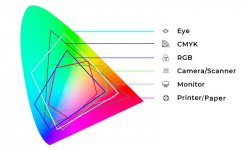
This picture represents the basics of how color spaces/gamuts actually work.

Untitled.jpg
AdobeRGB, sRGB, ProPhoto, etc are all just "the language" used to describe the colors. And sometimes there is no matching word (color) in another language (space/gamut), so it gets translated to the nearest thing if color managed (by the device color profile).
 
Last edited:
Do you then go back to viewing everything with your monitor set to aRGB? Xenforo (the forum software) does not do color space conversion when images are uploaded here (nor does flickr, etc). And by default, any jpeg exported from Lightroom is automatically converted to sRGB as that is the correct/default color space for them.
I cannot explain it any simplier

I have a BENQ SW272U Photo Display that allows me to switch displays from Adobe RGB to sRGB and back at the press of a button

I import my image into Lightroom as NEF or DNG Raw files - I look at the image in both Adobe RGB and sRGB on my BENQ monitor - the sRGB images is less "colourful" than the AdobeRGB image ..... I STAY IN the sRGB space and process the image for posting to the internet which usually means I have to adjust it to look "as I would like" and then export it as an sRGB file

If I do not go into the sRGB colour space and export the image as an Adobe RGB file when I look at the posted image on the internet it is less colourful than what I see on my screen

Moving into the sRGB space and editing the image to an image that I like and exporting that image to the forum as an sRGB file gives me an image on the forum that is near to the image I see in LR when my Display is switched to the sRGB colour space.

Normally for viewing I keep my Monitor in Adobe RGB and process my images to suit, (as I indicated posting to the web is different as is when I export a file for printing, different again)

Am I missing something or are we at cross purposes?
 
Last edited:
I've just relooked at the site I used and they say their standard paper is:

Fuji Professional DPII archive grade C-Type photo paper

Does this mean anything to anyone...

ETA - I've found the printer/paper profiles on their site and downloaded them all.

Just trying to work out how to upload the right one to LR.

Edited again...

I can't put them in the correct folder on my work MAC as I don't havethe correct admin permissions to move them into a system folder.
 
Last edited:
I've just relooked at the site I used and they say their standard paper is:


Does this mean anything to anyone...

ETA - I've found the printer/paper profiles on their site and downloaded them all.

Just trying to work out how to upload the right one to LR.

LR = Printer profiles

I think that they go in HD, Library, ColorSync, Profiles
 
LR = Printer profiles

I think that they go in HD, Library, ColorSync, Profiles

Thanks Bill - I didn't see your replies.

I wanted to try it out, but I can't move them to the correct folder as it's a system folder and I don't have admin rights on this laptop as it's a work machine.

Will try when I get home.
 
Thanks Bill - I didn't see your replies.

I wanted to try it out, but I can't move them to the correct folder as it's a system folder and I don't have admin rights on this laptop as it's a work machine.

Will try when I get home.

I think the next step is to decide what type of file you need to send to your printer......... Steven seems to be the expert

I can only tell you what I "send" to my OWN printer, an Epson ET 8550 - Edit in LR and then I send the biggest file size-wise that I have. processed in Adobe RGB colour space and then use the printer paper profile applicable to the paper I am using - for your shot above I would use High Gloss paper.

Maybe others can also add their thoughts ..........as I indicated I am new to printing but have printed 100+ images in the last few weeks and tried different papers etc.

Good luck
 
Last edited:
Thanks - I do have a photo printer at home that I've barely used. By barely, I mean i Printed one shot from my phone when I got it, then stuck it back in its box and haven't used it since.

And by 'photo' I mean 6x4, so it might be interesting to try it out with this to see how it works before sending them off.
 
Last edited:
Thanks - I do have a photo printer at home that I've barely used. By barely, I mean i Printed one shot from my phone when I got it, then stuck it back in its box and haven't used it since.

And by 'photo' I mean 6x4, so it might be interesting to try it out with this to see how it works before sending them off.

I would - most of what the grandchildren + their parents want are 6 x 4 so that they can stick them on their "pin boards" so I'd do a few test maintenance prints to check the ink and clear the nozzels and get some high gloss 6 x 4 paper and give it a go

I bought my Epson printer a few weeks ago and it has added so much to my photography for my family, (most of my shots are now of my kids and grand kids), and they have realised how much more pleasing and different a printed image is from looking at stuff on their iPhones
 
I've just relooked at the site I used and they say their standard paper is:


Does this mean anything to anyone...

ETA - I've found the printer/paper profiles on their site and downloaded them all.

Just trying to work out how to upload the right one to LR.

Edited again...

I can't put them in the correct folder on my work MAC as I don't havethe correct admin permissions to move them into a system folder.
It's a well known high quality traditional silver based paper. From my limited experience it seems to be the standard for high quality labs.

It's worth emphasising what @Nod said, especially given the words you used "But the print hasn't captured any of that glow and brightness."

Prints that rely on "reflected" light are never going to match the "glow" "brightness" "saturation" "dynamic range" etc of an image seen by "transmitted" light.

So while using a a colour calibrated monitor set at a brightness that better matches the brightness of a print, along with the correct paper profile and soft proofing will better match the eventual print, it's always going to have less "pop" than you see on the monitor.
 
Thanks all.

Just as an addendum to this, I have a very basic understanding of this in terms of I work for an ad agency and we often do print and press work, so I know that it will lose some of that glow.

However, I’ve never been in the repro side so don’t understand what those guys do to convert what we create into something which closely resembles it.

It’s all a learning curve.
 
Am I missing something... ?
Yes, I think so.
I believe your adobeRGB viewing space may be corrupt/uncalibrated. An image that is in sRGB should not shift at all when viewed in (converted to) adobeRGB. And an image in adobeRGB should typically shift minimally (if at all) when viewed in sRGB. Also, while working/viewing in sRGB you cannot recreate/see a color that is outside of the sRGB color space (an adobeRGB specific color).

I have a BENQ SW272U Photo Display that allows me to switch displays from Adobe RGB to sRGB and back at the press of a button
You do not.
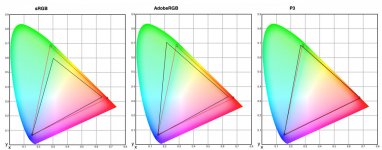
The red triangles are my monitor (M1 MacBook Pro) which is described as being a P3 monitor; and its' color space does most closely match the P3 space.
Screenshot-2025-10-06-at-10.31.39 AM.jpg

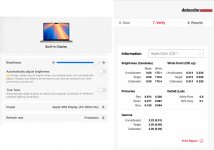
But it is not actually "a P3 monitor"; nor is it an adobeRGB or sRGB monitor. It has its' own color space/gamut which is not switchable; and neither is yours, not really. If I were to switch my monitor to "Internet & Web (sRGB)" mode I would simply be telling it to not show some of the color gamut it can; much like turning down the brightness setting would cause. And that is essentially all your monitor is doing as well.

I don't change the mode my monitor is operating in, I leave it in P3 mode. And I use a custom calibration profile (icc file) so that colors display as correctly as possible; I have none of the issues you describe, even though the monitor has a larger color space than sRGB is. If I were to change the mode the monitor is operating in, I would then need a different calibration profile to ensure color accuracy again.

Screenshot-2025-10-06-at-11.00.02 AM.jpg

If I do not go into the sRGB colour space and export the image as an Adobe RGB file when I look at the posted image on the internet it is less colourful than what I see on my screen

When you open a raw file in LR it has its' own color space (cameraRGB). The cameraRGB values are then converted to LR's color space (ProPhotoRGB) for editing, and the ProPhotoRGB colors are simultaneously converted into monitorRGB for viewing. But the whole time the file is still in its' original color space. That doesn't change until the file is converted (e.g. exported as a jpeg in sRGB). And again monitorRGB is not adobeRGB or anything else; even if that is how it is described.

You should not generally export a jpeg in adobeRGB for the web. Web images should only be in sRGB unless you have a very specific special use situation. If you do export an image in adobeRGB it is very likely to display wrong because the internet is largely not color managed. The internet (browsers and many programs) largely assume an image is in sRGB. And the color information is then displayed wrong; because the program in use tells the computer that the colors are in sRGB numbers, and the monitor profile then converts them into monitorRGB numbers incorrectly. This also happens if the program in use is color managed but the color space information is not embedded in the image file, or if it is invalid/unknown (program defaults to sRGB). But uploading an image file doesn't change the colors in the file in most cases (and not when uploaded/displayed here).

Likewise, if you edit an image with the monitor in a different mode/environment the output image will not look correct unless it is also viewed in that same mode/environment. E.g. if I switch my monitor to "Design & Print (P3-D50)" and adjust for a specific color the result will not look correct if I then switch my monitor to "Photography (P3-D65)" or "Internet & Web (sRGB)"; because the monitor calibration/profile is changing to suit. If the result does look the same with the monitor then in a different mode then something is broken; possibly the monitor profile(s) being used.

It is possible for some emitted light/recorded colors to shift if an image is converted into a smaller color space. But most reflected light colors exist within the sRGB gamut (or very nearly), so it doesn't affect most photographs significantly... that's why recording jpegs in-camera and viewing them on RGB screens works so well.
Still, what you should be doing to check/edit for that issue is leave your monitor in its' normal viewing mode, and soft proof/edit the image in LR using the sRBG IEC61966 profile. Also, I would suggest you disable the out of gamut warnings; the image being displayed has already been shifted to be within the destination gamut. The warnings only tell which colors have been shifted. Then export the image as a jpeg in sRGB for uploading.

 
Thanks all.

Just as an addendum to this, I have a very basic understanding of this in terms of I work for an ad agency and we often do print and press work, so I know that it will lose some of that glow.
I like printing on metal/metallic paper for this kind of image/application.
 
Something to be aware of, is that if you export an image to an external application that uses another colour space, edit, then send it back to Lightroom, the image can retain the colourspace of the other application. In that situation you can export from LR in sRGB, the images will look right in LR and in your browser if it can handle the other colour space, but when printed the images will look washed out like this.

I had a large number of prints made from a holiday in Canada, uploaded to DSC, they came back useless. The metadata in the image files even said they were sRGB, but the actual colourspace was adobeRGB and they all had to be re-edited and re-exported in sRGB before they would print properly.
 
Yes, I think so.
I believe your adobeRGB viewing space may be corrupt/uncalibrated. An image that is in sRGB should not shift at all when viewed in (converted to) adobeRGB. And an image in adobeRGB should typically shift minimally (if at all) when viewed in sRGB. Also, while working/viewing in sRGB you cannot recreate/see a color that is outside of the sRGB color space (an adobeRGB specific color).


You do not.
The red triangles are my monitor (M1 MacBook Pro) which is described as being a P3 monitor; and its' color space does most closely match the P3 space.
View attachment 464930

But it is not actually "a P3 monitor"; nor is it an adobeRGB or sRGB monitor. It has its' own color space/gamut which is not switchable; and neither is yours, not really. If I were to switch my monitor to "Internet & Web (sRGB)" mode I would simply be telling it to not show some of the color gamut it can; much like turning down the brightness setting would cause. And that is essentially all your monitor is doing as well.

I don't change the mode my monitor is operating in, I leave it in P3 mode. And I use a custom calibration profile (icc file) so that colors display as correctly as possible; I have none of the issues you describe, even though the monitor has a larger color space than sRGB is. If I were to change the mode the monitor is operating in, I would then need a different calibration profile to ensure color accuracy again.

View attachment 464932


When you open a raw file in LR it has its' own color space (cameraRGB). The cameraRGB values are then converted to LR's color space (ProPhotoRGB) for editing, and the ProPhotoRGB colors are simultaneously converted into monitorRGB for viewing. But the whole time the file is still in its' original color space. That doesn't change until the file is converted (e.g. exported as a jpeg in sRGB). And again monitorRGB is not adobeRGB or anything else; even if that is how it is described.

You should not generally export a jpeg in adobeRGB for the web. Web images should only be in sRGB unless you have a very specific special use situation. If you do export an image in adobeRGB it is very likely to display wrong because the internet is largely not color managed. The internet (browsers and many programs) largely assume an image is in sRGB. And the color information is then displayed wrong; because the program in use tells the computer that the colors are in sRGB numbers, and the monitor profile then converts them into monitorRGB numbers incorrectly. This also happens if the program in use is color managed but the color space information is not embedded in the image file, or if it is invalid/unknown (program defaults to sRGB). But uploading an image file doesn't change the colors in the file in most cases (and not when uploaded/displayed here).

Likewise, if you edit an image with the monitor in a different mode/environment the output image will not look correct unless it is also viewed in that same mode/environment. E.g. if I switch my monitor to "Design & Print (P3-D50)" and adjust for a specific color the result will not look correct if I then switch my monitor to "Photography (P3-D65)" or "Internet & Web (sRGB)"; because the monitor calibration/profile is changing to suit. If the result does look the same with the monitor then in a different mode then something is broken; possibly the monitor profile(s) being used.

It is possible for some emitted light/recorded colors to shift if an image is converted into a smaller color space. But most reflected light colors exist within the sRGB gamut (or very nearly), so it doesn't affect most photographs significantly... that's why recording jpegs in-camera and viewing them on RGB screens works so well.
Still, what you should be doing to check/edit for that issue is leave your monitor in its' normal viewing mode, and soft proof/edit the image in LR using the sRBG IEC61966 profile. Also, I would suggest you disable the out of gamut warnings; the image being displayed has already been shifted to be within the destination gamut. The warnings only tell which colors have been shifted. Then export the image as a jpeg in sRGB for uploading.

Thanks Steven - far too complicated for me to understand even after reading it a few times, I've tried but ........ sorry as you clearly know your subject

I'm happy with my screen Calibration(s) ....... BENQ, MacAir, iMac........... I use Calibrite Display Pro HL ........., (Although you feel that my Adobe RGB viewing space MAY be uncalibrated/corrupted)

I'm happy with my BENQ SW272U and it's ability to show me the Adobe RGB and sRGB work spaces, ,...... but I do see a difference between the two - (although, apparently, you indicate that's not possible, so I suppose that it is a marketing illusion by BENQ)

I'm happy with my LR workflow - import NEF, DNG and jpegs processing them for screen viewing and using a virtual copy to process a sRGB image for internet ......... I only use the sRGB image for this one purpose and stay away from sRGB for any other, (although you feel that the difference between Adobe RGB and sRGB is minimal)

I'm (very) happy with the prints that I am producing, up to A4 on my Epson ET 8550 ....... and not had any complaints, (although you feel etc., etc.)

I'm happy with my Nikons and Leica cameras being set to Adobe RGB Colour Management for jpegs ......... in fact, if possible, I have Colour Management set to Adobe RGB on all the cameras I use

So I suppose, reading through the mistakes/misconceptions that I appear to be making according your analysis above .......... my ignorance would appear to be my bliss
 
Last edited:
Save the image for print with your tonal adjustments embedded, but NOT the soft-proofing paper profile - the lab printer will make that adjustment by itself - what you've just done is compensate for what happens between your screen & the machine.

I've been experimenting a bit today as my Calibration tool has arrived AND I've figured out how to get the correct colour space profiles into Lightroom.

It's this bit I just wanted clarity on.

In order to approximate what I liked about the original digital image in print, it looks like it's been pushed to a point of ridiculousness when viewed in the sRGB space.

So what I should do for export is to switch back to sRGB from the OneVision template then export?

It seems to be about right when printing on my little Canon Selphy, but it's very difficult to match it - though I think this might be because in this example, I'm starting with my exported JPEG.

In the future, I guess I need to ensure I don't delete the RAWS of my favourite pics in case I want to print them.
 
Last edited:
Back
Top