

PatrickO
Suspended / Banned
- Messages
- 2,808
- Name
- Patrick
- Edit My Images
- Yes
Not saying this is the best way to do it , but what I did was:
1. Create a levels adjustment layer (Layers>New Adjustment Layer>Levels)
2. Play with the input levels sliders until the sky looks good (ignore what the rest of the photo looks like for now)
3. Use the eraser tool to rub out the levels changes from the non-sky parts of the pic so that the rest of the pic goes back to what it was.
4. Merge the layers.
Jeff is right, if you rush the eraser tool then you can see the joins (like in my pic). If you are careful you can get a very natural looking pic.
1. Create a levels adjustment layer (Layers>New Adjustment Layer>Levels)
2. Play with the input levels sliders until the sky looks good (ignore what the rest of the photo looks like for now)
3. Use the eraser tool to rub out the levels changes from the non-sky parts of the pic so that the rest of the pic goes back to what it was.
4. Merge the layers.
Jeff is right, if you rush the eraser tool then you can see the joins (like in my pic). If you are careful you can get a very natural looking pic.
Last edited:

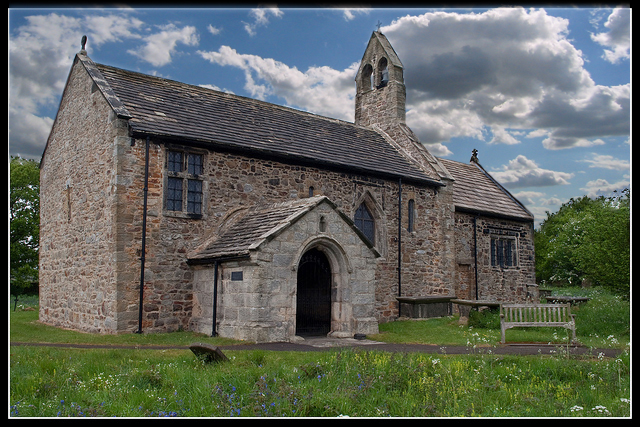


 The aim is to get it right in camera & the sky that day was pretty much as I poster...boring ,bland & drab !
 Very simple shot this week


 with everyone.


 Just cos I've not been on here a lot recently doesn't mean I don't have feelings ya know


 you
you 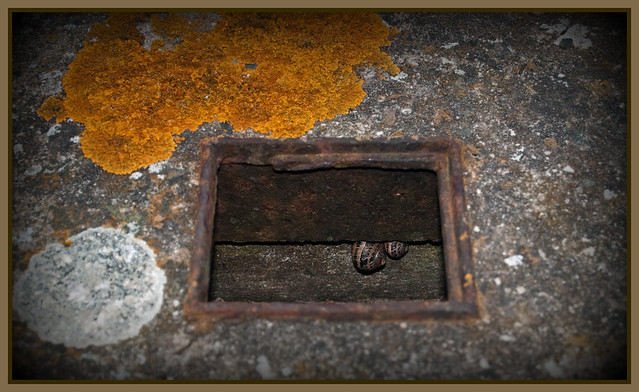
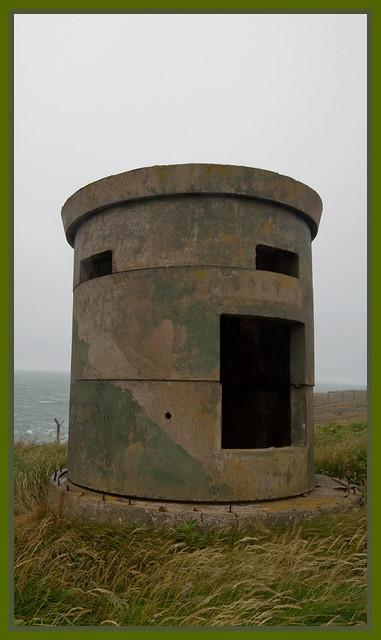
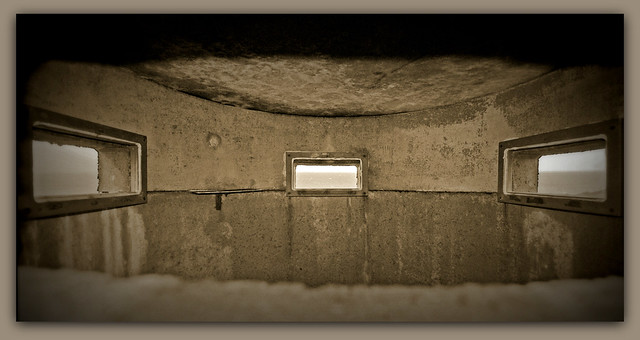
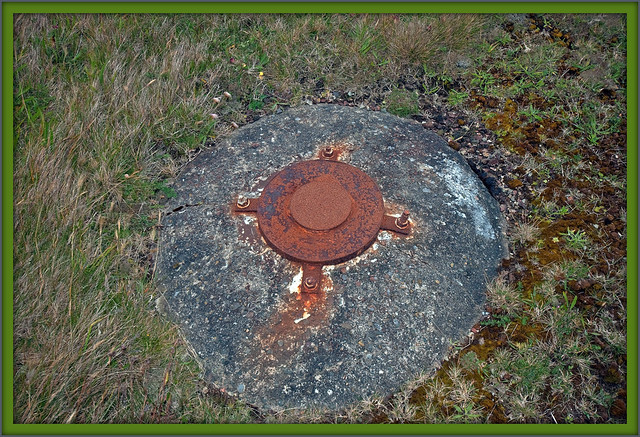

 maybe it would house a few 52'ers in there for some thinking time