Workflow Query in Lightroom

ThyJones

Suspended / Banned
Messages
211
Edit My Images
Yes
Hi there,

One thing I can't work out from other searched for threads, is when importing images into Lightroom and when you've finished that process and your images are in a certain path, does this replace the path you imported from?

Basically, I've got 1000's of photos from a recent trip, I have these on say P:/Photos/trip/whatever (and I have numerous whatever folders at the moment).

Would I just import these, and does lightroom catalog them and create a new structure, or will that underlying path structure always remain?

Thanks for the help

Also, a sub query - deleting images, is it easier to import all images, and then delete the ones that you don't want to keep from LR? Will this delete them from LR and your HD or only LR? Thanks also..
 
Last edited:
During the import you can either move, copy or add. I think it would be the add option for you if you already have the images filed as you want them.
 
I do the same as you. I import the photo's onto my PC before I open Lightroom. I then "Add" them into Lightroom andit keeps the existing folder structure. Remember Lightroom never alters the originals, it just points to where they are on your PC.

If you have images that you know you are going to delete, I'd do this first. If you don't then you're just increasing the amount of time to import them into Lightroom only to delete them again afterwards.

If you do delete from Lightroom, you have the option to "Remove" from just the Lightroom catalogue (leaving the images where they were), or "Delete" from the catalogue and HD.
 
Also, a sub query - deleting images, is it easier to import all images, and then delete the ones that you don't want to keep from LR? Will this delete them from LR and your HD or only LR? Thanks also..

You can choose when you delete, whether you want to remove from HD or just catalogue.
I tend to remove after importing but I don't suppose it makes little difference when you do it.

***cross post**** he types fast!
 
Last edited:
I always import all of them into lightroom and then delete the really bad ones in the "first cut". Then I do a "second cut" and use the excellent photo management system to filter the good and the excellent. Then and only then do i delete any "possibles.
 
I always import all of them into lightroom and then delete the really bad ones in the "first cut". Then I do a "second cut" and use the excellent photo management system to filter the good and the excellent. Then and only then do i delete any "possibles.

Could you go into a bit more detail about the filtering please? is this your own filtering, or does lightroom have a tool to help/record this?

Cheers, and thanks for all the responses so far
 
Also, i'm currently shooting in RAW and JPEG, is there actually any real point in doing the JPEG's too?

I'm sort of thinking that RAW only may be easier, because in reality i've got duplicates and am taking up space with the same images?

Can you do a mass export to jpeg(albeit low res if needed), so I keep all files in jpeg, then if i do want some(ie to upload to FB or whatever) I can then just export them?
 
Could you go into a bit more detail about the filtering please? is this your own filtering, or does lightroom have a tool to help/record this?

Cheers, and thanks for all the responses so far

You can rate photos with stars (with a photo/s selected - hit 1-5) to give it a rating in stars,

I use colours. If you select a photo and the hit 6-9 it will give it a colour.

For example i use green= 8 (shortcut) for photos that im keeping without doubt, i use red=6 (shortcut) for photos that im not sure about and i "reject-x (shortcut) photos that are oof or simply pants.

Then in the library, at the top i use the "attribute" filter to select only my "red" photos and work on them. If they are not worth keeping i ditch them by marking them as "rejected (x shortcut) and delete my "rejected" photos at the end of my session.
 
Also, i'm currently shooting in RAW and JPEG, is there actually any real point in doing the JPEG's too?

I'm sort of thinking that RAW only may be easier, because in reality i've got duplicates and am taking up space with the same images?

Can you do a mass export to jpeg(albeit low res if needed), so I keep all files in jpeg, then if i do want some(ie to upload to FB or whatever) I can then just export them?


Yes you are duplicating the pictures.
I only ever shoot RAW.

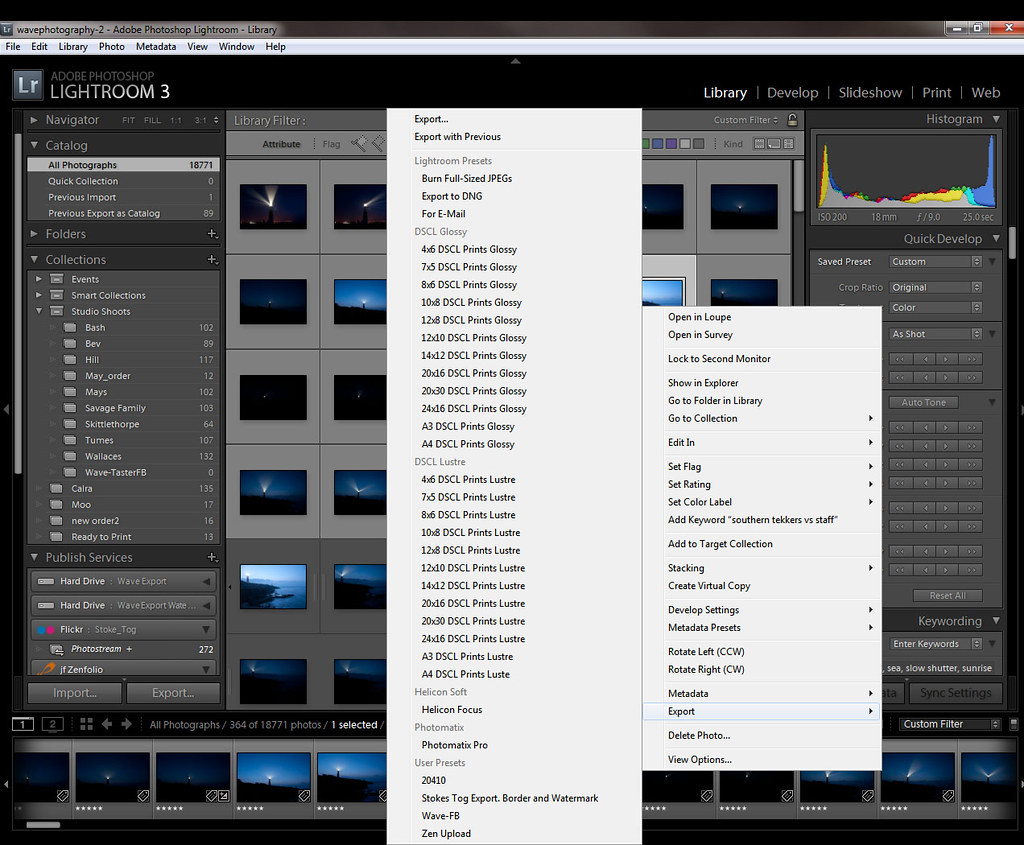
I have lots of different exports presets setup. facebook, dscl printing sizes etc etc..

My Lightroom Exports. by Stokes_Tog, on Flickr

So i have a "Facebook Export" that exports all photos at 70%, max 1024 on the longest edge, watermark in the right place etc etc..

Youtube is your friend... have a look here
 
Last edited:
Thanks for the help, very much appreciated and useful!

I'm still having a dilema about how to save/structure the images on my PC.

I considered:
P:/PHOTOS/YEAR/MONTH/EVENT/
P:/PHOTOS/2011/09/HONEYMOON/LOCATION/*pics

and have one catalog, and then to find the images use LR - Tags.

A friend of mine has just made a valueable comment about if lightroom ever went bump, or something new/better came out, i'd never end up finding the pictures(i suppose I could search for the location) but for ease of use it may become a pain over time.

Any further suggestions on this? I know theres no correct way as such, and I see many people asking/doing similar things, are there any down sides to doing that?

Trying to get a good base to start from as I'm going to organise all my pictures this way from years ago..

Thanks
 
I used to use folder structures but dont now. With regards to moving onto other software and things, if you spend your time in the import "tagging" the photos correctly then the RAW files themselves are embedded with these tags.

You dont have to tag every photo individually, you can say things like "Honeymoon", "Summer Fayre 2011" etc etc. and if you want to Tag a photo with something specific like "girlfriend drunk asleep on the stairs" then you can do that.

So any other software that you move onto, will have to deal with RAW'S and will pick-up the tags, so you would just use the new search function and enter the tag "girlfriend drunk asleep on stairs" and it will pop up. Tags are not specific to Lightroom.

The tags will go across to things like flickr etc also.

Here is a set of tags i have on a macro photo of a havestman bug thing, copied directly from Flickr:

gosport wildgrounds[x]
little bugs[x]
macro[x]
nikon 105mm macro[x]
nikon d3[x]
nikon sb900[x]
havestman[x]
psuedoscorpion[x]
Summer 2011 [x]

I didn't add them to the flickr file, they just transferred over. I entered that information when i imported the photos into Lightroom.

Also, one thing to remember is that you not only need to backup the files themselves, but also backup the Lightroom catalogue.... You can find its location by going to the top menu: Edit, Catalog Settings, General and clicking "Show". You need to make sure that is backed up! That file is the KEY to everything!!

Bear in mind this is my way of doing it, and might not be the best. It works for me. I have just under 20k of photos and can find any that i want in a matter of seconds.
 
Last edited:
I used to use folder structures but dont now. With regards to moving onto other software and things, if you spend your time in the import "tagging" the photos correctly then the RAW files themselves are embedded with these tags.

You dont have to tag every photo individually, you can say things like "Honeymoon", "Summer Fayre 2011" etc etc. and if you want to Tag a photo with something specific like "girlfriend drunk asleep on the stairs" then you can do that.

So any other software that you move onto, will have to deal with RAW'S and will pick-up the tags, so you would just use the new search function and enter the tag "girlfriend drunk asleep on stairs" and it will pop up. Tags are not specific to Lightroom.

The tags will go across to things like flickr etc also.

Here is a set of tags i have on a macro photo of a havestman bug thing, copied directly from Flickr:

gosport wildgrounds[x]
little bugs[x]
macro[x]
nikon 105mm macro[x]
nikon d3[x]
nikon sb900[x]
havestman[x]
psuedoscorpion[x]
Summer 2011 [x]

I didn't add them to the flickr file, they just transferred over. I entered that information when i imported the photos into Lightroom.

Also, one thing to remember is that you not only need to backup the files themselves, but also backup the Lightroom catalogue.... You can find its location by going to the top menu: Edit, Catalog Settings, General and clicking "Show". You need to make sure that is backed up! That file is the KEY to everything!!

Bear in mind this is my way of doing it, and might not be the best. It works for me. I have just under 20k of photos and can find any that i want in a matter of seconds.


Thanks Stokes. Really appreciate that reply, all these bits of information are proving quite useful!

How do you structure your pictures on your actual HD then, before you import them? Or are you saying that it actually doesnt make any difference, so I can do whatever I like aslong as I do the above correctly?

Thanks
 
i have two types of photo as i do commercial work now:

so my structure i use very very loosely is:

Personal
--> Days Out
-----> EventMonthYear
--> Holidays
-----> LocationMonthYear
--> Events
----->MonthYearEventName


Commercial
--> Marine
-----> MonthYear Event Name
--> Studio
-----> SurnameMonthYear
--> Events
-----> MonthYear Event Name
--> Location Shoots
-----> SurnameMonthYear
 
I let Lightroom organise my photos into the following structure on my HD:

Photos/YYYY/YYYY-MM-DD/originalimagename.dng

I then add metadata to the files so identify events etc.
 
^^ I do exactly as Lewis does.

I used to get hung up about the file structure but now allow LR to file on import in a chronological way and spend time during import setting my tags and filters
 
Back
Top