
Why are my vignettes always rubbish?

TimB

Suspended / Banned
Messages
104
Edit My Images
No
Hi all... I need some help here,

I'm a big fan of the vignette effect.. sorry of that offends some of you! ;)

A lot of my photos are moody/arty stuff and some of them would suit a nice vignette, but when I follow the 'instructions' that I read on a lot of websites for creating a vignette, they always turn out dreadful and I end up removing the effect.

When I mean dreadful, I mean that they are always a perfect circle/elliptical shape and look like I have just masked the photo with a tin can and sprayed black paint on the rest of the picture!

I usually create them by drawing a mask on the photo in a new layer with the circle tool and then filling in black with a fade effect but it just looks so unnatural. I try adjusting the blend between the photo and vignette layers but it still looks like a bad template effect.

So how do you make a good vignette? all tips very welcome! :thumbs:

Below are some examples of vignettes I really like. All credit to the photographers responsible!

flirting-with-vignette.jpg


Vignette-Barn-Normal.jpg


vignette2.jpg


I also like the vignette effect whereby the effect is really severe and the sky virtually turns to black:

vig3.jpg
 
I tried a few programs that were supposedly just for applying vignettes but they just look so rigid and false. The ones in my examples seem to curve around the objects in the photo naturally.

Some of the vignettes effects in software actually seemed to brighten the centre of the photo as well as darkening the edges and it looked horrific...
 
what SW are you using Tim? you should be able to either make a copy of the pic add the vig, then paste it over your original finished pic and just lower the opacity to suit :thumbs: or if you use photoshop just do it in layers
 
Just Dave said:
what SW are you using Tim? you should be able to either make a copy of the pic add the vig, then paste it over your original finished pic and just lower the opacity to suit :thumbs: or if you use photoshop just do it in layers

Hi Dave,

I use Pixelmator on the Mac which is basically a cheaper and slightly less featured clone of Photoshop.

It has all the usual layers and opacity options but as I bring in my vignette layer, even slightly, it seems to look unnatural.

I graduate and feather the edge of the vignette circle as much as I can.

Thanks
 
I've just got Lightroom 3 and can thoroughly recommend it.
 
The bottom shot looks like the 'effect' you get using a polariser with wide lenses, at altitude with a super wide lens you get a black traingle in the sky, it looks rubbish.

Maybe try an adjustments layer with the exposure dropped down to -1ev. Add a layer mask to it, then use the gradient tool (circular) to get a nice circular burn. Then adjust the blend mode/opacity etc.

Personally I use either LR or one of the many Nik type plugins.
 
Try doing them this way and see if they are any better

use a new layer so you can delete it if you dont like it and do it again

use rectangular marquee tool to select whole image in your new layer and have your feather (small box on the tool bar at the top) as 99

then do select > inverse (or ctrl+shift+I) right click middle of image and select FILL. mode normal, opacity 80% (you want this black, your foreground or background colour, if its white change it to black)

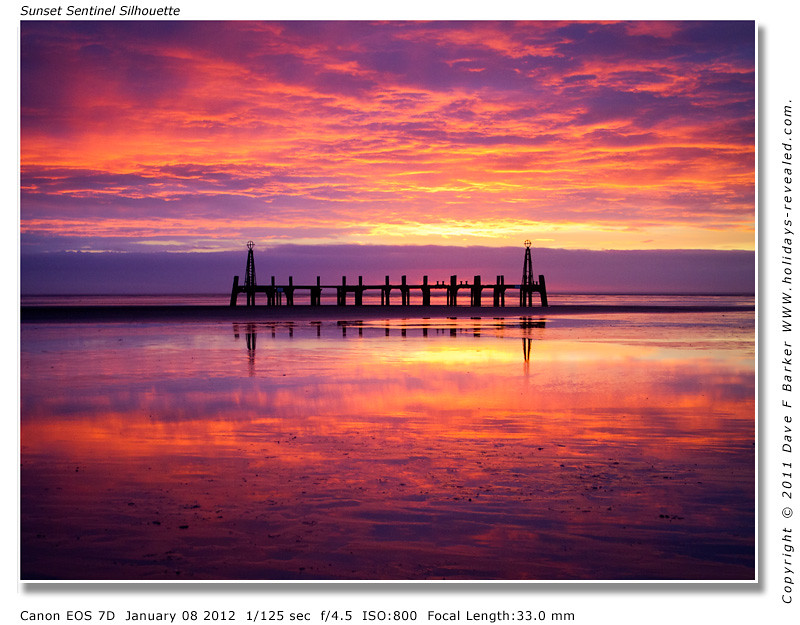
see how that goes if you understand how ive wrote it lol, this is how i do them myself. I think you have the have right photo to vignette in the first place, like Daves sunset above. I like subtle vignettes mostly, ones you cant see so obvious
 
Does Pixelmator have a Correct Camera Distortion dialog similar to the one in Photoshop? The Ps one has a set of sliders for "correcting" vignetting but can be used to add a vignette.

Personally I tend to use the Post-Crop Vignette in Lightroom 3.6 in Color Priority mode and play around with the sliders so that it doesn't look too obvious. Or, depending on the subject, I'll create a soft, wide Adjustment Brush with negative Brightness, and just paint around the edges. And not just the edges. I'll sometimes use a brush that's a bit less dark and paint closer to the subject to 'spotlight' them.

In Ps Elements 10, I'd either use the Correct Camera Distortion dialog, or the Lighting Effects filter which allows you to relight your photo from more than one angle, if you like. The latter method means that you don't have to rely on a vignette to draw the eye in to your subject.

It might be interesting to note that Scott Kelby and Matt Kloskowski in their Photoshop Elements 10 Book for Digital Photographers tend to prefer to duplicate the layer and set the blend mode to Multiply, make a square selection about "an inch in" from the edges of the photo, feather it by 200 or so pixels, then hit the Backspace key to "knock a soft-edged hole out of your darker Multiply layer, giving you an edge vignette". The main advantage to this method, IMO, is that it doesn't give you the same oval vignette that other methods render. Worth a try?
 
Millions of ways of doing it. If I add one, I usually use a curves adjustment layer. Alter the curve as you like and then use a layer mask to manually brush in/out the effect. You can also then alter blending modes (switch to luminosity for example) if it starts to affect saturation.

Infinitely adjustable and adds nothing to your file-size.
 
Thanks for the advice so far, I'll have a bit of a play with the ideas provided :)
 
Have you tried drawing your mask with the lasso tool? You can make it any shape you like that way. Use a big feather to avoid sharp edges.
 
Back
Top