Water Marks! How can you fix them?

HrH_2002

Suspended / Banned
Messages
28
Name
Patrick
Edit My Images
No
Hi,

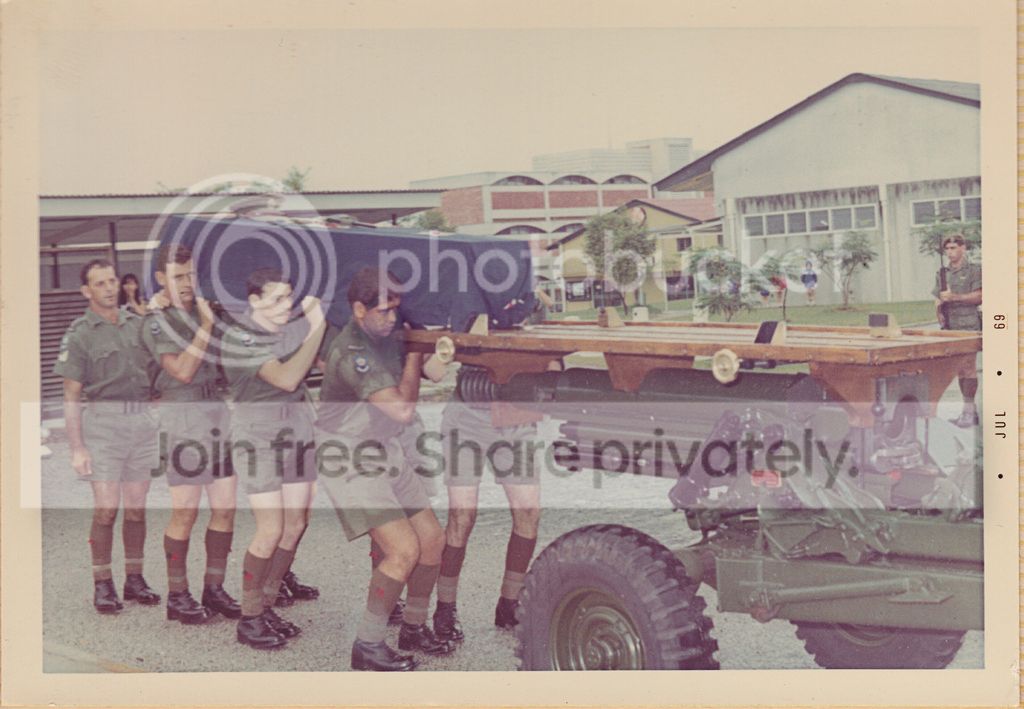
I've got an annoying water mark or stain, smack bang in the middle of the first image to a pretty important sequence I'm trying to improve. I am a newbe to Photoshop but getting there. Can anyone please tell me how I should best try and remove this water mark? Any help would be much appreciated!

photostream
 
Last edited:
it's a water stain on an original photo not a watermark for copyright etc
 
Put the photo up for users to see and I'm sure someone might be able to sort it with a guide to how it was fixed.

I take it you haven't got a original to fall back on then? valuable lesson there, which I'm sure everyone has done at some point
 
This stain is on the original print processed in 1969. I've digitized the family's photos because they are an important part of NZ Military History and it's stains like this one that made the job so urgent. I'm now trying to touch them up/restore them etc but my skill set isn't advanced enough to work this one out. Especially since it's on a face.

7155272398


I've pasted the URL into the upload photo box but here's the link to the image on Flickr:

http://www.flickr.com/photos/76305867@N08/7155272398/

7155272398
 
I've tried pasting in the url for the image hosted on flickr into the insert image/link box but without any luck. it's only a 500px image?
 
Last edited:
Hi Patrick,

Quite a complicated one, that. I've used a curves mask - drew around the stain with a lasso +5px feather, then used curves on the selection to alter contrast until it more-or-less matches the rest of that part of the pic. The green in the shirt was then too prominent, so I reduced that shade using a hue/saturation adjustment layer. The skin was now a bit dark, so I used levels on the selection to lift that a little. Finally, sharpened the whole pic a bit with a high-pass filter using soft light blend. More could be done with a higher res copy (always the case). Hope that doesn't sound too much like gibberish!

Edit to add: Used CS4.

e155f076.jpg
 
Last edited:
I did much th same as Jim above, used a few different curves to help the mark, then cleaned up the overall faded effect (curves) finally I added some clarity in camera raw

7158531466_d5c1dc2332_b.jpg
 
Wow! Awesome Skills Jon & Wayne!

I tried your directions out and think I understand the process. I managed to lift the stain off the face a bit but didn't get to far with the shirt. Could it be done with two selections - one on the face and another on the shirt?

The photo was scanned in at 1200dpi. Can anything more be done with that res?

Just so I'm clear the steps you took are:
1.Select the stain with Lasso +5px Feather
2. Then create a curves adjustment layer
3. Then reduce the green with a hue/saturation adjustment layer
4. use levels to lift the skins darkness

I was pretty deflated when i had finished going through your directions and i had only made a small impact. But that will come down to experience and time.
 
I start of selecting the area and then going to add adjustment layer > curves. Then when it comes to the next step my "marching ants" selection has gone. What should I be doing (or not doing) to keep the same selection when moving onto the each step?
 
Back
Top