URGENT issue. Migration Assistant doesnt recognise HD

Thanks for the quick reply I have previously used MA to do a rebuild but found it a ickle hit and miss, when you say you run the DMG from your server is this from a Freenas, I have just had a quick look through your tips section and have to admit I wasn't aware it existed :( lots of reading for me to do, just read the .me stuff, previously was going to setup an .me account, but as I wanted my existing domain email addresses I went down the imap server route, running centrally located apps really interests me, do you have to package them up in a completed install type bundle to be able to run them? Sorry for all the q's
 
Backup was done through Intego Backup Assistant that came with my Lacie drive.

I think I'll have to give up and do everything manually, something somewhere has done a big kaboom and it's not even letting me transfer my address book cards over, they just won't show/open[yet wen I double click to open them address book DOES open] It's seriously c****ed up and I'm really getting disappointed with Apple :(
 
From the limited information here, I think the OP did a backup by just copying and pasting the file over to the external drive. This backs up files ok but it's no good for a full system backup.

Its looking that way to me too :(

Still we can get it going manually :)
 
It's seriously c****ed up and I'm really getting disappointed with Apple :(

Sorry, you used third party software to back up your drive and you're disappointed an Apple utility doesn't recognise the backup? :shrug:

BTW, Migration Assistant will migrate a system from a USB drive. The key element is that the drive has to have a bootable OS X volume on it.

Here's an alternative.

beg/borrow/buy another external hard drive.

Format it with a GUID Partition Table and an HFS+ (journaled) volume* using Disk Utility.

Restore your Intego backup to the new drive. Once that's done, check that your MacBook will boot from it.

Use Migration Assistant to migrate your settings, data and applications from the new drive to the internal HD of your MacBook.

* this is important.
 
Last edited:
No, I'm not disappointed with Apple utilities, I'm disappointed with Apple. They have so far managed to not fix my laptop, pretend they did, make me then 'fix' it and I've now been waiting 4/5hours for a call backk...!!!!

Using Intego to put things 'where they're meant to be' not too sure it's possible, I think it'd just 'place' them anywhere.
 
Backup was done through Intego Backup Assistant that came with my Lacie drive.

I think I'll have to give up and do everything manually, something somewhere has done a big kaboom and it's not even letting me transfer my address book cards over, they just won't show/open[yet wen I double click to open them address book DOES open] It's seriously c****ed up and I'm really getting disappointed with Apple :(

As has been said, you used Lacie's software to back it up why not use the same software to restore it. Does that not make sense?

Apple software is designed to restore files backed up with the same Apple software it cannot know about all manner of other packages. We can restore is manually but you need to look at how you backup in future.
 
Darren, looks like we just crossposted :) have put reply above.

How can I rectify my backup situation then[genuine question, not a dig!] without losing what I already have OR buying a new drive?i.e using time machine...
 
Last edited:
Darren, looks like we just crossposted :) have put reply above.

Then its a rubbish backup program and not worth bothering with! There is no point in having a backup procedure that backs things up but does not restore them!

Right, we have already restored lightroom so have you installed all the software that you normally run?
 
Nope, just done Lightroom at the moment. About to do Photoshop[just needed to get a couple things sorted within Lightroom. Mogrify is playing silly beggers so that's still an issue atm but will leave it for now]

wcavangh - I;ve come across that page before, but unfortunatley it doesnt actually explain HOW to, and I dont want to do something wrong and then LOSE everything...?
EDIT. oh, ha theres an explanation there...Will see what I can do! thanks
 
Last edited:
OK, about to do a restore, but can't make sense of their wording.
It says this just before I choose a drive.
'Please select the destination used in the script you want to restore'
Does this mean it wants the drive I backed up TO [i.e my Lacie] or backed up FROM i.e my macbook.

For instance do I want to restore my macbook, or my Lacie? - I lack a little in the grammatical department sometimes :(
 
Using Intego to put things 'where they're meant to be' not too sure it's possible, I think it'd just 'place' them anywhere.

OK.

Having had a quick look at the Intego User Manual it seems there are three basic options ('Scripts') for backing up your files

- Backup: essentially a file-copy system
- Bootable: an all-or-nothing option which makes a complete image of your disk
- Synchronize: which makes sure files in specific folders on one disk are mirrored on another

I'll assume it's not the last option that you used.


If you did a Bootable backup, that would allow you to restore your MacBook's HD to the exactly state it was in previously, including all the system files. If your initial problem was not resolved by a fresh install and you used this option, then it may be the simplest course of action. You will get back to exactly where you started. Alternatively, do what I suggested in my previous post and restore to another disk, then migrate from there using Migration Assistant, which will retain your fresh install of OS X, but with your settings, applications and data.

For an backup prior to formatting the disk and reinstalling the OS, this would have been the highly recommended choice.

The Backup restore strategy places the files to a restore point (a folder) somewhere on your disk. For your purposes, this isn't going to have much of an advantage over copying things by hand in the Finder as you'll still have to put them back where they belong.

If you did use this option, then you really have little alternative except perhaps to try the third disk idea, but moving your restored files out of their restore folder up to the top level of the other disk once it's complete and see if it's a bootable volume. I suspect you will have difficulties with file permissions and it may have been an incomplete backup (missing key directories such as /etc which are hidden from normal user view). It might be worth a shot.
 
Last edited:
Bootable is only available for pro users, of which I am not. I used the normal 'backup'

So do I try synchronize, then? Will it not delete things from my backup doing this? [hope not!]
 
I'll leave you with MusicMan whilst I play with my new Nikon EM....... Too many cooks and all that :)

Anyway once it's working you NEED to sort your backup strategy out big time. This hope for the best route is not ideal !

Time Machine is easiest for non techies or use disc utility from boot DVD to duplicate the entire HD onto your USB2 drive. If you want some advice about that either post a new thread or ask :)
 
Thanks so much for your help Darren. I'll look into seeing how I can safely and happily set up time machine with the hard drives I've already got.
Thanks!
 
Bootable is only available for pro users, of which I am not.

Urgh. Ouch.

sorry

For future reference, you can achieve the same thing for free (an image of a bootable backup of your entire drive) with Disk Utility.

http://support.apple.com/kb/ht1553

So do I try synchronize, then? Will it not delete things from my backup doing this? [hope not!]

TBH, I don't know. It's possible that it might. FWIW I wouldn't risk it unless I had a backup of the backup, as it were.

It gets a bit fiddly here on in if you're doing a manual restore and I really should be doing some work. The key thing would be to put stuff back where it came from, though.
 
Thanks MUSICMAN, from looking on youtube, synch probably won't suit. And thanks for heads up on the disk utility thing. SO, I have a question for you from that. Can I create a bootable image from the backup I have? Or because of the format it's in it won't be possible?

Thanks, looks like I'll have to try and manually do everything.
 
Thanks MUSICMAN, from looking on youtube, synch probably won't suit. And thanks for heads up on the disk utility thing. SO, I have a question for you from that. Can I create a bootable image from the backup I have? Or because of the format it's in it won't be possible?

Thanks, looks like I'll have to try and manually do everything.

You will not be able to.

If you are switching to manual then check the posts in the top tips thread re backup and restoring individual apps data. This shows you where the files are within the file structure. After that give us a shout
 
Key directories you will likely need to restore files to, in addition to your apps in /Applications are

  • /Library/Application Support
    [*]~/Library/Application Support
    [*]~/Library/Preferences

where ~/ is the home directory for your user.

You'll need to replace the contents of each of these folders with the ones from your backup.

Documents, Music, etc. can be easily put back too.
 
You will not be able to.

If you are switching to manual then check the posts in the top tips thread re backup and restoring individual apps data. This shows you where the files are within the file structure. After that give us a shout

Key directories you will likely need to restore files to, in addition to your apps in /Applications are

  • /Library/Application Support
    [*]~/Library/Application Support
    [*]~/Library/Preferences

where ~/ is the home directory for your user.

You'll need to replace the contents of each of these folders with the ones from your backup.

Documents, Music, etc. can be easily put back too.


Thanks Both. About to start this now!
 
Oh, and if you use Apple Mail, you'll want ~/Library/Mail to get your saved email back.

When you're finished, open Disk Utility and run Repair Permissions.
 
Thanks!
Preferences one isnt letting me do it, says I dont have permissions :( oh well
 
For Mail:

Restore

Make sure that Mail has run at least once so if this is a fresh installation run Mail and then quit it.
Open the directory Mail Settings on your backup
Open the directory [user] :: Library :: Preferences
Copy the file com.apple.mail.plist from the directory Mail Settings on your backup into the directory [user] :: Library :: Preferences on your computer.
Open the directory Mail on your computer.
Open the directory Mail on your backup.
Hold [CMD] and press [A] to select all the files in the backup directory.
Drag these into the Mail folder on the computer.
Answer "REPLACE" when asked.
Open the directory Mail Downloads on your computer.
Open the directory Mail Downloads on your backup.
Hold [CMD] and press [A] to select all the files in the backup directory.
Drag these into the Mail Downloads folder on your computer.
Answer "REPLACE" when asked.

DONE.

For Keychains:

Restore

Now restoration isn't just a matter of copying the file back or it would not be very secure would it !

We need to run a utility called Keychain Access

Applications :: Utilities :: Keychain Access

Now once run you should see something like this…

TIP314a.png


Now to restore our keychain we go to FILE :: Import Items

Navigate to the file stored on your external drive ([user] :: Library :: Keychains) and select it

You will now have to give the login password for the account at the time of the backup.

DONE.
 
For iPhoto & iWeb:

Restore

Open the directory Pictures on your computer.
Locate the directory iPhoto on your backup.
Click on the directory iPhoto and drag this into the Pictures folder on the computer.
Open your home directory on your computer.
Locate the directory Sites on your backup ( [user] :: Pictures :: iPhoto ).
Click on the directory Sites and drag this into your home directory on the computer.
Answer "REPLACE" when asked.

DONE.


For Photoshop:

Restore

Open the directory Adobe Photoshop CSx on your computer.
Open the directory Photoshop on your backup ( [Applications] :: Adobe Photoshop CSx ).
Click on the directory PLUG-ins and drag this into the Adobe Photoshop CSx folder on the computer.
Click on the directory Presets and drag this into the Adobe Photoshop CSx folder on the computer.
Answer "REPLACE" when asked.

DONE.
 
Thanks!
Preferences one isnt letting me do it, says I dont have permissions :( oh well

You are using the one in your Home Directory ~/Library/Preferences, not at the top of your HD, i.e. /Library/Preferences?

Here's a tip.

Open your ~/Library/Preferences/ folder in list view, set it to sort by name by clicking on the Name column label.

Create a new folder called _old_prefs (the underscore sorts it to the top to make life easy).

Select everything else in the Preferences folder and move it into _old_prefs folder. This should leave you with a Preferences folder containing only _old_prefs.

You may find that com.apple.finder.plist makes an appearance as the Finder re-creates its own Preferences file straight away. You can ignore that.

Then you can put all the files and folders from your backup copy into the ~/Preferences/ folder - allow it to replace com.apple.finder.plist and any others that may have popped up along the way.

Log out and then log back in again immediately after.

You can then take the _old_prefs folder and put it in the Trash once you're happy things are back to where they should be.
 
Last edited:
Thanks musicman, was doing that but still not working :([but will try again with the old prefs thing]

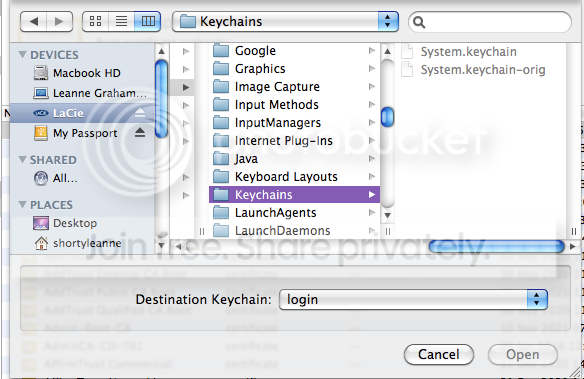
Darren - the 'open' button once selected the file isn't highlighting/clickable. Grr.

And mostly done atm, in the way of safari, mail, lightroom etc being sorted. Thanks so much!
 
Last edited:
Thanks musicman, was doing that but still not working :(

Darren - the 'open' button once selected the file isn't highlighting/clickable. Grr.

And mostly done atm, in the way of safari, mail, lightroom etc being sorted. Thanks so much!

Sorry, I can't tell what you are referring to :shrug:
 
Will get a screen grab, bear with me!!

Keychains can be a problem...

Close the Keychain program and navigate to the keychain file on the hard drive. Then right click it and select open with keychain.

You MIGHT need to change the access level of the files, if you do then right click the LIBRARY folder and select GET INFO.

At the bottom right of the new window will be a faint orange padlock, click this and you will be asked for your password, enter it.

Now at the bottom left of the window click on the "+" sign and a window will appear with a list of all the computer's users, click on YOU and click select.

You will appear in the window at the bottom, change your privilege to Read & Write.

Now next to the plus and minus box is a box with a cog and a down arrow in it. click on this and select apply to enclosed items.

Let me know if that sorts it.
 
Back
Top