@craft:
Yeah, I know you can restrict the image size and set the dimensions but that doesn't really help. Setting a max of (say) 100kB means the result can be anything from 1 to 100kB so LR is still in control and you don't know what you've got 'till it's done. Why they didn't include the display of what the size will actually be is beyond me.
When I post an image to a sharing site (which isn't very often I admit) I want it to be at the dimensions I want and at the size I want as it's ultimately the size (kB) that effects the quality.
Lightroom is really meant for processing batches of files, either manually or via workflows that you've set up.
To that end, the export screen can't tell you the size of the image, because its actually going to do the job on multiple files. No two pictures are going to be exactly the same size... so unless it calculates and displays the size of every file (which is going to get messy) it can't show you the size.
Photoshop is really meant for working on a single file at a time.
As someone else pointed out, the size of the file in Kb is not necessarily indicative of quality, all it means is the file contains more information. For example - take any image you like, over expose it by 2 stops and the file will be bigger, is it better quality ? no.
Similarly, take a noisy (high ISO) image, export it. Now apply noise reduction and export again - usually the file gets smaller but will be of better "quality" as the grainy look will have gone.
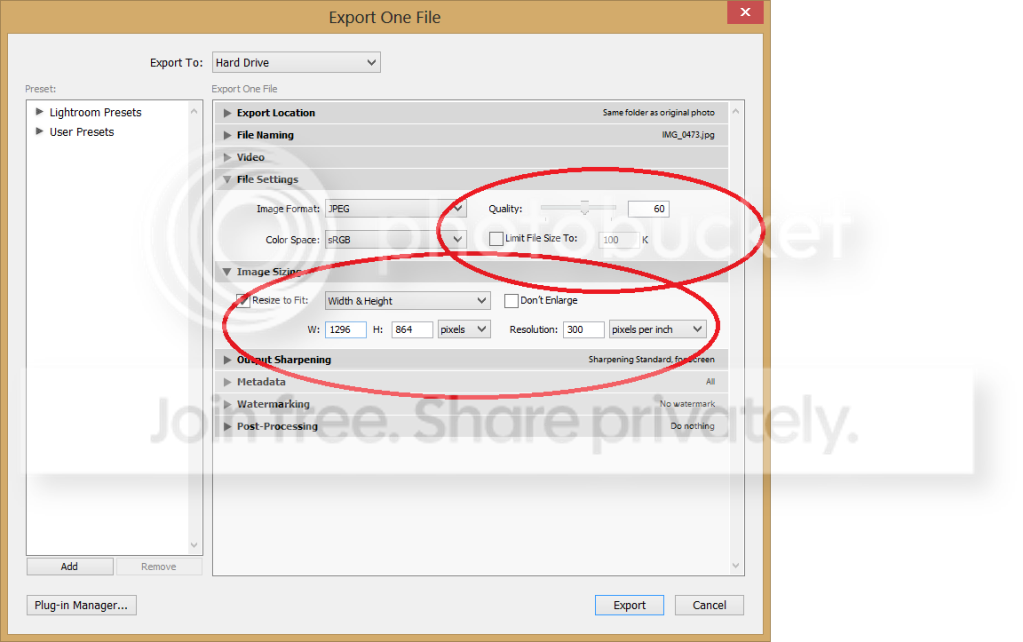
As you can see from the screenshot I fix to certain dimensions and pixels per inch. This is purely to make the files smaller so I can upload them easily - no need for full size (somewhere around 5000x3300 in my case) images just for sticking in the web.
If you know the dimensions you want just fix the ppi to a certain level, then you get the result you want.
The files will vary in size, but thats fine - I want the images to abide by a quality, not a file size.
In theory you could limit image quality by restricting to a given file size.