uploading

Gr8Shot

Suspended / Banned
Messages
2,691
Name
Steve
Edit My Images
No
How does everyone export and upload, currently i export as JPEG 100% from lightroom, then upload to photo bucket, but each picture is over 7mb each, I often use a picture resize to shrink them down but lose picture quality.
Can I ask how everyone else does it?
The problem being I live in the sticks and my internet connection isn't quick at all
 
I actually stopped using Photobucket a couple of years ago as they were compressing images waaaay too much and they started to look terrible. Well, more terrible than they looked to start with anyway. Are the photos you put there used for web display? If so how big do they need to be in terms of pixel dimensions?
 
I resize my images before uploading them, as I would rather be in control of how the pictures are resized rather than rely on the vagaries of some picture hosting website.
 
I actually stopped using Photobucket a couple of years ago as they were compressing images waaaay too much and they started to look terrible. Well, more terrible than they looked to start with anyway. Are the photos you put there used for web display? If so how big do they need to be in terms of pixel dimensions?

I've tried both ways, think i,m gonna move to this Nikon picture hosting next week, I'd rather keep all my exif data etc when I upload: images but shrink them a little for web usage, but image resize drops them from 8mb to 80kb so everything is gone including pic quality IMO.

I need a compromise.....
 
Bit of everything, posting forums, links to friends, wanting to keep good quality in case I do something with them another time.
But mainly once I sort it out being able to post on here without losing sharpness etc
 
Personally I think exporting is one of Lightroom's weak areas because you can't see what size (kB/MB)the file will be. Unless there's something I'm missing :shrug:

In Photoshop it tells you the saved size as you change the quality slider.
 
As I mentioned I gave up on Photobucket because it was losing too much quality even though the images I was putting up were small, either 1024 or 1200 wide. I tried cheating their site compression by reducing the file size myself (so I was in control of how much compression being applied) but it didn't really work, even uploading images of 200kb or less they would still look horrible which isn't good for a service you're paying for (I had a pro account) so I gave up on them completely. It's rare I need to host images these days but if I do then I use Imgur, they seem pretty good with not tearing your images to shreds! :)
 
Like I say I'm gonna give Nikon Image Hosting a go, see if it fairs any better

Thanks all for your input
 
Personally I think exporting is one of Lightroom's weak areas because you can't see what size (kB/MB)the file will be. Unless there's something I'm missing :shrug:

In Photoshop it tells you the saved size as you change the quality slider.

You can restrict on file size when exporting.
For the OP you can also resize as it exports, so you don't need another application to do so.

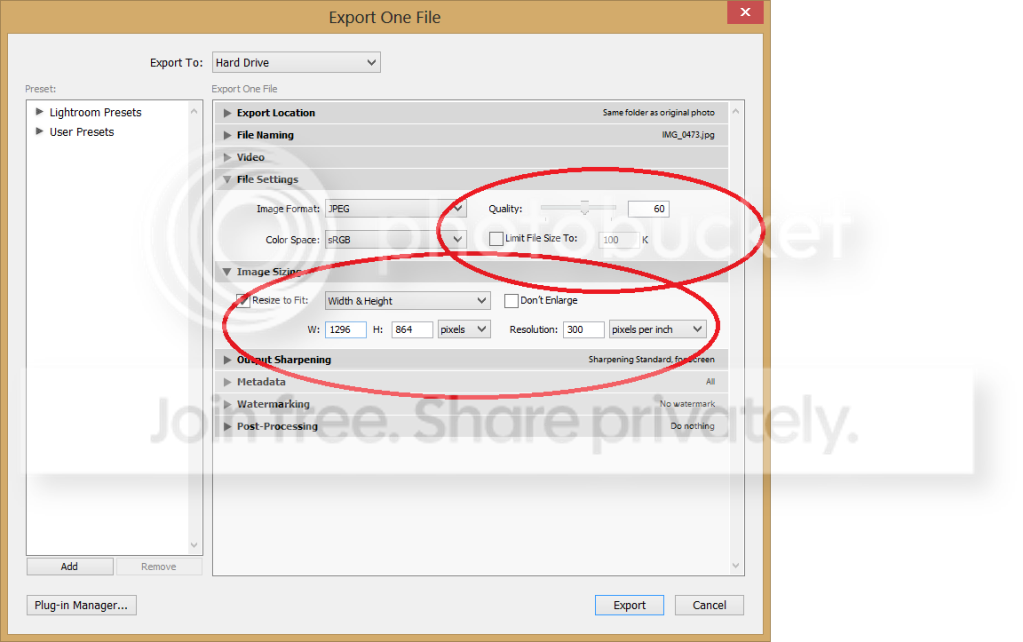
lr_screenshot.png
 
depends what im doing with the image.

for most stuff on the internet 1500 on the long edge is sufficient and should see the file size for even the largest raw down below 2mb.

and/or try flickr, that'll give you several different sized options for your image.
 
OK but doesn't reducing the image quality to 60% basically make the image just over half as good as original?
I tried this once keeping quality high and it produced the error unable to t the requirements , maybe needs more effort....

Just like my school report 30years ago :)
 
@craft:

Yeah, I know you can restrict the image size and set the dimensions but that doesn't really help. Setting a max of (say) 100kB means the result can be anything from 1 to 100kB so LR is still in control and you don't know what you've got 'till it's done. Why they didn't include the display of what the size will actually be is beyond me.

When I post an image to a sharing site (which isn't very often I admit) I want it to be at the dimensions I want and at the size I want as it's ultimately the size (kB) that effects the quality.
 
I use lightroom to export at the resolution I wish to see the file displayed at.

So for forums, 800px wide. My website, 900-1000px. Flickr get the 800px shot.
 
Neil, I think Gr8Shot was referring to compression rather than 'physical' pixel dimensions?

If you reduce the quality to 60% the results aren't necessarily going to look half as good as the original, although defining what actually looks half as good may be difficult! Compression works by binning information, with a photo it's information the computer thinks you won't notice if it disappears and because it works like this you're not necessarily going to be able to see it's effects. A handy thing about Photoshop is it gives you a preview with compression applied before saving a JPEG, I generally find that I can reduce the file size to around a third that of saving at maximum quality and still end up with enough quality for general web use.

How far you can get away with compressing an image depends largely on what the image contains, if there are large areas of clear sky for example then heavily reducing the file size often starts to show itself there first in the form of posterizing where subtle differences in tone are 'bunched together' as a single value so you see distinct bands running through the sky. If your images are 1400-1600 pixels along their longest edge then keeping file sizes to something like 500kb or larger should be enough to avoid any huge problems.
 
thats not strictly true.

a file with high ISO for example will generally be higher file size, doesnt mean its "better" quality persay.

Naturally differences in camera settings and other things affect file size; a shot of clear blue sky will be much smaller than a close shot of grass with lots of detail but it's certainly true that the higher the file size the more detail can be recorded. Whether that directly equates to a better quality image depends on too many other things but it does give the potential to have higher quality.
 
Last edited:
Neil, I think Gr8Shot was referring to compression rather than 'physical' pixel dimensions?

i was saying that its pointless loading a 5000x 7mb image if youre only putting it on a forum (most will have a size limit anyway) or showing your friends. likewise pointless hosting it for your website at that size as its going to slow things down and nobody will have a screen that size.

so its worth resizing to a "normal" viewing size first.
 
Naturally differences in camera settings and other things affect file size; a shot of clear blue sky will be much smaller than a close shot of grass with lots of detail but it's certainly true that the higher the file size the more detail can be recorded. Whether that directly equates to a better quality image depends on too many other things but it does give the potential to have higher quality.

yup. but like i said, not "strictly" true in all cases.
 
@craft:

Yeah, I know you can restrict the image size and set the dimensions but that doesn't really help. Setting a max of (say) 100kB means the result can be anything from 1 to 100kB so LR is still in control and you don't know what you've got 'till it's done. Why they didn't include the display of what the size will actually be is beyond me.

When I post an image to a sharing site (which isn't very often I admit) I want it to be at the dimensions I want and at the size I want as it's ultimately the size (kB) that effects the quality.

Lightroom is really meant for processing batches of files, either manually or via workflows that you've set up.
To that end, the export screen can't tell you the size of the image, because its actually going to do the job on multiple files. No two pictures are going to be exactly the same size... so unless it calculates and displays the size of every file (which is going to get messy) it can't show you the size.
Photoshop is really meant for working on a single file at a time.

As someone else pointed out, the size of the file in Kb is not necessarily indicative of quality, all it means is the file contains more information. For example - take any image you like, over expose it by 2 stops and the file will be bigger, is it better quality ? no.
Similarly, take a noisy (high ISO) image, export it. Now apply noise reduction and export again - usually the file gets smaller but will be of better "quality" as the grainy look will have gone.

As you can see from the screenshot I fix to certain dimensions and pixels per inch. This is purely to make the files smaller so I can upload them easily - no need for full size (somewhere around 5000x3300 in my case) images just for sticking in the web.

If you know the dimensions you want just fix the ppi to a certain level, then you get the result you want.
The files will vary in size, but thats fine - I want the images to abide by a quality, not a file size.
In theory you could limit image quality by restricting to a given file size.

 
The places I generally post photos (as well as for e-mail attachments) either have file and pixel dimension limits or I like to keep sizes down for the recipients' convenience (so many people now use smartphones for e-mailing rather than "real" computers) so I generally resize to suit the smallest application. Since I tend to use the gallery here as the host, I resize in PSE (currently) to suit those requirements - 800px on the long side and <200kB. Not much point in going much bigger for screen viewing anyway, unless you want to scroll around an image rather than see the whole thing in one eyeful.

My quick and dirty method is to use the crop tool for the resize - I set the px dimensions to either 600x400 if I'm on a laptop/netbook or 800x(?)533 on the desktop (where I have the actual figures on a sticker as a reminder!). That gives me the correct pixel dimensions. Then, it's a simple matter of "Save As" JPEG then adjust the quality slider until it reads under the 200kB limit. I keep an eye on the quality of the actual image - it's there at 100% at the new size and the preview button is ticked anyway to show the file size.

If anyone wants a bigger file, I'll e-mail them the original - keeping the ones published on the web down in size also reduces the chances of them being ripped off by anybody who's so inclined.

I'm sure there are better ways to do the resizing but the above works for me! TBH, I haven't played with "Save For Web" - I know that strips the EXIF and since most of the pix I post are as examples, I'd rather that was left in. Haven't played with any of the free apps I've D/Led for this new netbook (Win8) - one of them is a resizer which could become the solution!

I keep a folder specially for pix to be uploaded - originals get C&Ped into that, resized then saved over the copy. Once they've been uploaded, they get moved to a subfolder.
 
I export the whole processed set from lightroom to a new folder on D drive. I just like to keep my photos separate to all else. Then run a resize automation in cs6 on the whole folder, set to save all in a sub folder, called resizes, within that folder. You can set this to resize to max 1000x [or whatever you like] on each side, so it doesn't matter if you've cropped to various sizes in LR originally. I'll use those resized copies for facebook, sometimes flickr, or wherever. If they're for someone else they get the full res on disc. Plus the resizes. I only keep hold of important raws. As I rarely ever revisit old images.
 
Last edited:
I just resize to 1024 usualy and upload to either Photobucket or Flickr. As for them losing quality, I do not see it myself :shrug:
 
Back
Top