THE PP GAME!

I think it is time to call this now, I apologise in advance fro any nonsensical comments, I am very much a pp beginner.

Overbez, nice b and w but some of the trees bottom right are starting to look a bit like a blob of black for me.


Vettahead, I like that one, get the old style look. I don't understand the softening thing but it works (more learning for me)

SymetricalOCD, plane looks great but the sky a bit too purple and ground a bit too orange for me.

Pookey head, I like the sky and 'plane but the washed out trees don't do it for me.

Solo man I like the crop, I think the 'plane needs to be larger in the frame too. Not sure about the plane though something not quite right on my screen, too much clarity ?

Im Bald OK, I like this one, probably the closest to reality but the plane bigger in the frame, Wish I hadn't just bought lr4 (student) without the radial filter :)

Rhodese - see what you were after but, as you say the white showing through kind of ruins the effect. Maybe more pp to put the torn photo into an "album" then save for web? I dunno but close but not quite for me.

Goblin, another good edit, very close to how I remember the scene.

I think I would have chosen vettahead's with a tighter crop but choose I Im Bald Ok as my fave.

Hope I haven't been too idiotic trying to explain what I meant.
 
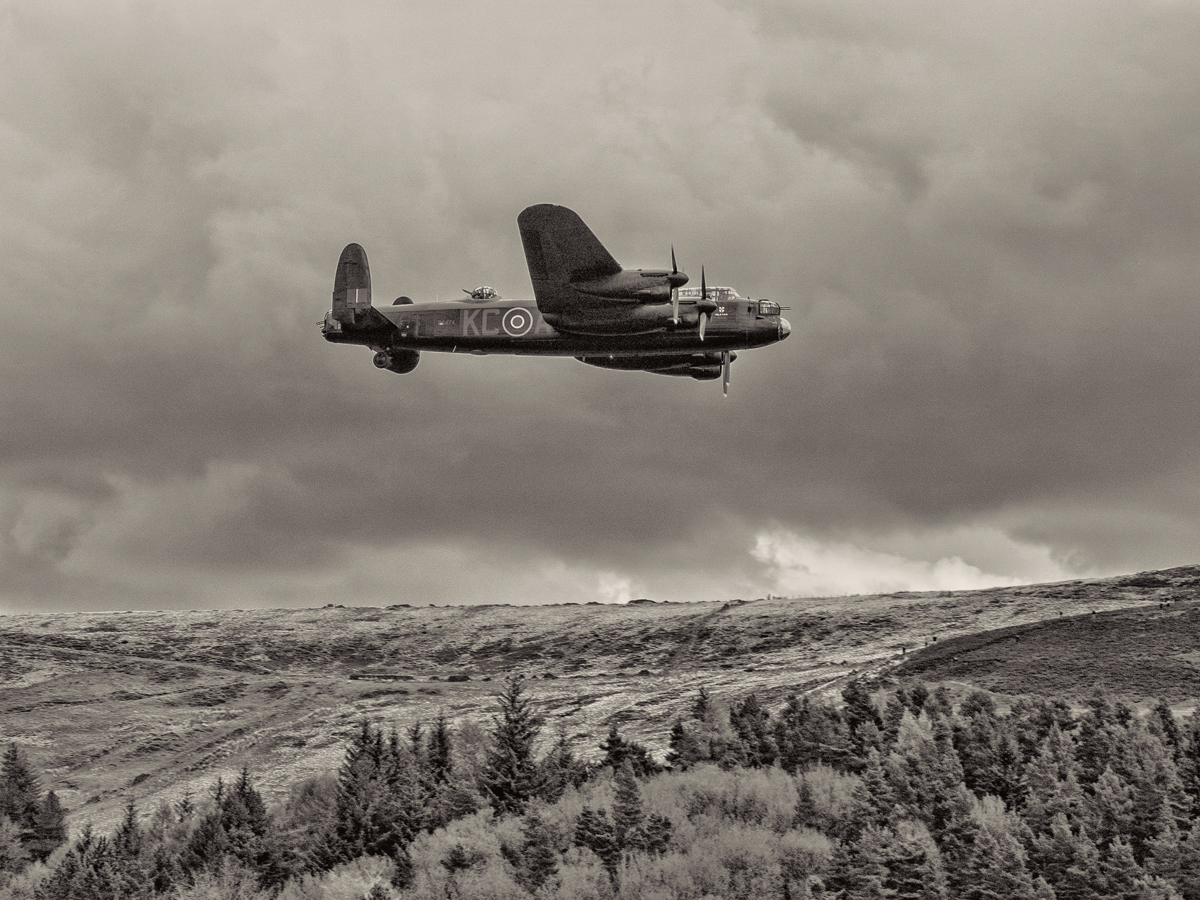
my edit of the pic done a while ago.

Lots of sharpening, nr, more sharpening, adaptive exposure, more fiddling etc etc.

Doesn't look too great on screen, noisy etc, but, believe it or not makes a very effective print, up-scaled it looks great at a3


lancbwm by sponner (staffs), on Flickr
 
Edit: This was posted as the above was being done!!!

Done in LR5 trial:

lanc-1.jpg


Little tip - if the navigator window shows the wrong image I hovered (might've clicked) on the image in the filmstrip and it worked as normal again.

Upped exposure and contrast.
Dropped highlights and boosted shadows and adjusted whites and blacks throughout.
Vibrance -59 and sat +33.
Boosted red hues.
Split toning with hues 44 and 268.
Vignette.
Slightly angled gradient filter top right with a slight tint/temp change.
Crop.
 
Ooooo! I liked Rhodese's version. Good effort from everyone :thumbs:
I won't be able to post a new one until tomorrow morning, if someone wants to post a new image before then, that's fine by me.
 
Andrew, sorry for finishing, was I too early ?

p.s. as someone asked it was from the Ladybower event for the 70th anniversary of Op Chastise (Dambusters)
 
Last edited:
Andrew, sorry for finishing, was I too early ?

Looking back the only thing you forgot to do was to give and finishing time & day when you put the shot up for edit. It is up to that rounds winner to decide how long which has been a couple of days up to many days. I should of asked (I usually do) but forgot as I was about to do my edit but missed out :eek: So where's the next one?:D
 
Ok here it is, sorry for the delay! It's my first time using yousendit, so hopefully i've shared it correctly! 21MB RAW file.

https://www.yousendit.com/download/WFJVc2ZKbWd3NUw0WjlVag

I will call this tomorrow evening sometime. Have fun :D

Hi Jason downloaded fine. I think to call the following evening may be a little tight & as such will reduce the number of entries? You also need to give a time as some of us (me included) may be forced to do a last minute edit & find it suddenly fishes before they can get it posted.

Lastly & (I must sound a nag - sorry but been on this thread for long time) but you need to get a jpg shot within your post. Let us know if you have any problems & we can help.

DayDreamer AKA John:thumbs:
 
Thanks John, it's still early :razz:

I've included a jpg image in the original post and will call it on Tuesday at 10am (so get your entries in by Monday night).
 
Thanks John, it's still early :razz:

I've included a jpg image in the original post and will call it on Tuesday at 10am (so get your entries in by Monday night).

And a double :razz::razz: back to you :D
 
LR:

  • lens profile
  • CAs
  • crop
  • lighten shadows
  • split tone
  • Kodak Porta 160VC profile

PS:
  • lens blur to soften background detail
  • CC camera shake reduction selectively the left (her right) eye
  • selective contrast adjustments to give impression of light bleed to make sense of the distracting bright highlight
  • full facial retouch
  • Warm up filter
  • removed shadows from glasses
  • removed hair

20 minutes

Click for big
 
Last edited:
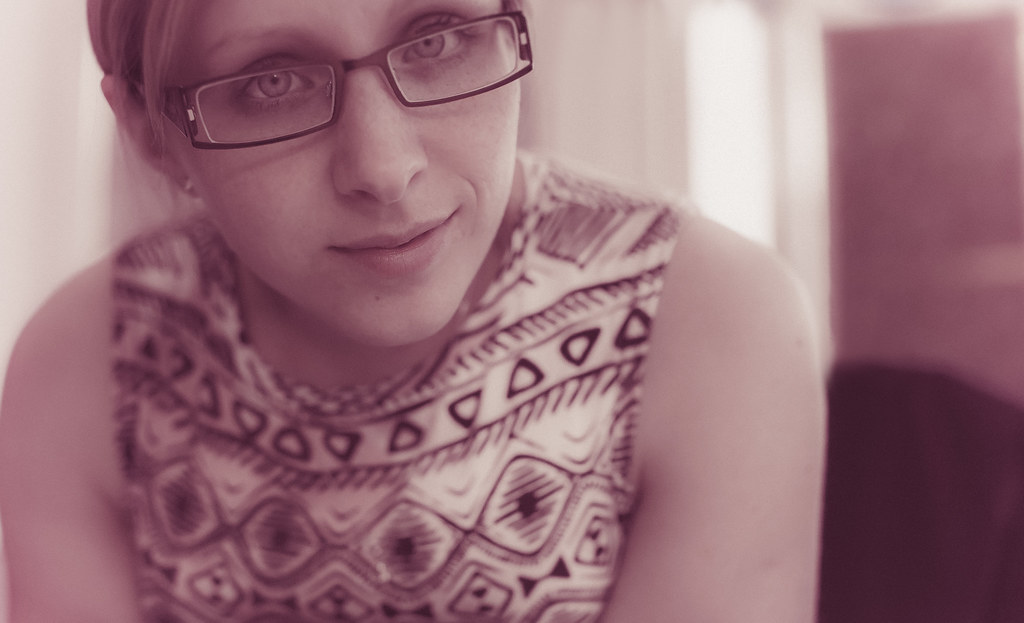
Wanted to retain a natural look, so went with just removing anything distracting, tried a few crops but found that they left the pose looking slightly awkward, with the table and tablet, it looked more natural.

ACR after converting to dng file.
set WB, exposure, contrast to suit (by eye)...
Then, high pass filter to sharpen area of glasses / eyes and mouth only
cloned stray hair from (her) left eye
cloned background disctractions
neatened join where (her) left arm meets table
selected eyes only - lightened and desaturated slightly
selected iris' of eyes only, darkened and increased saturation slightly,
(reduced opacity of eye adjustment layers to about 50-60%)
desaturated reds in her top as it looked like a wine spill. :eek:

CLICKIT FOR BIG........
 
lovely image


ppgame-1 by sponner (staffs), on Flickr


Lightroom fashion pre-set
cloned out stray hair and other bits e.g stray mascara
sharpened eyes
increased saturation on lips
couldn't find a better crop
10 mins
 
Well I’m not having the best of times with this. For some reason I can’t get the RAW to open, I’ve tried Adobe DNG it just doesn’t see it. :'( So anyway, I used the jpeg.
On to the edit.
Open in PS, Copy layer.
Using the Quick selection tool, select the girl and foreground then refine the edge. Set refine edge to output to new layer with layer mask.
On the background copy layer, go to filter-blur-average, this makes the background an even mix of all the colours in the image on that layer.
SAVE,
Working in the mask at 300%, magnification, further refine the edge using the brush tool.
In the cut out image using the dodge and burn tools liven up the eyes, and sharpen the eyes and mouth with the sharpen tool. Reduce the smile line using the blur tool.
Using the spot healing tool get rid of the spotty stuff.
SAVE.
Select the lady’s top and the reflection in the doodar; reduce by 5 pixels, feather by 5 pixels. (This would be more on the full size image)
Select a foreground colour from the darker pink/red on the blouse.
Then go to Image-adjustments-hue and saturation, select reds and reduce the saturation all the way down, turn the lightness all the way up.
New layer, fill the selection with the foreground colour, reduce opacity and change the blend mode to Hard Light.
SAVE.
New layer, make border using stroke and colours from the image.
Flatten.
Open in ACR hit auto.
SAVE.
Save for web.

TP--GIRL--WEB.jpg


Rhodese.
 
Last edited:
Just spent half an hour on this & need 'me tea' so back in a bit to put more on how I did it :)

Had 'me tea' & so around 50 steps in LR many to do with fine tuning crop & nearly all the rest using the brush including taking the pinky colour out of the dress as I found it taking away from 'the' model.

Then into PE10 with again a lot of brush stokes to get rid of odd hair, odd tiny mark, bit of blur, bit of saturation around the eyes & lips, gave a directional lighting effect but as in separate layer toned down a lot & finally a filter to give more warmth.

Then in Picasa for a tiny bit of white vignette & ran through again to give a tiny darker vignette.

I don't normally do portraits but enjoyed this one :thumbs:


Last edited:

IMG_2136-2 by btyreman, on Flickr

opened as DNG in LR5.

cropped the left side off to help draw you in more. (hopefully)

WB: Temp 5493, Tint +6
exposure: +0.21
contrast -30

Shadows +22
Blacks -41
Clarity +7
Vibrance +53

Tone Curve:
Lights +8

Sharpening +65 radius 1.0, detail 21

Lens correction profile loaded with remove chromatic aberration box ticked.

cloned out the freckle

I used the new radial filter on each individual eye set to 'inverse' mode...added a slight blue colour, then clarity, highlights and exposure increased.

a second larger radial filter was applied around her face with -clarity and noise reduction to smooth out the background.

then finally used the brush tool set to desaturate the 3 blue blobs of bokeh next to her right eye as they were very distracting,

exported as jpeg sharpened again for screen.

this took about 15 minutes.

p.s I'm loving the new radial tool in LR5.
 
Last edited:
ok, im going curve ball on this one. Tried to avoid the obvious and make this something all on its own.
softening of skin (slight retouch by removing the stray hair but lelt the mole on there, there the things ya love right :) )
crop to remove the ipad as i thought by removing her initial focal point it puts just you in the room,
some cloning of the BG
re-exposed the scene, neutralised high/lowlights
As there was a hue of pink from the cover of the ipad i decided to hue it to fit.
added grain to fit the toybox camera approach.
Done


reworj.jpg by dark mavis, on Flickr
 
IMG_2136.jpg


In LR:
Increased temp, contrast, highlight, whites, shadows
Decreased the clarity
Used adjustment brush on the skin (soften skin)
Think that's basically it :)
done!

took me about 15-20 min
 
Pookeyhead - Lovely version. I like the crop and the way you've kept it au natural. Very soft colours and pleasing to the eye, i'm not sure if the contrast is too much or not. Nicely uncluttered.

Overbez - I like what you've done to the eyes and glasses and you've cleaned up the background perfectly. I'm not a big fan of the contrast between the B&W dress and saturated skin however. For me it slightly unbalances the image.

Sponner - Love the softness and the blue tint is nice, possibly very slightly too much for me. Looks very clean and easy to look at. This was my second favourite.

Rhodese - I can see what you were going for, but I don't think it works. It's kind of in-between a studio shoot and a quick snap. The top half is so free from distractions I find myself looking at the iPad and phone.

DayDreamer - I always tell her that her eyes are green, so this made me chuckle a little! It is a little too much tho, going towards alien like (which is probably not far off reality :lol:). Undecided on the dress colour too. Everything else is nice. Good crop.
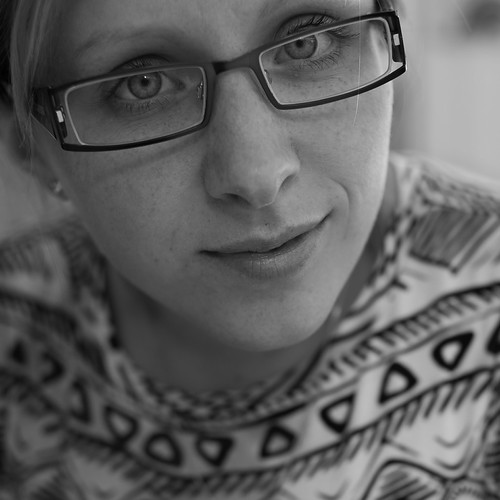

symmetricalOCD - First impression is that it's a little pink. Love the detail and what you've done to the eyes tho! Maybe slightly too blue if i'm being picky.

Vettahead - I like that you've been a bit risky. Nothing really looks crisp tho, I am drawn to the face as the crop has done the job of removing the distractions. Still undecided on the hue, she likes it.

SMAM - The negative clarity is too much for me and I think you've overdone the softening of the skin, just. If those 2 were reigned in a little i think this would be lovely.

Overall for me, Pookeyhead's version is the winner. The crop is great, the removal of the glasses shadow is superbly done. Amy (the model) also favoured this.

Well done everyone, I hope I didn't come across too harsh :)

My Edit:

Amy by Jason-Gardiner, on Flickr

I did this very quickly.
Changed to B&W.
Upped the contrast by 20.
+22 highlights
-31 shadows
Selective sharpening
Touch of sharpness and clarity to the iris, softened the skin slightly and darkened the dress. Oh, and cloned the mole.
Should have cloned the hair!!!
 
Last edited:
Well done David - and well done Jason for good edit critique :thumbs:

Glad no-one noticed I overlooked the pink reflection on the foremost phone in mine :eeK:
 
Cheers Jason. I'll dig out a pic and get it up ASAP.


[edit]

Just a random choice this time. Was having trouble choosing.

oWPcu4z.jpg


RAW FILE HERE
http://www.speedyshare.com/yPmW5/DSC1842.NEF

Try to post hi-res edits if possible.


Off ya go!!

I'll call it Friday Evening.
 
Last edited:
Ok il bat this one off. again i did gome pretty extensive editing of this one, allthough besides a crop its a brilliant image (jealous!)

cloned the interesting stuff from the left to the right removed the distracting things like cars and signs
took the sky from the top and added t to the top if my intended frame
sharpened the monoliths via high pass
croppped
moved to lightroom
did some level editing and colour split toning.

done!


_DSC1842-Edit-Edit-3.jpg by dark mavis, on Flickr
 
Last edited:
I tried to emphasize the shadows in this, nice shot!


_DSC1842-1 by btyreman, on Flickr

DNG opened in LR5

Crop to 1:1 ratio
Highlights -100
Clarity +81

Tone Curve:
Highlights: +48
Lights: +82

in BW mode no colours were altered.

Split tone: Blues for highlights, Reds for shadows.

Lens correction nikon profile applied,

Added 2 filters one on the bottom and top, with custom settings.

sharpened then exported as jpeg
 
Another great image.

LR set white/blacks
Topaz adjust increase detail and adaptive exposure
cloned out anything man made to take it back to prehistory
a bit of dodge/burn
square crop

old_stones.jpg
 
Last edited:
Had no clue how to edit this really, it was a nice image anyway, so tried to do as little as possible...
My edit done in Lightroom 4.....
Increased temp, and decreased tint.
Decreased Blacks.
In the tone curve, decreased lights and highlights.
Converted to B&W, and adjusted the sliders, increased red, purple and magenta, and decreased orange, yellow, aqua and blue.
Into split toning, I adjusted the highlights hue and saturation, and the shadow hue and saturation.
Sharpened slightly, and applied luminance.
Adjusted the lens vignette slider .
Then cropped.....


LINK FOR BIGGER VERSION......
http://farm4.staticflickr.com/3670/9200013454_92c68c226d_o.jpg
 
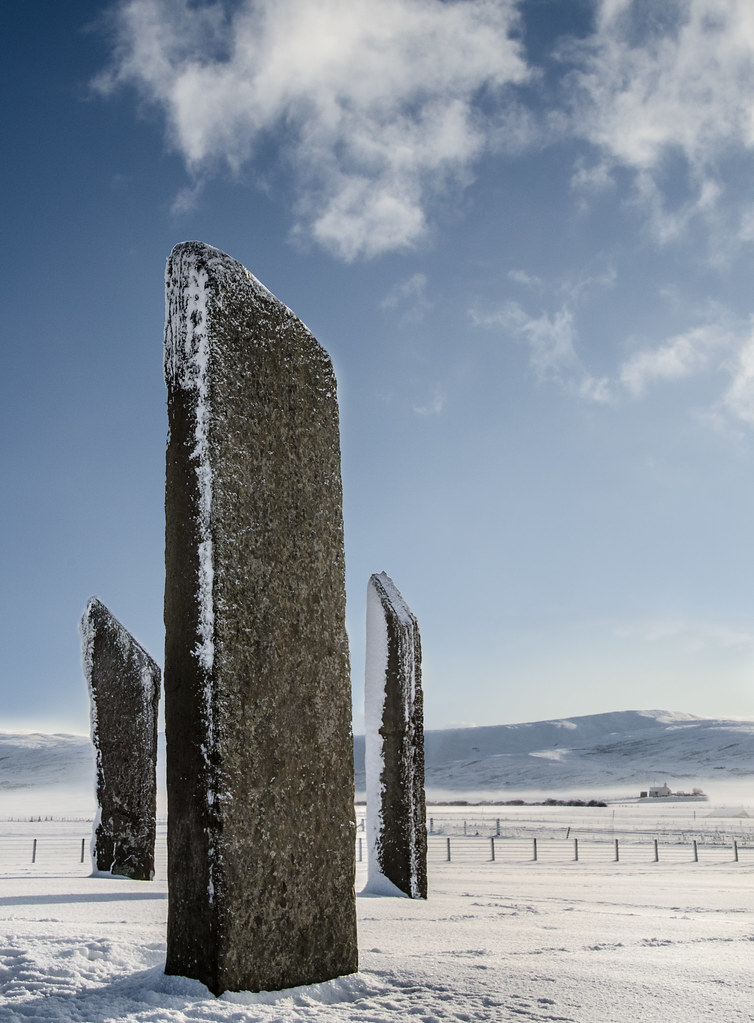
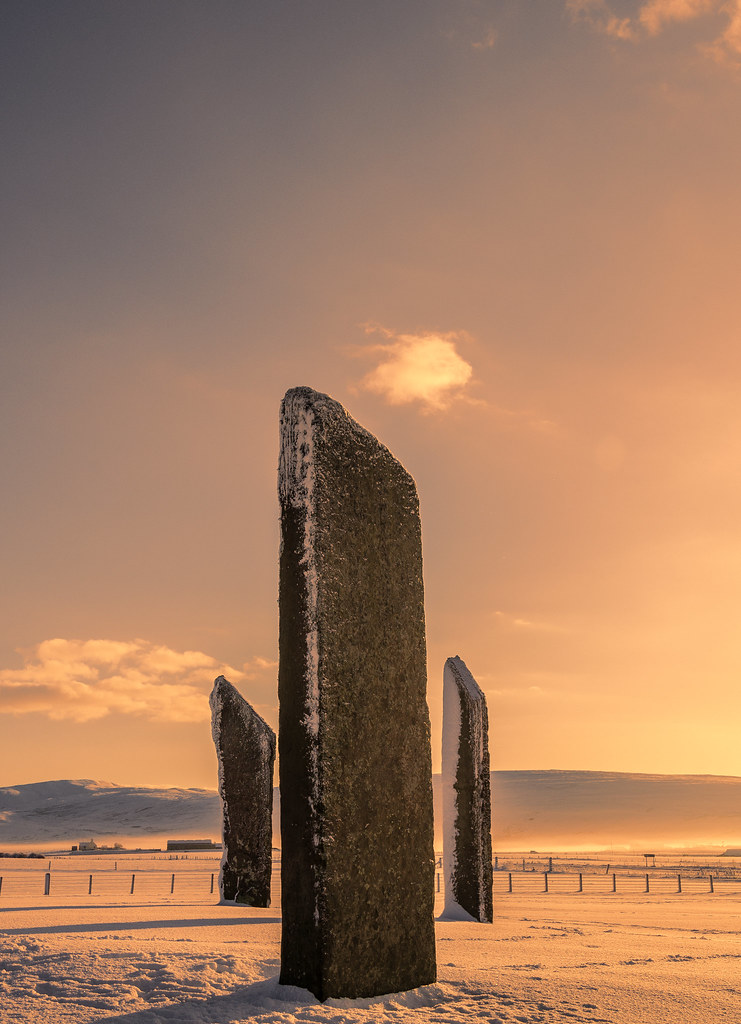
Nice one David - a second chance at a stones in the snow edit. ;) Hopefully no banding in the sky this time as I worked in 16 bit TIFF all the way through.

Tried again to recover enough shadow and highlight developing in ViewNX2 as a single image...... but wouldn;t do it.

So blended exposures over the range I wanted to include
backed off sliders that led to haloing round the stones
In PS,
Stared with cloning out dust spot in the sky, and a few footprints
car, van, sign to the right
Added enough to the bottom of image to allow shadow to start in bottom corner
very slight, small radius high pass filter to sharpen on stones only, soft light low opacity.
Very slightly increased saturation in reds and yellows at the foot of the hills on the right.
Tiny amount of dodging and burning on the clouds
left me a tall image which looks loads better on black, so added black borders left and right

CLICK FOR BIG
 
I forgot I posted one of similar ages ago. That's what you get for randomly choosing I suppose :)
 
OK.. time to call this. I never got chance last night.

Vettahead: Nice colour and tones. Not sure about actually moving the landcsape around though :) Some slight halo around the stones, but a nice image.

Symmetrical OCD: Not too keen on the blue toned mono, and some dark halo around the stones.

Sponner: Not sure this works. The snow looks like sand now, and there are lots of cloning patterns. The snow on the stones is a different colour than the snow on the ground too.

Solo Man: It emphasises the stones, but the landscape seems a bit washed out. It has a nice ethereal atmosphere though. There's banding in the sky.

Overbez: One of only 2 people who didn't crop it to a rule of thirds type composition. Nice simple edit. Lots of detail in the sky. It's over sharpened in the snow though.

Flying Giraffe: Interesting idea, but not sure it works as a sunset feel.

I'm giving this to overbez. He didn't automatically do a thirds crop on it. Nice sky detail, and very close indeed to what I did myself.

Here's how I edited it.

click for big
 
Last edited:
cheers pookey, I'm ashamed to admit that when I edited the image I thought it WAS sand!

Weird how you can see something and jump to an obviously (on reflection) conclusion)
 
cheers pookey, I'm ashamed to admit that when I edited the image I thought it WAS sand!

:lol: :lol: :lol: :lol:

Too early to make me laugh but you did :thumbs:
 
Well done Graham & Tut Tut 'over sharpened' in the snow I though David's wasn't sharpened enough in the snow ;)
 
Well done Graham...... nice edit....

Sponner your reply made me chuckle. :lol:

And...thanks for the critique David.....but, what is 'banding' in the sky?.

 
And...thanks for the critique David.....but, what is 'banding' in the sky?.

6n71Xzh.jpg


See those curved lines running through it? Probably excessive histogram adjustments made to an 8 bit image. Always work at 16 bit as much as possible while making all the global changes such as levels, curves... anything that affects the histogram... even then, push things too far and that will happen. In print, this would look even more obvious. Excessive colour "slider" adjustments in black and white conversion can cause this too as you break down the tonal relationships, and the way colours smoothly graduate from one to another.


Actually... now I look at Graham's more closely... there are some real issues.

nG0iIyt.jpg


Looking at your work flow, it's not obvious what's caused this... but it definitely looks like sharpening artefacts or more likely high compression levels. What looks great at forum res, doesn't mean it will work at print res. This may well be caused by whoever is hosting the image though, and something out of Graham's control... but it's something to look for after you've saved it out as a JPEG. If you ever do need to host a hi-res JPEG for people to look at, it may be worth testing hosting sites against each other. Graham used Imgur though... and they're not too bad generally. Flickr tends to compress the least from my experience. I know this is only a game... and no one's that arsed in here, but it's something to consider. I used Imgur myself to host mine.

It doesn't change anything... I still think Graham's edit is the best representation of the scene, and visually... at low res.. works the best.

I think it's a point to remember though. It may look great at forum/internet res, but what if you sell this pic one day, and the client wants a hi-res version capable of printing?


Anyhooo..... over to you Graham :) Let's see what fiendishly difficult image you conjure up :)
 
Last edited:
6n71Xzh.jpg


See those curved lines running through it? Probably excessive histogram adjustments made to an 8 bit image. Always work at 16 bit as much as possible while making all the global changes such as levels, curves... anything that affects the histogram... even then, push things too far and that will happen. In print, this would look even more obvious. Excessive colour "slider" adjustments in black and white conversion can cause this too as you break down the tonal relationships, and the way colours smoothly graduate from one to another.


Actually... now I look at Graham's more closely... there are some real issues.

nG0iIyt.jpg


Looking at your work flow, it's not obvious what's caused this... but it definitely looks like sharpening artefacts or high compression levels. What looks great at forum res, doesn't mean it will work at print res.

It doesn't change anything... I still think Graham's edit is the best representation of the scene, and visually... at low res.. works the best.

I think it's a point to remember though. It may look great at forum/internet res, but what if you sell this pic one day, and the client wants a hi-res version capable of printing?

Ok, thank you for your reply...... I'll try and remember all that for next time...
But, in Lightroom, how do I know whether I'm working in 8 bit or 16 bit?......
 
If you're working on the RAW in Lightroom... then you're fine, as you'll be working with a 12bit.. possibly 14bit file. If that's the case, then the banding is excessive processing.. probably excessive levels, curves, or excessive colour filtration during black and white processing.
 
Last edited:
Back
Top