
and help to keep the site free for all
You are using an out of date browser. It may not display this or other websites correctly.
You should upgrade or use an alternative browser.
You should upgrade or use an alternative browser.
THE PP GAME!
- Thread starter Phil Young
- Start date

Vantage
Suspended / Banned
- Messages
- 781
- Name
- Roger
- Edit My Images
- Yes
Yes i agree. I use CS4.
L.A.B Mode; First i have to explain how RGB works in the context of image editing. Each pixel, or if you like each colour is defined by 3 values for RGB, so every colour you see on screen can be represented by 3 number values corresponding to the Red, Green and Blue channels, the values represent luminance (brightness) as well as colour. So if you edit any of these colour values, it will also effect the brightness and contrast. In LAB mode, again you have three channels, but instead of the RGB you have L (luminance) A (red/green) and B (yellow/blue). This means that you can edit the brightness curves and colour curves independently without affecting one another. Its a great way to fine tune colour in certain areas of an image, without affecting other areas, for example you can bring out the yellows in an evening sky without affecting the other colours or brightness of the rest of the image by editing the B channel in curves, equally you can do the same with the L channel to fix the brightness of certain areas without affect other areas, all without affecting the colour too. So in simple terms it separates colour from brightness, and changes the way the controls in PS behave.
I inverted the A channels so all the green foliage would turn a reddish/brown colour, so it looked like autumn.
Blending modes: I dont understand the specific processes that happen with each blending mode, but they each have their own characteristics when blended with other layers. Screen will tend to lighten the layer and hide the darker parts of the image, Colour burn will make it look like the top image has been burned onto the one below. Luminance will mean that all the luminance values of the top layer will be attributed to the one underneath. Colour will do the same with colour. Just have a good play around with them and you will start to get an idea what each blending mode does. I still find myself scrolling through different ones to see which one works best at the time, im not at the point where i know exactly what each one will do for any given layer(s).
Nice! My head still hurts............could be beer though


Adey
Suspended / Banned
- Messages
- 734
- Name
- Adrian
- Edit My Images
- No
When is the winner announced?:|:|
By midnight tonight-ish i think Wanye said.

- Messages
- 29,876
- Name
- Dave
- Edit My Images
- Yes
Yes i agree. I use CS4.
L.A.B Mode; First i have to explain how RGB works in the context of image editing. Each pixel, or if you like each colour is defined by 3 values for RGB, so every colour you see on screen can be represented by 3 number values corresponding to the Red, Green and Blue channels, the values represent luminance (brightness) as well as colour. So if you edit any of these colour values, it will also effect the brightness and contrast. In LAB mode, again you have three channels, but instead of the RGB you have L (luminance) A (red/green) and B (yellow/blue). This means that you can edit the brightness curves and colour curves independently without affecting one another. Its a great way to fine tune colour in certain areas of an image, without affecting other areas, for example you can bring out the yellows in an evening sky without affecting the other colours or brightness of the rest of the image by editing the B channel in curves, equally you can do the same with the L channel to fix the brightness of certain areas without affect other areas, all without affecting the colour too. So in simple terms it separates colour from brightness, and changes the way the controls in PS behave.
I inverted the A channels so all the green foliage would turn a reddish/brown colour, so it looked like autumn.
Blending modes: I dont understand the specific processes that happen with each blending mode, but they each have their own characteristics when blended with other layers. Screen will tend to lighten the layer and hide the darker parts of the image, Colour burn will make it look like the top image has been burned onto the one below. Luminance will mean that all the luminance values of the top layer will be attributed to the one underneath. Colour will do the same with colour. Just have a good play around with them and you will start to get an idea what each blending mode does. I still find myself scrolling through different ones to see which one works best at the time, im not at the point where i know exactly what each one will do for any given layer(s).
Nice explanation, Ive got a few things to add about 5 groups of blend modes, but Ive
 so will reply again tomorrow on that as I cant be bothered to write it all at the moment prob wouldnt make sense, and Id have to edit 200 times
Fab response to the thread and great diverse edits, plus its a win for Phil, as we are all learning stuff, which I think is the main idea of the thread, so well done Phil

Last edited:
Vantage
Suspended / Banned
- Messages
- 781
- Name
- Roger
- Edit My Images
- Yes
Nice explanation, Ive got a few things to add about 5 groups of blend modes, but Ive
Fab response to the thread and great diverse edits, plus its a win for Paul, as we are all learning stuff, which I think is the main idea of the thread, so well done Paul
Paul? who that?

swanseamale47
Suspended / Banned
- Messages
- 10,876
- Name
- wayne clarke
- Edit My Images
- Yes
When is the winner announced?:|:|
About 30 mins time (10.30 ish.)
- Messages
- 29,876
- Name
- Dave
- Edit My Images
- Yes
swanseamale47
Suspended / Banned
- Messages
- 10,876
- Name
- wayne clarke
- Edit My Images
- Yes
And the winner is Joan
I had a job choosing but I like the realism of Joans image.
Over to you Joan
Here's a go, I've also posted the layers palette.

Joan
I had a job choosing but I like the realism of Joans image.
Over to you Joan

specialman
Suspended / Banned
- Messages
- 8,193
- Name
- Pat MacInnes
- Edit My Images
- Yes
Just found this thread while browsing on my phone - good idea but only when I looked on the larger screen of my laptop did I realise we were being offered the chance to edit a snapshot of some lens flare in the lake district and an guest house with some rain splodges on it....
OP - if you're going to do this to seemingly 'better' the other, long-running thread and as you say, be serious about PPing, then there needs to be good base material to work on and not for this to be a 'how can I rescue a shot through PP' thread.
I'm keen to see how this progresses because I seriously like the idea of some thoughtful PP demonstration on TP - it not only broadens what TP is all about, but also showcases people's talents - but for the moment I don't think we're there yet.....
OP - if you're going to do this to seemingly 'better' the other, long-running thread and as you say, be serious about PPing, then there needs to be good base material to work on and not for this to be a 'how can I rescue a shot through PP' thread.
I'm keen to see how this progresses because I seriously like the idea of some thoughtful PP demonstration on TP - it not only broadens what TP is all about, but also showcases people's talents - but for the moment I don't think we're there yet.....
OP

Phil Young
Suspended / Banned
- Messages
- 6,584
- Name
- Phil
- Edit My Images
- Yes
Yeah well done Joan! Remember for your choice - you can post any genre and it would be great to use a site to host a RAW file if you can.
I think we discussed the sites on page 3.
I think we discussed the sites on page 3.
- Messages
- 29,876
- Name
- Dave
- Edit My Images
- Yes
Yeah well done Joan! Remember for your choice - you can post any genre and it would be great to use a site to host a RAW file if you can.
I think we discussed the sites on page 3.
Just noticed there was only moi cloned the cars out did I get the wrong idea
Adey
Suspended / Banned
- Messages
- 734
- Name
- Adrian
- Edit My Images
- No
Well done Joan
Pat: I think you have a good point, we've discussed this, and from now on i think people are going offer more to work with. Its still early in this game, and we are going in the right direction. Also, i dont think its Phils intention to 'better' the other thread, he/we wanted an alternative, some variety, and we now have it
Pat: I think you have a good point, we've discussed this, and from now on i think people are going offer more to work with. Its still early in this game, and we are going in the right direction. Also, i dont think its Phils intention to 'better' the other thread, he/we wanted an alternative, some variety, and we now have it
Adey
Suspended / Banned
- Messages
- 734
- Name
- Adrian
- Edit My Images
- No
Adey
Suspended / Banned
- Messages
- 734
- Name
- Adrian
- Edit My Images
- No
Just noticed there was only moi cloned the cars out did I get the wrong idea
No, i dont think so. After i saw yours i wondered if i should of done it
OP
Phil Young
Suspended / Banned
- Messages
- 6,584
- Name
- Phil
- Edit My Images
- Yes
No, i dont think so. After i saw yours i wondered if i should of done it
I think it looked much better without the cars Dave...it looked like quite a intricate clone job though!
- Messages
- 29,876
- Name
- Dave
- Edit My Images
- Yes
Specialman
TA
gotyaNo, i dont think so. After i saw yours i wondered if i should of done it
Oh good, just wondered as no one else had

scottthehat
Suspended / Banned
- Messages
- 6,290
- Name
- scott
- Edit My Images
- Yes
well doan joan, would of been my choice.

- Messages
- 29,876
- Name
- Dave
- Edit My Images
- Yes
I think it looked much better without the cars Dave...it looked like quite a intricate clone job though!
Ta Phil, it wasnt that difficult just have to take your time to keep the perspective right
OP
Phil Young
Suspended / Banned
- Messages
- 6,584
- Name
- Phil
- Edit My Images
- Yes
JOAN: we need to keep the game going strong otherwise the thread will die. Please provide an image by 12am tonight otherwise Wayne, can we please have a contingancy runner up to go forward with that image should joan fail to get one up by deadline. This will be implemented in the rules tonight change of rules will be advertised.

- Messages
- 7,018
- Name
- Keith
- Edit My Images
- Yes
Thanks for the explanation Adey
Dont think Elements has those LAB features.
Dont think Elements has those LAB features.
photoimaging
Suspended / Banned
- Messages
- 330
- Name
- Joan West ARPS
- Edit My Images
- Yes
Well, thanks all...diolch yn fawr.
PHIL: We have been very busy the past few days with large format prints and website design consultations plus staff holidays all of which has left me with little time to keep up with all of our forums on a daily basis....so, sorry for my tardiness.
anyway here's your next pic

and here's the dng link
http://www.yousendit.com/download/M0RwcHBBUzhxRTFjR0E9PQ
Joan
PHIL: We have been very busy the past few days with large format prints and website design consultations plus staff holidays all of which has left me with little time to keep up with all of our forums on a daily basis....so, sorry for my tardiness.
anyway here's your next pic
and here's the dng link
http://www.yousendit.com/download/M0RwcHBBUzhxRTFjR0E9PQ
Joan
photoimaging
Suspended / Banned
- Messages
- 330
- Name
- Joan West ARPS
- Edit My Images
- Yes
This is an old garage in Llanrug between Caernarfon and Llanberis that lends itself to a gutsy post processing.
Seeing as we are coming up to the weekend what time limit do you want....Saturday 11.30pm and I'll have a look first thing Sunday morning?
Joan
Seeing as we are coming up to the weekend what time limit do you want....Saturday 11.30pm and I'll have a look first thing Sunday morning?
Joan
OP
Phil Young
Suspended / Banned
- Messages
- 6,584
- Name
- Phil
- Edit My Images
- Yes
This is a wicked image and I intend to have a loaf of fun with it!
I appreciate that joan, just keeping the ball rolling, thanks!
I appreciate that joan, just keeping the ball rolling, thanks!
specialman
Suspended / Banned
- Messages
- 8,193
- Name
- Pat MacInnes
- Edit My Images
- Yes
Excellent image Joan
specialman
Suspended / Banned
- Messages
- 8,193
- Name
- Pat MacInnes
- Edit My Images
- Yes
Well, here's my effort.... great image that promotes a lot of gritty tweaking.

Retouched photo by Pat MacInnes, on Flickr
Went with a psuedo HDR look, utilising Lightroom 3's fill adjustment help bring out detail in the wood shutters and in the rust. Vignette to give depth to the image, draw the eye into the centre, and to create to gritty mood in the sky. Also put on a slight negative exposure gradient on the sky to beef it up. It's one of those images where too much saturation in certain colour areas (namely the rust) and it'll look stupid so I've dropped a lot of the colour out of certain areas using the saturation sliders instead of a global saturation adjustment. Luminance tweaks have help expand the tonal range a bit. It was orginally a tad underexposed, which I like anywa, so I've played on that by not lifting the exposure at all - in fact, i've actually dropped the overall exposure to give it that eerie, filmic look of somewhere that's deserted. I've also cropped slightly on the left to cut the caravan out.....
Here are my Lightroom 3 settings:
Temp (WB) 4955
Tint +6
Exposure -0.10
Recovery 33
Fill light 76
Blacks 17
Brightness +17
Contrast +86
Clarity +11
Vibrance +82
Saturation 0 (default)
Tone Curve:
Highlights +39
Lights +3
Darks +33
Shadows +21
Hue tweaks:
Red -69
Orange +4
Yellow 0
Green 0
Aqua +71
Blue -6
Purple 0
Magenta 0
Saturation tweaks:
Red +2
Orange -75
Yellow -44
Green +90
Aqua -48
Blue -31
Purple -100
Magenta -100
Luminance tweaks:
Red + 44
Orange +75
Yellow +48
Green +63
Aqua +42
Blue +42
Purple -90
Magenta +69
Sharpening increase (+70/0.6 radius)
Slight bit (10) of noise reduction
Noticed a bit of fringing around the tyres on the left so Red/Cyan is +2 with Blue/Yellow set to +9
Lens vignette set to -73
Post-crop vignette of -9 (rest of settings as default)
Retouched photo by Pat MacInnes, on Flickr
Went with a psuedo HDR look, utilising Lightroom 3's fill adjustment help bring out detail in the wood shutters and in the rust. Vignette to give depth to the image, draw the eye into the centre, and to create to gritty mood in the sky. Also put on a slight negative exposure gradient on the sky to beef it up. It's one of those images where too much saturation in certain colour areas (namely the rust) and it'll look stupid so I've dropped a lot of the colour out of certain areas using the saturation sliders instead of a global saturation adjustment. Luminance tweaks have help expand the tonal range a bit. It was orginally a tad underexposed, which I like anywa, so I've played on that by not lifting the exposure at all - in fact, i've actually dropped the overall exposure to give it that eerie, filmic look of somewhere that's deserted. I've also cropped slightly on the left to cut the caravan out.....
Here are my Lightroom 3 settings:
Temp (WB) 4955
Tint +6
Exposure -0.10
Recovery 33
Fill light 76
Blacks 17
Brightness +17
Contrast +86
Clarity +11
Vibrance +82
Saturation 0 (default)
Tone Curve:
Highlights +39
Lights +3
Darks +33
Shadows +21
Hue tweaks:
Red -69
Orange +4
Yellow 0
Green 0
Aqua +71
Blue -6
Purple 0
Magenta 0
Saturation tweaks:
Red +2
Orange -75
Yellow -44
Green +90
Aqua -48
Blue -31
Purple -100
Magenta -100
Luminance tweaks:
Red + 44
Orange +75
Yellow +48
Green +63
Aqua +42
Blue +42
Purple -90
Magenta +69
Sharpening increase (+70/0.6 radius)
Slight bit (10) of noise reduction
Noticed a bit of fringing around the tyres on the left so Red/Cyan is +2 with Blue/Yellow set to +9
Lens vignette set to -73
Post-crop vignette of -9 (rest of settings as default)
photoimaging
Suspended / Banned
- Messages
- 330
- Name
- Joan West ARPS
- Edit My Images
- Yes
Seeing as we are coming up to the weekend what time limit do you want....Saturday 11.30pm and I'll have a look first thing Sunday morning?
Joan


Flying giraffe
Suspended / Banned
- Messages
- 1,189
- Name
- Neil
- Edit My Images
- No

generaly tweaked in raw, 3 files created -2, 0 and +2 then hdr`d in photomatix
Last edited:
scottthehat
Suspended / Banned
- Messages
- 6,290
- Name
- scott
- Edit My Images
- Yes
xxxxxxxx
Last edited:
Adey
Suspended / Banned
- Messages
- 734
- Name
- Adrian
- Edit My Images
- No
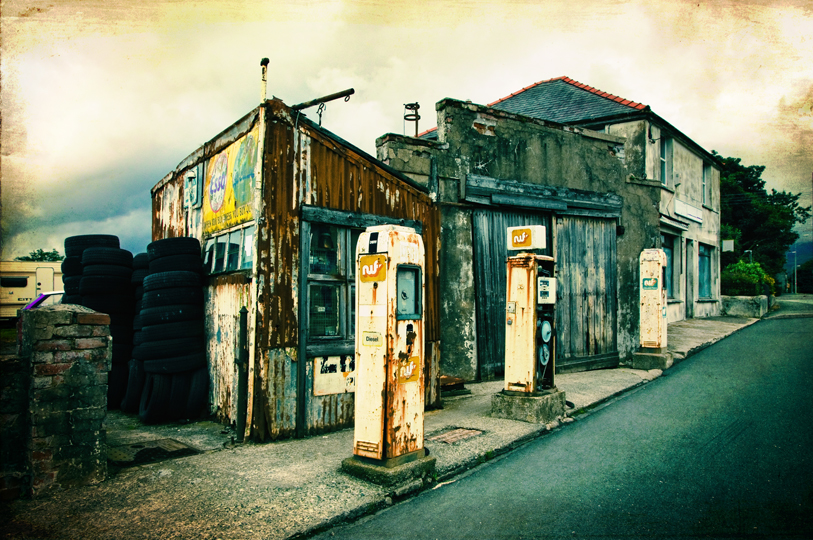
PPComp by Adrian Deans, on Flickr
Started off in ACR, and applied a split toning effect, all Raw settings are shown on screens below;

PPscreens by Adrian Deans, on Flickr
Saved as Tiff and loaded in to PS. Duplicated layers, played with curves, used masks with radial gradients, uses various blend modes. One thing is did was duplicate the layer, rendered a lighting effect, and again played with opacity/masks. Also used a paper texture, with blend mode/mask. I cant really remember exactly i what did in photoshop (i never do
 ).
).Ade
Last edited:
- Messages
- 29,876
- Name
- Dave
- Edit My Images
- Yes
Nice image Joan looks like it lends its self to HDRI, looking at the edits so far, I'll have a go as well, would have preferred a raw rather than dng
Can I just ask has this image already had PP?
If so I think an original file should be the one given, rather than a ppd image as it will lend its self better to certain types(HDR) edits, as thats what is happening
think it should be a guide line to add an un-processed raw file or any file but no editing as is
looks like it lends its self to HDRI, looking at the edits so far, I'll have a go as well, would have preferred a raw rather than dngCan I just ask has this image already had PP?
If so I think an original file should be the one given, rather than a ppd image as it will lend its self better to certain types(HDR) edits, as thats what is happening
think it should be a guide line to add an un-processed raw file or any file but no editing as is
Last edited:
- Messages
- 29,876
- Name
- Dave
- Edit My Images
- Yes
it hard this one, all i done was adjusted level duplicate layer imported photo, added car using ruber tool and cloned a couple drains amnd pavment out.
new with the old.
Dont forget no adding fluffy bunnies, UFOs, or cars

- Messages
- 29,876
- Name
- Dave
- Edit My Images
- Yes
it hard this one, all i done was adjusted level duplicate layer imported photo, added car using ruber tool and cloned a couple drains amnd pavment out.

new with the old.
LOL
no additives in the PPd shots read the rules
Last edited:
swanseamale47
Suspended / Banned
- Messages
- 10,876
- Name
- wayne clarke
- Edit My Images
- Yes
Hers my effort.
Photomatix for hdr conversion.
Photoshop CS5 for exposure ajustment, local contrast boost.
Topaz B+W for the black and white conversion.

Photomatix for hdr conversion.
Photoshop CS5 for exposure ajustment, local contrast boost.
Topaz B+W for the black and white conversion.

Pork
Suspended / Banned
- Messages
- 1,339
- Name
- Paul
- Edit My Images
- Yes
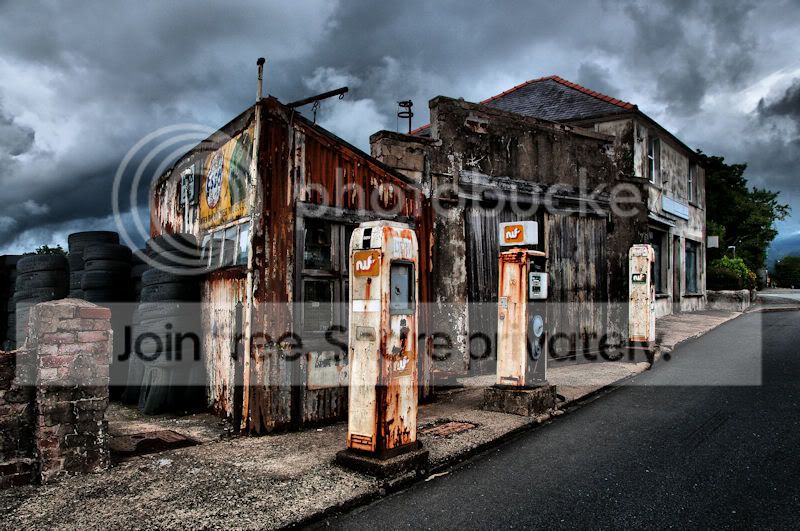
Open in camera Raw hit auto button and save as a TIF.
Open in Paint shop pro
Clarify
Duplicate layer, blend mode to multiply
Delite parts of layer around pumps, and dark areas.
Dodge / burn
Clone out caravan, phone wires and lamp post
Unsharp mask
Last edited: