THE PP GAME!

28sr5hg.jpg


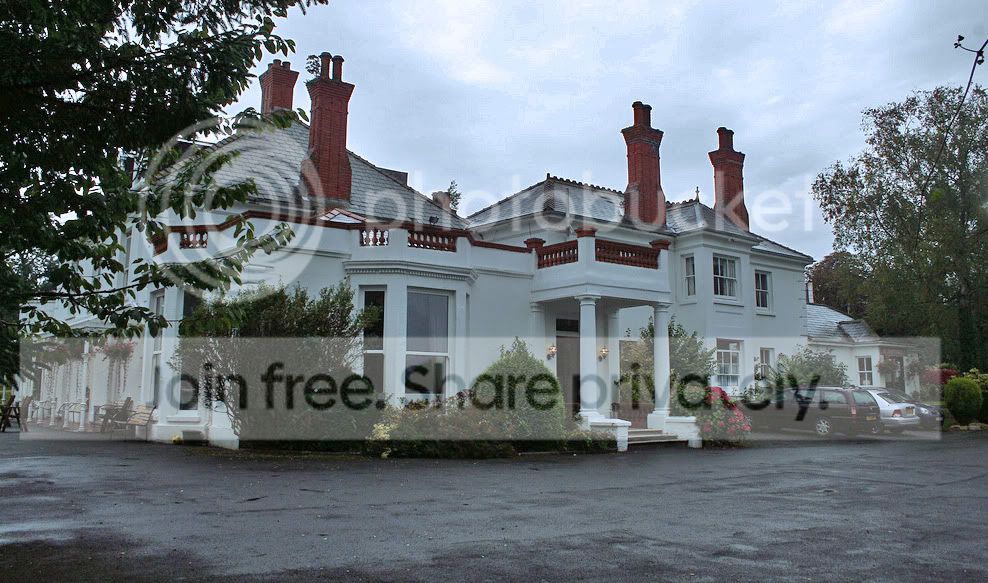
-Used Photomatix to 'HDR' the bracketed shots, not for a HRD look, only to get a bit more dynamic range and make easier to edit. Saved as 16bit Tiff.
-Switched to LAB mode
-Duplicate layer
-Inverted the A channel
-Used layer mask to bring back the red roses and chimney
-Flatten, duplicate layer
-Set to soft light, reduced opacity to around 15-30, flatten
-New layer, set to colour blend mode.
-Painted some green and orange in the sky, reduced opacity to 15-30, flatten
-Duplicate layer, darken with curves, set to multiplay, create black layer mask, use white brush to paint in vignette.

There were probably more steps, and some of the steps might not be completely accurate, but i never remember my PP steps on anything i do.

Ade
 
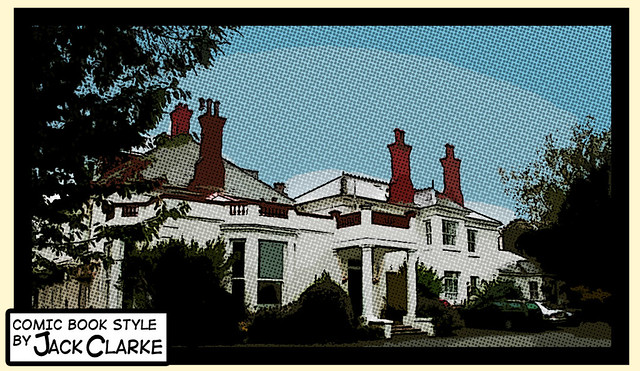
Comic book style,

Ok i did this type before in the other thread, i quite liked it and created a preset so i could use it again, quite complex and would take to long to describe, (it takes about 5-15 secs for the computer to do it automatically) but if you search comic book style photoshop tutorial im sure itll be there somewhere :thumbs:


Edit for game 15 by j.clarke213, on Flickr

anyways i also did:
Britness and contrast
Levels
Inserted a new sky
Set the blend mode to darken
Rub out any bad overlap (places were the house had turned blue)
Desaturated the sky a little
then played my comic book preset and added in the writing

hope you like it (i dont think i do :p)

Jack
 
28sr5hg.jpg


-Used Photomatix to 'HDR' the bracketed shots, not for a HRD look, only to get a bit more dynamic range and make easier to edit. Saved as 16bit Tiff.
-Switched to LAB mode
-Duplicate layer
-Inverted the A channel
-Used layer mask to bring back the red roses and chimney
-Flatten, duplicate layer
-Set to soft light, reduced opacity to around 15-30, flatten
-New layer, set to colour blend mode.
-Painted some green and orange in the sky, reduced opacity to 15-30, flatten
-Duplicate layer, darken with curves, set to multiplay, create black layer mask, use white brush to paint in vignette.

There were probably more steps, and some of the steps might not be completely accurate, but i never remember my PP steps on anything i do.

Ade

Wicked...:thumbs:
 
Comic book style,

Ok i did this type before in the other thread, i quite liked it and created a preset so i could use it again, quite complex and would take to long to describe, (it takes about 5-15 secs for the computer to do it automatically) but if you search comic book style photoshop tutorial im sure itll be there somewhere :thumbs:


Edit for game 15 by j.clarke213, on Flickr

anyways i also did:
Britness and contrast
Levels
Inserted a new sky
Set the blend mode to darken
Rub out any bad overlap (places were the house had turned blue)
Desaturated the sky a little
then played my comic book preset and added in the writing

hope you like it (i dont think i do :p)

Jack

This is a new way of editing to me! I like!
 
In this instance! ...you have to disqualify the other one before proceeding though...

Don't blame me mate..."I don't make the rules" :) lol

Ta Phil, yes agree 1 per person is best or youll get to many thats why I asked, before others added more :thumbs: maybe a good idea to add only one edit per person in each challenge in your OP :thumbs:
 
Last edited:
Here's mine.

Started with saturation & contrast. Just used the one image but added some clouds. I blended the clouds with multiply and used brush tool (flow @ 20%) to blend the cloud layer in with the original image...that's about it I think!

My_version2.jpg
 
Please see the original rules folks, 2 more have been introduced! This includes 1 image PP and the supply of a RAW file.

:thumbs:

Like your edit Phil :thumbs:

Looks like this thread is going to be popular now :thumbs:

Good to see everyone's different edits, did you add a link to that urm site we could up load large files to is it yousend lt with out looking it was something like that, also think whoever is picked, should add the I wont say rules but guidelines with a link to it, in their challenge :thumbs:

Urm is that a payed site https://www.yousendit.com/ if so we need free
 
Last edited:
:thumbs:

Like your edit Phil :thumbs:

Looks like this thread is going to be popular now :thumbs:

Good to see everyone's different edits, did you add a link to that urm site we could up load large files to is it yousend lt with out looking it was something like that, also think whoever is picked, should add the I wont say rules but guidelines with a link to it, in their challenge :thumbs:

Urm is that a payed site https://www.yousendit.com/ if so we need free

You can sign up for free and send large files up to 100mb, or 1gb for paid services. It's good to have an account anyway, I regularly send large files.

It would be nice to have the RAW file...and make the competition more fierce too!
 
You can sign up for free and send large files up to 100mb, or 1gb for paid services. It's good to have an account anyway, I regularly send large files.

It would be nice to have the RAW file...and make the competition more fierce too!

Oops...up to 100mb for FREE services or 1gb for paid. I suppose any site is good though.
 
You know "the other" thread started off exactly like this........ it will change at some point when people get bored!

I am however rather interested in this thread so will join in :)
 
Ok so here's mine :

6091949893_365c594040_b_edited.jpg


My aim was to create an old textured/worn effect to a creepy photo.

Ive used Topaz Detail filter to give it a bit of a smoother texture to the tarmac etc. This was almost completely overridden by the following PPing anyway:
Used PS HDR Toning and played with exposure and white levels to give glow.
Created a new layer for the Rain effect, filled with black, used PS "Graphic Pen" and "Render Fibers" filter, changed opacity to about 40% and fill to 30% and gave motion blur for effect.
I added a new layer for the "Torn Edges", pasted a stock photo and fiddled Fill to about 45%. Not compeltely happy with it but its ok.
Added a new layer for faded edges, created rectangle selection and inverted with 15px feather border. Filled with Black using bucket tool, changed fill to 70% job done.
Oh i also used the PS Texture filter, found a weird background pattern off the web, saved as PSD file and used it as texture for background to give textured effect.
 
Last edited:
This thread just gets better and better by the day !!!!

Im going to blatantly copy all of what you guys are doing using your list of adjustments :cool: This will be so handy as a reference. My brains thinking- 'Um....... my picture looks similar to the picture on page 2 etc and i really like how fingymejig has done it, so i'll use his/her adjustements on mine'

I've been taking quite alot of portrait/people shots lately. I've got them sitting in raw format at the moment. Fingers crossed something like this may come up in the future :bonk:

Coley
 

House edit1 by tonky8203, on Flickr

Increased brightness and contrast overall.
Darkened the sky with selective mask.
Increased colour saturation and contrast overall.
Added ageing filter.
Added vignette.
 
Please explain your "Ageing" Filter... as i am interested in doing that a lot and its not simple..
 
Please explain your "Ageing" Filter... as i am interested in doing that a lot and its not simple..

Soz - I used the ageing filter in FX Photo Studio Pro on my Mac. I think it's available for PC. It provides lots of filters, but like all these offerings, some are more useful than others. ;)
 
Here's mine. Not as interesting or as good as the others, I know...

PPgameedit.jpg


I can't remember exactly what I did or the order I did it all in, but here's a rough idea:

Cloned out the...splodge at the right.
Cropped a bit off the top because the tree silhouette looked unrecoverable and I didn't want a half coloured tree.
Brightened the overall picture using curves (I think).
Used shadows/highlights to brighten the shadows a little.
Used the red/blue curves to make the overall picture more blueish.
Used shadows/highlights again to reduce the highlights and get more detail back into the sky.

Can't rememeber the rest, sure there was more :/
 
I know it wasn't one of my best as have other things to get on with but didn't think it was that bad :(

Whoa - I think you've misunderstood this Christine - I don't think he's referring to you, or to anyone in particular? :)
 
Had a go at this myself, tried improving exposure a bit, adding a bit of warm light from the left and try to rescue some sky detail...

6091949893365c594040b.jpg
 
Last edited:

tp-1-2 by surfinscottie, on Flickr

Used levels and increased the saturation in PS5, then pixel bender oil paint. Also added some dust and scratches and finished off in LR using vignette and yesteryear and finally a border.
 
who's??
 
Great thread, I must be total n00b though because I dont understand half of peoples descriptions of what they do!:geek:

So can I interject a question or 2?

what is: Switched to LAB mode? Inverted the A channel? Are they in Elements?

Also what are the different blending modes used for? e.g Darken, soft light, multiply have been mentioned I think? Think I need another book! The Kelby one doesnt go this deep I dont think.

Regards
 
Yes i agree. I use CS4.

L.A.B Mode; First i have to explain how RGB works in the context of image editing. Each pixel, or if you like each colour is defined by 3 values for RGB, so every colour you see on screen can be represented by 3 number values corresponding to the Red, Green and Blue channels, the values represent luminance (brightness) as well as colour. So if you edit any of these colour values, it will also effect the brightness and contrast. In LAB mode, again you have three channels, but instead of the RGB you have L (luminance) A (red/green) and B (yellow/blue). This means that you can edit the brightness curves and colour curves independently without affecting one another. Its a great way to fine tune colour in certain areas of an image, without affecting other areas, for example you can bring out the yellows in an evening sky without affecting the other colours or brightness of the rest of the image by editing the B channel in curves, equally you can do the same with the L channel to fix the brightness of certain areas without affect other areas, all without affecting the colour too. So in simple terms it separates colour from brightness, and changes the way the controls in PS behave.


I inverted the A channels so all the green foliage would turn a reddish/brown colour, so it looked like autumn.


Blending modes: I dont understand the specific processes that happen with each blending mode, but they each have their own characteristics when blended with other layers. Screen will tend to lighten the layer and hide the darker parts of the image, Colour burn will make it look like the top image has been burned onto the one below. Luminance will mean that all the luminance values of the top layer will be attributed to the one underneath. Colour will do the same with colour. Just have a good play around with them and you will start to get an idea what each blending mode does. I still find myself scrolling through different ones to see which one works best at the time, im not at the point where i know exactly what each one will do for any given layer(s).
 
Last edited:
Back
Top