

You are using an out of date browser. It may not display this or other websites correctly.
You should upgrade or use an alternative browser.
You should upgrade or use an alternative browser.
Taking multiple pictures of yourself in different positions
- Thread starter Dman
- Start date

- Messages
- 6,283
- Name
- Chaz
- Edit My Images
- Yes
not done it but I guess you set your camera up on tripod and tale lots of shots with you in different places and then blend them in Photoshop after making sure they are aligned

- Messages
- 29,876
- Name
- Dave
- Edit My Images
- Yes
not done it but I guess you set your camera up on tripod and tale lots of shots with you in different places and then blend them in Photoshop after making sure they are aligned
Sounds about right to me,
 set the camera up on a tripod and so you can see the whole scene you want to capture and as above take your shots remembering not to move the camera as it will be harder to align them, stack them up in layers 2 at a time, and use masks to revealed your self in the different positions flattening the layers as you go eg BG + image 2 mask and then flatten, next BG+ image 3, BG+ image 4 and so on
flyingmonkeycorp
Suspended / Banned
- Messages
- 524
- Name
- Will
- Edit My Images
- No
Why flatten as you go? Just keep all the layers and mask
- Messages
- 29,876
- Name
- Dave
- Edit My Images
- Yes
Why flatten as you go? Just keep all the layers and mask
well you can but I was trying to keep it simple,
- Messages
- 29,876
- Name
- Dave
- Edit My Images
- Yes
It's masking I'm not too sure about as I've never used that particular method yet. Is that where you use the magic wand to go round the outline, then paste it into a new layer removing the background?
No you add a mask to the layer and then use the brush tool to paint over with black, the areas you want to keep,

- Messages
- 26,617
- Edit My Images
- Yes
Anyone got a tutorial on how it's done?
I find cloning to be the fastest and easiest way to do this...
How To...

purpleclouds
Suspended / Banned
- Messages
- 10,072
- Name
- Phil
- Edit My Images
- Yes
It's masking I'm not too sure about as I've never used that particular method yet. Is that where you use the magic wand to go round the outline, then paste it into a new layer removing the background? :shrug:
Easy way - open Image one, then copy in the other images on top of each other. If the camera was on a tripod, they'll all be aligned automatically.
Then, select the top layer, and erase (with the eraser) everything but yourself (and any shadow etc). Then repeat on the next layer down, and down...leaving yourself with just the bottom layer.
If you can't see what you've erased then simply hide the other layers by clicking on the eye symbol in the layers panel, that way you will be able to see the checker background!
OP

Dman
Suspended / Banned
- Messages
- 3,656
- Name
- Dave
- Edit My Images
- No
Excellent, I'll give that a go one night this week, thanks
Alladin121
Suspended / Banned
- Messages
- 709
- Name
- Louise
- Edit My Images
- Yes
The mask layer is the same tool that you would use to do selective colouring!! im not sure what editing software your useing but theres a fantastic gimp tutorial http://www.ghuj.com/photo-manipulation/selective-colorization-using-the-gimp.html
im sure that even if your not using gimp it can be the same sort of programing in others such as PS!! give it a look! if all else fails, gimp is a free download off of the internet just do it on there
im sure that even if your not using gimp it can be the same sort of programing in others such as PS!! give it a look! if all else fails, gimp is a free download off of the internet just do it on there
OP
Dman
Suspended / Banned
- Messages
- 3,656
- Name
- Dave
- Edit My Images
- No
Easy way - open Image one, then copy in the other images on top of each other. If the camera was on a tripod, they'll all be aligned automatically.
Then, select the top layer, and erase (with the eraser) everything but yourself (and any shadow etc). Then repeat on the next layer down, and down...leaving yourself with just the bottom layer.
If you can't see what you've erased then simply hide the other layers by clicking on the eye symbol in the layers panel, that way you will be able to see the checker background!
Cheers, will give this a go as well and see what works best.

coldpenguin
Suspended / Banned
- Messages
- 2,196
- Edit My Images
- Yes
You could, get a flash, set the strobe mode to 1 shot per second, and then RUN LIKE HELL from position to position, set the aperture small of course, bulb mode, dark room
coldpenguin
Suspended / Banned
- Messages
- 2,196
- Edit My Images
- Yes
Hmm, you need to be careful not to get the background in the flash output.
This was a quick play:

This was a quick play:


What you need to do is multiple exposure (if you camera supports it) and black out the bits on the lens and you won't get the ghosting effect.
So do 1 image with you sitting on the left of the couch say and cover the right side of the frame. Then move to the other side of the couch and do the same image but cover the left side of the frame with something black.
Cokin do a filter for it and I think it slides left too right or up and down.
Can be done is PS obviously but that how we use to do it on film and just used black card.
Dave
So do 1 image with you sitting on the left of the couch say and cover the right side of the frame. Then move to the other side of the couch and do the same image but cover the left side of the frame with something black.
Cokin do a filter for it and I think it slides left too right or up and down.
Can be done is PS obviously but that how we use to do it on film and just used black card.
Dave
If you shoot all the shots with the camera set to manual-everything, the masking is a piece of cake, as you don't even need to be too careful when painting in the mask, as all the photos are exposed and colour-balanced the same.

- Messages
- 29,876
- Name
- Dave
- Edit My Images
- Yes
Nice one Matty, thats a good eg, bet the only hard part you had with that and erasing was around your leg, nearest the chair as it over laps yourself, thats were a mask would be more useful, as if you erase to much, youll have to just go back a step, and have another go, with a mask you can just paint it back

Digital_Clarity
Suspended / Banned
- Messages
- 922
- Name
- Dave
- Edit My Images
- Yes
I would also suggest using manual exposure/focus/flash to make sure each of the 'yous' comes out looking right 

mrtoad
Suspended / Banned
- Messages
- 18,182
- Name
- Geof
- Edit My Images
- Yes
Nice one Matty, thats a good eg, bet the only hard part you had with that and erasing was around your leg, nearest the chair as it over laps yourself, thats were a mask would be more useful, as if you erase to much, youll have to just go back a step, and have another go, with a mask you can just paint it back
brill
my auto stitch attempt is poor in comparison

mrtoad
Suspended / Banned
- Messages
- 18,182
- Name
- Geof
- Edit My Images
- Yes
I'm going to give this a go!
Results (when done correctly) look fantastic.
just had a comment from across the pond....do it with different clothes on each sitting...or none


Redpaul
Suspended / Banned
- Messages
- 623
- Name
- Paul
- Edit My Images
- Yes
sock it to him...
its good...how do you do that
I'm pretty sure I used a method similar to Dave's in post number 3.
Paul


- Messages
- 7,312
- Name
- Jeff
- Edit My Images
- No
My attempt...

I did this ages ago when i took my friend fishing

epic10 for the win
OP i use the layers and erase method

Sniffing1987
Suspended / Banned
- Messages
- 269
- Name
- Howard
- Edit My Images
- Yes
Another thing I'm going to have to find time to have a go at

justinitus
Suspended / Banned
- Messages
- 807
- Name
- Justin
- Edit My Images
- Yes
I did this a while ago, was going to do a series of "The Bruvvers" but its not as quick to do as I thought I used the erase method, might just try the mask/brush method.
Anyway, for what its worth - The Bruvvers....
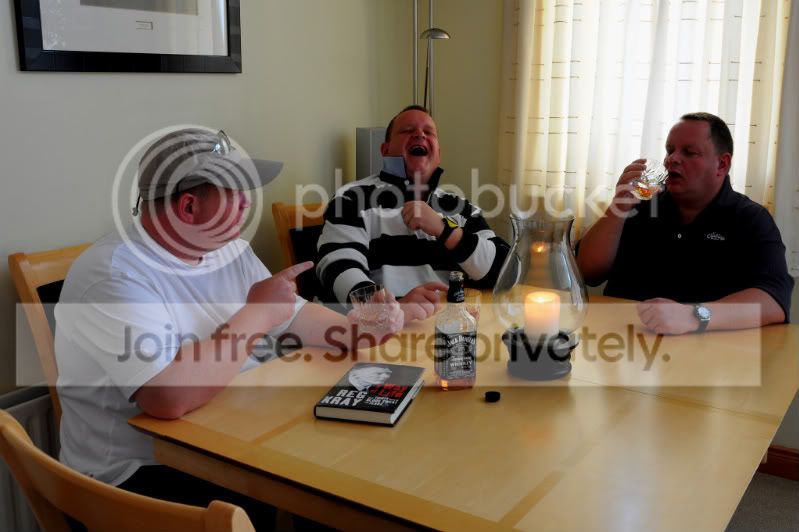
I used the erase method, might just try the mask/brush method. Anyway, for what its worth - The Bruvvers....
coldpenguin
Suspended / Banned
- Messages
- 2,196
- Edit My Images
- Yes
Is this done in a similar way then?
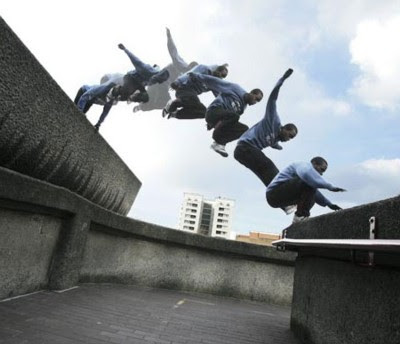
That looks like the strobe flash method to me, as [at least] two of the exposures are washed out/transparent.

Jaffster
Suspended / Banned
- Messages
- 1,071
- Name
- Danny
- Edit My Images
- No
Me and a friend did something a little different.
*Goes to find the image on Flickr*
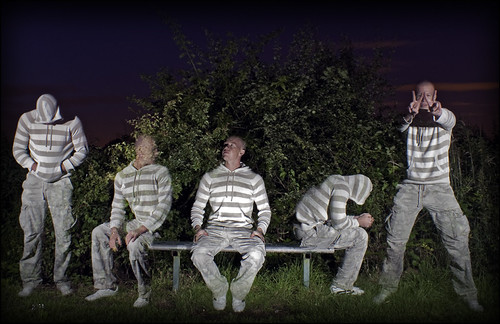
That is just one picture, one exposure if you like. Hold the shutter open with a remote shutter in the 'lock' position, sit in position 1 and have your friend fire the flashgun, move to the next position and fire the flashgun again and so on.
It is not as good as the others which have several images but it was more of an experiment when I was going through my fascination with long exposures. We did a 'YMCA' one that night which was pretty funny, but due to the positioning of the flashgun it made some parts of me look invisible.
I suppose a really easy way to do as above would be like so:
Take 2 pictures of you in 2 different places, take from a tripod so that the background doesn't move and take it on manual so none of the settings change and ensure that the lighting is the same on each image so you don't have 2 images which are exposed differently.
Open them both on photoshop, copy 1 into a new layer so that you have 1 image with 2 layers, then all you need to do is simply use the eraser tool on one of the layers which will reveal the layer behind it. If that makes sense?
*Goes to find the image on Flickr*
That is just one picture, one exposure if you like. Hold the shutter open with a remote shutter in the 'lock' position, sit in position 1 and have your friend fire the flashgun, move to the next position and fire the flashgun again and so on.
It is not as good as the others which have several images but it was more of an experiment when I was going through my fascination with long exposures. We did a 'YMCA' one that night which was pretty funny, but due to the positioning of the flashgun it made some parts of me look invisible.
I suppose a really easy way to do as above would be like so:
Take 2 pictures of you in 2 different places, take from a tripod so that the background doesn't move and take it on manual so none of the settings change and ensure that the lighting is the same on each image so you don't have 2 images which are exposed differently.
Open them both on photoshop, copy 1 into a new layer so that you have 1 image with 2 layers, then all you need to do is simply use the eraser tool on one of the layers which will reveal the layer behind it. If that makes sense?
justinitus
Suspended / Banned
- Messages
- 807
- Name
- Justin
- Edit My Images
- Yes
Hey Jaffster, I like the effect you did - must try it
Cheers for sharing
Cheers for sharing
Me and a friend did something a little different.
*Goes to find the image on Flickr*
That is just one picture, one exposure if you like. Hold the shutter open with a remote shutter in the 'lock' position, sit in position 1 and have your friend fire the flashgun, move to the next position and fire the flashgun again and so on.
that is great!
