SYNOLOGY DISKSTATION DS218+ encryption question

admirable

Suspended / Banned
Messages
11,612
Name
Jim
Edit My Images
Yes
Does Synology Diskstation encrypt the files stored on the hard drives or can you just remove the drives and read on a PC?
What happens if the Diskstation unit goes tits up? How are the files recovered from the hard drive/s?
Google has various answers hence the question.
 
As far as I know the disks are not encrypted, BUT they are also not in a Windows file format, so you cannot simply pull them an use a Windows PC to read them.

They use a Linux filesystem (Ext4), but you may have then additionally used RAID 1.
If you have a Linux PC that may be able to mount the drives an read the data, but I'm not sure.

The standard advice is never to have your data in just one place - so if your NAS is the primary data store, you have to backup your NAS to some other device to give a recovery option in case of failure.

Personally I have a 2Tb SSD as the main data drive on my PC, which is them backed up to my NAS (a 4 bay Synology in RAID 5), AND to a portable HD, AND to the Cloud (BackBlaze). To date, I've never personally had a disk failure in over 30 years of using PC's (yes, my first PC was very primitive by today's standards!) - but I have had them at work, so appreciate the benefit of a good backup strategy.
 
You can enable encryption of the volumes when you format. That may have some impact on performance but I can't say by how much. IF you have to have then you have to have it.
 
most NAS use some kind of linux or funky format due to licence issues.
personally i moved from NAS to Windows years ago because exactly of this also PCs are dirt cheap and easy to repair.
add in cloud back up and bingo.
 
most NAS use some kind of linux or funky format due to licence issues.

:D LOL! Winodws is a piece of s*** in terms of security and functionality; it is a cripple OS that never recovered. Linux is light years ahead. That is probably why most NAS boxes, routers, servers and even your phone run on it.
 
:D LOL! Winodws is a piece of s*** in terms of security and functionality; it is a cripple OS that never recovered. Linux is light years ahead. That is probably why most NAS boxes, routers, servers and even your phone run on it.

nope its for sandal wearers with beards, in the home environment widows is king
 
nope its for sandal wearers with beards, in the home environment widows is king

I have beard.... no sandals though.

Do you still use Windows phone? That was utter failure. Windows (PC version) is headed same way. It is such a garbage and the only reason I haven't wiped it clean is because ADOBE is still not playing the ball. There is ZERO other reason to keep this malware.
 
I have beard.... no sandals though.

Do you still use Windows phone? That was utter failure. Windows (PC version) is headed same way. It is such a garbage and the only reason I haven't wiped it clean is because ADOBE is still not playing the ball. There is ZERO other reason to keep this malware.

loser.............


In the area of desktop and laptop computers, Microsoft Windows is the most commonly installed OS, at approximately between 77% and 87.8% globally. Apple's macOS accounts for approximately 9.6–13%, Google's Chrome OS is up to 6% (in the US) and other Linux distributions are at around 2%.
 
In the area of desktop and laptop computers,

In 2006 this segment would sound like a big deal. It no longer is. Servers, phones, tablets and even cars are all running either Linux or some other closely related UNIX variant. All POSSIX compliant. Windows, which is the only NOT POSSIX compliant OS is nowhere to be found in this list. As desktops slowly give way so does windows and all the ransomware attacks that you hear so much about today. That will be the last legacy of this malware OS.
 
loser.............


In the area of desktop and laptop computers, Microsoft Windows is the most commonly installed OS, at approximately between 77% and 87.8% globally.

Joe Dolce's Shaddap You Face was number one while Ultravox Vienna was number two , popularity does not mean quality:)

Back to question, you can encrypt individual shared folders if you so wish.
The HDD can-not natively be read by a PC as they would be formatted either ext4 or BTRFS

As for "if the disk station goes tits up" well first of all you did make a backup of course .

If you replace the NAS with a new one there are ways to migrate the HDD to the new unit (depending on which model, 218+ should be ok)
The data can be read by a PC by running an Ubuntu environment but this is by no means a simple task.

The simple solution is BACKUP your data
 
Last edited by a moderator:
Thanks for all the answers!

I'm waiting on a Synology 4 disk unit being delivered so I'll see what that's like before I plug in the DS218+. It's a bit more expensive and has two cooling fans rather than one so noise might put me off.

I'll update later.
 
If you don't have sensitive data that needs encrypting for security reasons then my feeling is it's better not to. Reasons being that there is no key to forget, data recovery in case of a failed NAS unit will be much higher and you may get slightly better performance if it doesn't have to encrypt on the fly.
 
If you ever need to look at a drive outside of the box, just install virtualbox and setup a linux vm of your choice (ubuntu, mint etc). It'll read it. If it's encrypted you'll need a backup of the keys.
 
Re: the recovery of files:

There are varioius RAID levels (and some new standards) that can be set on a NAS. The basic ones just record single copies your files like a computer. The more advanced store them on several different physical drives (so at least two have to fail for you to permanently lose anything),

Some new standards use fancy maths to store distribute your data over all the drives in the box in several places. If you select one of these modes, and one drive out of several fails, you can swap it out for a new one, then set the machine to reconstruct the data that was on the failed drive from the others.

The drawback is that the safer your data is the more it is duplicated, so you reduce the amount of data you can record on a NAS by half (or more) in return for greater safety. for these modes,
The more physical drives the box takes, the better.

Backup is good - but if you've just bought this NAS with absurd capacity, you are going to need another one for the backups and they will take forever. The problem is that it's such a chore, yo don't do it.

RAID and the new stuff is better, because data lost due to hardware failure is still there on the other drives and can be recovered.
 
I'm waiting on a Synology 4 disk unit being delivered so I'll see what that's like before I plug in the DS218+. It's a bit more expensive and has two cooling fans rather than one so noise might put me off.

If you can afford it get the 4 bay (so long it's as or more powerfull than the 218+ ), I regret not paying that little extra for a 4 bay when I got my DS718+
 
Re: the recovery of files:

Backup is good - but if you've just bought this NAS with absurd capacity, you are going to need another one for the backups and they will take forever. The problem is that it's such a chore, yo don't do it.

If you start the backup schedule right the beginning of using your NAS, BEFORE you fill it with data it's not a chore and does not take long.
Using Hybrid Backup on Synology the first time you run it takes a while, but after that it only copies new or changed files. Mine is schedule to run in the middle on the night and only take a few mins each time now.


Backup Task: Local Storage 1
Backup Destination: Backup Of NAS / Hyper-Backup.hbk
Start Time: Sat, Jun 26 2021 23:41:29
Duration: 10 Minute 23 Second
Backup task finished successfully. [405747 files scanned] [595 new files] [861 files modified] [404291 files unchanged]
 
If you start the backup schedule right the beginning of using your NAS, BEFORE you fill it with data it's not a chore and does not take long.

True.

I suppose I assumed that, if you were going to backup data it wouldn't be on the same device where the data is stored., because a complete failure of the NAS would lose both. original and backup files.

I once did a computer course at a college which encouraged us to use their network for storage. They had just upgraded it with hard drives from the same vendor - and every drive in the batch sold had a fault. They all failed, and everyone lost their work but me, because I'd backed it up at home.

I suppose you have to draw the line somewhere :-)
 
Backing up to the same device is not a backup, its just a duplication.

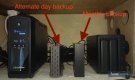
I personally backup my NAS to external drives via the USB port on the NAS, I have two USB drives (6tb each) and run schedule Hyper Backup one every other day, and a separate one to a different drive once a month.

So I have Raid one on the NAS to protect from a single disk failure, and then two separate external backups in case of a total NAS failure . I would of course like to have an off site backup too, but the cost of cloud backup for the entire NAS would be too much, but if you have a relatively small amount of un-loseable data then it's cheap enough.

I am looking for a very cheap NAS to put in my garage, at some point in the future, which is totally separate from the house and run a backup to that

IMG_20210415_162812.jpg
 
I forgot to say to the OP about a 2 or 4 bay, you don't have to fill all the bays at once.
You can add drives as you go along, you could even start with just one drive in a 4 bay, but do check the rules on adding drives later (size matters)
 
Backing up to the same device is not a backup, its just a duplication.

We are on the same page then :)

I really want a NAS because, photos and 4K video uses such an astonishing amount of space - especially when you have both original files and an edited version of the video. Synology seems to have very good software that's easy to use and a remote facility inc wake on LAN that doesn't require port forwarding and the like.

Thank you - that's an interesting setup.
 
Last edited:
size is an issue for RAID configurations but if using Synologyi's SHR it doesn't matter, it will cope with unequal drive sizes
Yes, but once your SHR is setup , you can't add smaller drives later only same size or larger.
 
Thanks all, I've decided to keep the 4 bay and sell the 2 bay.
Many thanks for all the input :)
 
Back
Top