Slow hard disk under Windows 10

StewartR

Suspended / Banned
Messages
11,513
Name
Stewart
Edit My Images
Yes
I've noticed that, recently, two of my Windows 10 machines (laptop, work desktop) have slowed to a crawl when they're first booted. The machines are generally unresponsive, sometimes taking minutes to perform tasks which ought to take seconds (eg start Chrome browser, start Lightroom), and seconds to perform tasks which should be almost instantaneous (eg start Task Manager).

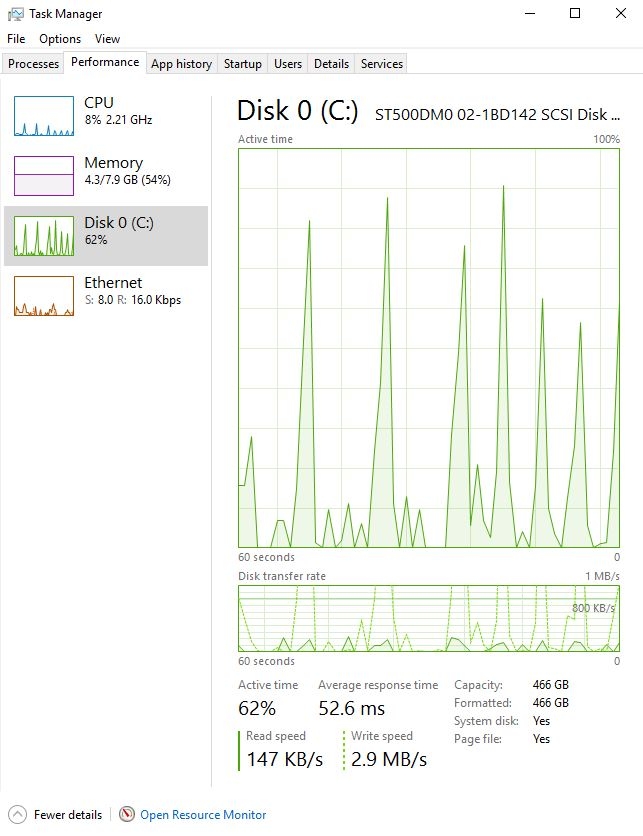
Task Manager shows that the disk utilisation is 100% but the actual data transfer rate is very, very low. I've pasted a typical screen shot below.

Has anybody in the TP community experienced this personally? Did you work out what was causing it? How did you fix it?

(Please don't try to google "solutions" for me. I can do that.)

16472-1474449999-3ab06c9d5344afae0f3f5c5c60266431.jpg
 
It could be your anti-virus doing a scan, worth seeing which process(es) is using the cpu, it may give a clue. Mine runs a little slow at first but that is down to the AV and to the backup to cloud. Also make sure there are no unecessary programs starting when you switch on.
 
Could it be windows updates downloading in the background ? If you have them set to auto-download or install, then when windows first boots it will check fopr any updates and download them. Could also be an AV scan/download process as well.
 
Open resource manager - it'll give you more detailed information of whats using your resources (or if anything is)
Windows 10 starts things after the initial startup, so it could be you've something hanging (30 secs retry)
 
It could be your anti-virus doing a scan, worth seeing which process(es) is using the cpu, it may give a clue. Mine runs a little slow at first but that is down to the AV and to the backup to cloud. Also make sure there are no unecessary programs starting when you switch on.
Could it be windows updates downloading in the background ? If you have them set to auto-download or install, then when windows first boots it will check fopr any updates and download them. Could also be an AV scan/download process as well.
No anti-virus scans running. No backup to cloud. Windows is fully updated. Nothing is using the CPU very much.
Open resource manager - it'll give you more detailed information of whats using your resources (or if anything is)
Windows 10 starts things after the initial startup, so it could be you've something hanging (30 secs retry)
go to the processes tab of task manager and sort by disk, what is at the top?
Nothing is using the hard disk very much. That's the point.

The current situation is that, an hour after booting, I'm sitting here doing nothing except watch the Task Manager display update, and the disk utilisation spikes at typically 50-80% every few seconds. But even when utilisation is high, the data transfer rate is pitifully low, as in this screen shot:

16473-1474454386-cf8922fe1e99af4de81a62d5dc322832.jpg


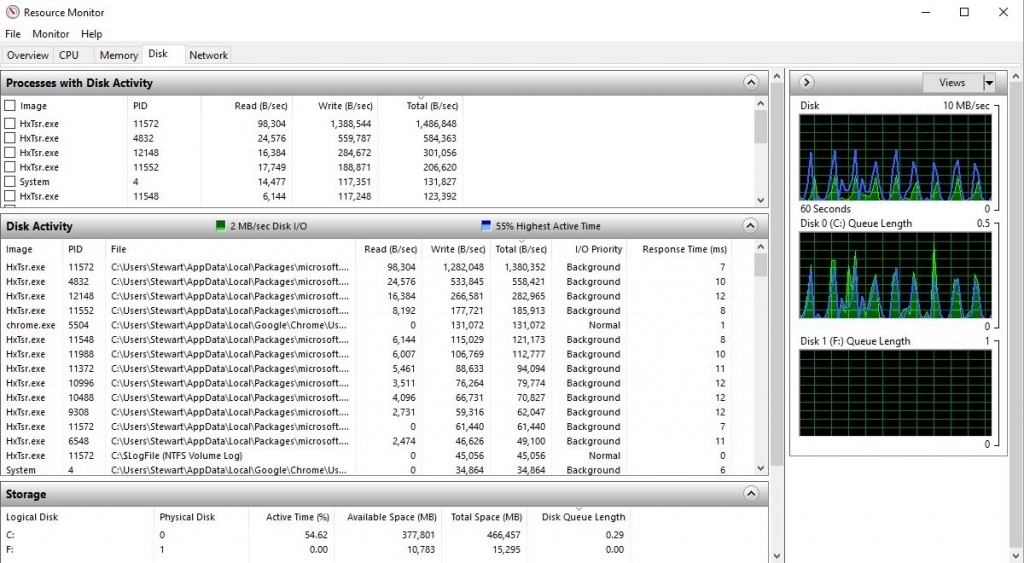
Here's a screen grab from Task Manager from one time when the disk utilisation spiked. As you can see, there's nothing much of anythin happening, but a data transfer rate of 1.4 MB/s equates to a disk utilisation of 44%. That can't be right.

16474-1474454395-819605d5681aa54537d203bbfad39f7f.jpg
 
I get that on my main PC when it's backing up to my server with WHS2011, I also get it when Acronis is doing it's true image thing on my laptop. I now know what it is and what time they kick in so just leave for 10mins till it's over.
 
i had a problem with "system and compressed memory" management when a machine with lower amounts of RAM started paging. but you have 8gb.

i'll try and dig out what i found on that process.
 
Click the performance tab, at the bottom it says open resource monitor, click the disk tab to see whats peaking at the time the graph peaks - then you find whats accessing your disk.
 
I used to see similar when it was doing updates (downloading). For some reason it never showed as high disk through put, but made the system really unresponsive. I will admit I was lazy and just swapped to an SSD as I had one lying around and the laptop is so much better for it.
 
Click the performance tab, at the bottom it says open resource monitor, click the disk tab to see whats peaking at the time the graph peaks - then you find whats accessing your disk.
OK.

Multiple instances of HxTsr.exe, which is something to do with "Microsoft Outlook Communications". I don't use Outlook. The specific file which is fingered by all of these is:
C:\Users\Stewart\AppData\Local\Packages\microsoft.windowscommunicationsapps_8wekyb3d8bbwe\LocalState\HxStore.hxd
which is apparently a a Microsoft Help Validator file.

But regardless of what is using the disk, in this screen shot 55% disk utilisation corresponds to about 3MB/s. That can't be right.

16475-1474458573-d816d64905ae216fab7ab28195561cfc.jpg
 
Probably unrelated to your problem, but Norton is a no no on my PC's due to past slow running pc problems.
 
When you installed Windows 10 - did you choose express settings?

http://www.pcworld.com/article/2955...cs-bandwidth-to-update-strangers-systems.html
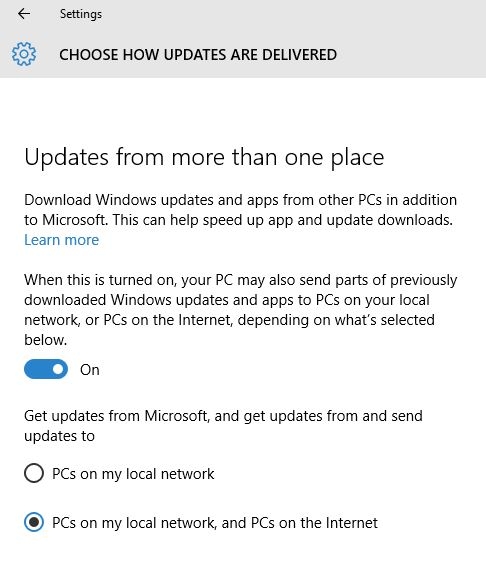
I couldn't say whether or not I chose the 'express' settings - it was too long ago to remember a detail like that. But I read that article, checked how my PC is configured to receive updates, and...
16476-1474459317-706bae2a865358d2b2e797e3495a6aff.jpg


But I've turned it off, and it doesn't make any difference to the disk utilisation, which is still spiking at 50-70% every 8 seconds or so, with a maximum data throughput of <5MB/s.
 
Have you done the anniversary update?
On this PC which I'm using in the office now, no. Windows tells me that "Feature update to Windows 10, version 1607" is available, bit not installed.
On the other PCs, not sure.
 
HxStore.hxd appears to be part of the built in Mail app? do you use that?
some suggestion that this was a bug with mail that has been patched, try updating the machine.
No, I don't use it. I updated this machine the other day, and the Updates feature says it's all up to date apart from Version 1607 whiuch i think is the anniversary Update. Are you suggesting I should install that?
 
Some are reporting it's cured slow disk issues, but then you have to google how to turn off Cortana
 
You can uninstall Mail by using the following command in PowerShell (in search type Windows Powershell, right click it and Run as Administrator).

Uninstall Calendar and Mail:

Get-AppxPackage *windowscommunicationsapps* | Remove-AppxPackage
 
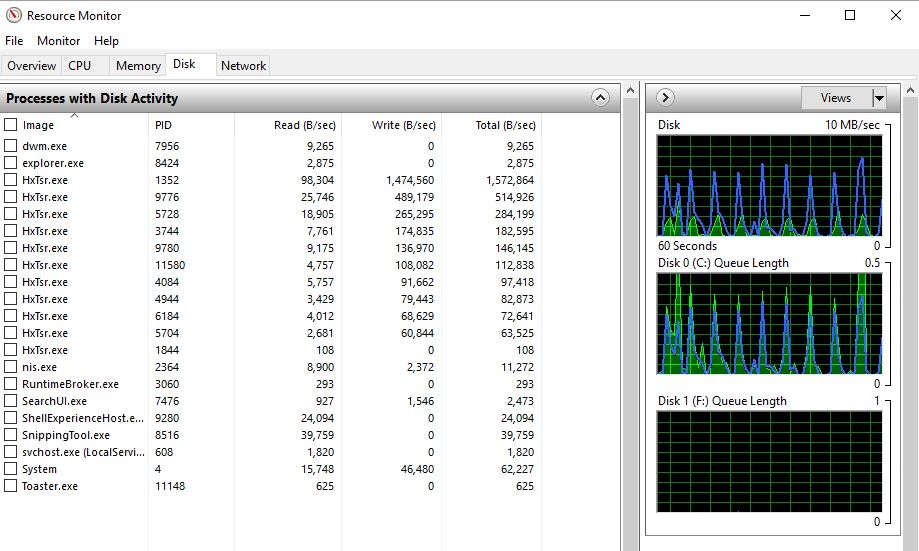
This is interesting. I rebooted the machine, waited for it to settle down, and started watching the disk usage. Here's the kind of thing I saw:

16478-1474461959-e2c3220667ea2c4d97efd6a57c7a8b49.jpg


There are several of those HXTsr.exe processes. Each time the disk utilisation spikes, a new HXTsr.exe process is created with a new PID. I watched the number of them in the list grow from 4 to 10, with one more appearing every 8 seconds or so when the disk utilisation spiked. But then they started dropping off the bottom of the list, which seems to show them in the order of creation (newest first). An 11th HxTsr.exe process would apprear at the top of the list, and then one would disappear off the bottom.

I have no idea what this software is supposed to do, but I'm struggling to think of a reason why whay I'm seeing might be "normal".

You can uninstall Mail by using the following command in PowerShell (in search type Windows Powershell, right click it and Run as Administrator).

Uninstall Calendar and Mail:

Get-AppxPackage *windowscommunicationsapps* | Remove-AppxPackage
Right. Thanks. I'm doing it.
 
We've had a few at work do this, but only on the first build, not since the big updates. I work in tech support, and we piled a lot of time into this, eventually settling with a rebuild, which solved it.
Thinking back, it was only machines that were upgraded from win7 that did it, perhaps the migration is buggy...
 
Back
Top