Right, enough is enough!

Bazza

Suspended / Banned
Messages
561
Name
Brian
Edit My Images
Yes
I sat on here a few nights ago going through all the sharpening threads that the search function threw at me and I'm still not much clearer on it.

I would usually have used Unsharp Mask but with help of Hacker's (thanks!) tutorial I tried the high pass filter and it seems to help keep the noise of the image away. The problem I seem to have is that if I look at it 100% I seem to get a lot of JPEG artifracts in the image. I try not to go over ISO160 normally so its not high noise.

I shoot in RAW... when I have an image open in Camera Raw at the bottom of the screen it says 300dpi or whatever the number happens to be, should I change this depending on wether I want to print or want them to put online?

Basically I want to know the difference between sharpening for a print and sharpening for online use. What are your methods of printing an image from a RAW file at say... A4... from the beginning as I'm getting seriously frustrated with it. :bang:

I'm too scared to proof read what I've just written as it won't make sense and I'll end up not bothering putting the thread up :lol::thumbsdown:
 
I seem to get a lot of JPEG artifracts in the image

...

I shoot in RAW.

? :thinking:

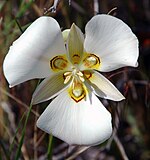
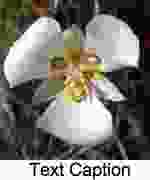
Original vs JPEG artifacts (from the Wikipedia page on the topic)

150px-Sego_lily_cm.jpg
Sego_lily_cm-150.jpg


are you describing over sharpening?

Can you post some examples?
 
Last edited:
Sorry, didn't make that very clear. I meant I shoot in raw but there is artifacts. Not jpeg artifacts as such.

4905969426_a08f1dc096_z.jpg


That's a 100% crop of this.

a34_10704_5965178.jpeg


This also leads to my other thread about the Photium software playing with the file as it is this on Flickr.

4905389383_f2843ab861_b.jpg


Now for me the second one is close but its not... right?
 
Another good method when sharpening in photoshop is to switch to Lab Colour, go to the Channels tab and select Lightness then do an unsharpen mask to the desired amounts. Then switch back to RGB. This avoids messing with the colours when sharpening.
 
And to control where it is applied, so that you don't sharpen the OOF areas (this is easier in Lab mode)

- duplicate the background layer (name it Sharp if you like)
- use your favourite sharpening method on the image in the duplicated layer. As noted above, if you're in Lab mode, apply it only to the Lightness channel to avoid introducing colour artifacts.

then you can back-off the sharpening in areas that don't have any detail by doing the following

- create a mask on the new, Sharp layer

with the mask selected

- Image > Apply Image...: select the Lightness channel from the Background layer
- Filter > Stylize > Find Edges
- invert the mask
- apply a Gaussian Blur to the mask and adjust the transparency of the sharpened layer to taste

Obviously, if you want to eradicate and/or enhance the sharpening entirely in some areas, you can paint the mask black or white respectively or use curves on the mask.


Alternatively, you could re-open the TIFF file in Camera Raw (via Open as Smart Object selecting Camera Raw as the format) and use ACR's sharpening controls on the Detail tab which have a Mask facility built in. If you hold down the Option / Alt key while sliding the Mask slider, it will preview the mask that will be applied.

edit: you can apply the same principle to noise reduction and/or blurring in the OOF areas, just don't invert the mask after the Find Edges step to apply the process to only those areas with no edges.
 
Last edited:
I use the same method as gman, works perfectly and you don't get anu of those funny halo's and wierd effects round solid colours.
 
And to control where it is applied, so that you don't sharpen the OOF areas (this is easier in Lab mode)

- duplicate the background layer (name it Sharp if you like)
- use your favourite sharpening method on the image in the duplicated layer. As noted above, if you're in Lab mode, apply it only to the Lightness channel to avoid introducing colour artifacts.

then you can back-off the sharpening in areas that don't have any detail by doing the following

- create a mask on the new, Sharp layer

with the mask selected

- Image > Apply Image...: select the Lightness channel from the Background layer
- Filter > Stylize > Find Edges
- invert the mask
- apply a Gaussian Blur to the mask and adjust the transparency of the sharpened layer to taste

Obviously, if you want to eradicate and/or enhance the sharpening entirely in some areas, you can paint the mask black or white respectively or use curves on the mask.


Alternatively, you could re-open the TIFF file in Camera Raw (via Open as Smart Object selecting Camera Raw as the format) and use ACR's sharpening controls on the Detail tab which have a Mask facility built in. If you hold down the Option / Alt key while sliding the Mask slider, it will preview the mask that will be applied.

edit: you can apply the same principle to noise reduction and/or blurring in the OOF areas, just don't invert the mask after the Find Edges step to apply the process to only those areas with no edges.

That's what I'm after, will give that a go when I get the chance.

What about sharpening for print?
 
If I'm being honest, I print so rarely that my advice wouldn't be worth much.
 
Back
Top