Resizing in Elements 11

rigsby1208

Suspended / Banned
Messages
64
Edit My Images
No
Hi I am a new user of photoshop elements 11. I always seem to struggle with resizing images. After importing my picture its huge, like 60cm by 40cm, I go into Image/Size/Resize Image. I set the width to say 10cm and the height auto adjusts to 6.7cm. I OK it. Job done I think, however if I click on 100% on the zoom slider or go into View/Actual pixels the picture is still massive not the 10cm I was expecting.
What am I doing wrong?
 
Before resizing a picture have a look what size it is and make a note of the size and pixels per inch (resolution) what does it say and how does your box look compared to this one? (I haven't got elements)
Then after resizing what does it say?

8183253261_d2178523e3.jpg
 
OK, this is the image size after opening the raw image...
pixel dimesions 63.3m
width 5760 pixels
Height 3840 pixels

doc size
width 60.96cm
height 40.64
resolution 240
 
PE11resizebmp-001.jpg


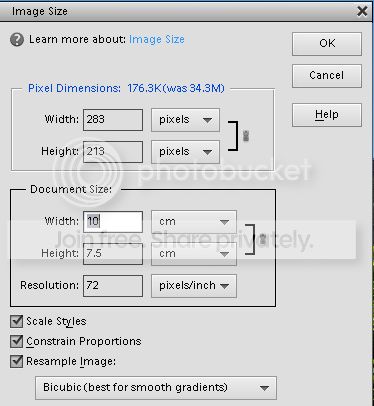
Just realised I had downloaded PE11 and tried resizing which works for me. Here is the resize screen. When you enter the document size you need to keep an eye on the resolution as it can shoot up to very high figures - in my case over 1,000 but I was able to enter a new lower figure and then all OK.

Let us know how it goes?
 
OK, change the Width to 10cm and yes the Resolution went up to over 2000! So tried changing that, but the Width went back up to over 40cm again. The only way to stop it was to tick resample, which I thought was bad as you lost image quality. Is this the only way to get a smaller image then? Is the image quality loss negligible?
 
Mmm I am no expert in this and like you would like to know a bit more so hoping somebody who knows what they are talking about may help us both. But why do you need to resize - printing - web use or what?
 
Three things you need to realize.

1- That if you wish to physicaly change the size of the image then you need to re sample, and if you do this then do it to a copy so your original stays intact.

2-Printing and monitor display size are two different things.

3-And web display size can only be done by resizing.

As to no2 if you change the document (print) dimensions the ppi will change to accommodate it, if you change the ppi the document size will change to accommodate, these two are interrelated to the pixel dimensions and cannot be changed except by re sampling.

The pixel dimensions always stay the same which is why when you click 100% it is huge on the monitor as you are viewing it at pixel level. If you click on print size when viewing in Elements you will see it in the document (print) size that has been set because Elements resamples the image for monitor display.

So to sum up a digital file does not actually have a size until it is printed and that printed size will depend on the ppi set in the document box, it only has pixel dimension which never change (unless resampled) which in itself is not a physical size.

I hope this helps and does not confuse more.
 
Last edited:
EDIT:

So to sum up a digital file does not actually have a size until it is printed and that printed size will depend on the ppi set in the document box, it only has pixel dimension which never change (unless resampled) which in itself is not a physical size.

Very good summary. (Paul posted while I was preparing what follows)
.


You need to click Resample Image.

In order to change the size of the image the software has to reduce the number of pixels. If it is reducing the size, as in this case, it needs to go round the image taking a bunch of pixels at a time and crunching them into a single pixel in the resized image. This is resampling.

In this case it produces each new pixel from about 37 pixels in the full size image.

Here we go. This is in Photoshop CS2, but I'm sure it will be the same in Elements.

Here is an image which is 5760 x 3840 at 240 pixels per inch. As you can see, this is 60.96 cm x 40.64 cm, and the rulers at the top and left are consistent with this. You can see from the bottom left hand corner that we are viewing the image at about 17% of full size so as to get it all in the window.
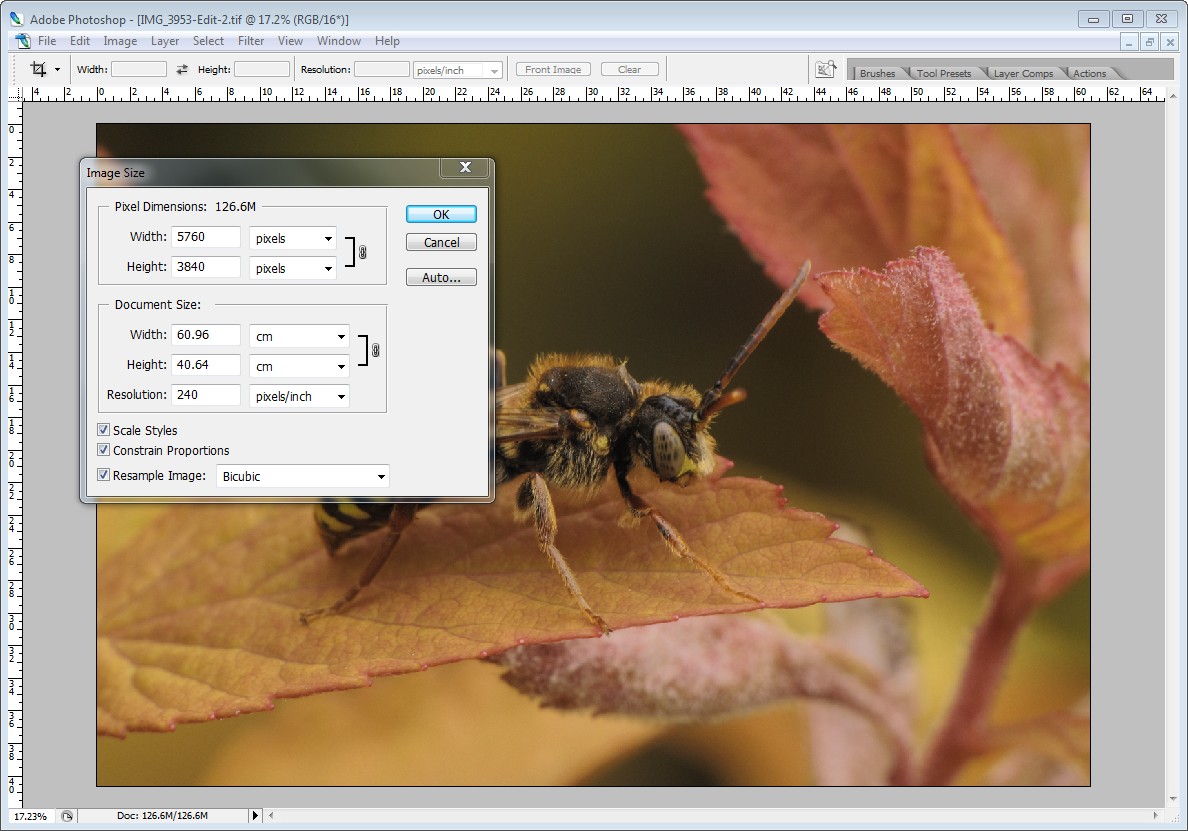

Resize example - before resize by gardenersassistant, on Flickr

With Resample Image ticked, I changed the Width to 10cm. When you do this the numbers in the dialog box immediately change to those shown below. (In fact in this case I clicked OK to actually make the change so the rulers would reflect the new size. I then went back to the resize dialog to get this screen capture.)
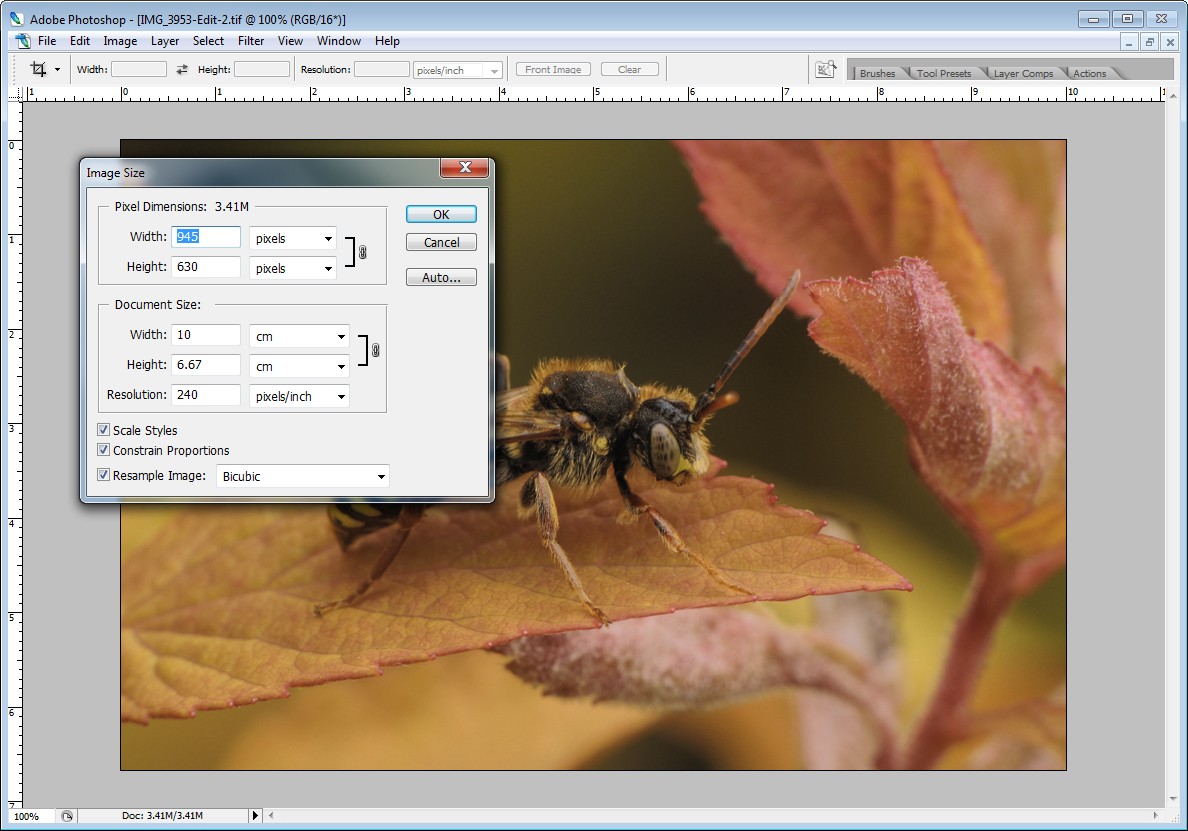

Resize example - after resize by gardenersassistant, on Flickr

As you can see, we are now looking at the image 100%, and the dialog box and the rulers show it as 10cm wide.

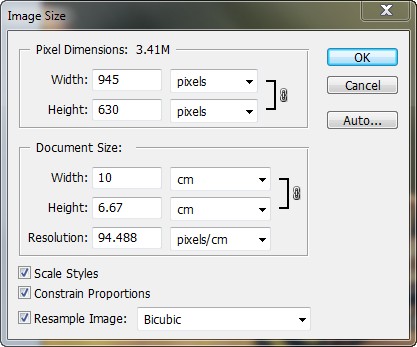
Notice that in terms of pixels, the image is now only 945 pixels wide and 630 pixels high. The arithmetic is easier to follow if you change the dialog box to show pixels per cm rather than pixels per inch.

8190602644_21da25ce29_o.jpg


The image had 240 pixels per inch. From the above image we can see that this is 94.5 (near enough) pixels per cm. So at 94.5 pixels per cm, the 10 cm wide version of the image is 945 pixels wide.

 
Last edited:
I for one would like to say thank you for the trouble taken by you guys to explain this point in such detail.. :thumbs:
 
Back
Top