

Puzzled about calibration

GardenersHelper

In Memoriam
Suspended / Banned
Messages
6,343
Name
Nick
Edit My Images
Yes
I am thinking of getting an Asus PA248QJ. I have not found any detailed reviews of the PA248QJ, but there is quite a lot about the PA248Q, which from the specifications looks identical in terms of the screen attributes (the differences seem to be the hood and included calibrator with the PA248QJ).

I had been thinking that I would use the screen in sRGB mode. However, the User Manual for the PA248Q (page 3-2) says you can only adjust the brightness in sRGB mode. Does that mean that you can't recalibrate the sRGB mode with a hardware calibrator, or does a hardware calibrator adjust things under the surface that are not accessible through the menus?

If you can only use the calibrator on the (adjustable) User Modes, and since screen attributes "drift" over time, presumably this would make the sRGB mode unreliable for longer term use, even if it started out close to the standard?


.............

I'm also puzzled about the practicalities of calibrating a screen with a hardware calibrator. I had thought that this was a pretty mechanical/automated process, with the calibrator's software making all the necessary adjustments to the screen and/or the screen profile.

However, this article at CNET Australia says of the PA246 "No doubt with a lot more time and patience, you could get a lot better results — Asus definitely gives you the tools in the OSD to do so. With so many variables, though, we found ourselves wishing for an automated solution, as per NEC's ability to plug a custom i1Display into the monitor directly and adjust that way."

And Expert Reviews claim here that after calibration the PA248Q they had for review only reached 93% of sRGB coverage according to their Spyder 4 Express calibrator.

So to get an automated solution that produces top notch results, do I have to spend ? 2 or 3 times as much on an NEC or ? something else with similar capabilities?

.............

The more reviews I read the less straightforward the concept of "close to the standard" becomes, and the more questions arise about how well/completely any particular screen model meets the standard and the amount of variation between screens of the same model. For example, this is about the Asus PA246Q, but it gives the flavour of things I have been reading. Presumably this sort of consideration doesn't apply just to Asus screens.

I suppose with all these things it comes down eventually to buying something and seeing if it works for you. I have certainly read a lot of enthusiastic user comments about these Asus screens.
 
Ok.. first, you don't need to use the sRGB mode. That's just a "preset" calibration setting for those who don't want to calibrate. Secondly, the screen is only a sRGB gamut monitor anyway, so can not display anymore than the colourspace of sRGB. You should be calibrating it in user custom mode.

You will have to access the OSD to calibrate it fully, yes, as most software asks you to adjust RGB to gain a neutral white piont, then set brightness and contrast to minimum, and it will measure this, then again at maximum, so it knows the contrast and luminance range available. It will then measure the colour swatches to establish a ICC profile.

They all do this - the i1display Pro, LaCie Blue Eye Pro.. all of them. The NEC Spectraview will do a more automated job if you want it to, but you still have the option of doing it "manually", which is the recommended way if you want to set a specific brightness level for your room, or set a custom white point.

You only have to do this once a month or so, and it still only takes around 10 minutes.

The 93% of sRGB is about right for that screen. That doesn't mean the colours are only 93% accurate, it means the screens colour gamut is 93% that of the sRGB colourspace.

The article you link to showing the screen being inaccurate is referring to the "out of the box" settings when in the "sRGB" mode. NO screen can be factory calibrated, as they all have differences that makes a "one size fits all" calibration pointless.

Use the Spyder that comes with it, follow the instructions, and be happy :) It will be fine once calibrated in custom user mode.
I would seriously call AnandTech's testing methodology into question here, as according to them, the screen can produce 107% of the Adobe RGB colourspace, which is sheer nonsense. Even my £2000+ Eizo screen can only manage 98% of Adobe RGB. Asus themselves claim it's 100% of sRGB, which is nowhere near Adobe RGB in gamut. This is a standard gamut sRGB screen, so won't even equal Adobe RGB colourspace, let alone exceed it.

It's a great screen... get the one bundled with the Spyder4 and just follow the step by step on screen instructions.
 
Last edited:
Thanks for the practical information about how calibration is done David. That is very helpful.

To be fair to AnandTech, the 107% may be erroneous, but it is the PA246Q that they are referring to, and Asus do claim "98% Adobe RGB Coverage" for the PA246Q on their web site.

As for the PA248Q in the other linked review, Asus do claim that " The PA248Q delivers 100% sRGB color reproduction" on their web site, which is why the idea of one of these (pre-calibrated) screens allegedly delivering only 93% of the sRGB gamut gave me pause for thought.

I am still pondering over whether to get a wider-gamut screen, which is why I was looking at the PA246Q as well as the PA248. My current thinking is to go for sRGB, as most of my images are prepared for on-line viewing and for printing I use DSCL who require sRGB. Much as I would like in principle to have a wider gamut printing setup of my own - in practical terms I can't see it happening as printers and me don't get on well.

Most of my PP is now done in Lightroom 4, and I am passing over the images to CS2 in ProPhoto format for the rest of the processing. I know I can't see a lot of the ProPhoto gamut, and would not be able to with the PA248QJ (or perhaps any other screen), but my thinking is to leave the image in the widest available gamut until final output to sRGB so as to minimise the chances of introducing artefacts such as banding during the PP.

I can see from Lightroom 4's soft proofing how much of my images are outside of the sRGB gamut - quite a lot it turns out for some of them. But since I'm going solely for sRGB as the output format the fact that I can't see what they "really" look like as they pass through the PP process is something I can live with.
 
Apologies.. was looking at the 248QJ as that's what you mentioned in the OP. The 246 is indeed 98% Adobe RGB1998.

If you mainly output for screen then a sRGB panel will avoid the confusion, and problems caused by a wide gamut screen.
 
Apologies.. was looking at the 248QJ as that's what you mentioned in the OP. The 246 is indeed 98% Adobe RGB1998.

If you mainly output for screen then a sRGB panel will avoid the confusion, and problems caused by a wide gamut screen.

That's definitely the way my thoughts are going; it's the practical solution. (I'm just having a bit of difficulty letting go of the possibly romantic notion of being able to see more of the subtle colouring and textures of flowers, foliage etc. But I imagine that in practical terms it might not make much difference as it is, I think, the higher saturation colours that won't be available, and nature doesn't have much of that sort of colour.)
 
it is, I think, the higher saturation colours that won't be available, and nature doesn't have much of that sort of colour.)

On reflection, I'm not so sure about the last part of that. I often have problems with buttercups, with the yellow petals presenting as a shiny, golden colour that is totally unnatural. And bluebells and some other flowers have been problematic in the blue/purplish blue/violet/purple/reddish purple areas around the bottom left corner of the chromaticity diagram.

Given the colours involved I imagine these might be gamut issues. There again, white balance and channel overload might also be involved. Now I'm using raw and have seen the practical implications of using a white card for colour balance, I hope next year to at least be able to take white balance out of the equation, which will hopefully clarify what is going on.

And (here we go again) if these are gamut issues, then a wider gamut screen might let me see more realistic renditions of images with those colours, which I would like, even if I couldn't print them or show them on the internet.
 
If you have a gamut issue, Photoshop will tell you. If you develop your RAWs in Adobe RGB, keep that profile throughout your workflow, then you can soft proof it in photoshop with sRGB and once in softproofing, you can press Shift+ctrl+Y to give a visible gamut warning.
 
If you have a gamut issue, Photoshop will tell you. If you develop your RAWs in Adobe RGB, keep that profile throughout your workflow, then you can soft proof it in photoshop with sRGB and once in softproofing, you can press Shift+ctrl+Y to give a visible gamut warning.

Thanks, I hadn't noticed shift+ctrl+Y; very convenient. I just went back to the soft proofing setup in CS2 and this time managed to set it up right. So now I can soft proof in Lightroom and/or CS2 depending on the circumstances. Excellent. (I'm using the ProPhoto profile rather than Adobe RGB as it happens, but that works fine.)

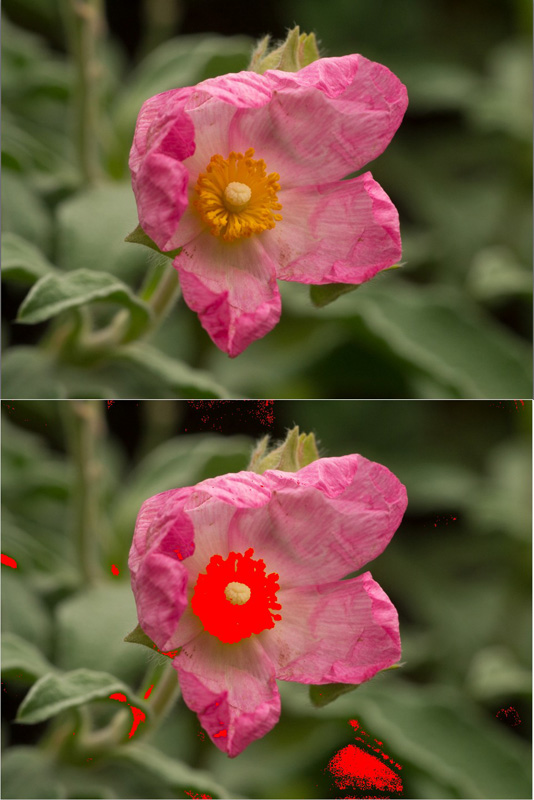
I definitely do have gamut issues; soft proofing in Lightroom with sRGB as the target has made that clear for a number of images I have looked at. Here is one typical example (as displayed on a screen that I discovered yesterday, despite having an sRGB setting, may only display - presumably at best - 68% of the sRGB gamut; the manufacturer's web site says, somewhat obscurely, "Color gamut 0.68".)


Out of sRGB gamut by gardenersassistant, on Flickr
 
Back
Top