

Fireproof Creative
Suspended / Banned
- Messages
- 1,302
- Name
- Jonny
- Edit My Images
- No
"how should I process my images?"
I keep seeing this question crop up in here, and I keep seeing people on Flickr who should be asking this question. The simple answer is...."to give you the best image possible"...and to do that..."you have to use your eyes".
 I'm not saying mine are perfect, nor do I believe I am even remotely close to being an accomplished photographer, but some people seem to really struggle with this so I thought I might try and offer some advice to beginners. I've been using imaging software a lot longer than a camera so hopefully I can offer at least one or two tips worth knowing...
I shoot canon so I cant comment on Nikon software but what ever you do, DO NOT USE CANON'S DPP TO PROCESS YOUR IMAGES its terrible, no really its the worst thing I've ever used..you would be better off with MS paint. Its fit for reviewing your images that's it (maybe a straight file conversion as well).
I've only used Lightroom, Photoshop and Camera raw - if anyone has experience of other stuff that's worth using please add to the discussion this is based on my experience using the Adobe stuff..
1. First things first, don't waste your time trying to fix something that is beyond repair. No amount of processing is going to make a horrifically exposed, noisy, blurry shot better. Shooting in Raw gives you a wider margin for error, Jpeg means you need to pretty much get it spot on in camera, it is stripped of a large portion of image information. Think 128k MP3 vs CD (or vinyl if you still remember what that is) - when you start trying to adjust things on a Jpeg image you can very easily introduce noise and artefacts (The horrible patchy blocks and jagged lines) much more so than with a RAW file. If you are going to spend time processing an image, make sure it is on your best ones.
2. Before processing your image - decide how big you want the result to be i.e an A3 Print or an 800px wide image for a forum. This matters because IMHO you should process for each output scenario separately, to be safe work as large as you can because shrinking is fine, enlarging is a no no. A less well produced image can look fine at screen resolution i.e 1024 x whatever - but can look absolutely horrendous any larger. You should always process your images at 100% zoom or occasionally 100%+ at your desired final output size (i.e if you are planing for a 1024px final image - process at 1024px). This is probably obvious to most, but if you are looking at a smaller representation of your actual image then you cannot see exactly what your changes are doing.
3. A lot of people batch process their images using pre-sets - that's fine, this probably isn't for you. I much prefer to manually scan all my photos first and rate the good ones then move to individually process the ones I want to use. Not much good for a PRO trying to hit a deadline but to most of us amateurs time is not so much of an issue. Light and conditions change throughout a shoot, sometimes subtlety, sometimes dramatically - at any rate, more than I'd like to let a one size fits all auto adjustment churn through my images, just my opinion.
4. Sharpening and noise reduction are not your friends. You must be very very careful with these, a lot of people seem to be really heavy handed with these sliders in particular. If you work at 100% and use your eyes to see exactly when you go too far and get mushy images from NR or nasty jagged lines from sharpening. Always do both of these AFTER you have applied any colour, exposure or any other image adjustment. This prevents you from adding noise and issues in the colour adjust stage
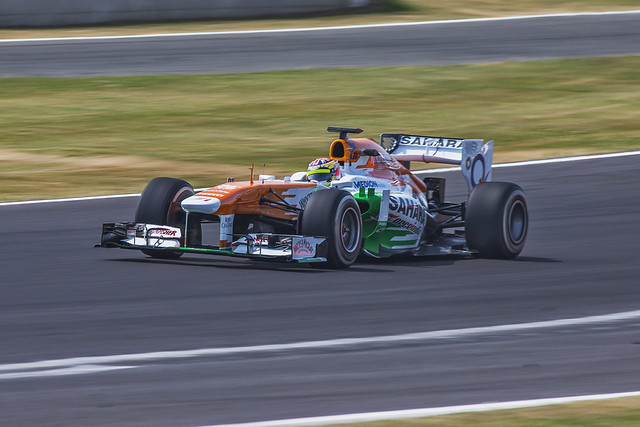
force India by Fireproof_Creative, on Flickr
^this is the kind of thing I keep seeing on Flickr - I'm using one of my own images for this, looks pretty average, colours aren't great, processing looks a little severe but its passable at this size. Now look at the bigger version below and zoom to full,
Here - its Big
if you've got an LCD you can probably see how crap it looks - if you have a CRT maybe not. Monitors do make a massive difference to how your images look.
You can see a lot of grain, colour banding, blown highlights and the dreaded Jaggies from over sharpening - all from editing at too small a size and not being able to see exactly what is happening.
5. Experimental processing rarely works, don't get me wrong its fun to mess around and sometimes it can work. Most of the time however, messing with the exposure and shadow/highlight sliders too much ends up resulting in a nasty faux HDR effect that IMO looks crap when its done properly on purpose. The clarity slider (I think it mimics midtone contrast) is often hammered too much as well - resulting in an effect that looks like every colour region on your image has a black outline. Unless you have a specific reason for using a filter effect try and avoid it - they seldom make crap pictures good but can very occassionaly make good pictures great.
7. Aggressive enlargements or crops tend not to work, especially for the screen. If you are trying to push your enlargements past 100% of original, when you were too far away or your lens didn't give you enough reach be very careful - even Photoshop, in all its expensive glory, re-samples images shockingly badly. Try to keep your image at or below 100% ratio i.e if you have a 3MP image after cropping don't try and upscale that to 5MP - pixels start to show and the noise and jaggies appear.
How I would Process
First I would shoot RAW, primarily because I am not good enough to get everything right every-time or even half the time.
OK so here's my Image straight out of camera - shot in raw
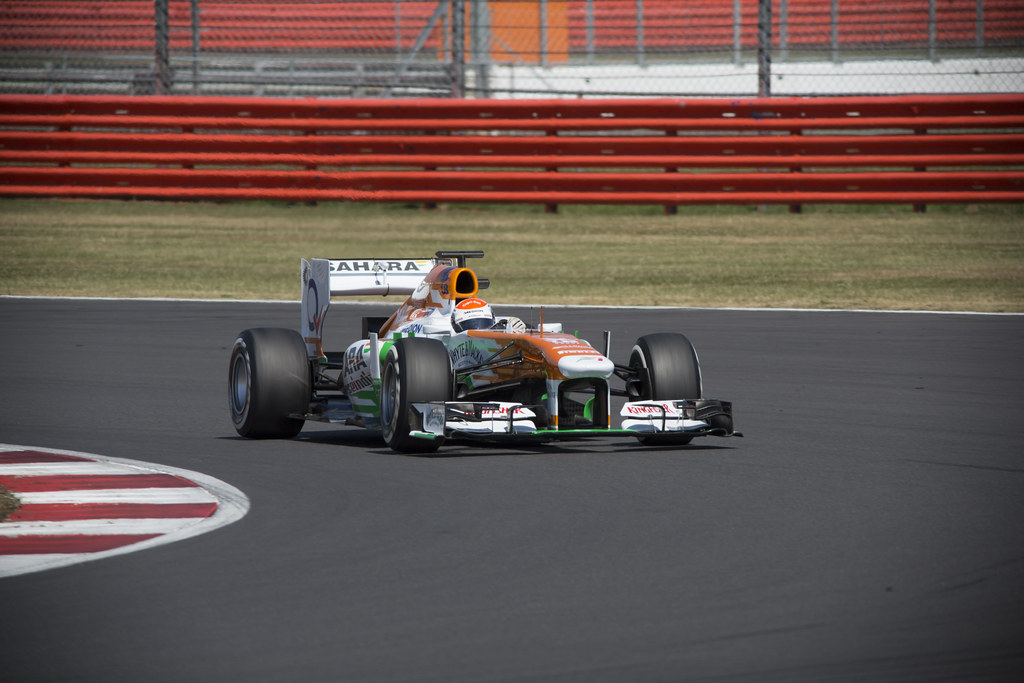
sutil original by Fireproof_Creative, on Flickr
Original Jpeg Conversion
If you have a look at the full size version, its a little soft, there's not a lot of detail in the whites - there's a bit of noise/grain (its marginal i'm using FF so it should be well controlled). The composition isn't great, but I was using a teleconverter so only had centre point AF available. There's also a little vignetting.
That said, there is plenty of detail in the shot and there's minimal blur from shake (high shutter noted), this should work as a crop.
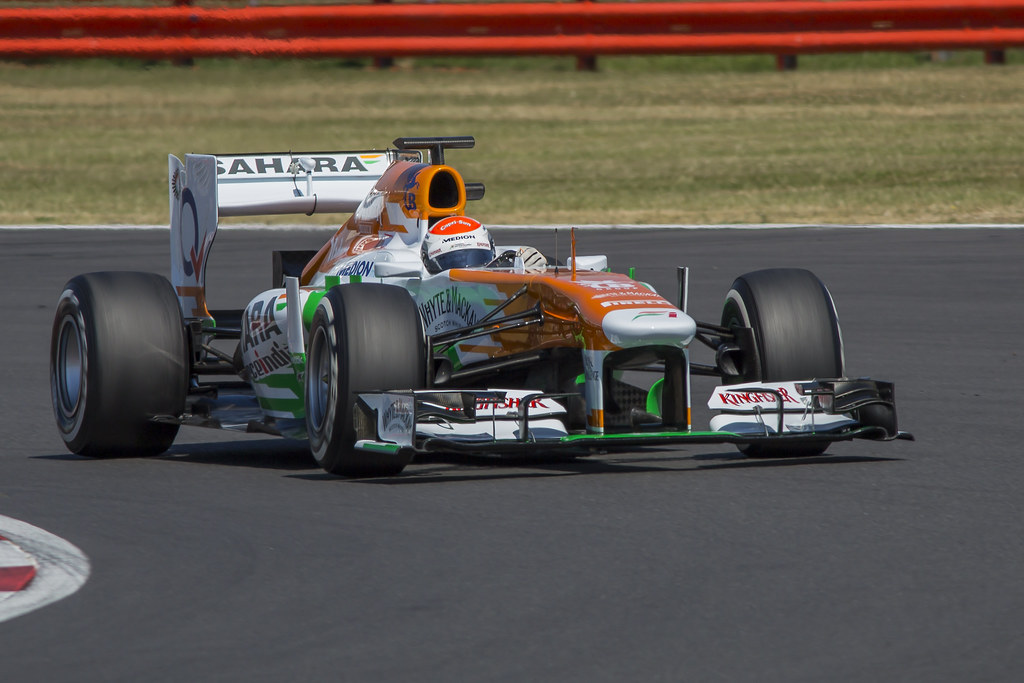
Sutil standard by Fireproof_Creative, on Flickr
(no full size on this one Ill save that for the finale)
So I've cropped in on this 3x2 - I have been working at max res (which for this crop is 3438 x 2292) as you can always make it smaller for the screen but cant go the other way. Processed in Adobe Camera Raw (see below for screen dump of alterations) clipped the shadows a touch but looks fine to my eyes
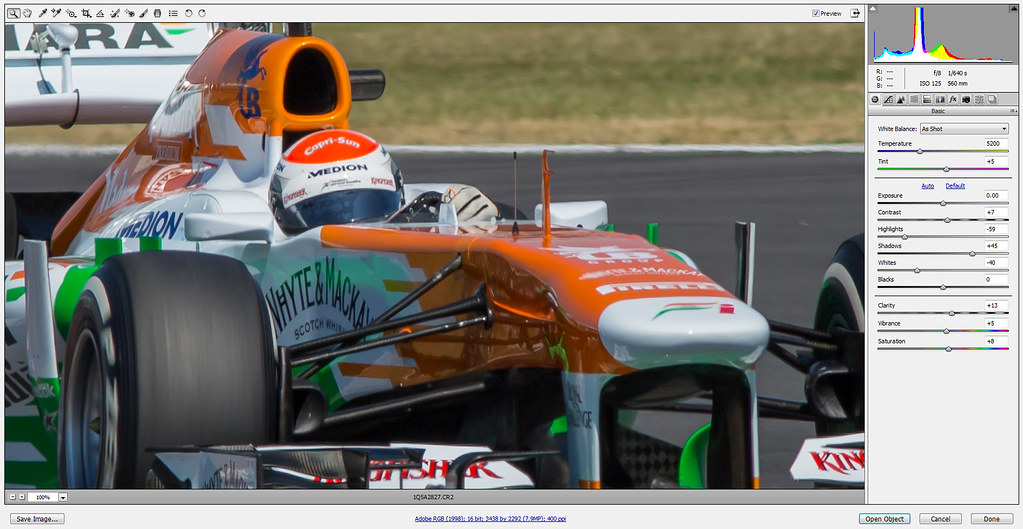
Camera raw by Fireproof_Creative, on Flickr
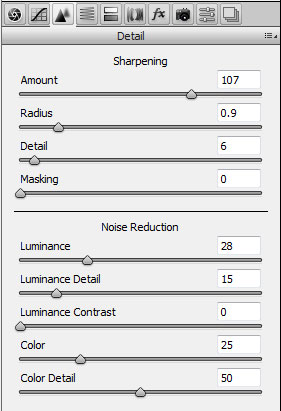
sharpening by Fireproof_Creative, on Flickr
^See sharpening and noise reduction settings, looks pretty aggressive doesn't it. If you work at 100% you can see exactly what effect the changes have.
Here's the final image with the original link as well so you can see it properly. I have pushed this as far as I could for the purpose of a demonstration, I probably wouldn't go quite this far usually. I have tried to sharpen it up, boost the colours, fix the highlights and ditch the grain - as well as try a more dynamic crop than the 2nd image (possible Marmite point)
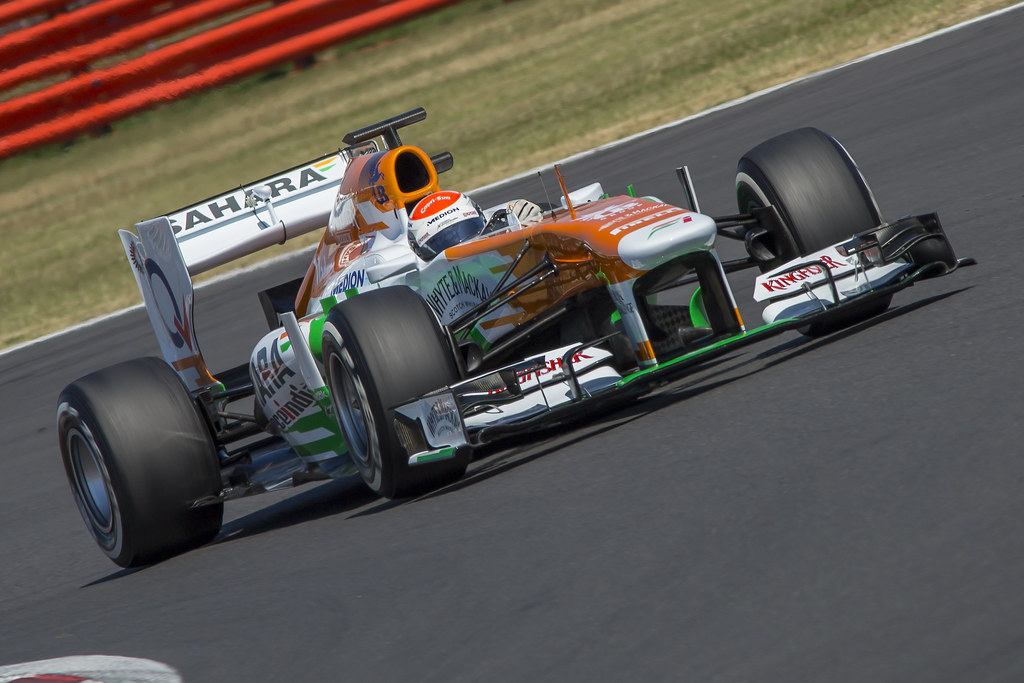
Sutil edit by Fireproof_Creative, on Flickr
And here's the fullsize version
There are plenty of way to process and there is no cut and paste set of settings that will work for all images as all images are different. But if you give your self the best chance and familiarise yourself with processing controls you should be able to improve your images pretty quickly. If anyone has any better ideas or clarifications please feel free to shoot me down and offer a better way
Hopefully its useful to someone
I keep seeing this question crop up in here, and I keep seeing people on Flickr who should be asking this question. The simple answer is...."to give you the best image possible"...and to do that..."you have to use your eyes".
I'm not saying mine are perfect, nor do I believe I am even remotely close to being an accomplished photographer, but some people seem to really struggle with this so I thought I might try and offer some advice to beginners. I've been using imaging software a lot longer than a camera so hopefully I can offer at least one or two tips worth knowing...I shoot canon so I cant comment on Nikon software but what ever you do, DO NOT USE CANON'S DPP TO PROCESS YOUR IMAGES its terrible, no really its the worst thing I've ever used..you would be better off with MS paint. Its fit for reviewing your images that's it (maybe a straight file conversion as well).
I've only used Lightroom, Photoshop and Camera raw - if anyone has experience of other stuff that's worth using please add to the discussion
this is based on my experience using the Adobe stuff..1. First things first, don't waste your time trying to fix something that is beyond repair. No amount of processing is going to make a horrifically exposed, noisy, blurry shot better. Shooting in Raw gives you a wider margin for error, Jpeg means you need to pretty much get it spot on in camera, it is stripped of a large portion of image information. Think 128k MP3 vs CD (or vinyl if you still remember what that is) - when you start trying to adjust things on a Jpeg image you can very easily introduce noise and artefacts (The horrible patchy blocks and jagged lines) much more so than with a RAW file. If you are going to spend time processing an image, make sure it is on your best ones.
2. Before processing your image - decide how big you want the result to be i.e an A3 Print or an 800px wide image for a forum. This matters because IMHO you should process for each output scenario separately, to be safe work as large as you can because shrinking is fine, enlarging is a no no. A less well produced image can look fine at screen resolution i.e 1024 x whatever - but can look absolutely horrendous any larger. You should always process your images at 100% zoom or occasionally 100%+ at your desired final output size (i.e if you are planing for a 1024px final image - process at 1024px). This is probably obvious to most, but if you are looking at a smaller representation of your actual image then you cannot see exactly what your changes are doing.
3. A lot of people batch process their images using pre-sets - that's fine, this probably isn't for you. I much prefer to manually scan all my photos first and rate the good ones then move to individually process the ones I want to use. Not much good for a PRO trying to hit a deadline but to most of us amateurs time is not so much of an issue. Light and conditions change throughout a shoot, sometimes subtlety, sometimes dramatically - at any rate, more than I'd like to let a one size fits all auto adjustment churn through my images, just my opinion
.4. Sharpening and noise reduction are not your friends. You must be very very careful with these, a lot of people seem to be really heavy handed with these sliders in particular. If you work at 100% and use your eyes to see exactly when you go too far and get mushy images from NR or nasty jagged lines from sharpening. Always do both of these AFTER you have applied any colour, exposure or any other image adjustment. This prevents you from adding noise and issues in the colour adjust stage
force India by Fireproof_Creative, on Flickr
^this is the kind of thing I keep seeing on Flickr - I'm using one of my own images for this, looks pretty average, colours aren't great, processing looks a little severe but its passable at this size. Now look at the bigger version below and zoom to full,
Here - its Big
if you've got an LCD you can probably see how crap it looks - if you have a CRT maybe not. Monitors do make a massive difference to how your images look.
You can see a lot of grain, colour banding, blown highlights and the dreaded Jaggies from over sharpening - all from editing at too small a size and not being able to see exactly what is happening.
5. Experimental processing rarely works, don't get me wrong its fun to mess around and sometimes it can work. Most of the time however, messing with the exposure and shadow/highlight sliders too much ends up resulting in a nasty faux HDR effect that IMO looks crap when its done properly on purpose. The clarity slider (I think it mimics midtone contrast) is often hammered too much as well - resulting in an effect that looks like every colour region on your image has a black outline. Unless you have a specific reason for using a filter effect try and avoid it - they seldom make crap pictures good but can very occassionaly make good pictures great.
7. Aggressive enlargements or crops tend not to work, especially for the screen. If you are trying to push your enlargements past 100% of original, when you were too far away or your lens didn't give you enough reach be very careful - even Photoshop, in all its expensive glory, re-samples images shockingly badly. Try to keep your image at or below 100% ratio i.e if you have a 3MP image after cropping don't try and upscale that to 5MP - pixels start to show and the noise and jaggies appear.
How I would Process
First I would shoot RAW, primarily because I am not good enough to get everything right every-time or even half the time.
OK so here's my Image straight out of camera - shot in raw
sutil original by Fireproof_Creative, on Flickr
Original Jpeg Conversion
If you have a look at the full size version, its a little soft, there's not a lot of detail in the whites - there's a bit of noise/grain (its marginal i'm using FF so it should be well controlled). The composition isn't great, but I was using a teleconverter so only had centre point AF available. There's also a little vignetting.
That said, there is plenty of detail in the shot and there's minimal blur from shake (high shutter noted), this should work as a crop.
Sutil standard by Fireproof_Creative, on Flickr
(no full size on this one Ill save that for the finale)
So I've cropped in on this 3x2 - I have been working at max res (which for this crop is 3438 x 2292) as you can always make it smaller for the screen but cant go the other way. Processed in Adobe Camera Raw (see below for screen dump of alterations) clipped the shadows a touch but looks fine to my eyes
Camera raw by Fireproof_Creative, on Flickr
sharpening by Fireproof_Creative, on Flickr
^See sharpening and noise reduction settings, looks pretty aggressive doesn't it. If you work at 100% you can see exactly what effect the changes have.
Here's the final image with the original link as well so you can see it properly. I have pushed this as far as I could for the purpose of a demonstration, I probably wouldn't go quite this far usually. I have tried to sharpen it up, boost the colours, fix the highlights and ditch the grain - as well as try a more dynamic crop than the 2nd image
(possible Marmite point)Sutil edit by Fireproof_Creative, on Flickr
And here's the fullsize version
There are plenty of way to process and there is no cut and paste set of settings that will work for all images as all images are different. But if you give your self the best chance and familiarise yourself with processing controls you should be able to improve your images pretty quickly. If anyone has any better ideas or clarifications please feel free to shoot me down and offer a better way
Hopefully its useful to someone
Last edited:


