Probably a Really Inane Question by a Beginner!

Dookie

Suspended / Banned
Messages
40
Name
Lou
Edit My Images
Yes
I have Photoshop Elements 5.0 on my computer, and am just getting to grips with it. I don't have a manual for it so am learning just by playing with it really.

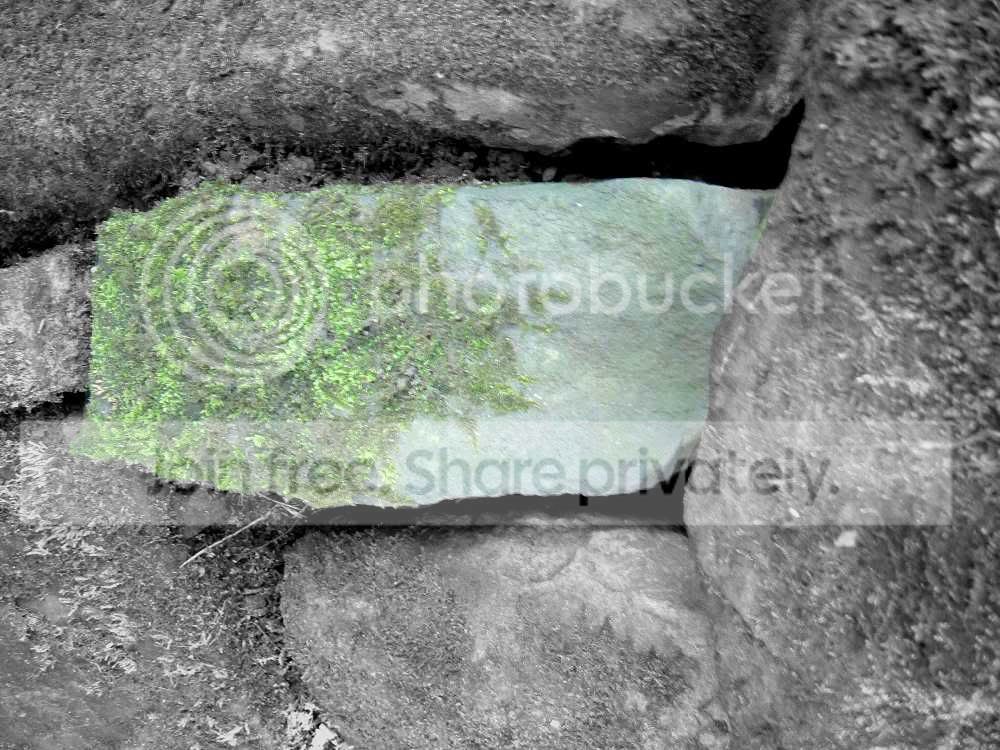
Can anyone explain for me how I do those black and white images with just a bit of colour (usually red) in? I know its something to do with layers but have no idea other than that. I have tried getting a manual / instructions on the net but can't find one that is free (and I am skint!).

I have requested the Photoshop Elements 5.0 For Dummies book from the library but it's not in yet. I just wondered if anyone could give me any pointers? Idiot proof language please cos I really am a total beginner at this!

Thanks in advance ... please don't laugh at me! ;);)
 
Help PDF for PS5

Sorry, read it wrong! Seems the help button top of page (black bar) on PE5 should take you too the right place.
 
Last edited:
probably the easiest way to explain it is this;

1. open your image in elements
2. choose the magnetic lasso tool (icon with a little magnet on it)
3. draw around the bit that you want to keep in colour and you'll see 'ants' around your selection
4. click select (from the top of the screen)
5. click inverse (so now you have selected everything but your coloured bit)
6. now click 'enhance' -> 'adjust colour'
7. not sure what options you have in elements 5 - so click 'remove colour' - if that's not there then click hue/saturation and move the saturation slider completely to the left
8. click select again, then click deselect

Job done :thumbs:

If you want the bit you've left in colour to be a different colour then just click select again and then paint in the selection with whatever colour you want with a paintbrush.

Let me know if you need any more help :thumbs:
 
Hey thanks to everyone for your help! Going to have a go now!
 
probably the easiest way to explain it is this;

1. open your image in elements
2. choose the magnetic lasso tool (icon with a little magnet on it)
3. draw around the bit that you want to keep in colour and you'll see 'ants' around your selection
4. click select (from the top of the screen)
5. click inverse (so now you have selected everything but your coloured bit)
6. now click 'enhance' -> 'adjust colour'
7. not sure what options you have in elements 5 - so click 'remove colour' - if that's not there then click hue/saturation and move the saturation slider completely to the left
8. click select again, then click deselect

Job done :thumbs:

If you want the bit you've left in colour to be a different colour then just click select again and then paint in the selection with whatever colour you want with a paintbrush.

Let me know if you need any more help :thumbs:

That is utterly fantastic, thank you!
Here's my first attempt:
AAMYTATTOO170811redheartred.jpg

(I am the model in that photo, not the photographer by the way. The photographer is Stew Peters, but he is ok with me editing and generally messing about with his pics!)
 
I am starting to enjoy this ... will be up all night friggin' around with photographs now :lol:

DSCF2177colourspotred.jpg
 
good on yer! :thumbs:
 
Well done, no stopping you now.
FWIW I am not sure if you followed the link I gave in #6 but it goes to the missing manual for PSE5, over 500 pages - should keep you busy :D
 
I just make a duplicate layer and change it to B&W then use the eraser to rub out the bit I want in colour. Simples
 
ALWAYS use a duplicate layer to make the adjustments. Cmd J on Mac or Ctrl J on PC. Keeps the original layer safe in case you screw it up.

Have fun!
 
Back
Top