

Prints don't look right when direct from lightroom but fine from jpeg

jetpack

Suspended / Banned
Messages
929
Name
Lyle
Edit My Images
No
Guys,

A few of you have already helped with my current printing woes. I have a Canon Pixma Pro 100S which is great but I'm having a few teething issues. I had some help when my prints weren't warm enough but it's because I hadn't opened the caps on all of the cartridges!

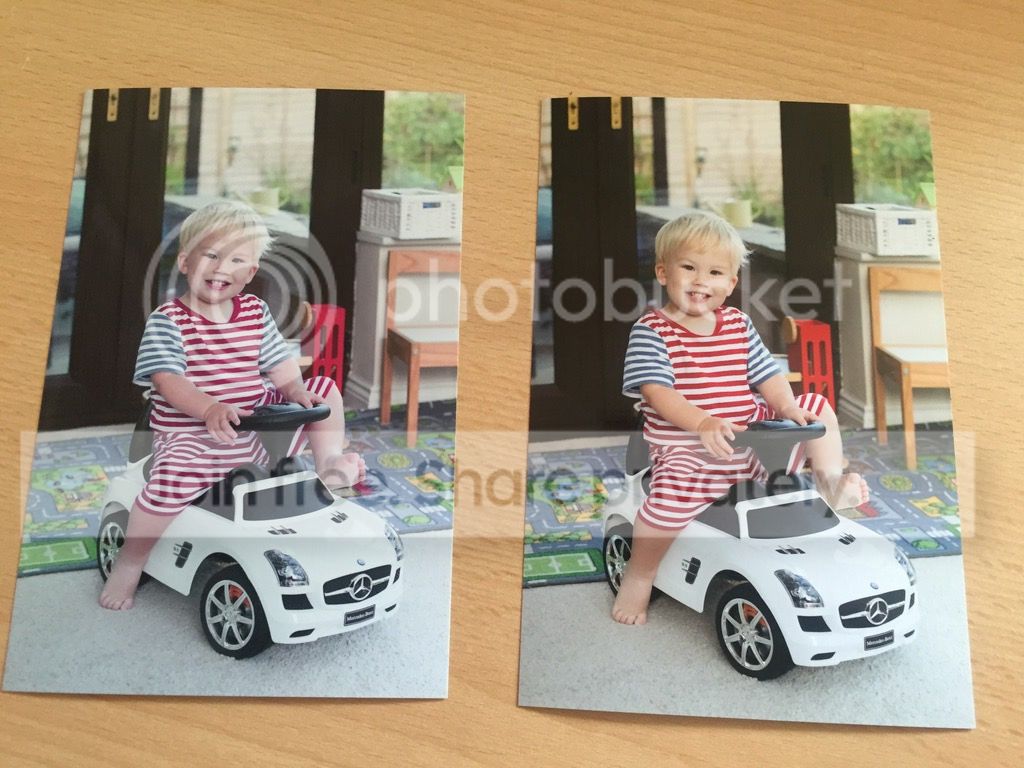
However, now when I print direct from Lightroom I get a blue/red tinge on my images and can actually see that effect in Lightroom itself. When I export the jpeg and print, all is absolutely fine. I have tried tinkering with the settings in lightroom but everything looks fine. This also seemed ok the other day so not sure what has changed. I have attached a pic so you can see what I mean. Left is Lightroom, right is exported jpeg and then printed.

Any help would be greatly appreciated:
 
What application do you use to print the .jpg?

When printing in LR, what is managing the colour? LR or the printer?
If LR then what ICC profile are you using?
Make sure you are not double managing the colour, I'd LR to manage colour and then the printer to manage colour in the print driver. Both should be set to printer manages, or software manages.
 
have you loaded a print profile in lightroom, what does the soft proofing look like?
I
 
Thanks for coming back guys. Ok here's what I have:

Colour management is set to manual in preferences.

If I load up the Colour Management tool I have a list under device:

Display: 1.Generic PnP Monitor - AMD Radeon HD 7900 Series (has no profile)
Display: 2. SyncMaster Ps2450H(Digital) - AMD Radeon HD 7900 Series (it also has an ICC profile - Samsung - Natural Color Pro 1.0 ICM (default) which I can't remove

I have 2 P2450H monitors. However, and weirdly, when I drag lightroom on to monitor 1 it looks like the bluey/image from the poor printout, if I drag to monitor 2 it renders on the screen like the good printout. Printing remains poor no matter what side I have lightroom on and hit print!

 
Last edited:
Your screen settings or the side you have LR on will have no influence on your print.

Apart from it shows that the screens aren't calibrated correctly, and who says which side the colour is right on.

However, and weirdly, when I drag lightroom on to monitor 1 it looks like the bluey/image from the poor printout

If Lyle has colour corrected on monitor two, yet the monitor is uncalibrated and monitor 1 shows what the image really looks like, then thats why it would match the print.

You really do need calibrated monitors, and this can only be done correctly with something like a Datacolour Spyder, so it adjusts for your environment/monitors etc.
Places like photobox do calibrated prints so you can match your monitor to them. but you're better off with your own calibration tool so can regularly check
https://www.photobox.co.uk/content/quality-advice/calibration
 
thanks @ecoleman they are good resources, the soft proofing feature in lightroom is pretty awesome. Thanks also @Byker28i I will invest in a calibration tool to get things bang on.

The problem is fixed anyway, I played around with the monitors - plugging and unplugging them and now it prints out fine. Still very bizarre and no doubt I'll have future issues but for now I'm happy with the prints I'm getting.
 
Glad you've got it sorted, but for future reference make sure you've got the right ICC profile selected in lightroom and then check your colour management, whether it's managed by the printer or whether it's managed by the ICC profile. You need to check the print settings (bottom left of LR) and also the print job section of the right hand pane.
 
Back
Top