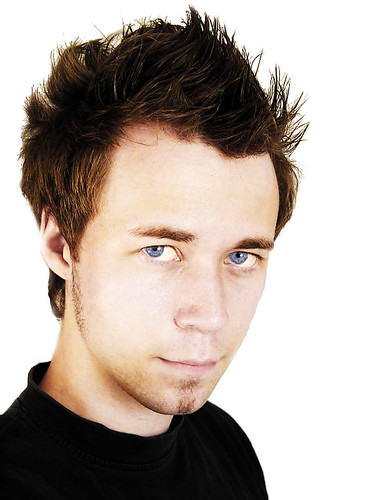
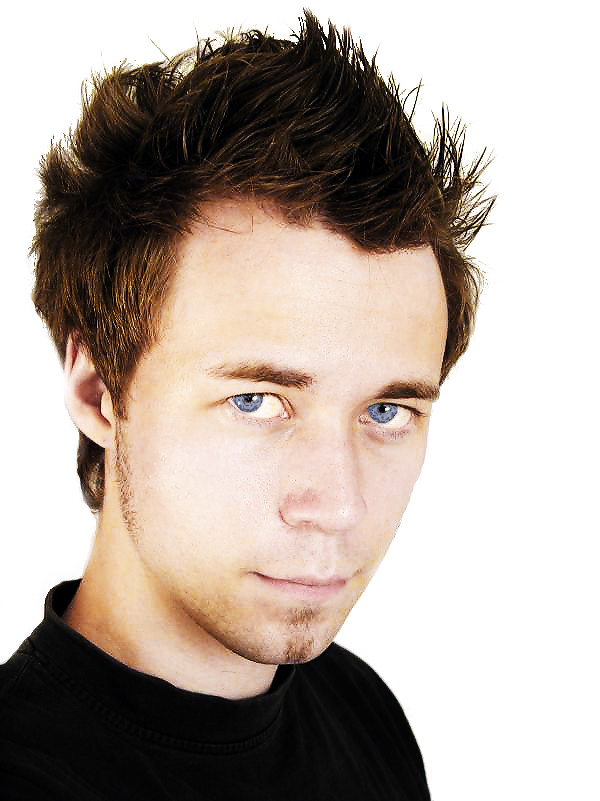
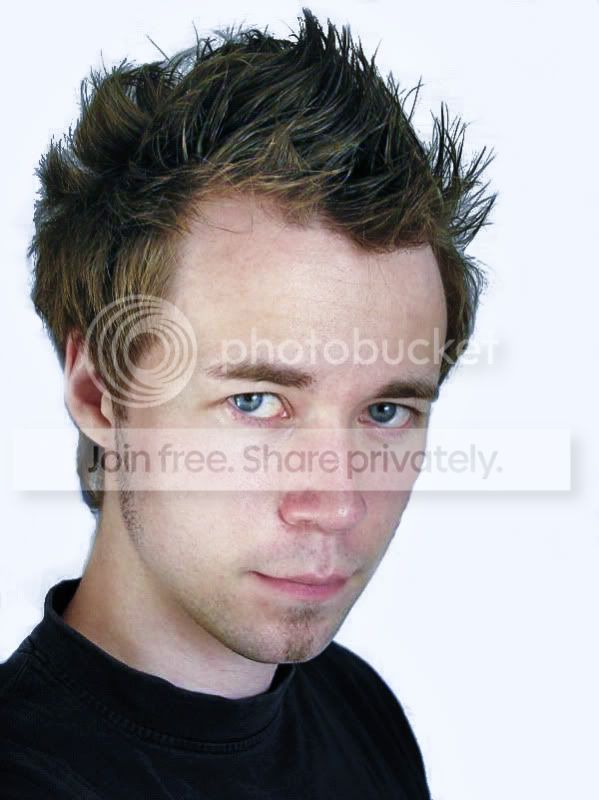
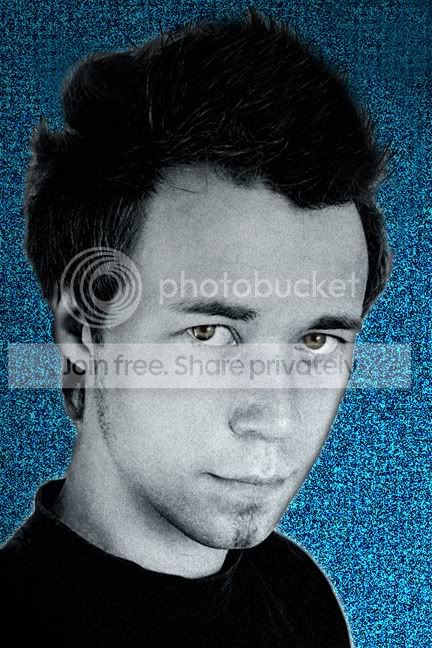
OK here’s my take, something a bit different I hope.
Open the image in PS.
Copy layer, control “j” on a PC, command “j” on a mac.
Desaturate it shift control “u” on pc, shift command “u” on mac.
Copy this layer as before.
Change blending mode to colour dodge in the layers palette, (Top left drop down box.)
Invert this layer, control “i” on pc, command “i” on mac. It should go almost totally white.
Go to filter- blur- gaussian blur and dial in about 100 click OK.
Now add an adjustment layer, click on the halve black half white circle at the bottom of the layers palette, click on levels and move the gamut slider ( the middle one ) to the left until the middle number reads about 1.6, 1.8 ish, click OK.
Click back on the layer one copy, layer.
Pick up a soft edge air brush from the brushes palette and size it to about 70 using the square bracket keys, set the brush opacity to 10% ish or less, I tend to use3,4,5% and build up slowly .
The fact that the layer is set to colour dodge when we paint with black it will darken and when we paint with white it lightens the image, so set the foreground colour to black by clicking the little black and white symbol above the foreground tab, use the bent arrow alongside to switch from black to white and back.
Now paint on the image to bring the detail back, slowly build up the image, switch to white on the foreground tab if you need to lighten an area, save as you go(PS doc) so as not to have to start again, when your happy with the image flatten it, and if you need to, burn in where needed. Save the finished image in the format of choice
Rhodese.