Please help me process this high key shot

mjcombe

Suspended / Banned
Messages
193
Name
Michael
Edit My Images
Yes
I have been using my lastolite hilite for a couple of weeks now, and tonight was the first time uisng the vinyl train.

I process my images in CS3 and all I normally need to do is adjust the background to pure white by using the adjustments/levels/white point and it comes out fine, but this method is burning out the subject.

Please see the 2 examples below. How can I overcome this without going too far with the white?

Thanks,

Michael

5360788639_45515ef2dc_z.jpg


5360788645_92b94a8175_b.jpg
 
I am no expert but I think you will have to use the quick selection tool or similiar and select round the lad then inverse and then use your levels to burn out the background ...there is so many ways to do this I am sure someone else will give you the proper way :D
 
Use quick selection tool as suggested above to select the background.
then create a new adjustment layer, for the levels tool (or whichever you usually use).
This way, it will only affect the background
 
Hi

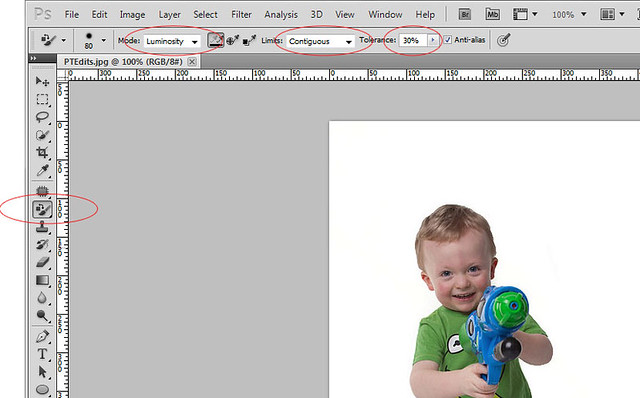
Easiest way duplicate the layer, colour replacement brush Click a white in the image,(or make sure both BG and FG are set to white) set the mode to luminosity, Contiguous, 30%, medium soft brush see Fig 2,below, and paint away the greys, quick edit you dont have take to much care HTHs

5361500996_5b2493f0ff_z.jpg


Fig 2

5360916159_c33f62a9cb_z.jpg


.
Dave
 
Last edited:
Wow, thanks guys - just what I was looking for - thought I had hit a brick wall - knew someone here would know the answer!

Thanks very much,

Michael
 
Wow, thanks guys - just what I was looking for - thought I had hit a brick wall - knew someone here would know the answer!

Thanks very much,

Michael

No problem Michael cant go wrong with my method its easy, just take your time :thumbs:

or try Scotts method, which is just as easy

Try both youll soon see which works best for you

Dave
 
Last edited:
irst off, you should be able to sort this in-camera! Your hilite needs to be evenly lit and as you can see from your image the left (from camera) is much brighter than the left. Turn your light up camera left to match the other and meter across the hilite to get an even light. If you are only using one light it's much harder to get even without putting too much light through it - Also get the subject further away from the background. He's way too close and although Lastolite sell it that you can do that, you will get better images if he's further away.

Dave
I'd suggest you don't obliterate the shadow as the subject looks like he's floating and Scott the shadow you have looks very unnatural and hard. A softer shadow helps a bit and mine could be a little lighter yet.

edit-160.jpg


I should have said how I dso mine - I use Lightroom with the auto mask selected. Up the exposure and just paint over the areas I want white. For the shadow areas I just use a lower +ive expore lever.

Use a large feathered brush and sop long as the centre of the brush stays on the white/grey, that is the only colour/shade that will be affected. Very quick and took me about 3-40 seconds to complete.
 
Last edited:
Oooh, I like the LR trick - just tried it and yes, took about 15 seconds!

Thanks again
 
I did this by dublicating the original layer, converting it to b&w (image > adjustments > Black & White) using the "high contrast red" preset, then setting it to "screen" blending mode @ 75%

Then I duplicated the original again, brought it to the top and set it to "colour" blending mode at 80%.

highkey.jpg


This was using CS5.
 
I did this by dublicating the original layer, converting it to b&w (image > adjustments > Black & White) using the "high contrast red" preset, then setting it to "screen" blending mode @ 75%

Then I duplicated the original again, brought it to the top and set it to "colour" blending mode at 80%.

This was using CS5.

Looks all wrong! The floor is not white like the background and the contrast is much reduced on the skin tones.

THe OP wanted the floor and background looking white.
 
Dave
I'd suggest you don't obliterate the shadow as the subject looks like he's floating[

Jim as I said it was a quick edit to show the method that I use, as was Scott's they are not full blown edits :thumbs: just examples not a proper attempts at it, of course if I was to process it properly I would leave some ground shadow :thumbs: your method it not the be all and end all, we all have our own ways of editing there are many ways to achieve the same results, and we each shown our particular methods,
 
Last edited:
Jim as I said it was a quick edit to show the method that I use, as was Scott's they are not full blown edits :thumbs: just examples not a proper attempts at it, of course if I was to process it properly I would leave some ground shadow :thumbs: your method it not the be all and end all, we all have our own ways of editing there are many ways to achieve the same results, and we each shown our particular methods,

Absolutely but mine was a quick edit too - took all of 30 seconds to complete.... I wasn't trying to be cheeky just making a point about the edit.

I didn't say mine was the be all and end all either? How did you pick that up? I wouldn't say yours is the easiest either - just another way - as there are many as you say.

All I showed was a method that suits me - and others seem to like it cause it's one less thing to do in Ps if you use Lr.
 
Last edited:
No worries Dave :) - We all type things we don't particularly mean they way they come across.
 
Back
Top