Photoshop Nightmare

Nigey

Suspended / Banned
Messages
895
Edit My Images
Yes
I am having a nightmare....I have an actors headshot that I want to put a white border around but I want the bottom space slightly larger so I can put her name on it. How do I do this? I am really struggling. I tried using a layer but couldn't get the dimensions right, the photo need to be 10x8 including the border. Any help would be greatly received.
 
You could load up the script writer scripts (see my sig) they allow you to do just that. Alternatively just resize your image then change the canvas size by enough to encompass all the borders (so if your image is 400x500 and you want a border 50 wide and 100 wide at the bottom you can change the canvas size to 500x650) once you have done that just grab the image and drag it upwards 25 pixels.
 
I am having a nightmare....I have an actors headshot that I want to put a white border around but I want the bottom space slightly larger so I can put her name on it. How do I do this? I am really struggling. I tried using a layer but couldn't get the dimensions right, the photo need to be 10x8 including the border. Any help would be greatly received.

Make a open a NEW image with White as your colour then copy teh photo over to it and resize it to sute with Freetransform
Add text as nessery
 
Open you image, make sure you have a little room around it (CTRL-) click the crop tool, click clear (on the top toolbar) now drag any old crop out and let go, now just drag the crop lines outside the image edges by the amount you want, it will add a border, it defaults to the background colour set on the colour boxes (on the left toolbar) This method keeps the exif with the image.
 
Open you image, make sure you have a little room around it (CTRL-) click the crop tool, click clear (on the top toolbar) now drag any old crop out and let go, now just drag the crop lines outside the image edges by the amount you want, it will add a border, it defaults to the background colour set on the colour boxes (on the left toolbar) This method keeps the exif with the image.

:clap: :clap: :clap: :clap:

Top tip.
 
First change the images size and resolution to what you require the final image size to be. Then change the canvas size to 10x8" using white as the canvas colour.

That will centre the image, so just change the canvas size to crop a bit off the top and add the same amount to the bottom. You need to specify where to start when cropping and adding (hope that is self explanatory).

Hope that makes sense.

Graham
 
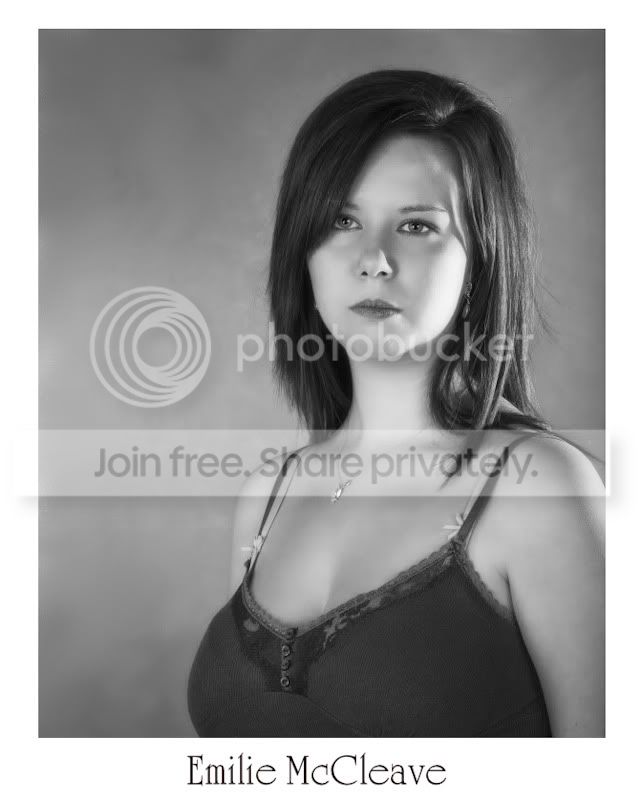
Ok, here is what I ended up with, any good?

Thanks for all your help

Nigel

537a55e7.jpg
 
One more thing, the border does not look pure white to me.

Make sure it is 255,255,255.

I get a reading of 253,251,250
 
Er, doesn't look much like 8x10 aspect ratio to me - more like 8x12...
 
Ok, lets start this one from the top.

I have a CR2 RAW file in colour that needs to end up as a 8x10 black and white image with her name on the bottom of the frame there also needs to be a COMPLETELY white border around it. These are going to printed border less so I need to keep the aspect ratio.

The first thing I do is..........
 
You can do it exactly the same way as I sugested above but instead of clicking clear on the top toolbar, click in the drop down presets box next to where it says width and chose 10x8, now drag out your border the same.
I misread it as starting with a 10x8 sorry.
 
You can do it exactly the same way as I sugested above but instead of clicking clear on the top toolbar, click in the drop down presets box next to where it says width and chose 10x8, now drag out your border the same.
I misread it as starting with a 10x8 sorry.


I dont think that will leave the white border as he wants.
 
Ok, lets start this one from the top.

I have a CR2 RAW file in colour that needs to end up as a 8x10 black and white image with her name on the bottom of the frame there also needs to be a COMPLETELY white border around it. These are going to printed border less so I need to keep the aspect ratio.

The first thing I do is..........

You have a problem with the 8x10.

You will need to crop the image. When you open the the file in CS2, ACR (adobe camera raw), will open with your image. Now select the crop tool from the menu bar.

Now move the mouse over the litte black drop arrow on the crop tool button. Left click and hold the button down and a dialog box should open.

Enter your diamensions in the custom box. 8x10 (if inches are selected)

Now press enter, now you have the crop tool set at 8x10. Move the crop cursor to your image and starting from the very top left hand corner, left click, hold and drag out diagonaly to the bottom right.

It will stop when you have reached 8x10 and release. You should now have an 8x10 box over your image. You can move this around using the move tool so that everything you need is in the frame.

Click open and your image will open in CS2. Now first thing to do is check image size. Click Imag>Image size. Now in the document size dialog box make sure constrain proportions is ticked and resample image is ticked. Then enter 10 inches in the height box and 8 inches will appear in the width box. Click OK.

Now you have a perfect 8x10 image. Now with the rectangular marquee tool drag inside the image where the inner part of the white frame will be, make sure this is absolutely in the correct place. Release and you should have some dotted box, now go to Select>Inverse, then Edit>Fill and select colour, then enter 255,255,255 in the rgb boxes click OK and Voila an 8x10 image.

Long winded I know but I can't figure it out any easier because of the crop to 8x10.

Here is one I did. with the original to compare.


My head hurts because of getting a frame and an 8x10 image from the original. It is hard to do/impossible without cropping.

 
But the large white space is not underneath as for the text.
 
But the large white space is not underneath as for the text.

You can drag it any which way or do it with the arrow keys to fine tune.
As your picture is not in the proportion 10x8 the best you can do is something like this which ends up as 10x8 paper size.
I used swanseamales method which is perhaps the easiest.

emily-2.jpg
 
You can drag it any which way or do it with the arrow keys to fine tune.
As your picture is not in the proportion 10x8 the best you can do is something like this which ends up as 10x8 paper size.
I used swanseamales method which is perhaps the easiest.


Thats what I have been saying ........... it's the original trying to get into a 10x8 which will not work without cropping.

S'pose my posts must be invisible.
 
For simplicity I'd create a new image, fill white. Then paste on the model shot. Then using your crop tool set to the right ratio for an 10 x8 crop it how you want. So long as you keep the ratio while cropping it will be fine. Then add your text and flattern the layers.
 
For simplicity I'd create a new image, fill white. Then paste on the model shot. Then using your crop tool set to the right ratio for an 10 x8 crop it how you want. So long as you keep the ratio while cropping it will be fine. Then add your text and flattern the layers.

But what if the image cannot be cropped?
 
Is this what you need ( added extra background to L.H.Side ) 'Emily' needs centering;)
8-by-10-2.jpg


Regards, Alan.
 
^ but the border is not how the original is. I know I can do it with a wiiiiiiiiiiiiiiide border but I am trying to keep it like the OP's version.
 
White border, slightly deeper at the bottom for her name, with a 8 x10 ratio ??
It's the picture aspect that I've altered, not the frame.
Regards, Alan.
 
You can't do it without a wide border, the original photos the wrong shape for a 10x8, the ratios are wrong. The only way you can have that whole original photo on a 10x8 is to have a border of some sort, with that pic and a wider border at the bottom (for text) your going to have a wide side border.
 
Right I see the problem now. The original image needs to be cropped to a 8x10 ratio for it to work. There is no other way to do it if you want a 8x10" print.

The method I described above works simply once it's a 8x10 ratio to begin with (I've extended the canvas to demonstrate):

nigey.jpg


HTH :)

Edit: Sorry, I just notice that has already been stated previously. I was too busy working on it and didn't see :$
 
Back
Top