Photoshop actions

jon ryan

Suspended / Banned
Messages
2,845
Name
Jon
Edit My Images
Yes
I have next to no experience of these, and what's driving me slowly nuts is trying to find a way to re-size a folder of images while leaving the originals as they were.

That is, the originals are around 4MB, I need to batch re-size (there are around 10,000 images...) to around 1.5MB. But, when I set up the action, the originals are also being re-sized.

Using CS4 Extended.

Can anyone save my sanity?
 
Forgive me if I'm missing something here, but why not copy the folder then resize that?
 
Forgive me if I'm missing something here, but why not copy the folder then resize that?

If that's the only way to do it, then that's what will have to happen. But there are hundreds of them!

It's many thousands of pages in total, garnered from various souces, mostly 40 years of a nineteenth century diary and and associated letters and documents, that are being assembled for an academic biography. Most of the pages are at around 4MB, so the whole is a bit massive. What I want to do is bring the whole lot together, and then make a file that can be sent to the dozen or so people involved in the project - and they're spread out all over the world.

And anyway, surely such an action is possible?
 
Yes it is possible. You need to get your action to 'save as' which will create a copy and keep the original.
 
Jon, if you are using a PC, download faststone image resizer - it is free- and much quicker than CS4 for batch resizing.

Just specify a new folder for the edits and bobs your uncle.
 
Forgive me if I'm missing something here, but why not copy the folder then resize that?

Jon, if you are using a PC, download faststone image resizer - it is free- and much quicker than CS4 for batch resizing.

Just specify a new folder for the edits and bobs your uncle.

I would have used either of the above methods, however which ever way you do it is going to take quite some time because of the amount of files your resizing, on second thoughts go with Tom's (Tiler's) suggestion :)
 
Yes it is possible. You need to get your action to 'save as' which will create a copy and keep the original.

Won't this mean they all have to go into the same destination folder? I need folders for each section or the archive, which is how they are now.

tiler65 Jon, if you are using a PC, download faststone image resizer - it is free- and much quicker than CS4 for batch resizing.

Just specify a new folder for the edits and bobs your uncle.

Sounds good, but I need to add other transformations - levels, sharpening and so forth.
 
jon ryan said:
Won't this mean they all have to go into the same destination folder? I need folders for each section or the archive, which is how they are now.

Sounds good, but I need to add other transformations - levels, sharpening and so forth.

There is no quick way to do all that, mate.
 
Won't this mean they all have to go into the same destination folder? I need folders for each section or the archive, which is how they are now.
Get it working first, then worry about multiple folders ;)

You should be able to do this as when you run the batch command, you can tick "Include all subfolders"
 
Just a thought... you are using the File->Automate->Batch... menu item aren't you?
 
And for destination you need to use "Folder" otherwise the originals will be overwritten...
 
Get it working first, then worry about multiple folders ;)

You should be able to do this as when you run the batch command, you can tick "Include all subfolders"

The basic transformations are simple enough - levels, sharpen, re-size - and I can put all the existing folders into a single `super folder`, but what I can't seem to do is prevent the action applying to the source folders as well as the destination ones.
 
Just a thought... you are using the File->Automate->Batch... menu item aren't you?

Indeed

And for destination you need to use "Folder" otherwise the originals will be overwritten...

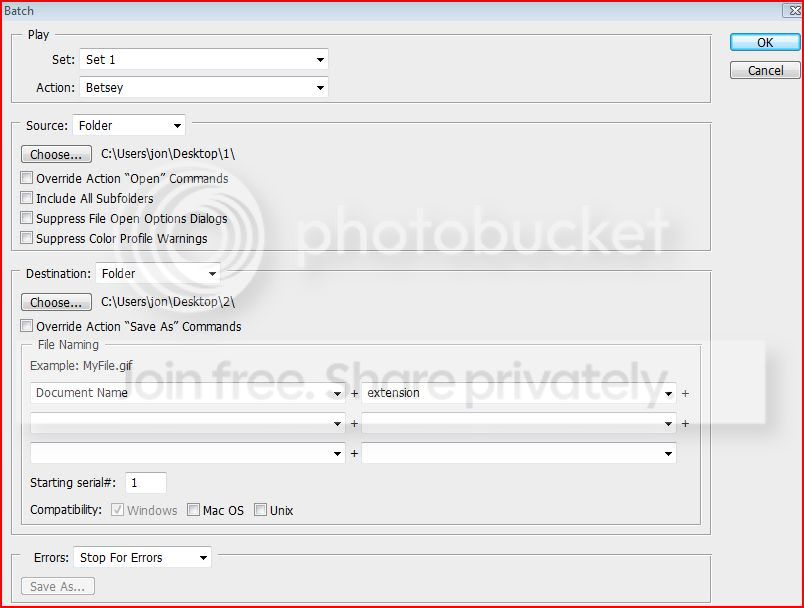
This is how it's set at the moment (designated folders are for test purposes)

ddf19354.jpg
 
You need to check all the options. Try ticking the 4 under "Source" and the 1 under "Destination"

You need to Override the Save As commands and the Open at least.
 
I remember needing do some some resizing/batching but with some VERY specific parameters. I thought actions were the way to go, but actually, scripts is probably what you want.

Photoshop CS5 (and probably a couple of versions previous) has the "image processor" script which will do almost everything you'd ever need, but I needed a couple of things that it wouldn't do (batch resizing of a folder structure, maintaining and copying said folder structure, saving for web (to remove EXIF and optimise file size) and setting file suffixes). To do that, I downloaded the "Picture processor" script from:

http://www.ps-scripts.com/bb/viewtopic.php?f=10&t=3409&sid=ffa10e570e5c4fdfe44a43ca8bd59cd8

It's actually amazing. If you do download it though, read through that topic, because it's had a few updates along the way.

It's mega, you can use it to run actions on files, run different actions based on portrait/landscape, all kinds of stuff. Well worth a look.
 
Back
Top