Photo Mechanic - testing

A_S

Suspended / Banned
Messages
864
Name
Andrew
Edit My Images
Yes
Hi, just testing out photo mechanic and trying to work out if it will suit my workflow. Initial impressions are good.

Although I am really struggling with one thing - and its slowing me down massivly - thats muscle memory. I'm too used to lightroom and the way it works

Things like pressing the G key to go back to the library view, or pressing 1-5 to star rate and 6-9 to colour code. I keep making mistakes, pressing G and wondering why nothing happens!

The other thing is clicking the colour label in the top box turns the filter off not on which is doing my nut in at the moment - I.e I colour code everything I want to delete red, then click the red colour label in the top right hand corner and all the reds disapear!

Is there any way to get the software to match the key shortcuts of lightroom? I had a quick google but couldn't spot anything.
 
Last edited:
Hi, just testing out photo mechanic and trying to work out if it will suit my workflow. Initial impressions are good.

Although I am really struggling with one thing - and its slowing me down massivly - thats muscle memory. I'm too used to lightroom and the way it works

Things like pressing the G key to go back to the library view, or pressing 1-5 to star rate and 6-9 to colour code. I keep making mistakes, pressing G and wondering why nothing happens!

The other thing is clicking the colour label in the top box turns the filter off not on which is doing my nut in at the moment - I.e I colour code everything I want to delete red, then click the red colour label in the top right hand corner and all the reds disapear!

Is there any way to get the software to match the key shortcuts of lightroom? I had a quick google but couldn't spot anything.
I don't think PM has many custom shortcuts like this, other than the few in the preferences that affect star and label entry keystrokes.

You can change the star and colour codes to just need a single number press or use a qualifier key from the preferences. And I think you can make the colour labels in the menu work the other way round by combining the mouse press with another key (that I can’t remember)

Have you found the PM, excellent. support forum. https://forums.camerabits.com/index.php

It's still a great program, and I still haven't found a proper replacement for it (after at least 15 years of using it) now that I can't afford to keep using it. Still, as part of a professional workflow, the time it saves makes it cheap, even with the new pricing.
 
Thanks - I'll have a look. first impressions are that for culling, organising and working with lightroom quickly post event it has potential but I am still struggling to switch my logic around a bit. or work out a process flow

I am just using an older copy of 6 as things stand to test feasibility

What I intend to do - and I haven't yet found a non clunky way to do it is:

1.) Ingest all photos from my memory cards into Photo Mechanic - last weekend that was 9,000 photos from 1x hand held camera with star ratings and 2x remotes without

  • This seems to work well and I will put in 1 folder per card.

  • However when i close photomechanic and open it again it doesnt seem to know where that folder is and I am starting blank and have to go and find it in the directory structure tree? whch seems rather long winded and not very plug and play?
  • Is this something to do with "contact sheets" I am yet to workout the purpose or benefit or what even photo mechanic means by that term.

At this point what is the best way to set up my directory structures

Do I get Lightroom and Photo mechanic to work on the same source images - i,e set my ingest into my lightroom catelogues image folder so that i use the lightroom import option "add to catelogue" rather than copy when i've selected my images in photo mechanic.

Or do i have 2 distinct folders - one for photo mechanic, then anything i want in lightroom i import to lightroom and "copy" to my lightroom working catalogue folder structure?

To be honest I'd rather be working on one copy then finally when I am done, cull what I don't need in photo mechanic and sync that folder in lightroom to bring in any images I've not already "sent to lightroom".


2.) filter on all started images and take them into lightroom so i have an initial set to work out and get images out to clients or for social posts

  • However this is where it starts getting a bit clunky
  • The only way I've found to do this is to filter on anything 1 star or higher in photo mechanic. Colour them all Yellow colour lablel, then send to lightroom.

  • The first question is - I have to colour them yellow because there does not seem to be a way to indentify or filter out what ive already sent to lightroom unless I do this? which leaves it prone to manual error IMHO

3.) This then is meant to open the lightroom import dialogue

  • but this doesnt seem to work well as lightroom doesn't seem to recognise that I want to apply a standard import preset to anything from photo mechanic even though I have standards set up as an over arching and one specifc per camera body
  • Lightroom also shows ALL the photos in the folder, not just the ones I've selected to import which confused me for a long while....
  • Lightroom has crashed several times when trying to do the above


4.) I'll work on those in lightroom and do what I need then for customer requests in the next few days I can go back into photo mechanic filter out anything i've already imported to lightroom and incrementally send more images to lightroom to work on as need be. That way I only have what I've needed in lightroom. colouring yellow to get over the aformentioned issue of knowing what I've sent

5.) I'll then go through photo mechanic when i've finished with an event and cull anything I feel i dont need - blank frames from the remotes, badly focused frames from the remotes, duplicate images from the bursts, etc by colouring red - then deleting them.

6.) I'll then take anything else I've not deleted or coloured yellow (i.e taken into lightroom already) into lightroom either via photo mechanic or via lightroom sync if I am working directly on one set of images as mentioned above

Long winded but I hope that makes sense?

 
Last edited:
Thanks - I'll have a look. first impressions are that for culling, organising and working with lightroom quickly post event it has potential but I am still struggling to switch my logic around a bit. or work out a process flow

I am just using an older copy of 6 as things stand to test feasibility

What I intend to do - and I haven't yet found a non clunky way to do it is:

1.) Ingest all photos from my memory cards into Photo Mechanic - last weekend that was 9,000 photos from 1x hand held camera with star ratings and 2x remotes without

  • This seems to work well and I will put in 1 folder per card.

  • However when i close photomechanic and open it again it doesnt seem to know where that folder is and I am starting blank and have to go and find it in the directory structure tree? whch seems rather long winded and not very plug and play?
  • Is this something to do with "contact sheets" I am yet to workout the purpose or benefit or what even photo mechanic means by that term.

At this point what is the best way to set up my directory structures

Do I get Lightroom and Photo mechanic to work on the same source images - i,e set my ingest into my lightroom catelogues image folder so that i use the lightroom import option "add to catelogue" rather than copy. Or do i have 2 distinct folders - one for photo mechanic, then anything i want in lightroom i import to lightroom and "copy" to my lightroom working catalogue folder structure?

To be honest I'd rather be working on one copy then finally when I am done, cull what I don't need in photo mechanic and sync that folder in lightroom to bring in any images I've not already "sent to lightroom".


2.) filter on all started images and take them into lightroom so i have an initial set to work out and get images out to clients or for social posts

  • However this is where it starts getting a bit clunky
  • The only way I've found to do this is to filter on anything 1 star or higher in photo mechanic. Colour them all Yellow colour lablel, then send to lightroom.

  • The first question is - I have to colour them yellow because there does not seem to be a way to indentify or filter out what ive already sent to lightroom unless I do this? which leaves it prone to manual error IMHO

3.) This then is meant to open the lightroom import dialogue

  • but this doesnt seem to work well as lightroom doesn't seem to recognise that I want to apply a standard import preset to anything from photo mechanic even though I have standards set up as an over arching and one specifc per camera body
  • Lightroom also shows ALL the photos in the folder, not just the ones I've selected to import which confused me for a long while....
  • Lightroom has crashed several times when trying to do the above


4.) I'll work on those in lightroom and do what I need then for customer requests in the next few days I can go back into photo mechanic filter out anything i've already imported to lightroom and incrementally send more images to lightroom to work on as need be. That way I only have what I've needed in lightroom. colouring yellow to get over the aformentioned issue of knowing what I've sent

5.) I'll then go through photo mechanic when i've finished with an event and cull anything I feel i dont need - blank frames from the remotes, badly focused frames from the remotes, duplicate images from the bursts, etc by colouring red - then deleting them.

6.) I'll then take anything else I've not deleted or coloured yellow (i.e taken into lightroom already) into lightroom either via photo mechanic or via lightroom sync if I am working directly on one set of images as mentioned above

Long winded but I hope that makes sense?
Are you using PM or PMPLus. The former being simply a browser and the latter, the same browser, but with a catalogue backend.

Also before getting too deep into this, what do you want from PM. It's strengths are complex ingestion tasks, file naming, captioning and keywording.

Trying to "integrate" PM into LR, is a little clunky, and if you only need something to quickly cull and add ratings and labels, before importing into LR, PM is a bit of an overkill and Fast Raw Viewer (FRV) is a better choice. Although I used PM for captioning and keywording, I used FRV for culling, and adding ratings and colour labels.
 
Thanks thats a good shout - Just PM here no plus.

Yes - I don't need key wording or anything like that, I have any vision AI plugin for lightroom to do all that for me. I only need to ingest cards, check sharpness (specifically on remotes) and then select which images I want without having to wait for lightroom to "process" the preview, import to lightroom, work on them. Then retrospectivly something to review the remaining X thousand images, cull and bring the remaining to lightroom
 
Thanks thats a good shout - Just PM here no plus.

Yes - I don't need key wording or anything like that, I have any vision AI plugin for lightroom to do all that for me. I only need to ingest cards, check sharpness (specifically on remotes) and then select which images I want without having to wait for lightroom to "process" the preview, import to lightroom, work on them. Then retrospectivly something to review the remaining X thousand images, cull and bring the remaining to lightroom
Fast Raw Viewer is much better for this, and its what its designed to do. Still a bit of a learning curve.

FRV allows you to adjust exposure (to help assess which images to cull) as well as comparing four images at a time (unlike the two images that PM allows). It ahs has some tools to help assess sharpness.

Any adjustments you make in FRV (exposure/contrast) is saved in the XMP and is compatible with LR.

It also allows you to assess the exposure of the actual RAW file not just the JPG histogram that LR and PM give you.

The "standard" approach is to open the files from the memory card, select the ones you definitely don't want to ingest, rate the files, and then use FRV to copy them to a temp folder.

Then use LR (using the move option) to import the files into LR, while at the same time moving the files into their permanent location Any ratings made in FRV will be read into LR. and you are good to go with LR for everything else.

By using the move option in LR, you empty the temp folder and prepare it for the next ingest..

With the number of photographs you are working with, I have no idea how the speed compares between PM and FRV, but it's worth having a look at.
 
  • Like
Reactions: A_S
To add to the above.

You can always use FRV to open a folder of RAWs after they have been imported into LR, if you want to use FRVs tools and speed, and he sync the folder in LR.
 
Thanks, I'll download quick raw viewier and try it

What i like about photo mechanic is that I can see larger previews without all the panels lightroom has and I can quickly zoom in to check focus - i will test side by side.

I can't see myself ever culling on ingeston import though - I can't see the logic behind that, for what I do anyway. Why do it on ingest when I have potential deadlines to meet? its easier done at the end when there is no time preasure.
 
Thanks, I'll download quick raw viewier and try it

What i like about photo mechanic is that I can see larger previews without all the panels lightroom has and I can quickly zoom in to check focus - i will test side by side.

I can't see myself ever culling on ingeston import though - I can't see the logic behind that, for what I do anyway. Why do it on ingest when I have potential deadlines to meet? its easier done at the end when there is no time preasure.
You can control which panels are open in FRV (make sure you at least browse though the manual as a lot of the speed comes from knowing the shortcuts), Like PM it has designed for speed.

The logic of an "initial" cull before ingest, is mainly for wildlife and sports photographers who may have long bursts of similar photographs, many of which may have clearly missed focus, or have some other reason to make them unusable. By tagging them to prevent them being ingested you don't waste time waiting for large numbers files being ingested that you are never going to use,

Although, I know longer use FRV this way, when I did use it, I would upload all the files off the card for my landscape and "street" photography, but for my wildlife photography I would use this approach of "leaving behind" the obvious failures. This could considerably reduce the eventual ingest time, and hence reduce the time hanging around waiting for eh files to be ingested, allowing me to start the actual evaluation stage (rating and labelling) that much quicker.

It has a slightly different focus to PM as it has more emphasis on assessing technical quality, rather than just assessing content the way PM is set up to do. But f you have slightly underexposed some images, FRV has the massive advantage of being able to tweak the exposure to see subject details, where as with PM you are stuck. There have requests from PM users over the years to add a simple exposure adjustment, but PM have always sad it is something that has any priority for them.

But have a look at FRV and get back with any questions about PM or FRV, and I will try and help.
 
I do need to do a bit of reading for sure.

It seems that both these programs are designed to cull up front but that certainly wont wor.

Lets take my remote at the weekend, it took 3500 images. its sunday night, 7pm, I am sitting in mcdonalds after an event with the need to post a gallary to social media. I have a 3 hour drive home - The last thing I want to do is start pruning images. I want to get the photos i need into lightroom, edit them and export. Niceitys are for later in the week once I've dealt with my imediate requirements and any competitor requests.

For a post on the evening of the event, i maybe need two to five - now I don't know how long its going to take to cull all the missed frames, but its going to take substansially longer to go through 3500 images and cull than it is to pick 5 to post as i know A.) What cars and need and B.) roughly where in the image line up/order/directory they will be.

On that basis I really need to follow a process flow as follows:

1.) import onto computer and into Photo Mechanic/fast raw viewer
2.) choose the images i need (not the ones I dont)
3.) take them into lightroom with some sort of flag to say "Andy, you've taken these into lightroom already"
4.) go back into the external ingest program at a later date pick some more to import into lightroom or cull depending on workflow requirements
5.) import all the final previously unimported photos into my lightroom catelogue.

It seems that fast raw viewer may be the way to go as its less bloated, but it doesnt seem to like double nested directory structures at all. I.e a memory card with 2 folders, i.e 100canon and 101canon both of which contain my images. Although i dont think it has anyway to move them I have to do this manually? I,e no ingest option?

If i can get round those limitation I am liking it a lot
 
Last edited:
I use Photo Mechanic as an addition to, and not a replacement for Lightroom.

Running - if I'm photographing a run and have thousands of images nothing is quicker than Photo Mechanic, it renders the large previews instantly, cycle through them quickly using the arrow key and press 1 on the pictures you want to keep, it marks them red. Once you've marked all your keepers change the filter to only show the reds, select all, right click and select the Copy To / Move To option. I then select the option to rename to date/time taken and move to the final folder location. I then import that location to Lightroom, so rather than importing thousands and waiting for previews to build I'm only doing it for the images I intend to keep.

Football - when photographing football I use Photo Mechanic pitchside, a different setup but I have my MacBook running an FTP server and each of my 3 cameras connect automatically, as I review the images on the back of the camera and see one I want to keep I press SET and it FTPs it direct to my MacBook, Photo Mechanic is running a Live Ingest so will detect the new file, apply the IPTC template (date, match info etc.) and copy it to the working location, I then use PhotoMechanic to do any code replacements to inject player names etc, select edit to pass to Photoshop to crop and make any adjustments and then Cmd-U to FTP it to the agency. All done via Photo Mechanic. (having the FTP to the MacBook means I don't have to mess around taking memory cards out of my camera to get the pics into Photo Mechanic).

There's a reason nearly all pros use it, I only wish I'd bought it sooner.
 
Hey Andrew,

I get it and have a similar need. My workflow is similar to what you’re aiming for:
  1. Prepare a "Highlights" folder on my laptop before the event
  2. Shoot as close to perfect in-camera – JPG for quick use, RAW as backup
  3. Use Photo Mechanic to quickly cull and tag – I mark the best shots with 1 star right away
  4. Drag the 1-star selections to the Highlights folder
  5. Import that folder into Capture One for quick tweaks and export social-sized images for the client (Lightroom would be much the same as I recall)
  6. Later, I do a full cull and edit sometimes assisted with aftershoot, which works will for some types of events.
 
Food for thought. I am playing around with fast raw viewer now as nativley you can set the key press shortcuts to the same as lightroom which I like.

My workflow is certainly more like @TimHughes 's but @Hanley that is an impressives setup and i really like it! Although a bit too complex for my needs as I would never have a laptop with in in the field to run an FTP server just once I get back to the car post event - although I do rate as i go which saves a lot of time later, not possible on remote cameras though of course!

@TimHughes I like the idea of dragging to 1 star selections into a folder, does that move the files on the drive rather than copy?

If thats the case I could drag into my lightroom working catelogue and keep resyncing a lightroom folder as I move images out of mechanic (or fast raw viewer).

I.e set up an ingest folder, my version of your highlights would then be my lightroom catelogue structure (I have a "working" catelogue structure on the laptop and a VPN mapped network drive directly to my NAS for the rest of the catelogue) and do it that way. Then anything left in the Ingest folder(s) I can review, colour, move at a later date.
 
Last edited:
I do need to do a bit of reading for sure.

It seems that both these programs are designed to cull up front but that certainly wont wor.

Lets take my remote at the weekend, it took 3500 images. its sunday night, 7pm, I am sitting in mcdonalds after an event with the need to post a gallary to social media. I have a 3 hour drive home - The last thing I want to do is start pruning images. I want to get the photos i need into lightroom, edit them and export. Niceitys are for later in the week once I've dealt with my imediate requirements and any competitor requests.

For a post on the evening of the event, i maybe need two to five - now I don't know how long its going to take to cull all the missed frames, but its going to take substansially longer to go through 3500 images and cull than it is to pick 5 to post as i know A.) What cars and need and B.) roughly where in the image line up/order/directory they will be.

On that basis I really need to follow a process flow as follows:

1.) import onto computer and into Photo Mechanic/fast raw viewer
2.) choose the images i need (not the ones I dont)
3.) take them into lightroom with some sort of flag to say "Andy, you've taken these into lightroom already"
4.) go back into the external ingest program at a later date pick some more to import into lightroom or cull depending on workflow requirements
5.) import all the final previously unimported photos into my lightroom catelogue.

It seems that fast raw viewer may be the way to go as its less bloated, but it doesnt seem to like double nested directory structures at all. I.e a memory card with 2 folders, i.e 100canon and 101canon both of which contain my images. Although i dont think it has anyway to move them I have to do this manually? I,e no ingest option?

If i can get round those limitation I am liking it a lot
Have you tried

Preferences – Special browse mode – Subfolder browse

where you can choose how many layers of subfolders FRV will read.

You are right, there isn't an actual ingest tool in FRV, You need to manually set up a folder to import them to your computer, but there are some tools to speed this up

There are several ways of doing what you want. and I see others have suggested approaches. With FRV One approach, whch I haven't tried but done similar things.

1. Import into a temp project folder on the computer with FRV
2. tag the images you want with a colour
3. Rather than dragging to LR open LR and import using the Move option and the "color feature" option in the import window.
4, This will move the colour tagged files into your LR catalogue and move them into their permanent position on your HD and remove them from the temp folder.
5 Reopening your temp folder with FRV will now only show photographs you haven't previously used, and you can repeat the process.
6 Finally, you can use the move import option to move all your remaining files into the LR catalogue and their permanent storage location. When you are ready.

As an aside, I used Hazel to automatically back up my "temp" folder (to a second drive) when I was working this way, so I knew there was a backup justin case I messed something up.

PM of course has a built in backup option.
 
  • Like
Reactions: A_S
I use Photo Mechanic as an addition to, and not a replacement for Lightroom.

Running - if I'm photographing a run and have thousands of images nothing is quicker than Photo Mechanic, it renders the large previews instantly, cycle through them quickly using the arrow key and press 1 on the pictures you want to keep, it marks them red. Once you've marked all your keepers change the filter to only show the reds, select all, right click and select the Copy To / Move To option. I then select the option to rename to date/time taken and move to the final folder location. I then import that location to Lightroom, so rather than importing thousands and waiting for previews to build I'm only doing it for the images I intend to keep.

Football - when photographing football I use Photo Mechanic pitchside, a different setup but I have my MacBook running an FTP server and each of my 3 cameras connect automatically, as I review the images on the back of the camera and see one I want to keep I press SET and it FTPs it direct to my MacBook, Photo Mechanic is running a Live Ingest so will detect the new file, apply the IPTC template (date, match info etc.) and copy it to the working location, I then use PhotoMechanic to do any code replacements to inject player names etc, select edit to pass to Photoshop to crop and make any adjustments and then Cmd-U to FTP it to the agency. All done via Photo Mechanic. (having the FTP to the MacBook means I don't have to mess around taking memory cards out of my camera to get the pics into Photo Mechanic).

There's a reason nearly all pros use it, I only wish I'd bought it sooner.
PM is fantastic for this sort of thing. As I said in my original post, I don't think it's possible to find anything that does everything that PM does. I just can't justify the cost, now that I'm retired, and the prices have increased so much. But it does mean that I am now spending a lot more time on the computer, using multiple programs, and making more mistakes.
 
PM is fantastic for this sort of thing. As I said in my original post, I don't think it's possible to find anything that does everything that PM does. I just can't justify the cost, now that I'm retired, and the prices have increased so much. But it does mean that I am now spending a lot more time on the computer, using multiple programs, and making more mistakes.
100%, there's nothing else like it in my opinion.
 
another random question - i find it really useful that for colour labeling and for star rating lightroom has an on/off switch on its buttons

I.e colour something red, hit 6. Made a mistake, hit 6 again and the colour coding is removed - in both photo mechanic and fast raw viewer - i have to click another button to reverse my action. Is it possible to set up so that a second click reverses the action as it does in lightroom - maybe I am being picky here but that would be really useful
 
Food for thought. I am playing around with fast raw viewer now as nativley you can set the key press shortcuts to the same as lightroom which I like.

My workflow is certainly more like @TimHughes 's but @Hanley that is an impressives setup and i really like it! Although a bit too complex for my needs as I would never have a laptop with in in the field to run an FTP server just once I get back to the car post event - although I do rate as i go which saves a lot of time later, not possible on remote cameras though of course!

@TimHughes I like the idea of dragging to 1 star selections into a folder, does that move the files on the drive rather than copy?

If thats the case I could drag into my lightroom working catelogue and keep resyncing a lightroom folder as I move images out of mechanic (or fast raw viewer).

I.e set up an ingest folder, my version of your highlights would then be my lightroom catelogue structure (I have a "working" catelogue structure on the laptop and a VPN mapped network drive directly to my NAS for the rest of the catelogue) and do it that way. Then anything left in the Ingest folder(s) I can review, colour, move at a later date.
As another "Hazel" aside, although I haven't done it, others use Hazel to monitor for a memory card being inserted and ingest files to a designated folder (and rename the files if desired). I suspect Hazel will also auto open FRV with the files that have been imported.

But it's certainly a lot more of a faff than PM.

I used PM with FRV, setting up FRV as the PM viewer, which combined the best of PM with the best of FRV. Although, for your needs as described, PM might be an overkill (it excels at being used the way @Hanley described) if you are doing this professionally, it's easily worth the cost. and will give you a more polished workflow.

But you could still get a very workable workflow with FRV, along with some advantages for a lot less cost.
 
another random question - i find it really useful that for colour labeling and for star rating lightroom has an on/off switch on its buttons

I.e colour something red, hit 6. Made a mistake, hit 6 again and the colour coding is removed - in both photo mechanic and fast raw viewer - i have to click another button to reverse my action. Is it possible to set up so that a second click reverses the action as it does in lightroom - maybe I am being picky here but that would be really useful
I don't think so, I think both involve another button or using a shortcut key to clear the colour
 
another random question - i find it really useful that for colour labeling and for star rating lightroom has an on/off switch on its buttons

I.e colour something red, hit 6. Made a mistake, hit 6 again and the colour coding is removed - in both photo mechanic and fast raw viewer - i have to click another button to reverse my action. Is it possible to set up so that a second click reverses the action as it does in lightroom - maybe I am being picky here but that would be really useful
No but once you get it into your muscle memory it's completely natural, it is to me anyway.
1 to mark red and keep, 0 if I change my mind which removes the red colour.
 
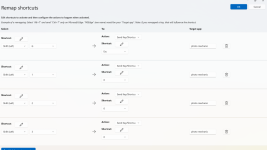
Might be useful to some, I did a bit of digging and there is a microsoft app called powertoys that allows you to remap specific keys for specific apps.... job done

1739834664603.png
 
Food for thought. I am playing around with fast raw viewer now as nativley you can set the key press shortcuts to the same as lightroom which I like.

My workflow is certainly more like @TimHughes 's but @Hanley that is an impressives setup and i really like it! Although a bit too complex for my needs as I would never have a laptop with in in the field to run an FTP server just once I get back to the car post event - although I do rate as i go which saves a lot of time later, not possible on remote cameras though of course!

@TimHughes I like the idea of dragging to 1 star selections into a folder, does that move the files on the drive rather than copy?

If thats the case I could drag into my lightroom working catelogue and keep resyncing a lightroom folder as I move images out of mechanic (or fast raw viewer).

I.e set up an ingest folder, my version of your highlights would then be my lightroom catelogue structure (I have a "working" catelogue structure on the laptop and a VPN mapped network drive directly to my NAS for the rest of the catelogue) and do it that way. Then anything left in the Ingest folder(s) I can review, colour, move at a later date.
for the highlights I'm reviewing on the card, selecting and dragging copies the pics (jpg, raw, xmp) to the highlights folder. after the final selection is complete, importing the catalog and excluding duplicates works well. I try and avoid too much back and forth. I find it overall much quicker to complete the selection and culling before diving into the catalog.
 
quick question - I've been really impressed and its saved me a lot of time so far, I've even mapped buttons on my mouse and keyboard to match lightroom and speed up my culling

However, I've had a few events where i've had to import all into lightroom before getting a chance to cull - what i notice is that the flagging/colour labeling i do in lightroom doesnt sync to photo mechanic.

Everything i edit in light room gets coloured green, any potential blue - but these don't appear when i open the lightroom folder in photo mechanic.

I am guessing (well not really guessing) that its because lightroom isn't writing to XMP - something that may have got lost over the years..... I suppose if I put write to xmp back on, I'd get the colour labels in photo mechanic?
 
To remap colours in PM go to Edit>Preferences>General. You can set up PM to write to the file or to a sidecar XMP or both. No idea why anyone would want to cull in LR if they have PM as it is miles slower. If you have a RAW and a Jpeg for each file that may have something to do with colour class not showing
 
Football - when photographing football I use Photo Mechanic pitchside, a different setup but I have my MacBook running an FTP server and each of my 3 cameras connect automatically, as I review the images on the back of the camera and see one I want to keep I press SET and it FTPs it direct to my MacBook, Photo Mechanic is running a Live Ingest so will detect the new file, apply the IPTC template (date, match info etc.) and copy it to the working location, I then use PhotoMechanic to do any code replacements to inject player names etc, select edit to pass to Photoshop to crop and make any adjustments and then Cmd-U to FTP it to the agency. All done via Photo Mechanic. (having the FTP to the MacBook means I don't have to mess around taking memory cards out of my camera to get the pics into Photo Mechanic).

There's a reason nearly all pros use it, I only wish I'd bought it sooner.
Wonder if it would be possible to do something similar using an iPad for the initial camera to folder transfer? Looking at the Photomechanic website, I could not see an iOS version (unless I missed it). I shoot property for full days, so physically booting up the MacBook and keeping it on all day going from job to job wouldn't really be practical, but the iPad might.
 
Wonder if it would be possible to do something similar using an iPad for the initial camera to folder transfer? Looking at the Photomechanic website, I could not see an iOS version (unless I missed it). I shoot property for full days, so physically booting up the MacBook and keeping it on all day going from job to job wouldn't really be practical, but the iPad might.
I'm not sure there's a version of Photo Mechanic for iPad, pretty sure it's desktop/laptop only
 
It's probably been mentioned (and I am using an older version, so things may have changed), but I just double click on a thumbnail to open it up larger and then double click again to go back to the Grid view. I don't think I set that up specifically, but I may have done. You can also use space bar to open it up, but it won't toggle.

With the filters - you can drag your mouse or pen across them all to quickly turn them all (or some) off or on. I found that really handy.
 
To remap colours in PM go to Edit>Preferences>General. You can set up PM to write to the file or to a sidecar XMP or both. No idea why anyone would want to cull in LR if they have PM as it is miles slower. If you have a RAW and a Jpeg for each file that may have something to do with colour class not showing


yes I've already set the colours to match but I think you are missunderstanding what I am trying to do. I think i mentioned it earlier in the thread (what my intended workflow would be)

I've imported into photo mechanic, made my initial selection transfered that to lightroom and then subsiquently transfered all the other (8000) photos to lightroom so I can use my AI tagging, sort my requests and deal with them.

Now the requests are done I am loading the lightroom folder up in photo mechanic to do the culling in photo mechanic but as I've subsiquently coloured several things in lightroom, those photos I flagged green and blue in lightroom do not appear green and blue when i load the lightroom folder in photo mechanic Hence I am assuming this is because lightroom is no longer using xmp to save its basic settings?
 
yes I've already set the colours to match but I think you are missunderstanding what I am trying to do. I think i mentioned it earlier in the thread (what my intended workflow would be)

I've imported into photo mechanic, made my initial selection transfered that to lightroom and then subsiquently transfered all the other (8000) photos to lightroom so I can use my AI tagging, sort my requests and deal with them.

Now the requests are done I am loading the lightroom folder up in photo mechanic to do the culling in photo mechanic but as I've subsiquently coloured several things in lightroom, those photos I flagged green and blue in lightroom do not appear green and blue when i load the lightroom folder in photo mechanic Hence I am assuming this is because lightroom is no longer using xmp to save its basic settings?
Yes, you do need to tell LR to write to XMP files.

You also need to check that LR and PM are using the colour labels in the same order. It isn't actually the "colours" that are synced but the text that is associated with those colours that are synced. In the preferences that were shown earlier you can choose how the colour labels are set up. On my copy of PM I have a "LR" set of colour labels as an option, but I'm not sure if this is available by default, or if I created it. I know I created the C1 colour label set for PM.
 
Thanks, yes I've already set the colours up in preferences :)
 
yes I've already set the colours to match but I think you are missunderstanding what I am trying to do. I think i mentioned it earlier in the thread (what my intended workflow would be)

I've imported into photo mechanic, made my initial selection transfered that to lightroom and then subsiquently transfered all the other (8000) photos to lightroom so I can use my AI tagging, sort my requests and deal with them.

Now the requests are done I am loading the lightroom folder up in photo mechanic to do the culling in photo mechanic but as I've subsiquently coloured several things in lightroom, those photos I flagged green and blue in lightroom do not appear green and blue when i load the lightroom folder in photo mechanic Hence I am assuming this is because lightroom is no longer using xmp to save its basic settings?
Out of curiosity, what AI tagging are you using?
 
Out of curiosity, what AI tagging are you using?

Any vision to tag car registrations and numbers. For me its been a game changer. I've got a custom preset set up and its been tagging a bit too much though! But i'd really recomend it for sure.
 
Last edited:
Any vision to tag car registrations and numbers. For me its been a game changer. I've got a custom preset set up and its been tagging a bit too much though! But i'd really recomend it for sure.
doesnt need to be "AI" any OCR script with python will do the same
 
Any vision to tag car registrations and numbers. For me its been a game changer. I've got a custom preset set up and its been tagging a bit too much though! But i'd really recomend it for sure.
Just had a look and this looks interesting, I may use the free trial and see if it works well for me :) (being very lazy this is ideal)
 
doesnt need to be "AI" any OCR script with python will do the same

One thing I am not is a coder, but its something I've been keen to learn, how would you implement something like that and add to meta data either through lightroom or through a seperate program/script?

At the moment the big limitation of any vision is that the google cloudvision AI that it uses (I do need to have a read as they are discontinuing the version of cloud I use and moving to V2) is limited to something like 1,600 images an hour so for 8000 images it does take a lot of time.


The good thing about Any vision though is that it doesn't pull out any characters - i,e if i tell it to pull out the registration it pulls out the registration of the car but does not OCR the sponsors or driver names etc - just the registration
 
Last edited:
Just had a look and this looks interesting, I may use the free trial and see if it works well for me :) (being very lazy this is ideal)

Yes - its donation ware - i think I gave £10 to get the full version - then it costs depending on the version or type of google cloud AI that it uses - its worth a read. It has 2 versions - one is much more intelligent and will recognise and tag places, objects, etc very specific. The "prompt" option that i use is simpler and quicker for stuff like OCR, car numbers, registrations, there is even a specific preset prompt for athletes bibs etc and that costs something like $0.03 (or was it $0.30 I can't remember) per 1000 photos, so its penuts... Although as I say the version of cloud vision that this uses IS being discontinued by google so I'll be forced into the new model, and need to look at how that changes the cost per photo.
 
One thing I am not is a coder, but its something I've been keen to learn, how would you implement something like that and add to meta data either through lightroom or through a seperate program/script?

At the moment the big limitation of any vision is that the google cloudvision AI that it uses (I do need to have a read as they are discontinuing the version of cloud I use and moving to V2) is limited to something like 1,600 images an hour so for 8000 images it does take a lot of time.


The good thing about Any vision though is that it doesn't pull out any characters - i,e if i tell it to pull out the registration it pulls out the registration of the car but does not OCR the sponsors or driver names etc - just the registration
It's getting easier and easier. Tools like chatgpt are great at coding if you need help. How fast it works depends on the power of your machine. The approach is read each photo file, apply ocr to extract text, filter the results for race numbers then either add the race numbers found to the image metadata or write an xml sidecar with the metadata.
 
It's getting easier and easier. Tools like chatgpt are great at coding if you need help. How fast it works depends on the power of your machine. The approach is read each photo file, apply ocr to extract text, filter the results for race numbers then either add the race numbers found to the image metadata or write an xml sidecar with the metadata.

Its something i would like to look into - one of my friends was learning python and wanted me to give it go - its that age old thing about too much to do too little time!

I might have a google around this weekend
 
Back
Top