
and please use their services
You are using an out of date browser. It may not display this or other websites correctly.
You should upgrade or use an alternative browser.
You should upgrade or use an alternative browser.
My old man
- Thread starter Seajay
- Start date

DayDreamer
Suspended / Banned
- Messages
- 3,739
- Name
- John
- Edit My Images
- Yes
I did have a go earlier but felt all my attempts enhanced the 'wrinkles' 
Let me know if you want me to remove the piccy?
John
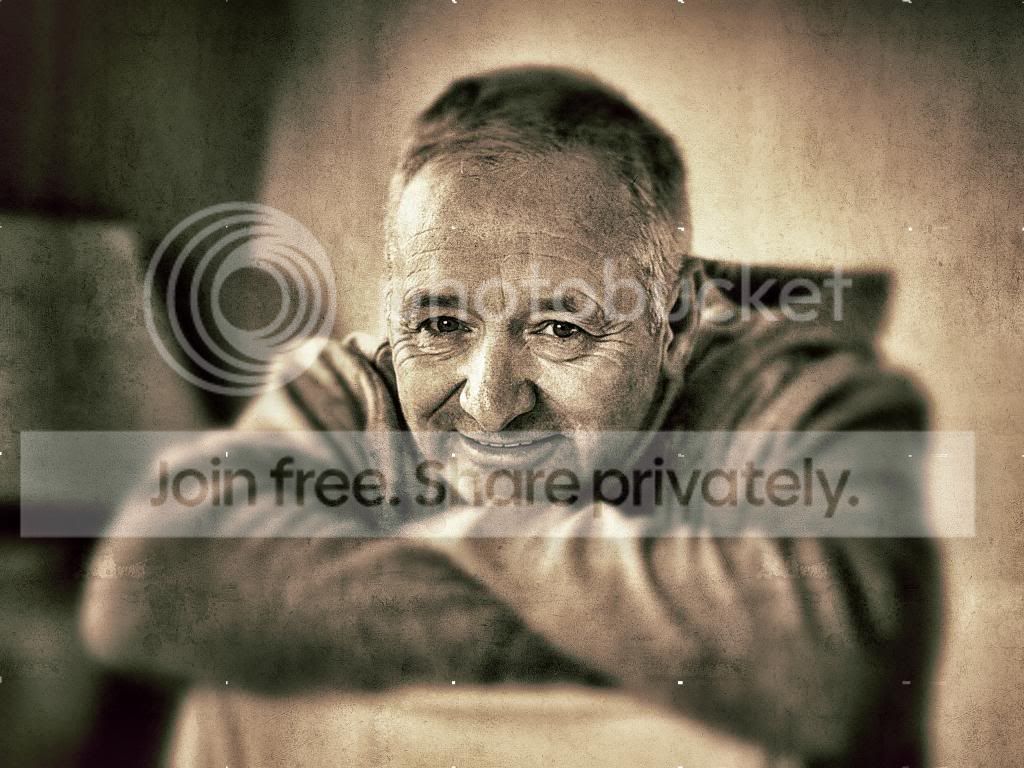
Let me know if you want me to remove the piccy?
John
DayDreamer
Suspended / Banned
- Messages
- 3,739
- Name
- John
- Edit My Images
- Yes
Oh yes a combination of Snapseed & LR4 
OP

Seajay
Suspended / Banned
- Messages
- 1,493
- Name
- Cathy
- Edit My Images
- Yes
John no you leave it and thank you for having a go it is a very interesting look.
I tried all day but only using tutorials on You tube for guidance.I was looking to get it black and white and kind of grungy looking but I just made him look grubby..LOL!!
I kind of think the snap is a no go.I might be lucky enough to get him to try again one day but he always looks odd if he knows he is having his picture taken.On this day he was just messing around as it was the grandchildren I was doing.

Malcolm small by cooriedoon, on Flickr
I tried all day but only using tutorials on You tube for guidance.I was looking to get it black and white and kind of grungy looking but I just made him look grubby..LOL!!
I kind of think the snap is a no go.I might be lucky enough to get him to try again one day but he always looks odd if he knows he is having his picture taken.On this day he was just messing around as it was the grandchildren I was doing.
Malcolm small by cooriedoon, on Flickr
DayDreamer
Suspended / Banned
- Messages
- 3,739
- Name
- John
- Edit My Images
- Yes
Because I am housebound a lot I am finding myself spending a lot of time fiddling with PP & over the past week or so loving LR4. So my PE10 & CS4 isn't getting a look in - but each to their own
OP
Seajay
Suspended / Banned
- Messages
- 1,493
- Name
- Cathy
- Edit My Images
- Yes

DayDreamer
Suspended / Banned
- Messages
- 3,739
- Name
- John
- Edit My Images
- Yes
Will look tom as switching off now as exceeded my 'time ration' on my laptop. He really has got a very warm open face.
What effect do you feel is right B&W, Grungy, Fine Art, or what?
John
What effect do you feel is right B&W, Grungy, Fine Art, or what?
John
OP
Seajay
Suspended / Banned
- Messages
- 1,493
- Name
- Cathy
- Edit My Images
- Yes
John I am at home a lot right now and love to practise with photoshop and now Lightroom three.it is great fun especially when you finally get a result. Thank you for helping today.
Being part of this forum has been so good for me as an education as I know I can ask for help. Maybe a little too many questions sometimes, but do you know what!
I have never been let down! So to all members thank you for being there.
Being part of this forum has been so good for me as an education as I know I can ask for help. Maybe a little too many questions sometimes, but do you know what!
I have never been let down! So to all members thank you for being there.
OP
Seajay
Suspended / Banned
- Messages
- 1,493
- Name
- Cathy
- Edit My Images
- Yes
John I like black and white just have not mastered it yet but I know I am improving . I used to just turn my images greyscale which lost all my colour detail so left me with no sliders to play with. I only know this now from reading on here. I also now know you need a really good image to begin with which this is not, but he looks so relaxed even slightly out if focus. I will be happy just to get it to a stage where I can print it, if you can share a procedure that I can follow that would be great. I will have another few hours tomorrow to try again so fingers crossed
Cathy
.
Cathy
.


OP
Seajay
Suspended / Banned
- Messages
- 1,493
- Name
- Cathy
- Edit My Images
- Yes
Very good indeed!
Well I think you have all done well and I like the grunge effect. This gives me something else to look at as a possibility thank you Shaun John and Neil.
Neil just popped back on to look at your version and it has now gone
Well I think you have all done well and I like the grunge effect. This gives me something else to look at as a possibility thank you Shaun John and Neil.
Neil just popped back on to look at your version and it has now gone
Last edited:
DayDreamer
Suspended / Banned
- Messages
- 3,739
- Name
- John
- Edit My Images
- Yes
I agree with you this forum has been so enjoyable since I joined. It has taught me so much and believe me I still have my 'L-PLates' on when it comes to PP. I am a sucker for downloading every free trial I can find - BUT - now- I am ignoring everything except LR4 (using 95% of my time) & PE10/CS4 which are gathering dust a little on my hard drive 
I have also tried lots of plug in to get effects but feel more satisfaction doing it my way. Probably ending up with a much worse result but it is so much fun :nuts:
Look at this thread which has taught me lots of tips on 'before and afters'.
http://www.talkphotography.co.uk/forums/showthread.php?t=347318&page=70
I found this post made me sit up & take more notice of B&W. Like you I was just doing a straight colour to B&W which always seemed so soulless.
http://www.talkphotography.co.uk/forums/showthread.php?t=455169
Keep on PP'ing
I have also tried lots of plug in to get effects but feel more satisfaction doing it my way. Probably ending up with a much worse result but it is so much fun :nuts:
Look at this thread which has taught me lots of tips on 'before and afters'.
http://www.talkphotography.co.uk/forums/showthread.php?t=347318&page=70
I found this post made me sit up & take more notice of B&W. Like you I was just doing a straight colour to B&W which always seemed so soulless.
http://www.talkphotography.co.uk/forums/showthread.php?t=455169
Keep on PP'ing
OP
Seajay
Suspended / Banned
- Messages
- 1,493
- Name
- Cathy
- Edit My Images
- Yes
John thank you I will work my way through the first link.
love the way black and white was explained using the image of the balloons ! The first was just how my go at B/W used to be and now I will be playing more with sliders
love the way black and white was explained using the image of the balloons ! The first was just how my go at B/W used to be and now I will be playing more with sliders

Rhodese
Suspended / Banned
- Messages
- 1,154
- Edit My Images
- Yes
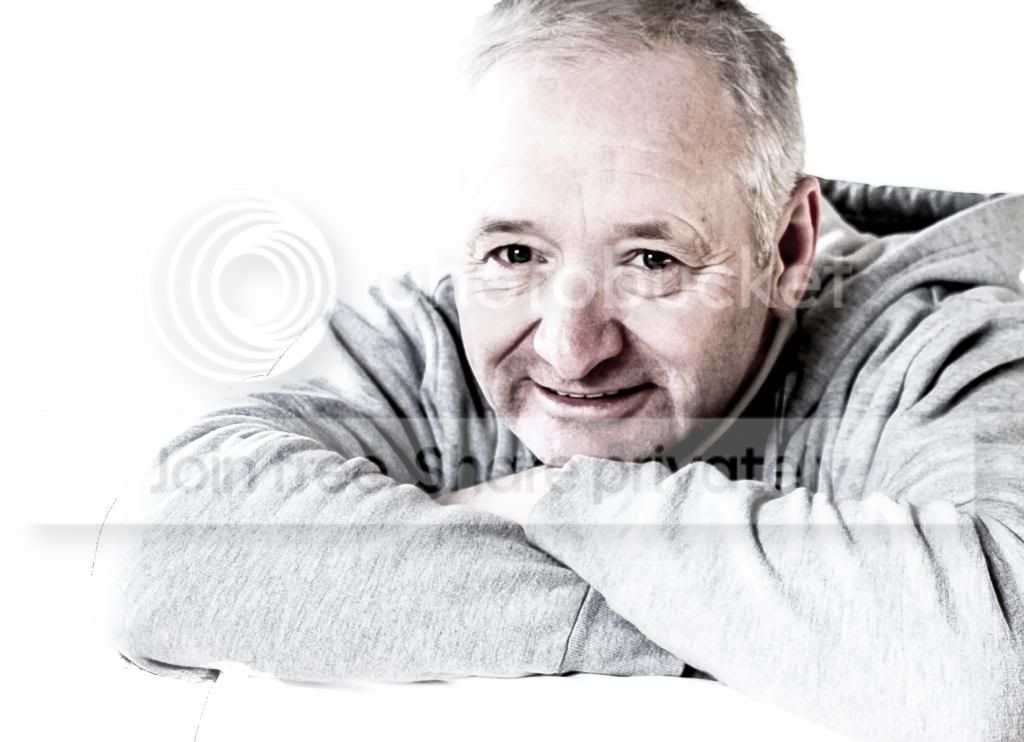
My two pennyworth, I think the mono version is fine, as for the wrinkles, some need reducing. My main critique is the back ground is messy and you have lost his left elbow. I always remind myself that, sometimes less is more.
For this edit.
From the colour image, create your mono, and then select the magic wand tool, set tolerance to 20, tick anti-alias and contiguous. Un-tick sample all layers. Select add to selection, that’s the second box on the top bar next to the symbol of the magic wand. Now click to select, anywhere to the upper right of the subject then click again on an unselected area again only on the right hand side of the image, do this until all the blank area to the right of the mid area above the head is one selection.
Go to select, modify selection, click on contract, select 1 pixel click OK. Go back to select, modify and this time select refine edge, set a radius of 1, smooth 9, feather 2.4 hit OK.
Next its go to edit, copy, edit, paste this puts the selection in a new layer.
Now go to edit transform and flip horizontal.
Select the move tool, click on the top right of the picture and move the new layer to the opposite top corner. The move can also be done using the arrow keys.
When its in position open edit and go to transform and click on scale, now click on the bottom right of the frame and keeping your finger pressed on the left hand button of the mouse pull the frame out untill the selection roughly covers all the of the space to the left of the sitter, it doesn’t matter if parts of the sitter are obscured. You may have to pull on the other corners of the frame to complete the cover, hit enter to complete the transform.
On the layers pallet lower the opacity of the new layer to about 50% enough so that you can see through to the subject.
Select the erasure tool and carefully rub out the unwanted overlay on the subject. Click back in history if you make a major mistake otherwise ignore minor errs by repairing with the clone tool.
When you are happy with the tidy up bring the opacity of the layer back to 100%, check to see if any thing needs to be corrected then flatten image.
Now with the dodge tool set to 7% exposure, and the range on highlights, gently build up the whites in the eyes and on the teeth. Then bring up the highlights in the hair. Remember less is more.
Next with the burn tool selected, set to 7% and this time midtones, gently quieten the highlights on the brow and nose. Treat the hoody in a similar way to remove the higher tones, and the flash at the rear of the ear.
Now select the gradient tool, set it to foreground to transparent, foreground set to black, mode normal, and opacity at 47%. Pull a gradient from the top of the picture to the bridge of his nose, and another one from the bottom up to his chin.
Finally select all, go to edit select stroke, set foreground colour to black and a pixel amount to suit the size of the image, hit OK.
SAVE.
I have explained my process, in as simple a way as I could, there are many shortcuts and processes that I could have employed but I thought it might complicate things. If you are an advanced PS user then my apologies for being presumptuous.

Rhodese.
For this edit.
From the colour image, create your mono, and then select the magic wand tool, set tolerance to 20, tick anti-alias and contiguous. Un-tick sample all layers. Select add to selection, that’s the second box on the top bar next to the symbol of the magic wand. Now click to select, anywhere to the upper right of the subject then click again on an unselected area again only on the right hand side of the image, do this until all the blank area to the right of the mid area above the head is one selection.
Go to select, modify selection, click on contract, select 1 pixel click OK. Go back to select, modify and this time select refine edge, set a radius of 1, smooth 9, feather 2.4 hit OK.
Next its go to edit, copy, edit, paste this puts the selection in a new layer.
Now go to edit transform and flip horizontal.
Select the move tool, click on the top right of the picture and move the new layer to the opposite top corner. The move can also be done using the arrow keys.
When its in position open edit and go to transform and click on scale, now click on the bottom right of the frame and keeping your finger pressed on the left hand button of the mouse pull the frame out untill the selection roughly covers all the of the space to the left of the sitter, it doesn’t matter if parts of the sitter are obscured. You may have to pull on the other corners of the frame to complete the cover, hit enter to complete the transform.
On the layers pallet lower the opacity of the new layer to about 50% enough so that you can see through to the subject.
Select the erasure tool and carefully rub out the unwanted overlay on the subject. Click back in history if you make a major mistake otherwise ignore minor errs by repairing with the clone tool.
When you are happy with the tidy up bring the opacity of the layer back to 100%, check to see if any thing needs to be corrected then flatten image.
Now with the dodge tool set to 7% exposure, and the range on highlights, gently build up the whites in the eyes and on the teeth. Then bring up the highlights in the hair. Remember less is more.
Next with the burn tool selected, set to 7% and this time midtones, gently quieten the highlights on the brow and nose. Treat the hoody in a similar way to remove the higher tones, and the flash at the rear of the ear.
Now select the gradient tool, set it to foreground to transparent, foreground set to black, mode normal, and opacity at 47%. Pull a gradient from the top of the picture to the bridge of his nose, and another one from the bottom up to his chin.
Finally select all, go to edit select stroke, set foreground colour to black and a pixel amount to suit the size of the image, hit OK.
SAVE.
I have explained my process, in as simple a way as I could, there are many shortcuts and processes that I could have employed but I thought it might complicate things. If you are an advanced PS user then my apologies for being presumptuous.
Rhodese.
OP
Seajay
Suspended / Banned
- Messages
- 1,493
- Name
- Cathy
- Edit My Images
- Yes
Rhodese this s a super job well done and many thanks for a wonderful description of what you went through to get this result. I really like it .
I know my way around PS better than Lightroom but I am enjoying learning Lightroom and will be taking my new Lightroom book with me to read.
I am off to Argyllshire for the weekend but when I come home I will have a good try at this. Gosh so many new things to try I love this forum
Once again thank you for taking the time to help.
Just had to jump on and give it a go,I really enjoyed following your step by step.I think I still may have his face a little dark next time i may need to work on the gradient and lower it a little?
Getting the background the way you did was fun,I did get a halo around his arm but painted it in with a brush.
I did try the patch tool for wrinkles but I don't want to take his wrinkles off just make them less deep Also tried the blur tool but not great effect with it either.
Really did enjoy this! and will do it agin after the weekend
Cathy

new go by cooriedoon, on Flickr
I know my way around PS better than Lightroom but I am enjoying learning Lightroom and will be taking my new Lightroom book with me to read.
I am off to Argyllshire for the weekend but when I come home I will have a good try at this. Gosh so many new things to try I love this forum
Once again thank you for taking the time to help.
Just had to jump on and give it a go,I really enjoyed following your step by step.I think I still may have his face a little dark next time i may need to work on the gradient and lower it a little?
Getting the background the way you did was fun,I did get a halo around his arm but painted it in with a brush.
I did try the patch tool for wrinkles but I don't want to take his wrinkles off just make them less deep
Also tried the blur tool but not great effect with it either.Really did enjoy this! and will do it agin after the weekend
Cathy
new go by cooriedoon, on Flickr
Last edited:

Rhodese
Suspended / Banned
- Messages
- 1,154
- Edit My Images
- Yes
I think I still may have his face a little dark next time i may need to work on the gradient and lower it a little?
Like I said in the process post there are many ways to do things.
You may find it better to put the grads on a new top layer, you will then be able to alter opacity, erase areas etc.