

Carlh
Suspended / Banned
- Messages
- 8,261
- Name
- Carl
- Edit My Images
- Yes
Ok, only recently, have I got over the exploding HDR images, then began toning stuff down and now Ive got to the point where I think I can pull any HDR image off as a normal photograph.
If the admin think I cant, can someone delete the thread please, otherwise it may be worth putting as a sticky for other people and save them months of trial and error - although trial and error was a good learning experience. Perhaps you might only want to read this if you feel like you're getting nowhere with HDR.
Ok. Ive picked a simple image I took a few weeks back. Please excuse the dead flies, this isn't about MY image, its about the process of getting a decent HDR image.
Ok. We'll go through what I think everyone basically goes through when they discover HDR and a trial version of Photomatix.
When you first try playing with HDR, even exploding colours look impressive, simply because you're blown away with all of that data being held in your image and its kind of overwhelming to think "you took that photo".
I think its a natural progression through that technique. Nothing wrong with it at all.
Right. All 3 images below, are processed exactly the same way, both in camera raw and photoshop itself and this is what I done to all 3 images.
What you need (or what I had, you might have to find alternatives, free alternatives do exist)
Photoshop CS6 - though Camera RAW is the most important part for this.
Photomatix if you want to do your HDRs in that, although Im hoping you'll be uninstalling the product after this little tutorial.
Photoshop to have its settings altered so that Camera RAW is used when opening up TIFFs.
For photomatix image 1, loaded 3 exposures into Photomatix, generated a Painterly Preset 3 effect, saved as a TIFF.
Opened back in Photoshop, but only 3 white balances available and limited changes (not enough data) to manipulate the image in camera RAW, but you can do further adjustments in Photoshop to stop your eyes from bleeding.
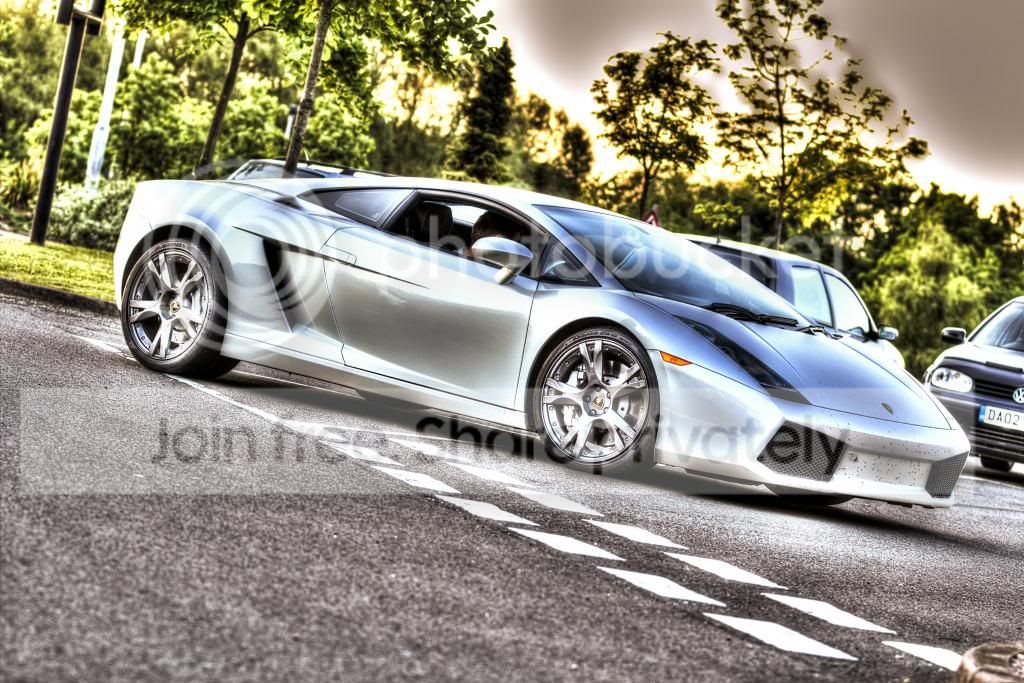
Yep. Thats pretty bad. But pretty typical of HDR to begin with. Photomatix, painterly effect (preset 3 i think).
Now I could turn the strength right down, maybe 20 or 30% and the image will look more like a photograph. Something similar to this, which is the photomatix "default" preset.
For photomatix image 2, loaded 3 exposures in photomatix, select ghost removal etc.. as necessary, generated a "default" preset effect, saved a TIFF.
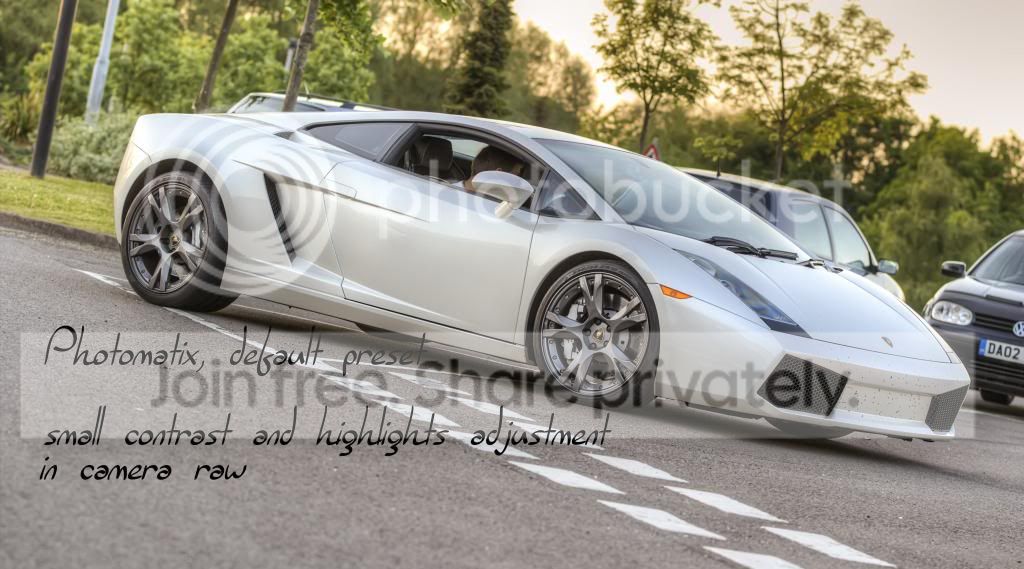
Now that isnt looking too bad at all, except the car is actually white, and Photomatix loves to turn whites into greys and give that "not real, it looks like CG" effect.
Finally, the meat on the bones you have been painfully reading through, to get to this section.
For the Photoshop HDR, open up Photoshop, go to Merge to HDRPro, select the 3 exposures.
Make sure 32bit open has been selected.
Dont go selecting presets.
Select Remove ghosts if necessary.
When the image opens up in Photoshop - immediately (no pp), save the image as a TIFF. This file will be massiv-o. My 20mb RAW file, 3 exposures (you'd think would be 60mb) but nooooo, its 218MB. So lots of hard drive space required here.
Close the image in Photoshop, now photoshop will want you to save the "HDR", click no.
Open up the TIFF you saved from photoshop, back into photoshop.
You have all the options from Camera RAW to adjust your image.
Remember - you have all the power of a RAW file (3 of them) at your tips.
Now you've adjusted your image , just as you would a regular photograph in Photoshop. Do all your other PP in photoshop and you'll have a masterpiece. Well, maybe.
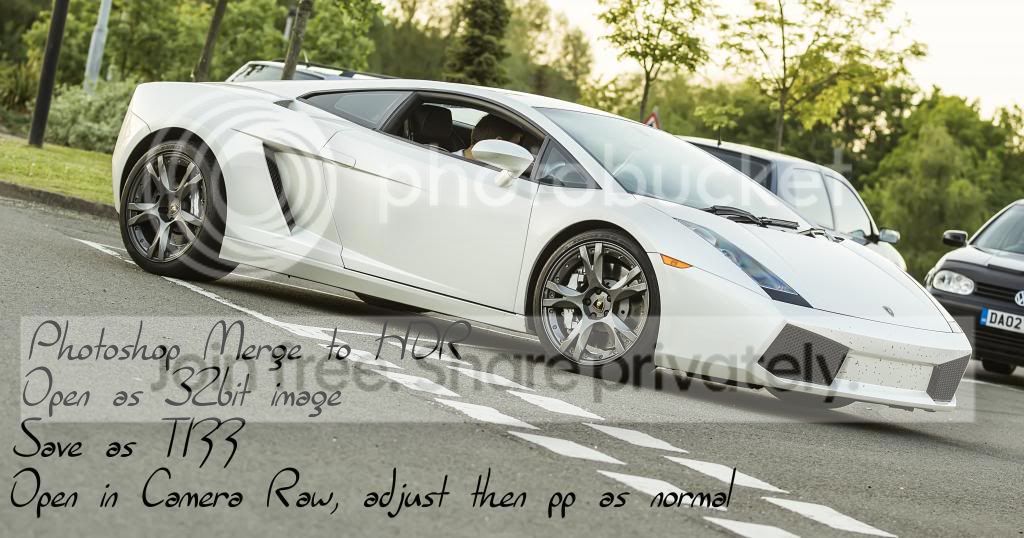
I hope someone has found this useful, as I did when I discovered it myself.
If the admin think I cant, can someone delete the thread please, otherwise it may be worth putting as a sticky for other people and save them months of trial and error - although trial and error was a good learning experience. Perhaps you might only want to read this if you feel like you're getting nowhere with HDR.
Ok. Ive picked a simple image I took a few weeks back. Please excuse the dead flies, this isn't about MY image, its about the process of getting a decent HDR image.
Ok. We'll go through what I think everyone basically goes through when they discover HDR and a trial version of Photomatix.
When you first try playing with HDR, even exploding colours look impressive, simply because you're blown away with all of that data being held in your image and its kind of overwhelming to think "you took that photo".
I think its a natural progression through that technique. Nothing wrong with it at all.
Right. All 3 images below, are processed exactly the same way, both in camera raw and photoshop itself and this is what I done to all 3 images.
What you need (or what I had, you might have to find alternatives, free alternatives do exist)
Photoshop CS6 - though Camera RAW is the most important part for this.
Photomatix if you want to do your HDRs in that, although Im hoping you'll be uninstalling the product after this little tutorial.
Photoshop to have its settings altered so that Camera RAW is used when opening up TIFFs.
For photomatix image 1, loaded 3 exposures into Photomatix, generated a Painterly Preset 3 effect, saved as a TIFF.
Opened back in Photoshop, but only 3 white balances available and limited changes (not enough data) to manipulate the image in camera RAW, but you can do further adjustments in Photoshop to stop your eyes from bleeding.
Yep. Thats pretty bad. But pretty typical of HDR to begin with. Photomatix, painterly effect (preset 3 i think).
Now I could turn the strength right down, maybe 20 or 30% and the image will look more like a photograph. Something similar to this, which is the photomatix "default" preset.
For photomatix image 2, loaded 3 exposures in photomatix, select ghost removal etc.. as necessary, generated a "default" preset effect, saved a TIFF.
Now that isnt looking too bad at all, except the car is actually white, and Photomatix loves to turn whites into greys and give that "not real, it looks like CG" effect.
Finally, the meat on the bones you have been painfully reading through, to get to this section.
For the Photoshop HDR, open up Photoshop, go to Merge to HDRPro, select the 3 exposures.
Make sure 32bit open has been selected.
Dont go selecting presets.
Select Remove ghosts if necessary.
When the image opens up in Photoshop - immediately (no pp), save the image as a TIFF. This file will be massiv-o. My 20mb RAW file, 3 exposures (you'd think would be 60mb) but nooooo, its 218MB. So lots of hard drive space required here.
Close the image in Photoshop, now photoshop will want you to save the "HDR", click no.
Open up the TIFF you saved from photoshop, back into photoshop.
You have all the options from Camera RAW to adjust your image.
Remember - you have all the power of a RAW file (3 of them) at your tips.
Now you've adjusted your image
, just as you would a regular photograph in Photoshop. Do all your other PP in photoshop and you'll have a masterpiece. Well, maybe.
I hope someone has found this useful, as I did when I discovered it myself.


