My lightroom catalogue is a mess! Help!

Bennp2000

Suspended / Banned
Messages
340
Name
Paul
Edit My Images
No
As the title suggests, my LR catalogue is an absolute mess.

I started using it after being recommended to do so by a friend. Unsure if I'd carry it on, I didn't make much effort to keyword my images, or sort them in any way at first (later on I've starred images and rejected the terrible ones).

Now I'm left with a rapidly filling hard drive and with a RAID'd network drive the same (this puts me off simply buying more HD space as I'd need to buy 3 2Tb drives!).

Is there a good way to go about sorting these images (mainly tagging / keywording images, in LR4)?

Also, I'm going to get LR for my laptop. I don't want to carry around my full catalogue (and it wouldn't fit anyway). What's the best way of dealing with and managing a 'travel' catalogue with the two instances?

Many thanks for your help and time reading this,
Paul
 
I maybe wrong here but can you not create new folders and transfer the photographs by medidata or shoot date I beleive L/R keeps all this info on the sidecar that comes in with the photo inthe first place.
For travel I bough a small 80GB external drive that just attaches via USB to the laptop.
Russ
 
For travelling, I "export as catalogue" from LR4 on my desktop, just the folders I want to take with me, then import to my laptop. This preserves all the editing.
Scott Kelby's book on LR4 gives some good ideas on starting out with a catalogue system and also on keywording. I started a new catalogue system from 1st Jan this year taking into account some of these ideas. I had also used LR for a while without a good system but found that to be a benefit after reading the Kelby book since I was by that time quite clear on what I wanted from my catalogue and how I would use it.
So my suggestion would be to figure out what might work better for you, then start a new system going forwards.
 
I maybe wrong here but can you not create new folders and
For travel I bough a small 80GB external drive that just attaches via USB to the laptop.
Russ

80GB!!! You're not thinking BIG enough :cuckoo:

Exporting the catalogue sounds like a good way of combining the two. So, did you decide not to apply your new system to your existing shots? Doesn't that mean that if you're searching by keyword you may miss something etc. ?
 
As the title suggests, my LR catalogue is an absolute mess.

I started using it after being recommended to do so by a friend. Unsure if I'd carry it on, I didn't make much effort to keyword my images, or sort them in any way at first (later on I've starred images and rejected the terrible ones).

Now I'm left with a rapidly filling hard drive and with a RAID'd network drive the same (this puts me off simply buying more HD space as I'd need to buy 3 2Tb drives!).

Is there a good way to go about sorting these images (mainly tagging / keywording images, in LR4)?

Also, I'm going to get LR for my laptop. I don't want to carry around my full catalogue (and it wouldn't fit anyway). What's the best way of dealing with and managing a 'travel' catalogue with the two instances?

Many thanks for your help and time reading this,
Paul

Hi Paul

I'm not an expert but happy to share my thoughts/experiences - others may have other thoughts that might suit your needs better too :thumbs:

You've raised two separate issues here if I've read your post correctly

1) The LR Catalog and keywording
There are so many ways to catalogue that you can get in a real mix of opinions. Having read lots on LR catalogs I would not go down the route of having multiple catalogs - the only exception is if you want a work/business catalog and a separate one for personal.

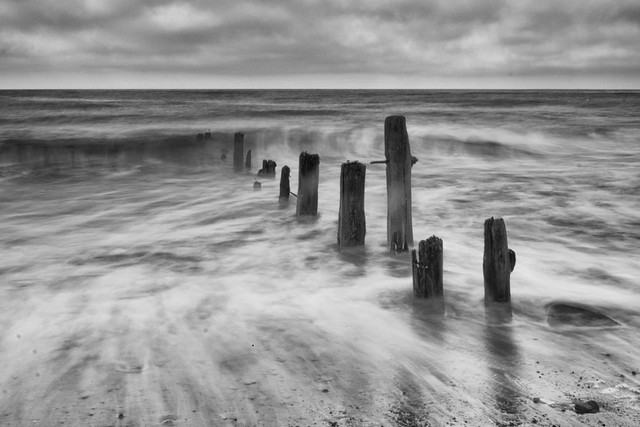
So with one master catalog, I catalogue my shots by date rather than subject as I find this too confusing. If you see my example shot below would you catalog this under Black and White or Sea or Long Exposure or SilverEfexPro Processed?

So, within my catalog I have master folders of the year 2012, 2013 etc and underneath each year is the actual folder of the date the shot(s) was taken i.e. 22.03.2012 all my shots are in chronological order then.

This way all of my photos are imported into these date driven folders. I then use keywords during import and when editing my shots to help me categorise them

Use this image for example


Staines - Long Exposure I by Buck_68, on Flickr

You could add the following keywords

Black & White, B&W, Long Exposure, Sea, Breakers, Staines, North Yorkshire, Waves, SilverEfexPro etc etc.

I've learnt that the important thing with the keywords is to use words that YOU would use to describe the shot as it is you that will be using the keyword to search your catalog!

I changed my catalog set up very early on in my LR ownership and you can easily set yours up with whichever format you want by setting up a new catalog and then setting your import preferences and importing all of your existing catalogue into your new one this way [hint: do it in chunks otherwise you will lose the will to live] You can then retrospectively key word by date i.e. tonight I'm going to key word all of June 2012 shots or whatever

PS this link might help? http://thelightroomlab.com/2010/06/...oshop-lightroom-3-setup-and-catalog-creation/

2) Working with your laptop and catalogs
You can have a catalogs specifically on your laptop that you can export to and import from.

I'd think a good way of doing this would be to ensure that each time you import your photos from your laptop you don't create copies. So I would import using the "Move" option.

When you next want to work on your laptop you can then export to your laptop by selecting the specific photos you wish to work on and clicking "export" you can even set up a preset to apply things such as naming conventions if it helps you keep order.

Let us know how you get on :)
 
Last edited:
80GB!!! You're not thinking BIG enough :cuckoo:

Exporting the catalogue sounds like a good way of combining the two. So, did you decide not to apply your new system to your existing shots? Doesn't that mean that if you're searching by keyword you may miss something etc. ?

Another option is to have your photos and catalog on an external drive.

I have a 1TB drive that I used to use for this but now have my catalog on my SSD drive and the photos on my 2nd internal drive on my laptop backed up to a NAS and external drive no.2!
 
Thanks for the detailed response; as is, things are being pulled into a master catalogue based on date and I've renamed the subject orientated files I tried once to the date they were taken (point 1 seems ok). There's no need for a home / pro catalogue as I'm not the latter, some of my images end up in print but this is ironically based on my leisure activity so the lines would rapidly become very blurred! (I do keep a smart catalogue as my portfolio, purple + 5 star).

With point (2) you suggest using an export preset. Surely doing this you lose the link between the raw file, the processes applied and the finished file that Lightroom is so good at keeping together?
 
Hi

Re export yes, you're right re the RAW but you would then re-import as a TIFF so you have a link to that file.

An alternative that i hadn't mentioned is to physically copy your RAWs to a second location i.e. your laptop as part of the import process and then import the RAW and lightroom sidecar file back into your main catalog when back at base?
 
It'll need to be that way around as I'll be away from my Desktop when creating and backing these files up (so they will go onto the laptop for primary editing).

When I'm home I'd like to move all of the 'travel' catalogue (RAWS and all) back onto the desktop.
 
I would create a "mobile" catalog on an external drive. The LRdata/LRcat/and images would be on the external drive.
LR on both machines can be configured to use this catalogue whenever connected. Once done the catalogue is moved to it's final location.

This way there is only moving the files onto the external during initial import, backing up of only the external (for new images), and one final move for "storage."

If you are creating xmp files you are probably just wasting hard drive space.
 
If your images are ordered by date I would then go though and add a brief description to the date - ie

2009_03_13 landscape, birling gap, sheep
2009_03_14 car traffic road

That gives you a starting point for your search as you can search on the folder titles

Then I would go though the folders and add keywords to the images, for some reason I always add month and year and occasionally this is useful, then more detailed keywords to the pictures within the folder.

Probably like many people I have pictures from before I had lightroom (and the programme it replaced) they don't all have keywords and when I get some spare time and the enthusiasm I go though and get rid of those I will never use for anything and keyword the others. As I now do a lot of compositing I will also look at an image with a view to pulling bits out of it so keyword with a view to try and be able to find it as well if flowers they have say (a tulip) tulip, bud/open/dying/seedhead, colour, actual name if known, time of day, weather, place
 
This is something a lot of people don't really think about when first staring out with LR or Aperture and the like.

My personal method is
Folder - Year
Sub Folder - Month
Project Folders always start with the date and the the event title

2013 - March - 12 Fred's Fashion Shoot
 
In terms of a keywording strategy, I am just going through my catalogue now and sorting out the horrible mess it was in.

I've adopted a tiered approach using Keyword Sets. You get 9 keywords per set, so the trick for me (to make it quick) was to only use the kewords in a particular set. Best served by example.

Pass 1 - Select all photos and delete all the keywords in them. Then go through all my photos (12k of them!) with Keyword set 1 "Base Keywords" consisting of - "People", "Places", "Things", "Animals", "Special Effects" (stock, textures, borders, frames etc), "Screenshots". This covers all my photos. It's not actually been that painful as big bunches of images were all taken around the same time (Shift+Click for group selections). Also, things like Screenshots were all in 1 folder, so I could get the lot in one hit.

Pass 2 - Filter by "People". Add a new Keyword set "People Generic" consisting of "Family", "Friends" and "Strangers". I also add "Places", "Animals" & "Things" in case I got shift-click happy.

Pass 3 - Filter by "Family". Add a new keyword set "People Family" with my family member names (I have less than 9 so that's ok!)

Rinse and repeat with other base keywords. As I'm going through I also liberally use the "x" key to flag for deletion. I think I'll probably wait until everything is properly keyworded though. It might take a while to go through all this, but breaking it down into small chunks makes the task much less daunting.

I ended up mind-mapping (link to free software) it which was quite helpful. It's still in an un-finished state as I'm not sure I've got my keywords 100% right, but it's difficult to find the right method as it's so bespoke to your photographic needs. Internet searching for ideas isn't that successful. A wedding tog, for example, will need a completely different methodology to a hobbyist (like me) and a hobbyist who only does wildlife will need a different method again, so these are just ideas. Keywording for stock photography is a whole different ballgame and probably wouldn't work so well with this approach at all. (My mind map is here if you're interested in an example).

Once that's done, I plan to use colour labels for easy filtering. By "Display", I mean in Photobooks, Websites, Print, Slideshows etc.

Red: Do not show (I don't want to delete them, but I'm not going to display them)
Yellow: Display Candidate (I intend to work on these some more)
Green: For Display (Friends and Family)
Blue: For Display (General)
Purple: Not used (May end up using this for "Portfolio" quality images)

I can then make use of Smart Collections and Keyword Filters to find the stuff I'm looking for.

Hope this helps!

Ian.
 
Back
Top