Motion Blur

PINNACLE

Suspended / Banned
Messages
1,811
Name
Martin
Edit My Images
Yes
I hope this is the right place to post as I want C&C on the edit rather than the picture.

I have finally got round to buying Elements and have just had a play. I am not sure how to really do this so I took a chance. I duplicated background layer rubbed out the dogs altering the opacity in places then added motion blur to that layer, I then created another layer and removed the air collar on the Daisy (rough coated) and saved. It seemed simple but I have mixed thoughts on the result.

Did I do it the right way and comments on the result welcome

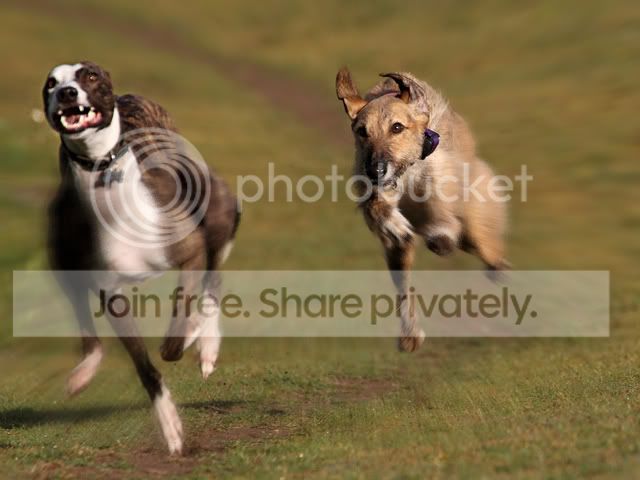
Original
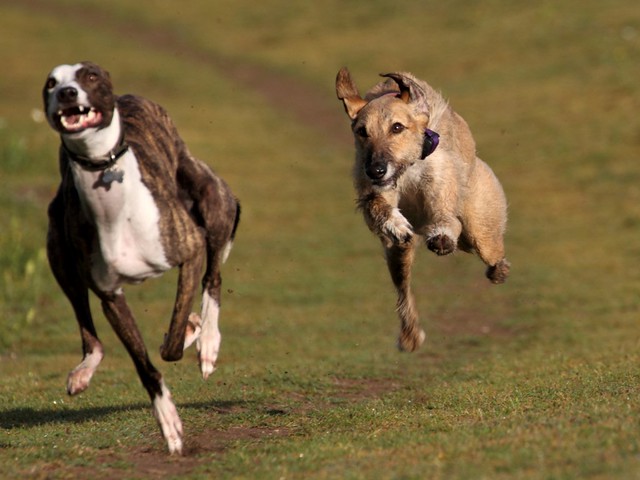

My attempt at adding motion blur
 
I think you have the general idea. However I don't think this subject is ideal for motion blur. It tends to look better when the subject is moving through the frame e.g. left to right or similar. Subjects moving towards the camera tend not to have to much of a moving blur, more of an out of focus DoF look which I think your example shows.
 
Thanks and I realise what you are saying with regard to moving across the frame, ie give a panning feel and I see that using this could be a good very handy. I have a few old shots to have a practice on later.

In my example I was really after creating movement in the dogs legs as the original is at such a high shutter speed they look frozen. Looking at them again I think I know where I have gone wrong. I somehow need to just be able to blur the legs a little and keep the ground, heads and bodies sharp.

Any advice or methods of doing this welcome.
 
I would do any retouching first. Then duplicate the image. To this duplicate I would apply an overall motion blur. In this case a very small one, just enough to give the amount of motion you want. Now on the duplicate layer apply a layer mask, then simply paint through to remove the unwanted blur from those areas you want to be sharp. tou can also adjust the opacity of the layer to fine trim the motion blur. Alternatively you could reverse the procedure and paint through the areas you want blurred, which ever is the easiest

If you've never used layer masks before there are loads of tutorials on the web. Once you see how it's done it becomes very easy
 
You could try Radial Blur (zoom) rather than Motion Blur. Takes a bit of fiddling to get the blur centred - I put the centre over the dog on the right (anyone know a way of doing this accurately?). Do it on a duplicate background layer at around 24, then dial back the opacity until you like it. Using a layer mask would look better, as Chappers & others have said. You can do all of this in Elements 9 or 10.

bb6c8f04.jpg
 
Back
Top