
Monitor calibration.

DavidBloor

Suspended / Banned
Messages
193
Edit My Images
Yes
I have a Pantone Huey Pro and I am trying to calibrate my Dell 2407 WFP.

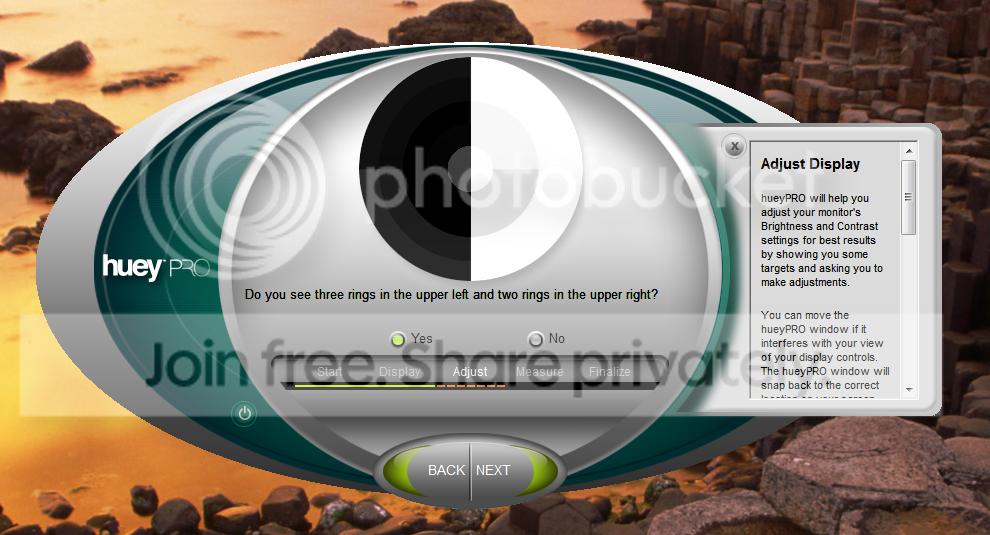
When I fire up the Huey software it presents me with the following screen.
huey.png


Noe I can't make out three distinctive rings on the upper left.

The following screen give me option to rectify this by adjusting the contrast and brightness on the monitor.

The problem I have is the monitor has no option to adjust the contrast over a digital connection.

Has anyone else come across this and do you have any suggestions?
 
At the risk of over simplifing things does this link help

http://support.dell.com/support/edocs/monitors/2407WFP/en/ug/setup.htm

Thanks for that, it sort of does, in as much that it confirms that you can not change the contrast when using a DVI connection.

I have calibrated the display now with the Huey Pro.

I have run a couple of test prints of using my Canon iP5300 and that are not bad compared to what is on screen, a touch darker than on screen but not by a great deal.

I have also set the colour space on my Camera, a Nikon D50 to AdobeRGB along with Lightroom and CS2.

Is there anything else I should be looking at in terms of colour management etc?
 
correct profiles for your paper ink match. I use PermaJet for this as you get free bespoke profiles.
You can proof the colours in CS4 as well remember your screen is a lit display your print is reflective light and will be dependent on the light falling on it.
Oh the contrast brighness setting are for how bright your screen is. I not understand why you can adjust them as it is clear in the link you have a adjustment for it.
 
David

I would suggest probably swapping to sRGB rather than Adobe. The reason is that both the printer and the monitor are not capable of handling the larger colour space of Adobe RGB.

If you want to conserve colour fidelity for future technology then by all means shoot in Adobe RGB. Better still shoot RAW as this preserves the original camera colour gamut ( If you are shooting RAW already ignore this).

If the prints are a bit darker than the screen opt to have a darker screen setting. Not sure how the spyder allows for this, but if you have a Cd/M2 setting try 120 and see what the results are like. Adjust the desired brightness in Cd/M2 to make the screen brighter or darker depending on the print/screen match. Don't make small moves, 10 units either way should make a reasonable change

Just scrolled through the instructions that I posted. Yes in the small print it says you can't adjust the contrast with DVI input. Strange that!

Just a thought. What if you switch to VGA mode. Do the contrast adjustment, and then switch back to DVI do the VGA contrast setting carry through?

John C
 
Back
Top