Monitor and PC compatibility

superpippo

Suspended / Banned
Messages
4,911
Name
Alan
Edit My Images
Yes

Just posting a query in the hope that someone can give me a steer.

Full disclosure is that I am pretty hopeless at understanding how computers, programmes etc work. I can drive a car but I have little understanding of how it works!

I have a pc which is about 5 years old (May 2020) which was built by a local shop with the main requirement that it be capable to use Lightroom, Photoshop, web surfing, emails. No gaming, no streaming.

It has worked faultlessly for 5 years.

I have a Samsung monitor which must be about 8/9 years old which has worked well but with my eyesight not being so good now I decided to treat myself to a larger modern monitor and i bought a Dell 27 Plus Monitor - S2725QS, 4K UHD (3840x2160), 120Hz, IPS, 4ms, AMD FreeSync Premium, 99% sRGB

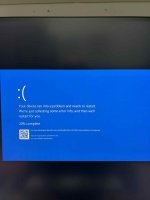
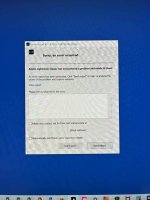
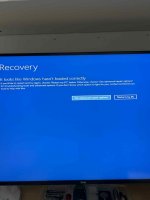
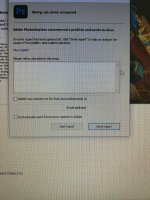
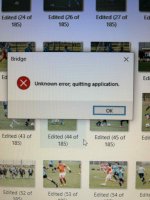
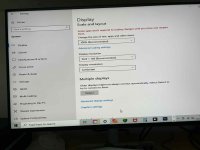
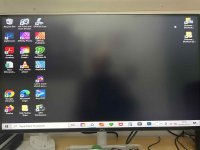
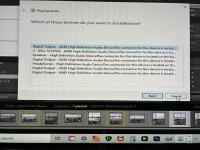
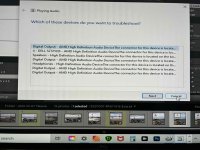
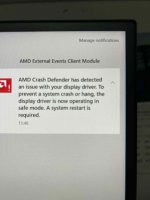
I plugged in power, attached the HDMI cable and ever since then I have had major and minor problems from screen shutting down, programmes shutting down, the screen resolution altering itself randomly and now loss of sound. This morning it just opened up with a low res view and distorted picures, text.

I have had to revert to the Samsung monitor and all is as before.

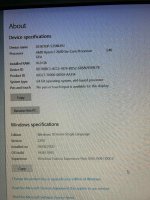
I have had various screen warnings and I have attached them to this post in case they can illuminate what is happening.

I am not sure whether I have a faulty screen or whether the PC cannot cope with it somehow.
I don't know whether to return the screen as faulty, but really I have no idea whether it is faulty

Any advice on a way forward would be appreciated.
 

Attachments

  • Untitled 2.jpg
    Untitled 2.jpg
    53 KB · Views: 22
  • Untitled 3.jpg
    Untitled 3.jpg
    97 KB · Views: 22
  • Untitled 4.jpg
    Untitled 4.jpg
    55.8 KB · Views: 22
  • Untitled 5.jpg
    Untitled 5.jpg
    229.4 KB · Views: 22
  • Untitled 6.jpg
    Untitled 6.jpg
    158.7 KB · Views: 24
  • Untitled 7.jpg
    Untitled 7.jpg
    199.1 KB · Views: 24
  • Untitled 8.jpg
    Untitled 8.jpg
    82.7 KB · Views: 23
  • Untitled 9.jpg
    Untitled 9.jpg
    88.4 KB · Views: 23
  • Untitled 10.jpg
    Untitled 10.jpg
    144.2 KB · Views: 23
  • Untitled 11.jpg
    Untitled 11.jpg
    157 KB · Views: 21
  • Untitled.jpg
    Untitled.jpg
    157 KB · Views: 21
  • Untitled 12.jpg
    Untitled 12.jpg
    74.9 KB · Views: 22
Might be helpful if you can share the spec of your PC (processor, memory, graphics card etc..)
Q. Is your graphics card capable of 4K UHD?
Q. When were the display drivers last updated?
Q. What version of Windows?
 
Just some thoughts.....

  • You mentioned using HDMI port. Is that the same port used on the Samsung? If not why the change of port used?
  • Is the HDMI port one on the motherboard i.e. amongst the various ports along the edge of the PC or on a graphics adapter card where the port(s) are seen across the width of the PC (it is difficult to describe but hopefully you can see what I am trying to describe)
  • If on the motherboard you should look to update the motherboard video driver. However if an installed adapter you will need to identify the 'type' e.g. nVidia and download it's up to date driver.
 
Looks like a whole lot of mess... Pc doesn't appear to have any software updates in a long while so thats no 1. Dont forget graphics drivers. Is there enough free space? Have you tried different port, different cable? And so on.
 
Another possibility is dust buildup inside the PC - after 5 years the once pristine fans and cooling fins can be fairly gunged up, and in need of a clean to restore adequate cooling - the higher resolution requirements of the new monitor may have increased the workload on the graphics card, and it may simply be overheating.
 
If you're not au fait with how computers work (including general maintenance, cleaning, updates etc.) I'd go back to the shop you bought the pc from and let them charge you to fix it / diagnose the issue.

Even it it turns out to be a duff monitor (unlikely) you'll get it sorted.
 
I have this monitor and had some initial issues....I have it connected via a usbc socket to the "powered" usbc socket on the monitor...do you have the option to do this? I had some issues with losing sound and had to go into PC settings a few times to change this to the PC speakers and it eventually stayed they way..im not blaming the monitor as I think it might have been teams that did this.....on the monitor have you got the preferred setting to hdmi or usbc ( The joystick button on the back on your right) if you can use that.....also I think you can set the screen setting on both the monitor and in your PC settings. The monitor can accept 2 pcs and will split the screen for this so it can jump about a bit.
The only other thing was when I moved the screen the connection was affected and things could go pear shaped due to that....
 
Might be helpful if you can share the spec of your PC (processor, memory, graphics card etc..)
Q. Is your graphics card capable of 4K UHD?
Q. When were the display drivers last updated?
Q. What version of Windows?
Thank you
Q1 not sure - radeon RX550. Internet search indicates that it can but not very good for gaming
Q2 just done that but haven't tested yet
Q3 win 10
 
Just some thoughts.....

  • You mentioned using HDMI port. Is that the same port used on the Samsung? If not why the change of port used?
  • Is the HDMI port one on the motherboard i.e. amongst the various ports along the edge of the PC or on a graphics adapter card where the port(s) are seen across the width of the PC (it is difficult to describe but hopefully you can see what I am trying to describe)
  • If on the motherboard you should look to update the motherboard video driver. However if an installed adapter you will need to identify the 'type' e.g. nVidia and download it's up to date driver.
Thank you
1. using same port from pc
2. i have ports along front edge of pc and ports across the rear of the pc. The HDMI port is on the rear
3 I have updated the rx550 driver just now from the AMD website
 
Looks like a whole lot of mess... Pc doesn't appear to have any software updates in a long while so thats no 1. Dont forget graphics drivers. Is there enough free space? Have you tried different port, different cable? And so on.

Thank you
I had updatd the Win 10 but not the graphics driver. Have done that now.
tried different ports and 2 HDMI cables
 
Another possibility is dust buildup inside the PC - after 5 years the once pristine fans and cooling fins can be fairly gunged up, and in need of a clean to restore adequate cooling - the higher resolution requirements of the new monitor may have increased the workload on the graphics card, and it may simply be overheating.
Thank you , I will look at that
 
If you're not au fait with how computers work (including general maintenance, cleaning, updates etc.) I'd go back to the shop you bought the pc from and let them charge you to fix it / diagnose the issue.

Even it it turns out to be a duff monitor (unlikely) you'll get it sorted.
thank you

i have that as the last resort. I have contavted the owner, who has recently retired, but he does repairs maintence etc.
 
I have this monitor and had some initial issues....I have it connected via a usbc socket to the "powered" usbc socket on the monitor...do you have the option to do this? I had some issues with losing sound and had to go into PC settings a few times to change this to the PC speakers and it eventually stayed they way..im not blaming the monitor as I think it might have been teams that did this.....on the monitor have you got the preferred setting to hdmi or usbc ( The joystick button on the back on your right) if you can use that.....also I think you can set the screen setting on both the monitor and in your PC settings. The monitor can accept 2 pcs and will split the screen for this so it can jump about a bit.
The only other thing was when I moved the screen the connection was affected and things could go pear shaped due to that....
Thank you.
Interesting to learn that it isn't always as straightforward as I would like it to be.
 
It looks like you have Windows problems as well as other issues.

You could try the following, as extracted from a Google search, but if you are not sure hopefully someone can help you.:

  1. 1. System File Checker (SFC):
    • Open Command Prompt as administrator.

    • Type sfc /scannow and press Enter.

    • SFC will scan for and repair corrupted or missing system files.


  2. 2. CHKDSK:
    • Open File Explorer.

    • Right-click the drive you want to check and select "Properties".

    • Go to the "Tools" tab and click "Check" under "Error checking".

    • You can also run CHKDSK from the command line with chkdsk /f /r (requires a reboot to check the drive if it's in use).
 
UPDATE
I loaded the driver update from the AMD website and it appears to have made a significant difference.
I am now able to use the new monitor although some settings in programmes have reverted to 'factory' i think.
Initially i was disappointed because the desktop screen flashed on for a second and off for about 3 seconds, constantly but by moving the cursor over the space where a programme icon was supposed to be (in the 1 second available) I was able to load it .

Not ideal if this continues but I can put up with it for now.

Thank you to all for suggestions and options
 
Back
Top