
and the site receives a small commission
You are using an out of date browser. It may not display this or other websites correctly.
You should upgrade or use an alternative browser.
You should upgrade or use an alternative browser.
Merging 2 photos together in CS6
- Thread starter Mystery57
- Start date
D
Deleted member 34016
Guest
would look a lot better if the plane was in focus 
Good effort though
Les
Good effort though
Les

Rhodese
Suspended / Banned
- Messages
- 1,154
- Edit My Images
- Yes
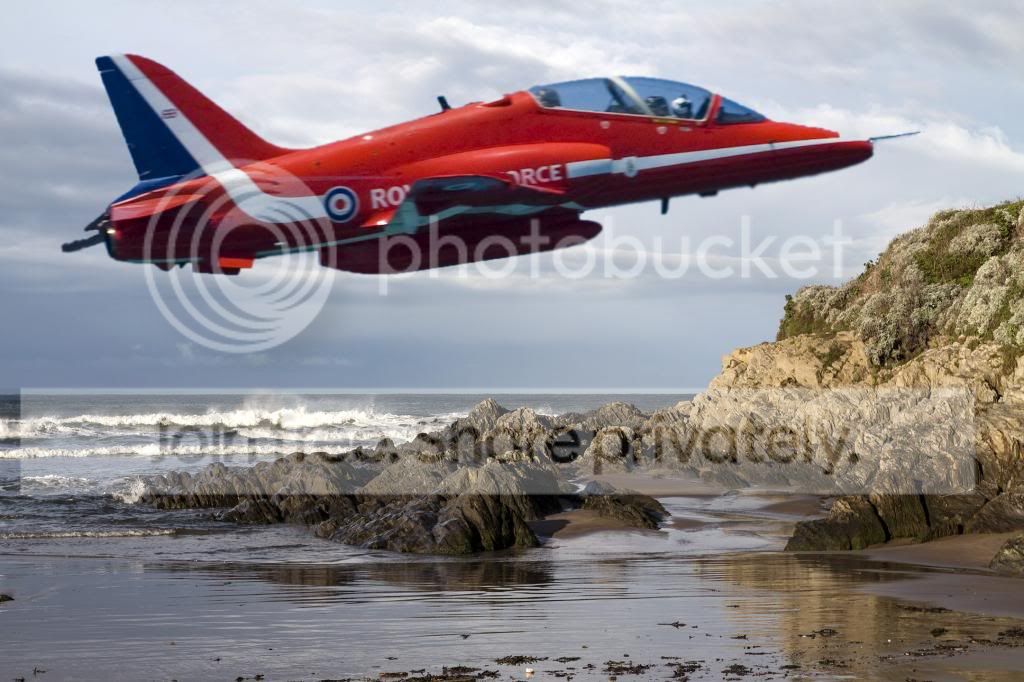
Andrew, I’m an amateur user of Photoshop (CS3) and think the image you present is a good first effort; however, there are a couple of things you might like to consider.
The plane is not sharp, so would adding a little motion blur conceal the fact?
The background is sharp, so as an alternative to the plane being blurred would motion blur applied to the background give the effect of panning? Thus taking the eye from the fact that the plane is soft.
The plane is above water, would it not have a reflection?
As Ben says if the plane was smaller in the picture it would look a little sharper.
Keep playing, experimenting, watch loads of tutorials
At school I was told to “read and inwardly digest”, this was never truer than with photography and Photoshop.
Rhodese.
The plane is not sharp, so would adding a little motion blur conceal the fact?
The background is sharp, so as an alternative to the plane being blurred would motion blur applied to the background give the effect of panning? Thus taking the eye from the fact that the plane is soft.
The plane is above water, would it not have a reflection?
As Ben says if the plane was smaller in the picture it would look a little sharper.
Keep playing, experimenting, watch loads of tutorials
At school I was told to “read and inwardly digest”, this was never truer than with photography and Photoshop.
Rhodese.

Pookeyhead
Suspended / Banned
- Messages
- 11,746
- Name
- David
- Edit My Images
- No
Scale.
That Hawk would be about 100ft long if that scale was correct.... either that, or it's really tiny and flying right in front of the camera... probably the latter, as the background is sharp and the plane is not... so DOF would indicate that it's a tiny plane close to the camera.
Your masking is pretty rough too... how are you cutting the plane out?
[edit]
Another thing... lighting. The background is low evening light coming from left to right, yet there are clues in the Hawk image that indicate light from above, such as the shadow cast by the stabiliser... it goes almost straight down which would mean the light was much higher in the plane image.
Lighting has to match in both images.
That Hawk would be about 100ft long if that scale was correct.... either that, or it's really tiny and flying right in front of the camera... probably the latter, as the background is sharp and the plane is not... so DOF would indicate that it's a tiny plane close to the camera.
Your masking is pretty rough too... how are you cutting the plane out?
[edit]
Another thing... lighting. The background is low evening light coming from left to right, yet there are clues in the Hawk image that indicate light from above, such as the shadow cast by the stabiliser... it goes almost straight down which would mean the light was much higher in the plane image.
Lighting has to match in both images.
Last edited:
OP

Mystery57
Suspended / Banned
- Messages
- 1,811
- Name
- Andrew
- Edit My Images
- Yes
Fair points David - it was never intended as a serious photo, more a case of trying to learn technique on how to do things - mainly the copy and pasting from one photo into another. This is where I am struggling at the moment. Attention to finite detail will become more important when I understand how the best way to action something in Photoshop is.
In this one I tried having the two photos opened, then use the wand tool to select the outline of the Hawk, refined the edges, copied and pasted into a new document where I then resized it, then a final copy and paste into the landscape photo.
Im sure there must be an easier way you can describe to me - thanks
In this one I tried having the two photos opened, then use the wand tool to select the outline of the Hawk, refined the edges, copied and pasted into a new document where I then resized it, then a final copy and paste into the landscape photo.
Im sure there must be an easier way you can describe to me - thanks
Rhodese
Suspended / Banned
- Messages
- 1,154
- Edit My Images
- Yes
Pookeyhead
Suspended / Banned
- Messages
- 11,746
- Name
- David
- Edit My Images
- No
Fair points David - it was never intended as a serious photo, more a case of trying to learn technique on how to do things -
I know.. it's all good... you're learning... I just think it's best to get these things dealt with while you're learning because if this is something you're interested in pursuing seriously, your photography is going to have to change as well as your digital techniques.
The above link seems good... refine edge is a strong tool. Initial masking though... I find magic wand pretty useless. I tend to just use free hand lasso, but maybe that's because I use a graphics tablet and it's easier that way. Work through Rhodese's link and try again.
Last edited:
OP
Mystery57
Suspended / Banned
- Messages
- 1,811
- Name
- Andrew
- Edit My Images
- Yes
Hi David - just an update on the learning curve - my portable drive with the above pics not here at the moment, so did some experimentation using the above link and boy I can see a massive difference.
Just a few questions from the link
1) View Mode - background choice - does it really matter which ?
2) Pixel Edge Detection - what should determine the value here ?
3) Decontaminate - what should determine the percentage ?
I appreciate they are no doubt linked to the type of photo, but any tips would be great.
Im too old in the tooth to be thinking about working for a living again - this is just my hobby to occupy my time with new challenges - I take on board your comment about getting something right from the off, in the last instance though I didnt have a different photo that I wanted to use in that setting, so the light reflections would always be an issue.
cheers for the help
Andrew
Just a few questions from the link
1) View Mode - background choice - does it really matter which ?
2) Pixel Edge Detection - what should determine the value here ?
3) Decontaminate - what should determine the percentage ?
I appreciate they are no doubt linked to the type of photo, but any tips would be great.
Im too old in the tooth to be thinking about working for a living again - this is just my hobby to occupy my time with new challenges - I take on board your comment about getting something right from the off, in the last instance though I didnt have a different photo that I wanted to use in that setting, so the light reflections would always be an issue.
cheers for the help
Andrew
OP
Mystery57
Suspended / Banned
- Messages
- 1,811
- Name
- Andrew
- Edit My Images
- Yes
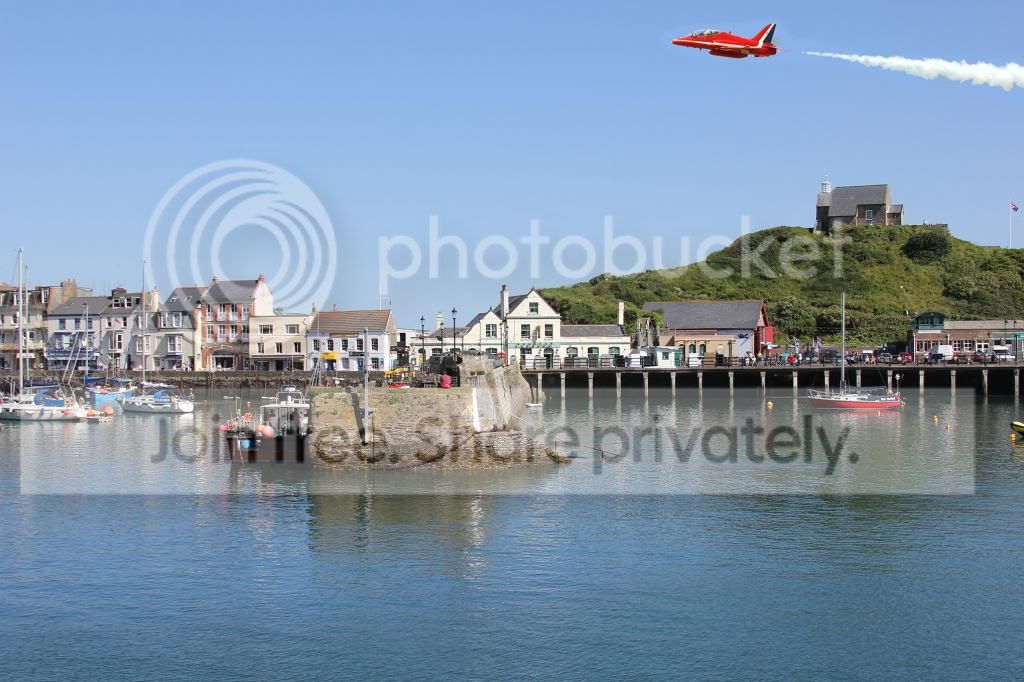
Right heres a different picture using the technique in the link, and photos from an old camera.
Questions for this one are
1. Where and how would I start thinking about shadows on the Hawk / water.
2. How do I resize the Hawk
3. The sky from the Hawk photo that came across in the merge was a different shade so I used the eyedropper and bucket tool - is there another way
4. What can I do about the smoke trail - its a mess edges and colouring
Questions for this one are
1. Where and how would I start thinking about shadows on the Hawk / water.
2. How do I resize the Hawk
3. The sky from the Hawk photo that came across in the merge was a different shade so I used the eyedropper and bucket tool - is there another way
4. What can I do about the smoke trail - its a mess edges and colouring
Hello.
I am not an expert at all with this type of thing but looking at your image.
1. I would look to where the shadows are falling in the scene eg: sun apears to be coming in at 1/2 o clock ish "I think". I would then google for making shadow.
2.Ctr +T for transform to resize jet plane.
3.Not sure looks ok at this size to me. I would have tried the Hue and sturation adjustment layer myself. But anyway that works is ok.
4.Again can't see a great deal only small part of the scene. I would probably do a curves adjustment layer or similiar to really brighten the smoke to white then invert mask and paint the white smoke back in. Then maybe a stamped layer above and do a gaussian blur filter to soften the smoke edges again add mask invert and paint smoke back in.
Well thats a novice opinion but it's whre I would start and adapt my aproach if not getting the right results.
All trial and error for me.
Enjoy.
Gaz
I am not an expert at all with this type of thing but looking at your image.
1. I would look to where the shadows are falling in the scene eg: sun apears to be coming in at 1/2 o clock ish "I think". I would then google for making shadow.
2.Ctr +T for transform to resize jet plane.
3.Not sure looks ok at this size to me. I would have tried the Hue and sturation adjustment layer myself. But anyway that works is ok.
4.Again can't see a great deal only small part of the scene. I would probably do a curves adjustment layer or similiar to really brighten the smoke to white then invert mask and paint the white smoke back in. Then maybe a stamped layer above and do a gaussian blur filter to soften the smoke edges again add mask invert and paint smoke back in.
Well thats a novice opinion but it's whre I would start and adapt my aproach if not getting the right results.
All trial and error for me.
Enjoy.
Gaz
Last edited:
OP
Mystery57
Suspended / Banned
- Messages
- 1,811
- Name
- Andrew
- Edit My Images
- Yes
Hi Gary thanks for the comments
CTRL T - thats another one in my notebook
The problem with the Hue & Saturation it would work to a degree but it wouldnt fill in the little blobs around the merged in plane that I could see. I dont know why they were coming across in the merge, as on the layer they were fine.
Certainly a few things to try out - cheers Andrew
CTRL T - thats another one in my notebook
The problem with the Hue & Saturation it would work to a degree but it wouldnt fill in the little blobs around the merged in plane that I could see. I dont know why they were coming across in the merge, as on the layer they were fine.
Certainly a few things to try out - cheers Andrew
No problem Andrew.
Re: around the plane. How many images are here 2 ? or 3.
2 Being the sky including the plane plus the main scene eg houses plus sea.
Or do you have plane on a layer of it's own plus the other 2 ?
Some more options.
First off.
Pen round the plane pretty easy as it's low res + it's small. Can also do the smoke. Copy and paste the plane/smoke to a new layer. Turn layer visibility off.
I would then sample the sky colour, from main image layer then create a new layer (blank) then fill with the sampled colour add a mask invert it then paint over the plane you then have a blue sky "clean" with no plane.
Then turn on visibility of copied plane layer.
You can free transform the plane and smoke from here you can also play around with the hue/saturation if you like.
Gaz
Re: around the plane. How many images are here 2 ? or 3.
2 Being the sky including the plane plus the main scene eg houses plus sea.
Or do you have plane on a layer of it's own plus the other 2 ?
Some more options.
First off.
Pen round the plane pretty easy as it's low res + it's small. Can also do the smoke. Copy and paste the plane/smoke to a new layer. Turn layer visibility off.
I would then sample the sky colour, from main image layer then create a new layer (blank) then fill with the sampled colour add a mask invert it then paint over the plane you then have a blue sky "clean" with no plane.
Then turn on visibility of copied plane layer.
You can free transform the plane and smoke from here you can also play around with the hue/saturation if you like.
Gaz
No problem Andrew.
If it's only 2 layers then easiest way would be to have the plane layer above the harbour scene and then add a layer mask to the plane layer. All you need to do then is have your paint colour set to black and get your paint brush. Zoom in to the plane and paint with the black paint around the plane removing the bad pixels. You can choose how hard the brush edge is (feather) in the brush properties (on the top tool bar). You can also use the opacity slider of the paint applied.Beauty is if you paint over stuff you wanted to keep you just chose the white paint and paint it back.
Right I will stop pestering you now. "Am off work recovering from a fall, so giving me something to do" Hope you get it sorted. You seem to have a good understanding of this stuff already.
Gaz
If it's only 2 layers then easiest way would be to have the plane layer above the harbour scene and then add a layer mask to the plane layer. All you need to do then is have your paint colour set to black and get your paint brush. Zoom in to the plane and paint with the black paint around the plane removing the bad pixels. You can choose how hard the brush edge is (feather) in the brush properties (on the top tool bar). You can also use the opacity slider of the paint applied.Beauty is if you paint over stuff you wanted to keep you just chose the white paint and paint it back.
Right I will stop pestering you now. "Am off work recovering from a fall, so giving me something to do" Hope you get it sorted. You seem to have a good understanding of this stuff already.
Gaz
OP
Mystery57
Suspended / Banned
- Messages
- 1,811
- Name
- Andrew
- Edit My Images
- Yes
Thanks Gaz - Im enjoying trying to teach myself things with help from people like yourself - some of the videos I have found on the Internet have been good, others utter garbage.
Clear instructions like you have given make things a little simpler - which is how I prefer learning to be these days
ps particularly like the tip about the white paint - one of my frustrations previously has been making a mistake and having to start again not always realising theres a short cut to clear the mistake
Clear instructions like you have given make things a little simpler - which is how I prefer learning to be these days
ps particularly like the tip about the white paint - one of my frustrations previously has been making a mistake and having to start again not always realising theres a short cut to clear the mistake
Last edited:
OP
Mystery57
Suspended / Banned
- Messages
- 1,811
- Name
- Andrew
- Edit My Images
- Yes
Gaz - cant see what I am doing wrong trying to create the layer mask.
Ive got the plane photo open, and the harbour photo above it on the layer panel list but not visible on the screen
But when I go to Layer, Layer Mask in the top menu its greyed out.
Tried it the other way round but am obviously missing something daft here.
Could you run through what you would do in Idiots Guide terms as going in circles at the moment - so close but so far
One Layer = Harbour
One Layer = Plane
thanks
Andrew
Ive got the plane photo open, and the harbour photo above it on the layer panel list but not visible on the screen
But when I go to Layer, Layer Mask in the top menu its greyed out.
Tried it the other way round but am obviously missing something daft here.
Could you run through what you would do in Idiots Guide terms as going in circles at the moment - so close but so far
One Layer = Harbour
One Layer = Plane
thanks
Andrew

OP
Mystery57
Suspended / Banned
- Messages
- 1,811
- Name
- Andrew
- Edit My Images
- Yes
Im really missing something silly here and I know this is where I have stumbled when trying to learn this previously.
As Graham suggested I duplicated the Plane Layer, now = Plane2 Layer
So I have
Harbour Layer - no eye no padlock
Plane Layer - eye, padlock symbol
Plane Layer 2 - eye, no padlock
I then look at the drop down menus and Layer Mask is now not grey - but the options available to me are Reveal All, Hide All, From Transparency.
Im now lost
thanks in anticipation Guys, I feel nearly there but at that stage where Im going round and round trying to get the next step right - I feel a bit daft that I just cannot get my head around this technique and have to ask what are probably daft questions. Thanks for your patience.
Andrew
As Graham suggested I duplicated the Plane Layer, now = Plane2 Layer
So I have
Harbour Layer - no eye no padlock
Plane Layer - eye, padlock symbol
Plane Layer 2 - eye, no padlock
I then look at the drop down menus and Layer Mask is now not grey - but the options available to me are Reveal All, Hide All, From Transparency.
Im now lost
thanks in anticipation Guys, I feel nearly there but at that stage where Im going round and round trying to get the next step right - I feel a bit daft that I just cannot get my head around this technique and have to ask what are probably daft questions. Thanks for your patience.
Andrew
Hi Andrew.
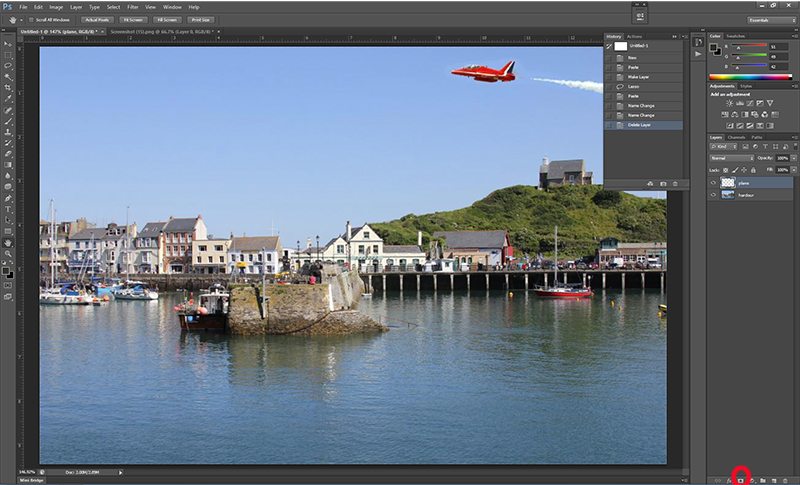
When you have a padlock this is normally the background layer which as you say cannot add a mask to. So what you do is put your cursor over the padlock and double click. Box opens up "new layer" you can enter a name if you like or not just ok.
Now to add a layer mask click the layer you want to have mask on eg: the 2nd layer in a stack. Then go down to where I have highlighted red in the image and click.
You get a layer mask which is white which means reveal all. So this means what ever adjustments you make will be visable you can then "with black paint brush" paint out areas you don't want the adjustment to effect.
Hope that is of some helps:
ps : Reveal all and hide all in laymens terms: Means the mask is filled with white paint (reveal all} or black paint "hide all"
Gaz
Last edited: