

You are using an out of date browser. It may not display this or other websites correctly.
You should upgrade or use an alternative browser.
You should upgrade or use an alternative browser.
Macintosh-HD Data
- Thread starter wibbly
- Start date
AndrewFlannigan
Suspended / Banned
- Messages
- 11,977
- Edit My Images
- No
OP

wibbly
Suspended / Banned
- Messages
- 5,167
- Name
- Dave
- Edit My Images
- Yes
I read that this morning but still makes no sense unless I want to delete everything and try and start again, from what I read.
AndrewFlannigan
Suspended / Banned
- Messages
- 11,977
- Edit My Images
- No
OP
wibbly
Suspended / Banned
- Messages
- 5,167
- Name
- Dave
- Edit My Images
- Yes
Thanks, I’ll have a look at that and see if that works. There isn’t much left to delete from the finder window. I’ve moved all the big stuff (ie LR) to an external drive.All of your documents and user files are stored in HD-data, all system files are stored in HD.
To delete stuff from hd-data, just delete the files from the finder window.

- Messages
- 8,852
- Name
- Tom
- Edit My Images
- Yes
Right click on the macintosh HD icon on the desktop and click manage storage. It will then populate a list of all files and documents by type.
On the left you can click on a category and filter by file size to see what’s talking up the room. Could well be a backup or something.
I often loose 800gb through davinci resolve cache files if I forget to determine them regularly
On the left you can click on a category and filter by file size to see what’s talking up the room. Could well be a backup or something.
I often loose 800gb through davinci resolve cache files if I forget to determine them regularly
OP
wibbly
Suspended / Banned
- Messages
- 5,167
- Name
- Dave
- Edit My Images
- Yes
Right click on the macintosh HD icon on the desktop and click manage storage. It will then populate a list of all files and documents by type.
On the left you can click on a category and filter by file size to see what’s talking up the room. Could well be a backup or something.
I often loose 800gb through davinci resolve cache files if I forget to determine them regularly

I’ll have a look when I get back. I’m pretty sure I only have a ‘main’ icon and not a Mac-HD Data icon in fairness.
Thanks again.
- Messages
- 8,852
- Name
- Tom
- Edit My Images
- Yes
Yes you will only have a Macintosh hd icon as the -data is basically hidden. It’s supposed to be a seamless way of separating system files so you can’t easily get malware or viruses into it. Everything you interact with when it comes to applications and documents is stored on the hidden -data partition, whereas all core system and application files are stored in the hd partition that you technically can’t mess with.
OP
wibbly
Suspended / Banned
- Messages
- 5,167
- Name
- Dave
- Edit My Images
- Yes
So how does one get to the hidden part?
If I go to about this Mac and storage it shows I have about 800gb free. Problem is if I go to Disk utility and look at the hd-data it shows a full disk.
All I can find anywhere online is deleting the drive as a fresh install.
If I go to about this Mac and storage it shows I have about 800gb free. Problem is if I go to Disk utility and look at the hd-data it shows a full disk.
All I can find anywhere online is deleting the drive as a fresh install.
- Messages
- 8,852
- Name
- Tom
- Edit My Images
- Yes
You don’t need to touch it, it the same disk, just a partition, well it’s a volume actually, but the same principle , the data portion changes size as you add and delete stuff, so it might always look full, it isn’t.
Last edited:
- Messages
- 8,852
- Name
- Tom
- Edit My Images
- Yes
I assume you have more than one physical drive then? Can you screen shot your disk utility.
The startup drive should be just that, for startup, you shouldn’t download anything to it unless you are trying to update the OS, in which case you may need to format the startup disk and reinstall the new os via disk recovery.
The startup drive should be just that, for startup, you shouldn’t download anything to it unless you are trying to update the OS, in which case you may need to format the startup disk and reinstall the new os via disk recovery.
OP
wibbly
Suspended / Banned
- Messages
- 5,167
- Name
- Dave
- Edit My Images
- Yes
I’ve got one disk only. I think with a particular software update the disk was partioned as part of the update. I’ll take a screenshot when I’m in front of it!I assume you have more than one physical drive then? Can you screen shot your disk utility.
The startup drive should be just that, for startup, you shouldn’t download anything to it unless you are trying to update the OS, in which case you may need to format the startup disk and reinstall the new os via disk recovery.
OP
wibbly
Suspended / Banned
- Messages
- 5,167
- Name
- Dave
- Edit My Images
- Yes
I assume you have more than one physical drive then? Can you screen shot your disk utility.
The startup drive should be just that, for startup, you shouldn’t download anything to it unless you are trying to update the OS, in which case you may need to format the startup disk and reinstall the new os via disk recovery.
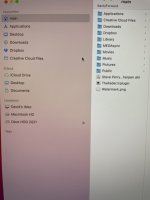
That’s all that’s showing.
OP
wibbly
Suspended / Banned
- Messages
- 5,167
- Name
- Dave
- Edit My Images
- Yes
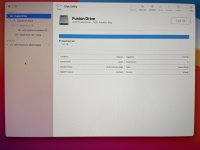
That’s what I get through disk utilityGo into disk utility via applications and utility and see what that says. If you have a startup partition it will show there.
- Messages
- 8,852
- Name
- Tom
- Edit My Images
- Yes
That makes it even more complicated as you have a fusion drive, which is a traditional hard disk drive and a ssd combined into one!
The ssd stores all the apps and often used files and everything else gets moved onto the traditional hdd. As well as this, you still also have the separate HD and -data volumes within the fusion drive. This is all controlled by the OS and can't be messed with.
So as to why you are getting a startup disk error, I forgot they changed it, the startup disk can now be the main drive, it used to be a separate partition.
Looking at the image its hard to say if its full or not, as its showing the fusion drive as full by the blue, but that doesn't necessarily mean the storage part of the drive is also full.
The ssd stores all the apps and often used files and everything else gets moved onto the traditional hdd. As well as this, you still also have the separate HD and -data volumes within the fusion drive. This is all controlled by the OS and can't be messed with.
So as to why you are getting a startup disk error, I forgot they changed it, the startup disk can now be the main drive, it used to be a separate partition.
Looking at the image its hard to say if its full or not, as its showing the fusion drive as full by the blue, but that doesn't necessarily mean the storage part of the drive is also full.


Craikeybaby
Suspended / Banned
- Messages
- 7,590
- Name
- Lewis
- Edit My Images
- Yes
I use an app called DaisyDisk to work out what is filling my Mac drive.
OP
wibbly
Suspended / Banned
- Messages
- 5,167
- Name
- Dave
- Edit My Images
- Yes
Cheers, I’ve used Daisy Disk previously but couldn’t download it even if I wanted to - start up disk says full!I use an app called DaisyDisk to work out what is filling my Mac drive.

OP
wibbly
Suspended / Banned
- Messages
- 5,167
- Name
- Dave
- Edit My Images
- Yes
You can see from the images below. The drive says the storage shows 892gb free & the second image shows the Macintosh HD -Data files has used 941gb. Start up disk is full.
I don’t understand the discrepancy or where I can remove files from the HD - Data file.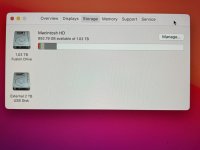
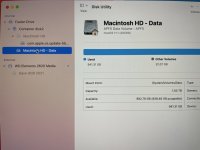
I don’t understand the discrepancy or where I can remove files from the HD - Data file.

gramps
Suspended / Banned
- Messages
- 44,805
- Name
- 'Gramps'
- Edit My Images
- No
Go to FINDER, locate your disk on the left column and click on it once.
You should see what it contains appear in the right-hand box - Applications, Library, System, Users.
Double-click on Users then double-click your file e.g. "wibbly" to display all of the folders in there ... Desktop, Documents, Pictures, Movies etc.
Double-click on where you want to remove files from, e.g. Documents.
Select any files/folders you want to remove and either drag them to the Bin or Right-click on them and select Move to Bin.
Caveat - I don't have a fusion drive so things could be different for you.
You should see what it contains appear in the right-hand box - Applications, Library, System, Users.
Double-click on Users then double-click your file e.g. "wibbly" to display all of the folders in there ... Desktop, Documents, Pictures, Movies etc.
Double-click on where you want to remove files from, e.g. Documents.
Select any files/folders you want to remove and either drag them to the Bin or Right-click on them and select Move to Bin.
Caveat - I don't have a fusion drive so things could be different for you.
- Messages
- 8,852
- Name
- Tom
- Edit My Images
- Yes
Very odd issue, the fusion drive is saying it’s full, the had saying it has 800gb free and the data saying over 900 used. I’m not very good at maths, but that doesn’t add upI've ended up re-installing everything, via a Time Machine back up. Hopefully that's solved the issue.
Thanks for all the info, particularly you @TCR4x4

Hopefully just a glitch and the reinstall has sorted it.

Musicman
Suspended / Banned
- Messages
- 9,866
- Name
- Rob Telford
- Edit My Images
- No
Thanks, I’ll have a look at that and see if that works. There isn’t much left to delete from the finder window. I’ve moved all the big stuff (ie LR) to an external drive.
Reading the thread, I suspect you had the disk filled with APFS snapshots of the data you moved off to the external drive, which hadn’t been subsequently released for some reason/bug.

Creating, managing and using Apple File System snapshots for startup drive backups
Starting with macOS High Sierra, Time Machine on Apple File System-formatted (APFS) startup drives gained the ability to create APFS snapshots. These snapshots capture the state of the startup volu…
 derflounder.wordpress.com
The Fusion drive may be a factor as they were excluded initially from AFPS deployment by Apple because of the challenges they present.
Your clean reinstall should sort it out, though
OP
wibbly
Suspended / Banned
- Messages
- 5,167
- Name
- Dave
- Edit My Images
- Yes
Seems to have. My business printer doesn’t work now, no drivers available!Your clean reinstall should sort it out, though