

Lightroom

Dangerous

Suspended / Banned
Messages
414
Edit My Images
No
Having been told just how good LR Classic catalogue system is I've spent a few hours watching videos and following them I am now starting to understanding how they work. After a few false starts I've made a start

Before I go too far setting up layers of collection sets & collections is it possible to select photos the ONLY exists in 2 or more collections, if I select 2 collections it shows all photos that appear either collection.
 
I did not fully understand your question but you may have many collections which may each contain the same photograph. As the collection is just a pointer, it does not actually create multiple copies of the original. If you select two or more collections that contain the same photograph, it will only display any photograph once.

If you make good use of the catalogue as I do you will need to ensure you use keywords, ratings and colour codes but no need for a complex folder set. Collections and smart collections can be very useful. Most of my collections are temporary where I may place some potential entries to a competition or a topic for experiment. I do have a couple of smart collections which automatically list images rated 5*, from the last 5 years and final edited files for example.

Dave
 
Not just with a click.

As the above poster suggests, you'd need to create a third collection that contains images that appear in collection 1 as well as collection 2.

It depends how you create your collections. If you create them by dragging and dropping images in, then this is going to be tricky. If you use Smart collections to automatically populate them then it's a simple case of setting up another smart collection that has the variables of 1 as well as 2.

A quick way to do this if you did the former, would be to keyword all the images in collection 1 with "keyword1" and all the images in collection 2 with "keyword2". Then create a smart collection that looks for all images that contain keyword1 as well as keyword2. Just be sure you don't have keywords with spaces in them because the smart collection filter sees "landscape photography" for example as 2 keywords, where "landscape-photography" is seen as one.

Collections (esp smart collections) become very powerful once you start keywording.

For example, "cats" and "dogs" as keywords would allow you to create a smart collection for dogs a smart collection for cats and a smart collection for cats as well as dogs. I also have "mypets" as a keyword which allows me to pull them together too. Want to find all pictures of my cats? mypets+cats as a smart collection. This excludes my dogs, chickens and rabbits, as well as other people's cats!
 
Last edited:
I did not fully understand your question but you may have many collections which may each contain the same photograph. As the collection is just a pointer, it does not actually create multiple copies of the original. If you select two or more collections that contain the same photograph, it will only display any photograph once.

If you make good use of the catalogue as I do you will need to ensure you use keywords, ratings and colour codes but no need for a complex folder set. Collections and smart collections can be very useful. Most of my collections are temporary where I may place some potential entries to a competition or a topic for experiment. I do have a couple of smart collections which automatically list images rated 5*, from the last 5 years and final edited files for example.

Dave

I think I was misunderstanding just how 'collections' work.
Partly to do with the way the Photo Gallery keywords in the photos are displayed in LR Classic it seems like I will have to remove all the current keywords & rebuild using LR's method. From what I've seen up to now their Keywords & associated synonyms are a much better way than Photo Gallery's way and collections are an added bonus. At least now I understand a bit more I'm finding LR usable.

Maybe I need to learn a bit more about using collections. Thanks for the help.
 
I use collections only when I need to, to gather together photos for a particular project e.g. to narrow down the selection for photos to print or share.

You do know that you can look at the keywords and automatically bring up a list of all ones with a particular keyword? Click on a photo in the library, click on keyword list on the r.h.side and all keywords will be listed with a number beside it of how many images have that keyword. You then click on the one keyword you want and it will display all the relevant photos. This might be an easier way to get all your keywords to be what you want? Apologies if you already know all this!
 
I use collections only when I need to, to gather together photos for a particular project e.g. to narrow down the selection for photos to print or share.

You do know that you can look at the keywords and automatically bring up a list of all ones with a particular keyword? Click on a photo in the library, click on keyword list on the r.h.side and all keywords will be listed with a number beside it of how many images have that keyword. You then click on the one keyword you want and it will display all the relevant photos. This might be an easier way to get all your keywords to be what you want? Apologies if you already know all this!

Yeah I know how keywords work thanks, what was stopping me working with them in lightroom was all the assigned keywords from Photo gallery that were 'in' the photo had the full hierarchy shown for every keyword. ie "MANMADE/Outdoor Sculptures/Metalic Artwork/nessie" so that was listed 10 times if you had 10 photos of the sculpture. Meant it was almost impossible to find the keyword I wanted (the hierarchy was shown correctly in Photo Gallery. It is only since starting to learn LR that I've found LR only displays the last keyword from the hierarchy (in the example it would be 'nessie' that it makes sense and is readable and can be found easy. Thanks Bebop
 
(y) I thought it was worth mentioning. The other thing.... which again you might already know... is that you can choose not to display the containing keywords, which removes the higher levels, but not sure if that will work in your case.
 
(y) I thought it was worth mentioning. The other thing.... which again you might already know... is that you can choose not to display the containing keywords, which removes the higher levels, but not sure if that will work in your case.
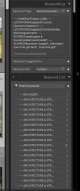
All I have done is enter the keywords in to a notepad text file building up the hierarchy as it appeared for a false keyword set I entered and exported to see what format it took. At the bottom of a long list of keyword clutter (left over from Photo Gallery) I have the new LR keywords (last ones in the hierarchy) separated by a comma in the KEYWORDING box and the full hierarchy at the bottom of the (still messy but getting neater as I delete the old keywords) keyword list. Looks like it will work as I expected it to.

You can see the messy old keywords in this image
0.jpg

Each one of the architecture & ...... lines has a different keyword at the end so you can see why I thought LR was a poor system. lol

Yet it worked for me in Photo Gallery. Now if I realised the LR was as good as it is I would have been using it for the last 2 years. Ah well, you live & learn.

I will get rid of all the old keywords as I transfer the images to the new LR keywords, then I can look to see if adding SYNONYMS will help me or not.

Again, thanks for your help.
 
I was hoping I could float the 2 side panels to monitor two to expand them further but it doesn't seem possible.
 
Think I need to learn the basics first, lol.

Thanks, saved the link for later.

There's a lot to go back to when you have more time/skill but item 3 on that link looks exactly what you want.

This feature is copied from my Bag-o-Goodies plugin, and is documented there. In short, it shows what photos are shared between two sources (collections and/or folders), and which photos are unique to one or the other.
 
I think I was misunderstanding just how 'collections' work.
Partly to do with the way the Photo Gallery keywords in the photos are displayed in LR Classic it seems like I will have to remove all the current keywords & rebuild using LR's method. From what I've seen up to now their Keywords & associated synonyms are a much better way than Photo Gallery's way and collections are an added bonus. At least now I understand a bit more I'm finding LR usable.

Maybe I need to learn a bit more about using collections. Thanks for the help.

Simple answer: Using an analogy, think of Lightroom as if it was iTunes Library and think of a Collection as if it was Playlist.
 
Back
Top