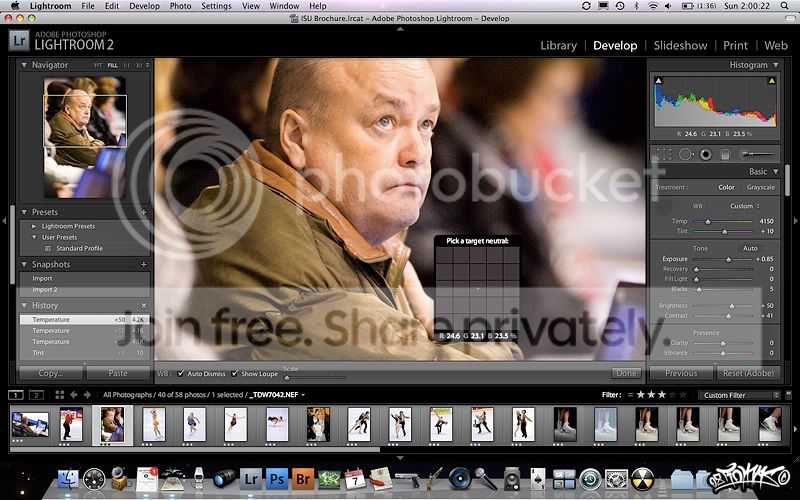
Lightroom White Balance Tool

Keltic Ice Man

Glossary King
Suspended / Banned
Messages
3,179
Name
Allan
Edit My Images
Yes
Ok a really stupid question :bang:

In Lightroom, the whitebalance tool. I click on it, and get the dropper thing, and go onto my picture. What am I looking to click on? Is it:
a) Something White
b) Something 18% Grey
c) Next Doors Cat
d) Just Click it man
e) All of the above.

I've completely forgotten and at the moment cant get whitebalance to work whatever I click on

I ask because I have just got a colour card like this one here and can't work out which colour to click on when I do studio shots.
 
Click on anything that should be a neutral grey, using whites can be a bit hit and miss if they're blown so best to stick with mid tones if you can.
 
The idea (as far as I know) is to get the R: G: B: values as close to each other as possible, for example:

R:64.7 G:64.5 B:63.2

The closer they are the more accurate the white balance is supposed to be.

Picture1-1.jpg
 
Tomas is right, try and pick a point where the RGB values are somewhere between 60 and 70 and this will give you the correct WB.
 
The idea (as far as I know) is to get the R: G: B: values as close to each other as possible, for example:

R:64.7 G:64.5 B:63.2

The closer they are the more accurate the white balance is supposed to be.

Picture1-1.jpg

The guy in your pic doesn't look too convinced :lol:
 
Ok a really stupid question :banghead:

In Lightroom, the whitebalance tool. I click on it, and get the dropper thing, and go onto my picture. What am I looking to click on? Is it:
a) Something White
b) Something 18% Grey
c) Next Doors Cat
d) Just Click it man
e) All of the above.

I've completely forgotten and at the moment cant get whitebalance to work whatever I click on

I ask because I have just got a colour card like this one here and can't work out which colour to click on when I do studio shots.


Forget that.. get a grey card. They're designed for accurate reflective metering, but they are calibrated neutral grey. Jessops, or places like that sell them.. they're a few quid. Take a shot with the grey card in the frame first, then take the actual shot without it. You can then white balance off the grey card, and then just apply those settings to the picture without the grey card by multi selecting the second one, and using "sync" in LR. Perfect white balance every single time, guaranteed.

Here's a section from the Raw work flow series of lectures I give. It uses Adobe Camera RAW, but the principle is the same. As usual the lectures are accompanied by demonstrations, so there's no step by step walk through, but this should get you up and running once you have a grey card. use a proper grey card though... not everyone has great colour acuity, and what may SEEM neutral could well not be. Grey cards are precisely printed and are accurate. You can't just colour in a piece of A4 with a HB pencil :)

https://dl.dropboxusercontent.com/u/23953768/White Balance.docx
 
Last edited:
If you're feeling flush, an X-Rite ColorChecker Passport is very handy. Apart from the neutral grey targets it has creative targets as well, such as a row of portrait targets which are calibrated to warm skin tones (if you don't mind sacrificing accuracy for a potentially more pleasing image). You can use it to make custom DNG profiles amongst other things too if you're anal enough!
 
Holy thread revival :)
 
Back
Top