Lightroom reset.

Graham

Suspended / Banned
Messages
7,448
Name
Graham
Edit My Images
Yes
Hi all,
It appears I done something in LR Classic (CC) and when I use the Masking tool and select a object it give a Colour cast on the photo.
I just deleted LR Classic (CC) including the "C" files Adobe files and reinstalled it and I still have the same problem.
Is there a easy way to reset Adobe LR (CC) back to a new state ?
I don`t care about the photo library as it`s easily recoverable.

Thanks
 
Last time I had colour cast problems with lightroom it was caused by drivers, and updating the graphics driver sorted it.
 
Last time I had colour cast problems with lightroom it was caused by drivers, and updating the graphics driver sorted it.
Thanks, No Graphics drivers as such, it`s all on the Processor.
I got no idea about how to update the Processors driver.
 
Hi all,
It appears I done something in LR Classic (CC) and when I use the Masking tool and select a object it give a Colour cast on the photo.
I just deleted LR Classic (CC) including the "C" files Adobe files and reinstalled it and I still have the same problem.
Is there a easy way to reset Adobe LR (CC) back to a new state ?
I don`t care about the photo library as it`s easily recoverable.

Thanks

By default the Mask Overlay is RED. You can change the colour of this, or you can turn it off in the Mask Panel.
 
By default the Mask Overlay is RED. You can change the colour of this, or you can turn it off in the Mask Panel.
Thanks
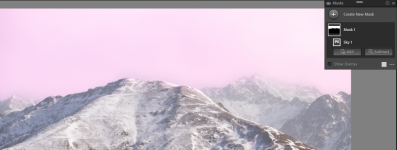
If I click on Sky for example I get a redish cast then if I click on "Show overlay" the Red shows even more.
It`s this 1st red I am trying to et rid of.
 

Attachments

  • Screenshot 2025-01-19 161134.png
    Screenshot 2025-01-19 161134.png
    14.4 KB · Views: 6
Thanks
If I click on Sky for example I get a redish cast then if I click on "Show overlay" the Red shows even more.
It`s this 1st red I am trying to et rid of.

If you have deselected “Show Overlay” then the overlay will only be displayed when you hover the cursor over the the Mask Icons in the mask panel. If you move the cursor away from the the Mask Panel the overlay will disappear. The overlay also disappears once you start to make adjustments to the photograph.
 
@Graham Any chance you can do a screen grab to show us what you mean?
 
If you have deselected “Show Overlay” then the overlay will only be displayed when you hover the cursor over the the Mask Icons in the mask panel. If you move the cursor away from the the Mask Panel the overlay will disappear. The overlay also disappears once you start to make adjustments to the photograph.
Thanks
The colour cat shows all the time, Like I said, when I click "sow Overlay" it gets darker but I have put the overlay to white now but the colur cast is thill there
 

Attachments

  • image_2025-01-19_165622888.png
    image_2025-01-19_165622888.png
    416 KB · Views: 21
I think its meant to be like that.
When you make an adjustment it should show the changes

A good point - what adjustment did you make or is this ONLY masked with no adjustments at all?

Thanks, No Graphics drivers as such, it`s all on the Processor.
I got no idea about how to update the Processors driver.

I don't think the processor has drivers you can change. There certainly will be graphics drivers: even if you're using the on-board chipset the MoBo makers website will have driver downloads and possibly tools you can download to check you're running the latest version.
 
A good point - what adjustment did you make or is this ONLY masked with no adjustments at all?


I don't think the processor has drivers you can change. There certainly will be graphics drivers: even if you're using the on-board chipset the MoBo makers website will have driver downloads and possibly tools you can download to check you're running the latest version.
Any adjustment
I tried it with exposure the i tried it with a linear grad
 
Any adjustment
I tried it with exposure the i tried it with a linear grad

Mike - unless he's set pink to be the indicator for overlay, that's not how my 'show overlay' looks, though granted, this is a different screen.
 
This screen shot is before any adjustment is made, so, what I wasn't to know is is it possible to RESET LR
I have looked on YT and they are mostly old ones.
 
This screen shot is before any adjustment is made, so, what I wasn't to know is is it possible to RESET LR
I have looked on YT and they are mostly old ones.
I would visit the forum associated with the website shown below and seek advice on that forum. There are some really knowledgable people on it.

 
This screen shot is before any adjustment is made, so, what I wasn't to know is is it possible to RESET LR
I have looked on YT and they are mostly old ones.

Are you sure the sky wasn't pink to start with?
 
This screen shot is before any adjustment is made, so, what I wasn't to know is is it possible to RESET LR
I have looked on YT and they are mostly old ones.
go to prefs, general, and hold Alt/Option key and 'reset all prefs and relaunch' button should show.
 
Back
Top